Conan Exiles: difficulty presets, XP rates, and Custom settings
 Conan ExilesGuide
Your Conan server's XP, harvest, crafting, hunger, and building fields stay hidden until you set Difficulty to Custom in the Details tab. Pick Custom and…
Your Conan server's XP, harvest, crafting, hunger, and building fields stay hidden until you set Difficulty to Custom in the Details tab. Pick Custom and they appear straight away, before you save, so you can set the difficulty and every multiplier in one Save changes. Switching difficulty only changes those multipliers: your world, your buildings, and your characters are untouched.
The four difficulty presets
Difficulty sits in your server's Overview card, Details tab. It is a bundle of Funcom's multipliers:
Civilized (Casual) is the Haptic default: 2x XP, 2x harvest, half damage taken, crafting at half the time, gentle hunger and thirst, and you keep your gear when you die.
Decadent (Vanilla) is 1x across the board, and you still keep your gear on death.
Barbaric (Hardcore) is half XP, double enemy damage, harsh hunger and thirst, and you drop everything when you die.
Custom shows every individual field instead.
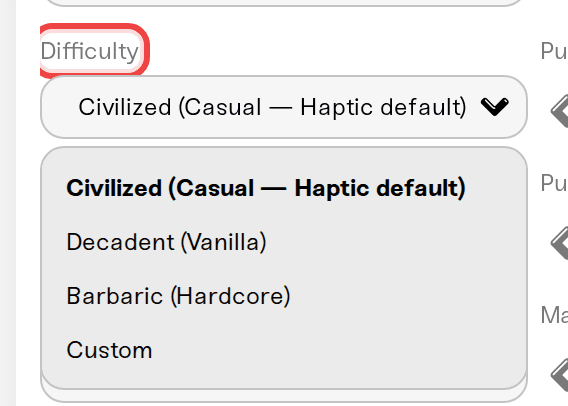
Reveal the individual sliders
Open My Servers, press Detail view on your server's card, and switch the Overview card to the Details tab.
Set Difficulty to Custom. The extra fields appear immediately, before you save: Overall XP Rate, Harvest Amount, Crafting Time, Item Spoil Rate, Drop on Death, hunger and thirst rates, NPC damage, Building Decay Speed, and around twenty more.
Set what you want, press Save changes once, then restart the server so the new values take effect.
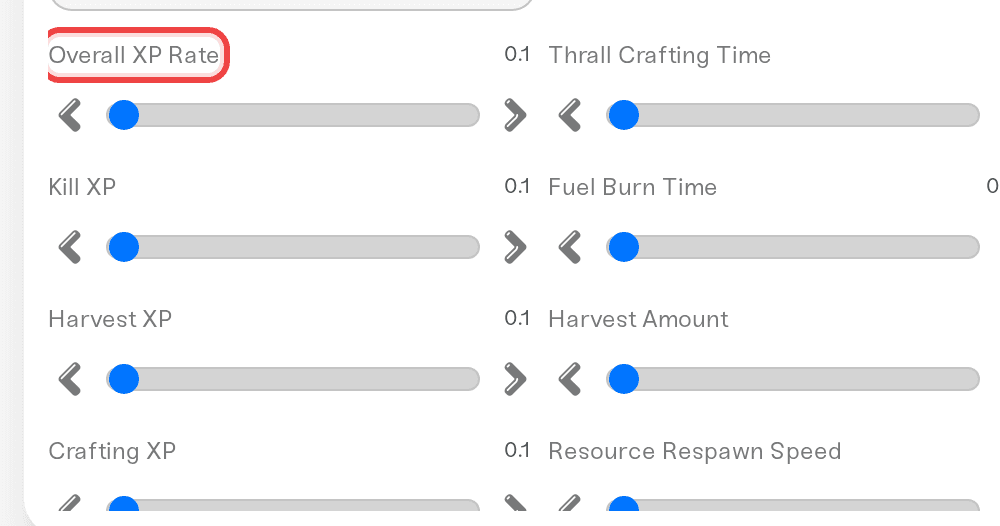
One thing to expect: switching from a preset to Custom does not copy the preset's numbers into the fields. Each field shows its own saved value, and the multiplier sliders are 1x unless you have changed them before. Coming from Civilized, that means XP drops from 2x to 1x and crafting slows from 0.5x to 1x until you set them yourself. A few fields have their own Haptic defaults instead: Building Decay Speed is 0, Drop on Death is Keep Everything, and NPC Aggro Range (cm) is 9000.
To go back, set Difficulty to a preset again. Your Custom numbers are remembered and reappear the next time you choose Custom, so this is a safe thing to experiment with.
Why those fields are hidden on a preset
A preset takes over one specific group of values at startup: the XP rates, Harvest Amount, Resource Respawn Speed, Crafting Time, hunger and thirst, Equipment Durability Loss, Player Damage Taken, NPC Damage Dealt, Item Spoil Rate, and Drop on Death. Anything you set there would be replaced by the preset's value, so we hide them rather than show controls that do nothing.
The other Custom-only fields work normally: Building Decay Speed, Structure Damage, Day Cycle Speed, Land Claim Radius, NPC Aggro Range (cm), NPC Respawn Speed, Stamina Cost, Player Damage Dealt, NPC Damage Taken, Thrall Damage Dealt, Thrall Crafting Time, and Fuel Burn Time keep their saved values and stay in effect at any difficulty. They are hidden alongside the rest, so switch to Custom when you need to change one.
Where Haptic differs from Funcom's defaults
We ship a friendlier setup than a vanilla dedicated server, because most Conan servers here are small friend groups:
Purges are off. Purge Level is
0, where Funcom's stock is 3 to 4. This field is always visible, so you can turn purges on at any difficulty. Purge Meter Trigger and Purge Prep Time do nothing while the level is 0.Building decay is off. Building Decay Speed is
0, so nothing you build ever crumbles. Funcom's stock value is 1.0.You keep everything on death. Drop on Death is Keep Everything instead of Funcom's Drop Everything.
The last two are only visible on Custom, but they apply on every difficulty.
Common requests, and the field to change
Set Difficulty to Custom to see any of these:
Faster leveling: Overall XP Rate (or the per-source rates below it).
More materials per swing: Harvest Amount, plus Resource Respawn Speed for how fast nodes come back.
Faster crafting and faster thrall taming on the wheel of pain: Crafting Time (lower is faster).
No food rotting: Item Spoil Rate to
0.Longer or shorter days: Day Cycle Speed.
Buildings that cannot be damaged: Structure Damage to
0.
PvP, PvE, and raid time windows
Server Mode is separate from difficulty and always visible:
PvE blocks player damage entirely (the default).
PvE-Conflict lets players fight each other but protects bases from raiding.
PvP allows full combat and raiding.
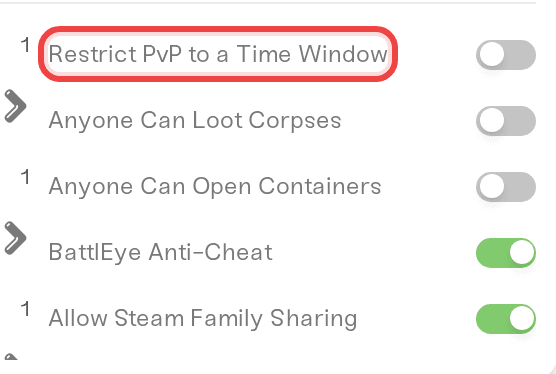
Set Server Mode to PvE-Conflict or PvP and one checkbox appears: Restrict PvP to a Time Window. The four time fields only show up after you tick it, which is what most people are missing when they cannot find them. They are Weekday PvP Start and End and Weekend PvP Start and End, written as 24-hour HHMM (so 1700 is 5pm). Conan applies the weekday window Monday to Friday and the weekend window Saturday to Sunday.
The window runs on the server's own clock, which is not necessarily your local time. Before you plan a raid night around it, set a window a few minutes ahead, restart, and check in game when PvP actually flips on.
Changing settings from the in-game Admin Panel
Everything the dashboard lists is written back into your server's config files each time it starts. So if you change XP, harvest, difficulty, or any other dashboard setting from Conan's in-game Admin Panel, it works until the next restart and then goes back to the dashboard value. Change those in the dashboard instead. Settings the dashboard does not list are left alone and keep your in-game edits.
Two limits worth knowing
Nudity is a ceiling, not a switch. Setting it to Partial or Full only permits that level; each player must also raise Maximum Nudity in their own game under Settings, Gameplay. Players on German Steam accounts cannot enable Full at all, which is a Steam regional restriction, not something we control.
If your server feels heavy with a lot of players, two Custom fields help more than anything else: lower NPC Aggro Range (cm) from 9000 to around 5000, and raise Building Decay Speed above 0 so abandoned bases stop being simulated. Be careful with the second one: decay timers then run on every structure nobody refreshes, not just abandoned ones, so a player who takes a few weeks off can come back to missing buildings.
Need help?
Reach us on Discord or at support@haptic.gg. Include your server name, the setting you changed, and a screenshot of your Details tab.


