Black map or locked fast travel after moving your world
 PalworldTroubleshooting
Your world moved fine: Palworld keeps map exploration in LocalData.sav on each player's PC. Restore it with Get your map back or by copying one file over.
Your world transferred fine. Palworld stores map exploration (the fog of war) on each player's own PC in a file called LocalData.sav, so it never travels with a world upload; your character, bases, Pals, and fast travel unlocks all carried over. To get the map back, use Get your map back on your server's card, or copy one file by hand. Either way takes about two minutes.
Why your map went dark
Palworld splits your save into two parts.
The world (
Level.savand thePlayersfolder): terrain, bases, characters, Pals, items, and progress flags such as boss defeats and fast travel unlocks. This is what you upload to a server, and it migrates correctly.Your personal map (
LocalData.sav): the areas you have explored, your map pins, and the locations and Pals you have discovered. This file stays on your PC, and the game keeps a separate one for every world and server you play on.
When you connect to your new server for the first time, Palworld creates a fresh, blank LocalData.sav for it. Your old one, with all your exploration, is still on your PC, filed under your old world. The game does not know the two worlds are related.
Fast travel looks confusing for the same reason: the unlocks live in the world and migrated fine, but a statue hidden behind the fog shows as locked until you rediscover it. Your progress is intact underneath. Your Global Palbox is not in this file either; it lives in the world save and came across with everything else.
The fast fix: Get your map back
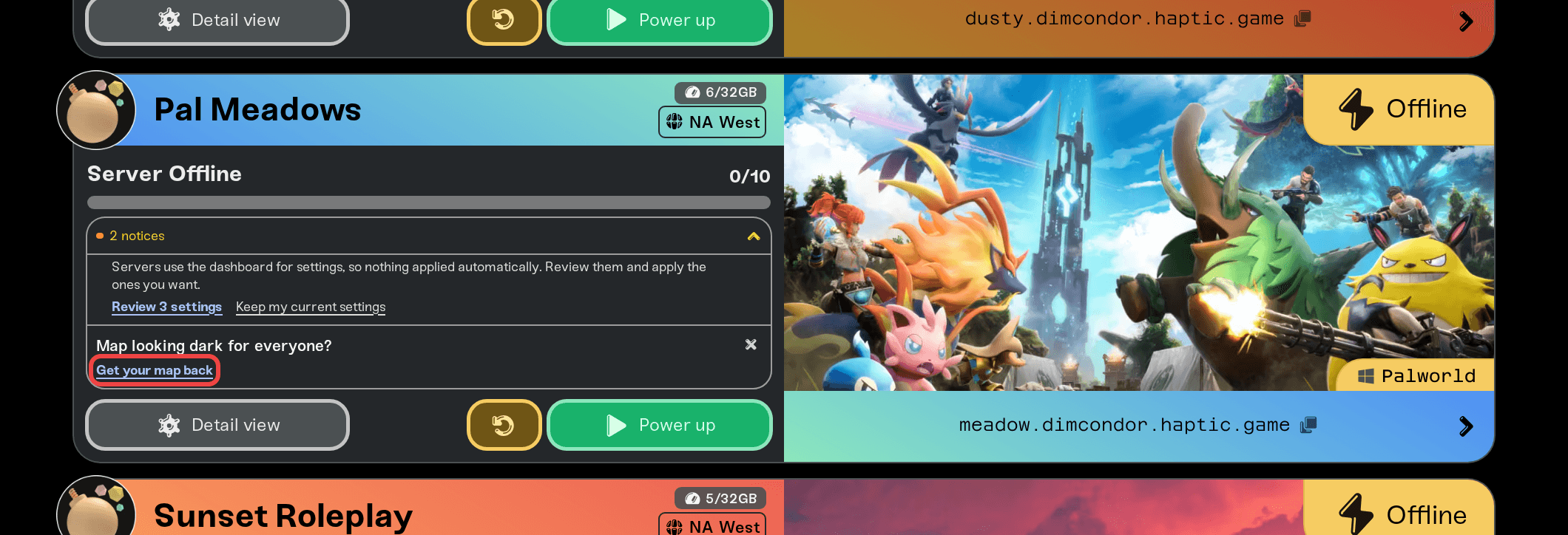
The world you uploaded almost certainly included your old LocalData.sav, and we keep it with your world. You do not need to go hunting for the file on your PC.
After a world import, your server's card on My Servers shows a notice that the map is dark, with a Get your map back button. It finds the map data your upload arrived with, gives you a Download my map data button, and walks you through the copy steps for your platform: Steam on Windows, Steam on Linux or Steam Deck, Xbox or PC Game Pass, PlayStation, and Mac.
Whose map is this? The file we hold came from the PC that uploaded the world, so it restores that player's map. Friends restore from their own copy on their own PC, using the same steps below.
If you would rather dig it out yourself, it is also inside every backup taken after the import: open your server's Backups page, download a backup, unzip it, and use the SaveGames/LocalData.sav inside.
The manual fix (Steam on Windows)
You will copy your old LocalData.sav into the new server's folder on your PC.
Join the new server once
Connect and let the world fully load, then completely close Palworld. The game rewrites this file when it closes, so it must be fully shut down while you copy.
Optional: pause Steam Cloud
Right-click Palworld in your Steam library, open Properties, then General, and uncheck Steam Cloud so it cannot overwrite the file mid-copy. Turn it back on after you have confirmed the fix.
Open your save folder
Press Win+R, paste %LOCALAPPDATA%\Pal\Saved\SaveGames, press Enter, and open the folder named with your long Steam ID number.
Identify the two world folders
You will see one folder per world or server, each named with a long string of letters and numbers. Your old world folder matches the folder you uploaded. The new server folder was created when you joined in step 1: sort by date modified, it is the newest.
Set up your undo
In the new server folder, rename LocalData.sav to LocalData.sav.bak. Do not delete it; that is your undo button.
Copy your old map in
Copy LocalData.sav from your old world folder into the new server folder.
Rejoin and check the map
Start Palworld, join the server, and open the map. Your exploration and fast travel points should be back.
Easy to undo. If anything looks wrong, delete the copied file and rename the .bak file back; you are exactly where you started. Nothing in this process can affect the server or other players.
On Steam for Linux or Steam Deck the steps are the same, just inside the Proton folder; Get your map back shows the full path for you.
Xbox and PC Game Pass
Game Pass stores saves in a Windows container format (wgs folders) instead of plain files, so swapping the file needs a community tool. The TroubleChute LocalData extractor runs in your browser and never uploads your save, and Get your map back walks you through it step by step.
Back up first. The tool's own author calls this path experimental, and a badly timed Xbox cloud sync can overwrite the result. Copy your whole wgs folder somewhere safe before you start, and keep that copy until you have seen your map load in game.
PlayStation, Xbox console, and Mac
Consoles do not let you touch a game's save files, so there is nowhere to put the map file on a PS5 or an Xbox console. That is a platform rule, not something Palworld or we control. Your map fills in again as you explore, and everything else, bases, characters, Pals, and fast travel points, came across with the world.
On Mac, Palworld keeps its saves in a sandboxed folder that has never been officially documented, and the paths repeated on other sites look wrong to us. Message us and we will work it out with you rather than send you guessing; your download stays available in Get your map back.
Things that will not fix it
Re-uploading the world, in any format, any number of times: the fog was never in the world files.
Map reveal mods installed on the server: the fog is drawn from the file on each player's PC, so a server-side mod cannot clear it.
Server settings, more memory, restarts, or switching hosts: this is base-game Palworld behavior, identical on every provider.
Each player restores their own map
LocalData.sav is per player. If friends played on your old co-op world, each of them has their own copy on their own PC and follows the same steps to restore their own map. One player's file cannot restore another player's map.
Still stuck?
If Get your map back says it could not find map data, your upload probably did not include the file; message us and we will check together. And if you copied the file but the map is still dark, or you cannot tell which folder is which, send us a screenshot of your SaveGames folder in Discord or by email to support@haptic.gg, and we will identify the right folder by its name.


