Minecraft Bedrock: Upload Your World (.mcworld included)
 Minecraft BedrockGuide
You can move a Bedrock world from Windows, iPhone, or iPad onto your server (Android and consoles need a detour, covered below). Minecraft exports worlds…
You can move a Bedrock world from Windows, iPhone, or iPad onto your server (Android and consoles need a detour, covered below). Minecraft exports worlds as a .mcworld file, but the upload box only takes archives (ZIP, RAR, 7Z, TAR.GZ), so rename world.mcworld to world.zip first. Your server's current world is saved as a backup automatically before anything is replaced.
Step 1: get the world off your device
Windows
Use Minecraft's own export: in your worlds list, open the world's settings (the pencil icon), go to General Settings, and under File management click Export world. The next screen has its own Export world button; click it, choose where to save the .mcworld file, then go to Step 2.
If you would rather grab the files directly, press Win + R and paste the path for your version:
Newer versions:
%appdata%\Minecraft Bedrock\Users, then open the numbered folder inside and go togames\com.mojang\minecraftWorlds.Older versions:
%LocalAppData%\Packages\Microsoft.MinecraftUWP_8wekyb3d8bbwe\LocalState\games\com.mojang\minecraftWorlds.
Each world is a folder with a scrambled name; open levelname.txt inside (or sort by date modified) to find yours. Zip that whole folder, or drag the folder itself into the upload box in Step 3 and your browser zips it for you (folders under 2 GB only; zip bigger ones yourself). Either way, skip Step 2.
iPhone and iPad
Minecraft on iPhone and iPad has no export button, so use the Files app: open On My iPhone (or On My iPad), then Minecraft, games, com.mojang, minecraftWorlds. Find your world's folder (same levelname.txt trick), long-press it, and choose Compress. That gives you a .zip already, so no rename is needed. Go to Step 3.
Android
If the world was saved with File Storage Location set to External, plug the phone into a PC with a USB cable and copy the world folder from Android > data > com.mojang.minecraftpe > files > games > com.mojang > minecraftWorlds, then zip that folder on the PC and go to Step 3. Mojang documents this copy in their Android world transfer article. Worlds left on Application storage are not browsable that way, so those need the Realms route below.
Xbox, PlayStation, and Switch
Consoles cannot export a world to a file. That is a Minecraft platform rule, not something we control. The one official route is Minecraft Realms, which needs an active Realms subscription or a free trial: upload the world from your console to a Realm, then download it from the Realm onto a Windows PC or iPhone/iPad, where you can export or zip it as above. Mojang documents the steps in Use Realms to Transfer a Minecraft: Bedrock Edition World to Another Device.
Step 2: rename .mcworld to .zip
Rename world.mcworld to world.zip. That is the entire fix for "the upload box won't accept my file": a .mcworld is already a ZIP archive with Minecraft's own extension on it, so renaming changes nothing inside it, and the upload box goes by the extension.
On Windows, if you cannot see the .mcworld ending, turn on File name extensions in File Explorer's View menu first, then rename; otherwise you end up with world.zip.mcworld. Windows will warn that changing the extension might make the file unusable. It will not; click Yes.
Step 3: upload it
There are two places to upload, depending on whether the server exists yet:
Creating a new server? Click Add Server, pick Minecraft Bedrock, and on the configure step switch on Upload Existing World and drop your ZIP there. The server starts on your world instead of generating one.
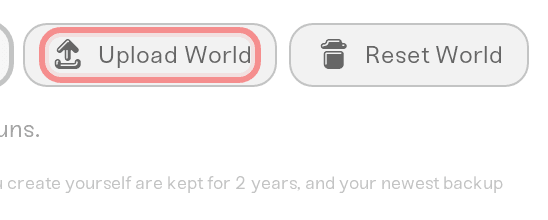
Server already exists? Power the server down first: until it is off, Upload World stays greyed out and says "Power down the server before uploading a new world." Then on your server's card click Detail view, click the Backups card's title to expand it, and click Upload World next to New Backup. On a phone, tap the server, swipe to the Backups pane, and tap Upload World.
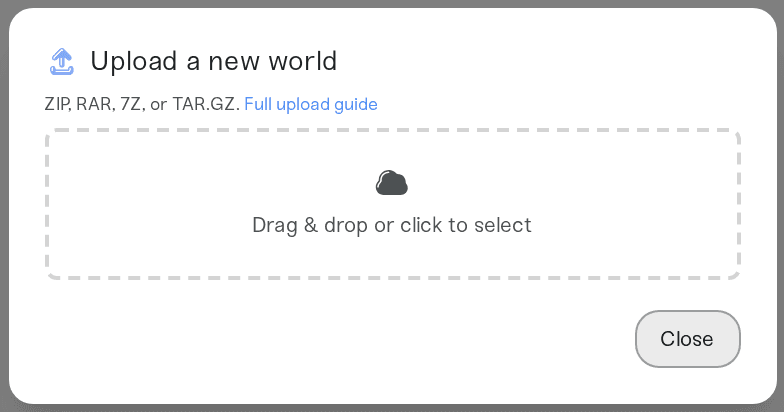
The Upload a new world window opens. Drag your ZIP into the upload box, then confirm with Upload and replace world (on a server that has no world yet the button says Upload world). Before your world is installed, we save the server's current world in Backups as "Backup before world upload", marked Old world, so you can roll back any time. ZIP uploads can be up to 10 GB.
On a friend's server, Upload World only shows if the owner gave you access that includes replacing the world (Server Admin does). If it is missing, the owner can upload the world or change your access under Account > Manage Friends.
Progress tracking, interrupted uploads, and retries work the same for every game and are covered in Upload an existing world to your server.
"No Minecraft world found in this upload"
A Bedrock world is a folder holding a level.dat file, a db folder, and levelname.txt. This message, shown under World import failed on your server card, means there was no level.dat anywhere in your archive, which almost always means the wrong folder was zipped. A renamed .mcworld always contains it, so this mostly happens with hand-zipped folders.
Zip the world folder itself, the one that directly contains level.dat, and upload again. Nothing on the server changed when this error appeared, so there is nothing to undo.
After the upload
The server is pointed at the uploaded world automatically; there is no setting to edit. In Files or SFTP it lives under
/worlds/, one folder per world, and that folder is named after the folder you zipped, orBedrock levelif you uploaded a renamed.mcworld. Bedrock's own world folders are scrambled IDs, so the folder name will not match the world name you see in game.If the world came from single player, your own player data (inventory, position) is stored under a local identity that a server does not recognize on its own. The dashboard detects this during import and shows a notice on your server's card: "This world's local player isn't attached yet." Join the server once, then click Attach my character on that notice and pick your player from the list. Builds and everything else in the world import either way.
Need help?
Reach us on Discord or at support@haptic.gg. Include which device the world came from and a screenshot of the message on your server card or under the upload box.


