Minecraft: Move Your Singleplayer World to Your Server
 Minecraft JavaGuide
Find your world's folder inside Minecraft's saves folder, zip the whole folder, and upload the zip from your server's Backups card (or switch on Upload…
Find your world's folder inside Minecraft's saves folder, zip the whole folder, and upload the zip from your server's Backups card (or switch on Upload Existing World while creating a new server). Your server's current world is backed up automatically before it is replaced, so nothing is lost. The Nether, the End, your character, and the world's seed all come along.
Step 1: find your world on your PC
Minecraft Java keeps each singleplayer world in its own folder inside saves:
Windows: press Win+R, paste
%appdata%\.minecraft\saves, and press Enter.macOS: in Finder, press Cmd+Shift+G, paste
~/Library/Application Support/minecraft/saves, and press Return.Linux: open
~/.minecraft/saves.
Each folder is one world, usually named the way it appears in your singleplayer list. A renamed world keeps its original folder name, so if nothing matches, sort the folders by date modified and take the one you played last. If you play through a modpack launcher (CurseForge, Prism, Modrinth App, and similar), every instance has its own saves folder; use the launcher's open-folder option to get there. Played on a friend's LAN world? The folder is on the PC that hosted it.
Step 2: zip the whole world folder
Right-click the world's folder and compress it: Compress to ZIP file on Windows 11, Send to > Compressed (zipped) folder on Windows 10, Compress on macOS. Zip the entire folder, not a subfolder like region; that is the usual cause of the "No Minecraft world found" error below.
The upload accepts ZIP, RAR, 7Z, or TAR.GZ, up to 10 GB.
You can also skip zipping and drag the world folder straight into the upload box; your browser packages it for you (up to 2 GB, zip bigger worlds yourself).
One world per archive. If an archive holds several, we import the most recently played one, and a notice pops up on the dashboard while the import runs.
Step 3: upload it
On a server you already have:
Power down the server; the upload button stays disabled while it runs.
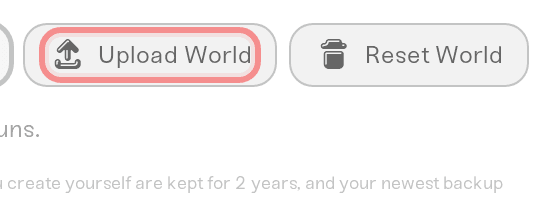
Open the Backups card and click Upload World.
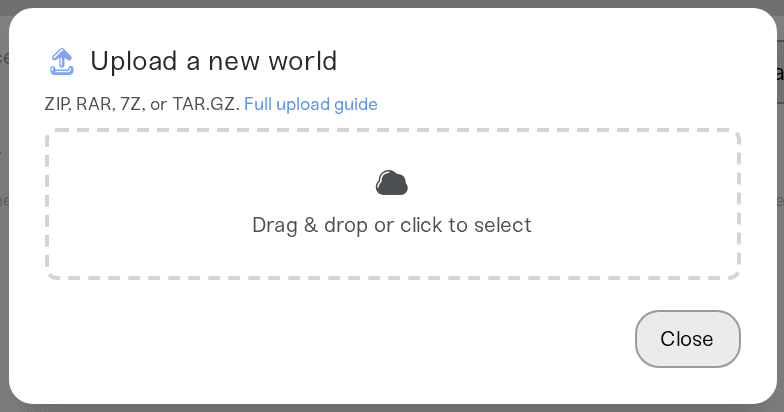
Drop your zip into the box and confirm the upload (Upload and replace world; on a server that has never started, the button reads Upload world). Your current world is saved to Backups first as "Backup before world upload", so you can restore it any time.
Wait for the import to finish, then power up.
Creating a new server instead? Switch on Upload Existing World during setup and drop the same zip there; the server starts on your world. Progress tracking, interrupted uploads, and retries are covered in Upload an existing world to your server.
What comes with the world
Everything inside the world folder transfers: the Nether and the End, any data packs in the world's datapacks folder, and the per-player files Minecraft keeps there (inventory, ender chest, advancements). Your character comes with it as long as the world was played on a regular Minecraft account, because singleplayer stores that file under the same account ID your server uses.
Singleplayer keeps the Nether and the End inside the world folder (as DIM-1 and DIM1), while some server software keeps them as sibling folders like world_nether and world_the_end. The importer detects both layouts, so a singleplayer zip just works. If you are moving a world from another server where the dimensions are separate folders, zip them together with the main world folder.
One caveat: a world played in offline mode (a cracked launcher, or a server with offline mode on) stores its player files under different IDs, so those characters will not match up on an online-mode server, which is the default. Turning on Enable Offline Mode in your server's settings makes them line up again; read the warning it shows before you do. A notice pops up on the dashboard during the import when this applies.
"No Minecraft world found in this upload"
This appears under World import failed on your server card after the upload. The importer finds your world by its level.dat file, which sits at the top of every world folder. This error means the archive has none anywhere inside, which almost always means the wrong thing was zipped: a subfolder like region, or a different folder altogether. Go back to saves, zip the whole world folder, and send the new zip from the server card (Upload a different file, or Retry world upload if the first option is gone). Nothing on your server changed.
What's my server's seed?
The seed travels inside the world, so an uploaded world keeps the seed it was made with. Type seed in your server's Console card while it is running; it answers with the seed of the world currently loaded. On a server created with Upload Existing World, the World Seed field in the expanded Overview card shows the same number after the first start. If your server already had a world before the upload, that field can still show the previous world's seed, so go by the console.
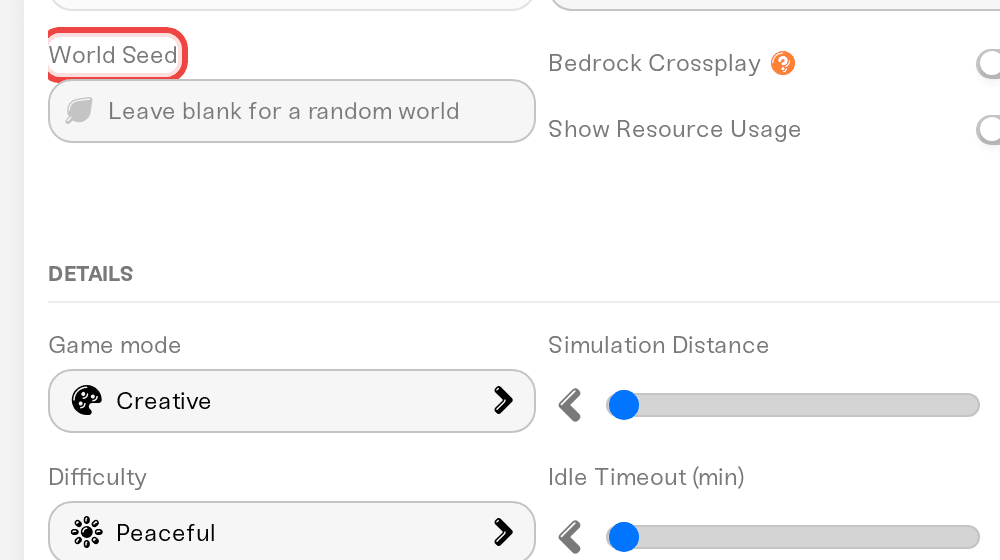
Before a server has a world, that field is an editable box instead: enter any text or number and Minecraft generates the world from it. It stays editable on a server created with Upload Existing World as well, up until the first start, but it has no effect there; your uploaded world keeps its own seed.
One version rule
Minecraft upgrades a world from an older version automatically. Going the other way, loading a world in an older version than it was last played on, is not supported by Minecraft and can corrupt the world; that is a Minecraft rule, not something we control. Your server stays on the release it was created with until you move it yourself, so this only matters when your server sits on an older release (installed mods pin it there) or the world comes from a snapshot. Sort the version out before uploading; see Minecraft: versions, updates, and "Outdated server" errors.
Need help?
Reach us on Discord or at support@haptic.gg. Include your server name and a screenshot of the error shown on your server card or under the upload box.
Minecraft Bedrock: upload your world covers the Bedrock edition, including
.mcworldfiles.Download your world is the same trip in the other direction.


