Minecraft: Versions, Updates, and "Outdated Server" Errors
 Minecraft JavaTroubleshooting
Outdated server!, Outdated client!, or Incompatible version means the player's game and your server run different Minecraft versions. Nothing is broken and…
Outdated server!, Outdated client!, or Incompatible version means the player's game and your server run different Minecraft versions. Nothing is broken and your world is safe. To update, pick the new release under Game Version on the Overview card, save, and restart.
Why this happens
Minecraft Java normally only lets a player join a server running the same version (crossplay servers are the exception, see below). When Mojang ships a release, the launcher updates players within minutes, while your server keeps running the version it was on.
The message tells you which side is behind:
"Outdated server! I'm still on 1.21.11": the server is older than the player's game. Update the server (below).
"Outdated client! Please use 26.2": the player's game is older than the server (fix below).
Incompatible version in the multiplayer list is the same mismatch, shown before joining.
Does my server update automatically?
Usually not. Most servers stay on the release they were created with, through every restart, until you change Game Version yourself: a surprise update would break installed mods, and a world upgrade is one-way (see going back a version, below).
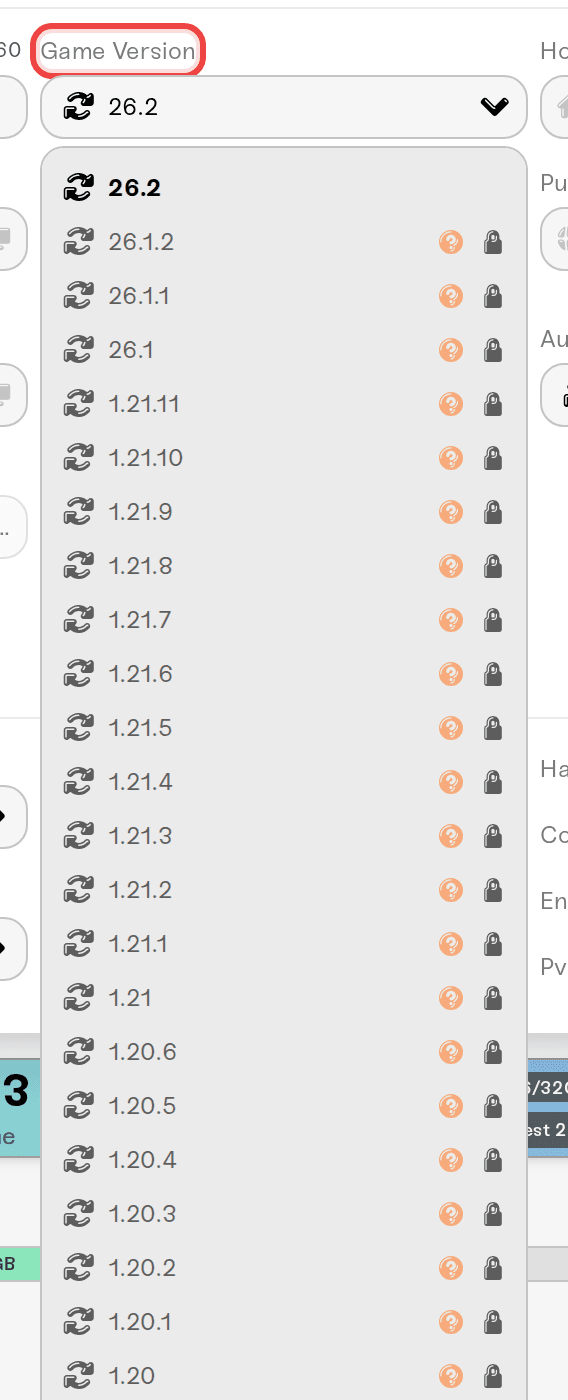
Some Java servers were set up on auto-latest instead, and pick up the newest release on their next start or restart (on Wake & Play, the next wake). On Java, the Game Version dropdown always shows the release your server is running right now, never the word "latest", so re-picking it is not a change and Save changes stays grayed out. Pinning takes effect only when you pick a different release and save; from then on the server moves when you move it. Bedrock works differently, see Bedrock servers and Bedrock friends below.
Update your server
Optional but smart: press New Backup on the Backups card while the server is running. That is your way back to the old version.
On the Overview card, open Game Version and pick the new release. New releases appear soon after Mojang publishes them; reload the dashboard if you don't see one yet. The list holds full releases 1.8 and newer only, never snapshots or pre-releases (Bedrock servers list 1.19 and newer).
Save changes, then hold the yellow Restart button on your server card (if the server is already stopped, just save and press Power up instead). Version changes apply on the next power-up, and the first start after an upgrade converts your world, so a slower boot is normal.
Running Paper, Fabric, Forge, or NeoForge? The matching build is picked for you. If that software has no build for the new release yet (usually hours to days after a Mojang release), the start stops with "We couldn't find a matching mod loader build for your Minecraft version." Pick the previous release again and try later.
Players see "Outdated client!"
They update Minecraft in their launcher. If your server sits on an older release on purpose (mods, a modpack), they can add an installation for that exact version under Installations in the Minecraft Launcher and join with that. Nothing changes on the server.
Why the version dropdown is locked
Two things lock Game Version, and each says so in its tooltip:
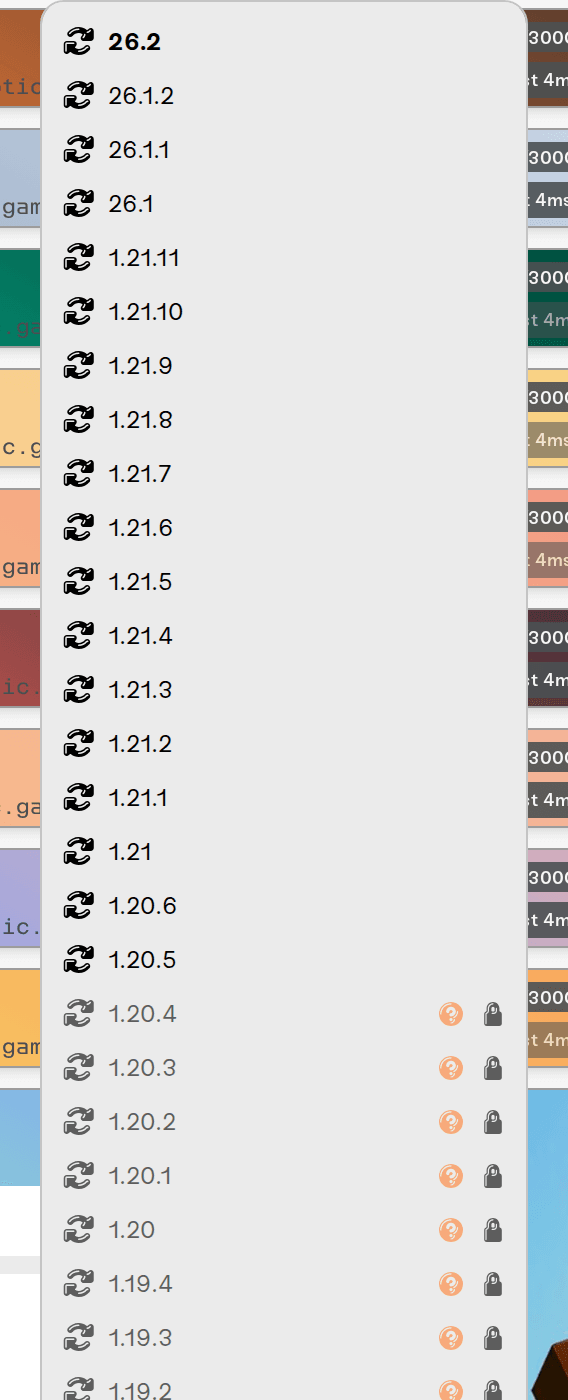
Installed mods or plugins pin it. Mods are built for a specific release, so your first version-specific mod or plugin pins the server to it (worlds and data packs never lock it). The dropdown shows "Locked to {version} by installed mods. Remove version-specific mods to change.", and the Mods card header shows the pinned version next to a lock icon. Remove them and the dropdown unlocks. Mod authors often need days or weeks to catch up after a release, so staying pinned until yours support it is the right call.
Bedrock Crossplay limits the range. While crossplay is on, releases outside the range the crossplay layer supports are grayed out and the tooltip names that range. Your current version is never locked; turn Bedrock Crossplay off if you need one outside it.
Going back a version
Moving up is safe: Minecraft upgrades your world on the first start. Moving down is not. A world saved by a newer version will not load on an older one; that is a Minecraft rule, not something we control, and the dropdown will not stop you.
If you need an older release with a world you care about:
Stop the server.
Pick the older release under Game Version and save.
Restore a backup taken while the server last ran that version, or reset your world for a fresh start.
Start the server.
Bedrock servers and Bedrock friends
Bedrock apps update themselves through the app stores and cannot pick a version, so after a Bedrock release those players see an outdated-server message until the server moves up. On a Bedrock server, the Game Version list starts with Latest (auto-updates), which new Bedrock servers use: the server moves to each new Bedrock release the next time it starts, so a restart is enough. Any specific version in the list is pinned and never updates. A pinned server refuses players on a newer Bedrock app until you move it up; pick Latest, save, and restart to follow new releases from then on. Crossplay Java servers are the exception to the version rule: the crossplay layer bundles version-bridging plugins, so Java players on other releases usually connect fine and the "Outdated client!" fix above may not apply there. That layer itself sometimes needs a short catch-up after a Bedrock release; see Minecraft: Java and Bedrock Crossplay on Your Server.
Need help?
Reach us on Discord or support@haptic.gg. Include a screenshot of the join error and your server's current Game Version.


