Edit your server's config files
 HapticGuide
Open your server's Files card, click a config file, and it opens straight into the editor. Make your change and press Save (Ctrl+S, or Cmd+S on Mac). You…
Open your server's Files card, click a config file, and it opens straight into the editor. Make your change and press Save (Ctrl+S, or Cmd+S on Mac). You can't break anything permanently: every save from the dashboard keeps the previous version in the file's History, so you can restore any of the last 10 versions in a couple of clicks. If your server is asleep, saving still works; the change simply applies the next time it starts.
Open a config file
Go to My Servers in your dashboard and press Detail view on your server's card.
Find the Files card (its header reads Files with "Browse server files" underneath) and click it to expand.
Click any text file to open it. If you have edit access, it opens directly in the editor; there is no separate edit mode.
Two shortcuts worth knowing:
Quick access chips above the listing open your game's main config file in one click (for example
server.propertieson Minecraft Java). A few games that don't keep their settings in a main config file (Valheim, for example) have no chips. If a chip says "This file hasn't been created yet. It appears after the server's first start.", start the server once and come back.The Search all files box searches every folder at once; press Enter to open the best match.
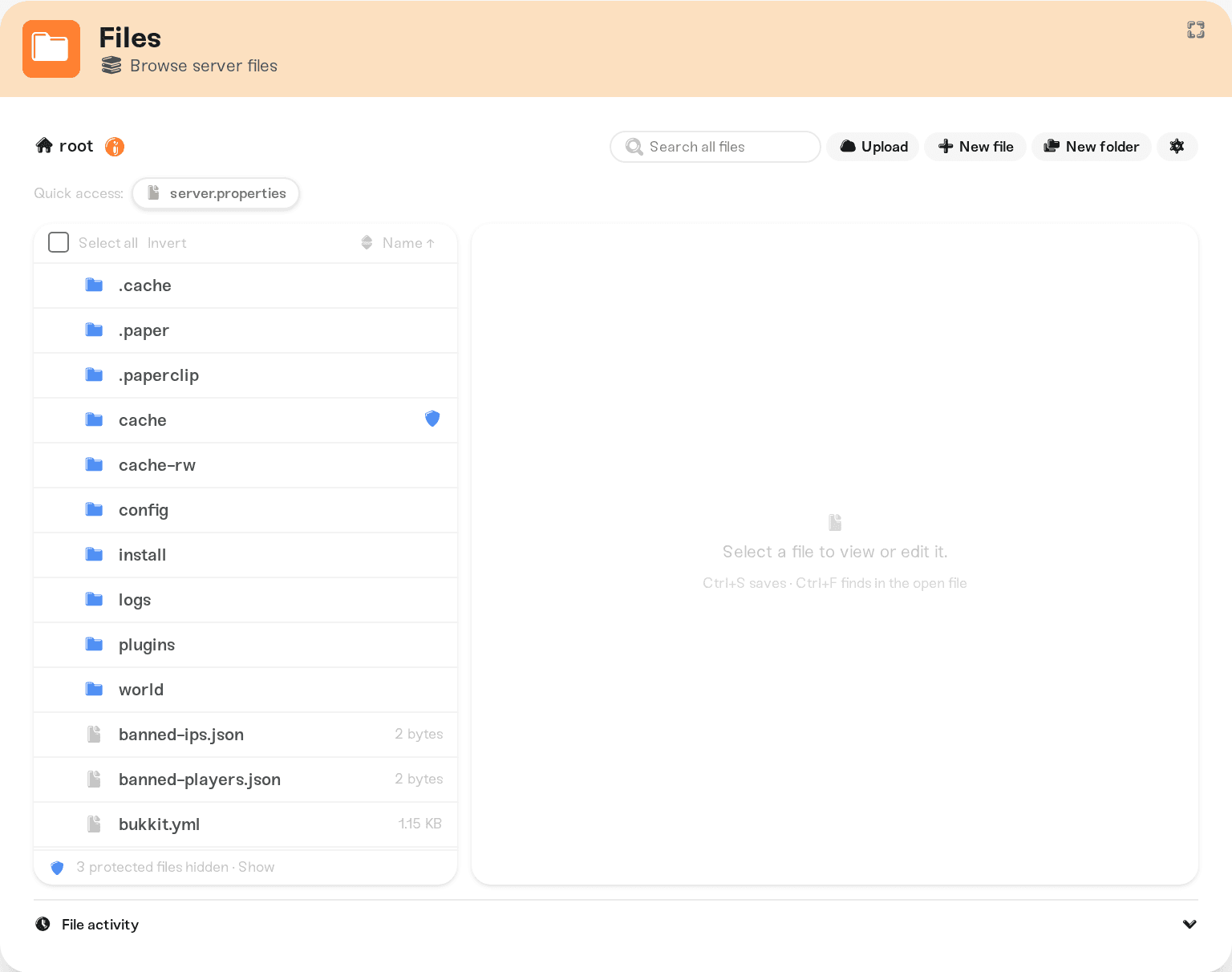
For the full tour of the file browser (uploads, folders, zip, delete), see manage your server's files.
A few files behave differently when opened: files with a Read-only badge show a banner reading "Haptic manages this file so your server can boot. You can view it but not change it.", and very large or binary files offer a Download button instead of an inline editor.
Make your edit and save
As soon as you type, an orange Unsaved badge appears next to the filename and the Save button lights up. Press Save, or Ctrl+S (Cmd+S on Mac). A "File saved" message confirms the write landed.
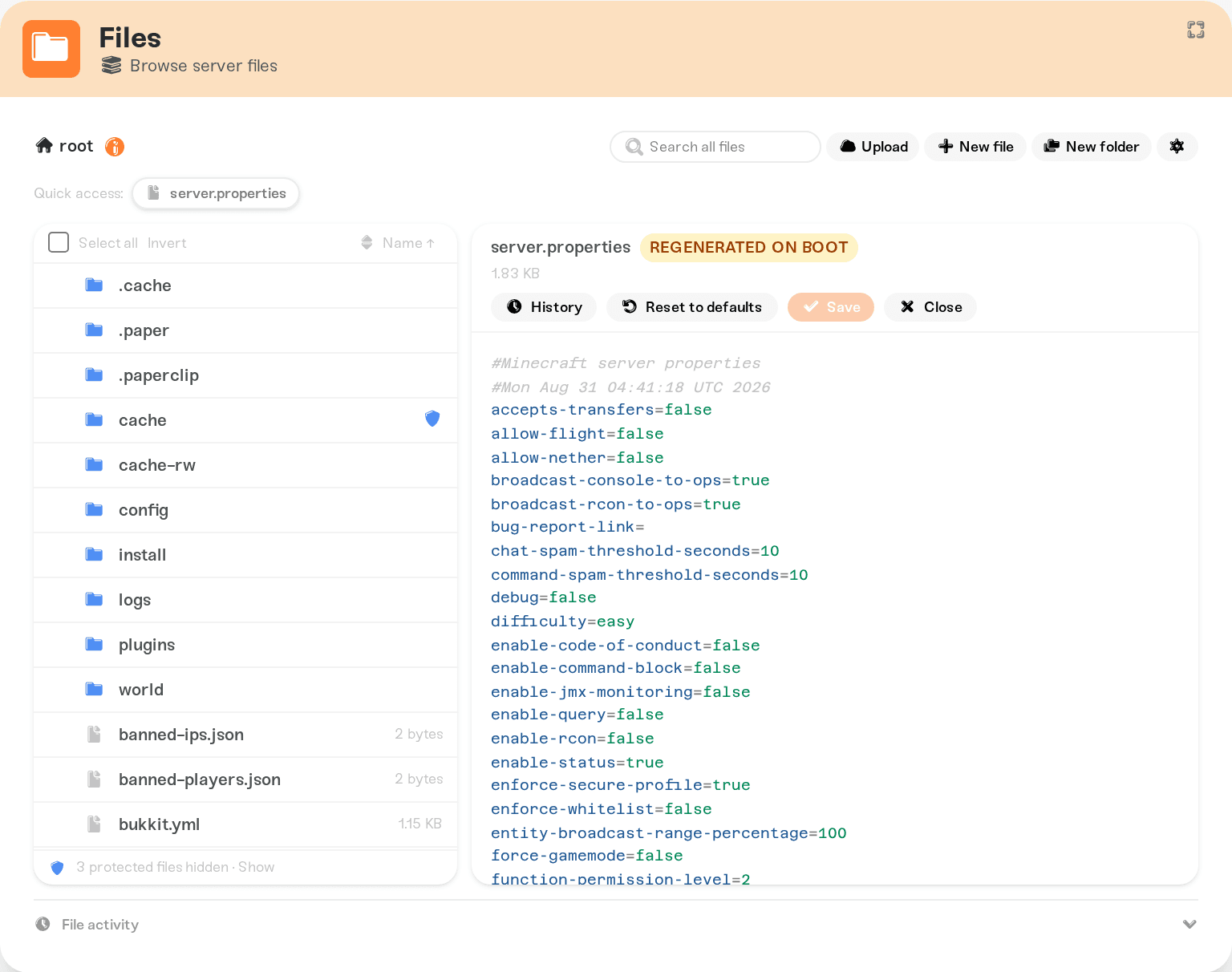
Handy while you edit:
Find: Ctrl+F (Cmd+F) searches inside the open file; Ctrl+H opens find and replace.
Syntax check: a red syntax errors chip appears if the file has problems (hover it to see each line). It never blocks saving; it is a warning, because some games silently reset a malformed config on boot.
No accidental losses: closing or navigating away with unsaved changes asks "Discard unsaved changes?" first.
One thing saving does not do: restart your server. Most games only read their config files while starting up, so if your server is running, restart it when you want the game to pick up the change.
The Settings view for known config files
Some games cram dozens of settings onto a single line of one file (Palworld's INI is the famous example), which is miserable to edit by hand. When the editor recognizes a file like that, it opens in a Settings view instead: one setting per row, with a Filter settings box to find the one you want. Your values are saved back into the file's own single-line format, so the game reads it exactly as before. Use the Raw text button to switch to the plain text editor at any time, and Settings to switch back.
For settings Haptic manages for you (server name, password, difficulty, and your game's Details settings), the friendliest editor isn't a file at all: it's the Overview card. See change your server settings.
Which edits stick: read the badges
The badges next to the filename tell you exactly what will happen to your edit. On most servers, your file edits are the source of truth and survive every restart. The badges mark the exceptions:
Read-only: a file Haptic manages so your server can boot. You can view it but not change it.
Linked to dashboard: this file is wired to your Overview settings. Edits here also change the Overview config, and vice versa. Your edit sticks.
Regenerated on boot: Haptic rebuilds this file from your dashboard (admins, mods, or platform settings) every time the server starts, so a manual edit here will not survive a restart. The editor warns you before the save with a dialog titled "This edit will not survive a restart"; to make a lasting change, use the matching settings on the Overview card instead.
Regenerated from settings: the file is rebuilt on every restart too, but saving here first syncs your edits into your dashboard settings, so your changes stick. The save confirm is titled "Saving also updates your dashboard settings" with a Save and sync button.
Sensitive: the file contains secrets (tokens, passwords). To protect them, the secret values show as a [REDACTED] placeholder in the editor instead of the real value. Edit anything else freely and save as normal: your real secrets stay in place as long as you leave the placeholders alone. The file's content is never stored in file History; only the event is recorded.
Saving while your server is asleep or stopped
You can edit files while your server is offline. On a sleeping Wake & Play server you may see a blue banner: "This server is asleep. You're editing its cloud copy directly, and changes take effect when it next starts." Saving works exactly the same; the confirmation just changes to "Saved. Applies the next time your server powers up.", and the file's row shows an Applies on next start badge until then, with a summary of all staged changes above the listing.
If you instead see an amber "Cloud sync pending" banner, your last play session hasn't finished saving yet. Start and stop the server once and editing unlocks again.
If another change lands first
If someone else (or you, in another tab) saved the same file while you were editing, your save is never silently thrown away. A bar appears reading "Another change was saved while you were editing. Reload the file or overwrite.", with a side-by-side diff labeled On the server now and Your unsaved buffer. Pick Reload to take the server's version, or Overwrite anyway to keep yours.
Undo a change with History
Every file keeps its own undo trail. Open it from the History button in the editor, or hover a file row in the listing and click the clock icon.
The panel lists the last 10 saved versions of this exact file path, with the time, what happened, and who did it. A version is kept every time the file is saved or reset from the dashboard.
Press Restore on any version. The confirm explains that the current content is saved to history first, so you can undo this restore the same way. Nothing here is a one-way door.
The down-arrow button downloads that version as a timestamped file, handy for comparing on your PC.
If the file was deleted, its history survives: "This file no longer exists on the server. Restoring a version recreates it."
Two honest limits: history does not follow renames (a renamed file starts a new history, and the old name keeps the old versions), and versions marked Content not stored are sensitive or oversized files where only the event was recorded, so they can't be restored from here.
Edit safely
Back up before big changes. A manual backup takes a moment and covers everything at once, not just one file. See back up your server.
Rename, don't delete. If you want a file out of the way, rename it (for example add
.bakto the end) instead of deleting it. Renaming it back is your undo button.One change at a time. Change one thing, restart, and check the result. If something breaks, you know exactly which edit did it.
Trust the red chip. If the syntax errors badge appears, fix the listed lines before restarting; a malformed config can be reset by the game on boot.
Use the escape hatch. The Reset to defaults button in the editor restores a single file's default contents (you'll be asked to type your server's name to confirm). It only appears on files Haptic has a default copy for. Your world, mods, and other files are not touched. On world files the button is disabled with "This file affects your world. Use the world reset flow instead."; that flow is covered in reset your world.
Need help?
If an edit won't save, keeps reverting, or a config file looks mangled, message us in Discord or email support@haptic.gg. Tell us the server, the file name, and what you changed, and we'll look at it with you; the file's History usually lets us put things right in minutes.
Connect with SFTP for editing in your own tools; note that file History only records changes made from the dashboard.
Back up your server and restore a backup, the bigger hammer when more than one file needs undoing.



