Find anything with dashboard search
 HapticGuide
Press Ctrl+K (Cmd+K on Mac) anywhere in your dashboard to open search. Type what you are after: a setting, a mod, a backup, a page, or a help topic, then…
Press Ctrl+K (Cmd+K on Mac) anywhere in your dashboard to open search. Type what you are after: a setting, a mod, a backup, a page, or a help topic, then press Enter to jump straight to it. Many settings can be changed right on the result row, so the answer to "where do I change the difficulty?" is often "you don't have to go anywhere."
Open it from anywhere
Three ways in, all landing in the same place:
Press Ctrl+K on Windows and Linux, or Cmd+K on Mac. It works on every dashboard page, and it politely stays out of the way while you are typing in another field.
Click the search box in the top bar. On a computer it is the pill that says Search… with the shortcut hint beside it.
On your phone, tap the round search icon in the top bar.
You will spot a few more doors around the dashboard, like the magnifier on your server's Overview card. They all open the same palette.
Search lives in your dashboard only; you will not see it on the rest of the site.
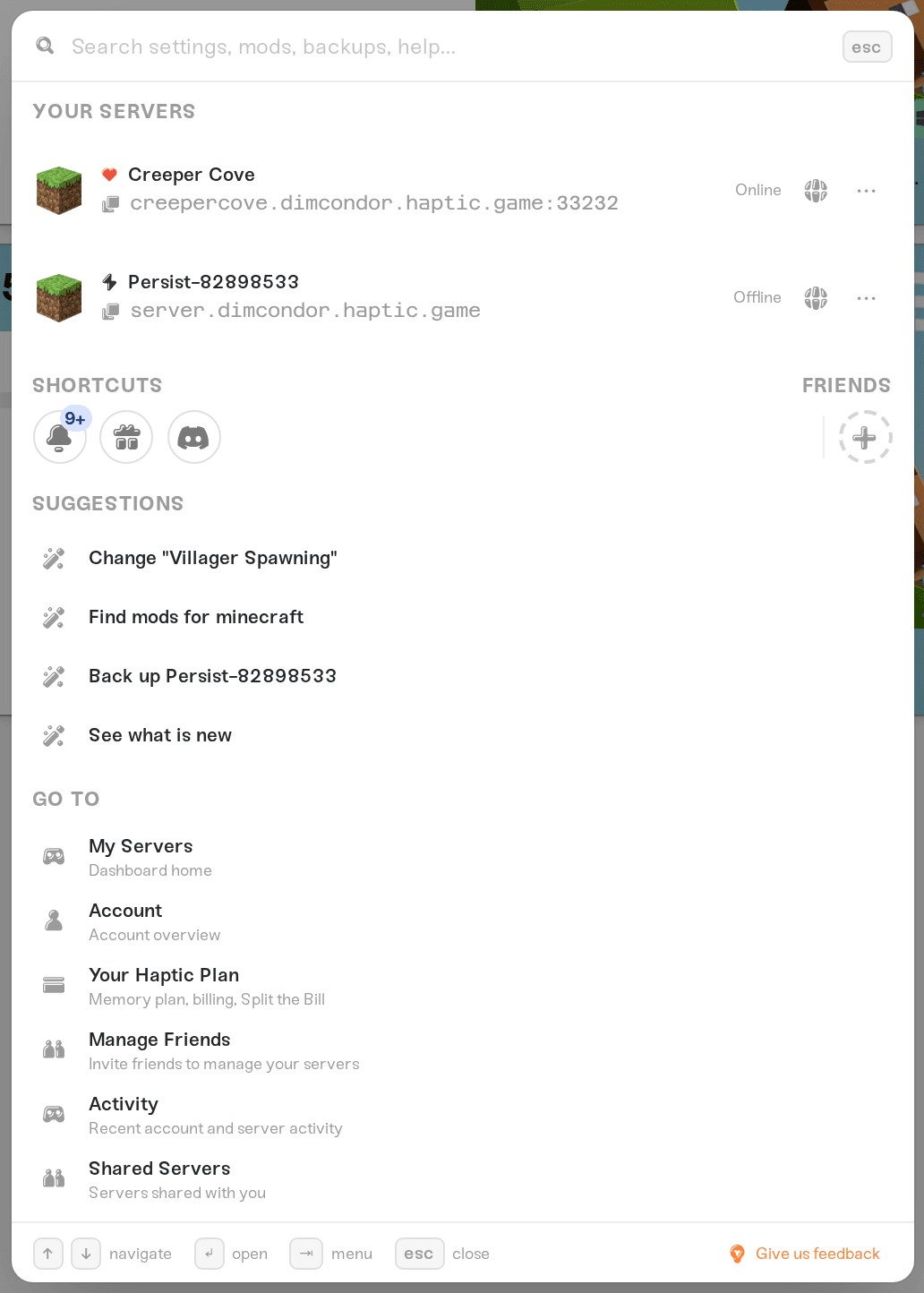
Before you type anything, the palette doubles as a little home screen: your servers with their live status and a click-to-copy address, plus shortcut circles for your recent activity, Split the Bill, and the friends you share access with.
What it can find
The search box says it best: "Search settings, mods, backups, help…". Type anything and the results are ranked into sections, with the best match pinned at the top as Top Hit:
Servers: your servers, each with a menu of quick controls.
Settings: every game setting on your servers. This is the big one; more below.
Mods & Backups: your installed mods and recent backups, by name.
Go to: dashboard pages, from Your Haptic Plan to your Activity feed.
Help & Articles: support guides like this one, plus blog posts and changelog updates.
Each section keeps only its best few matches; press Show all on a section to see the rest. And if you are curious about a game you do not host yet, the dashed Search other game settings row at the bottom reveals matching settings from every game you can host on Haptic.
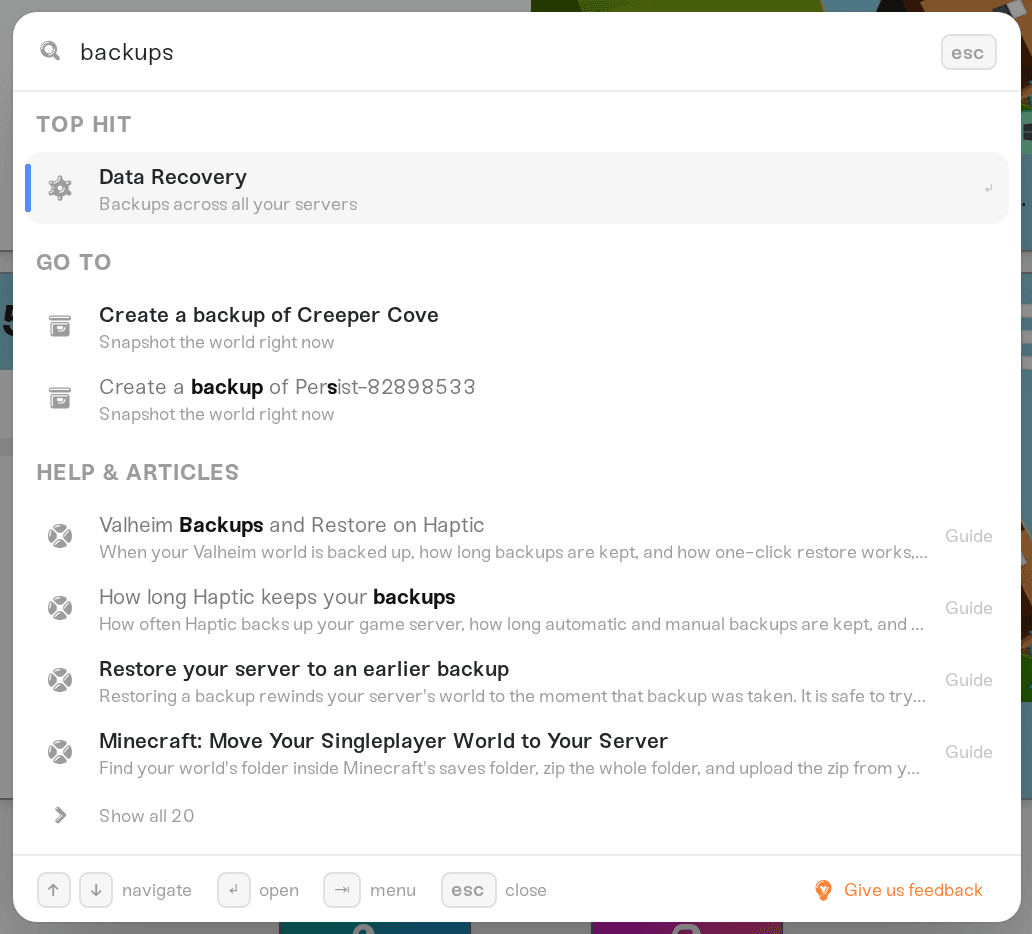
Jump straight to a setting, or change it on the spot
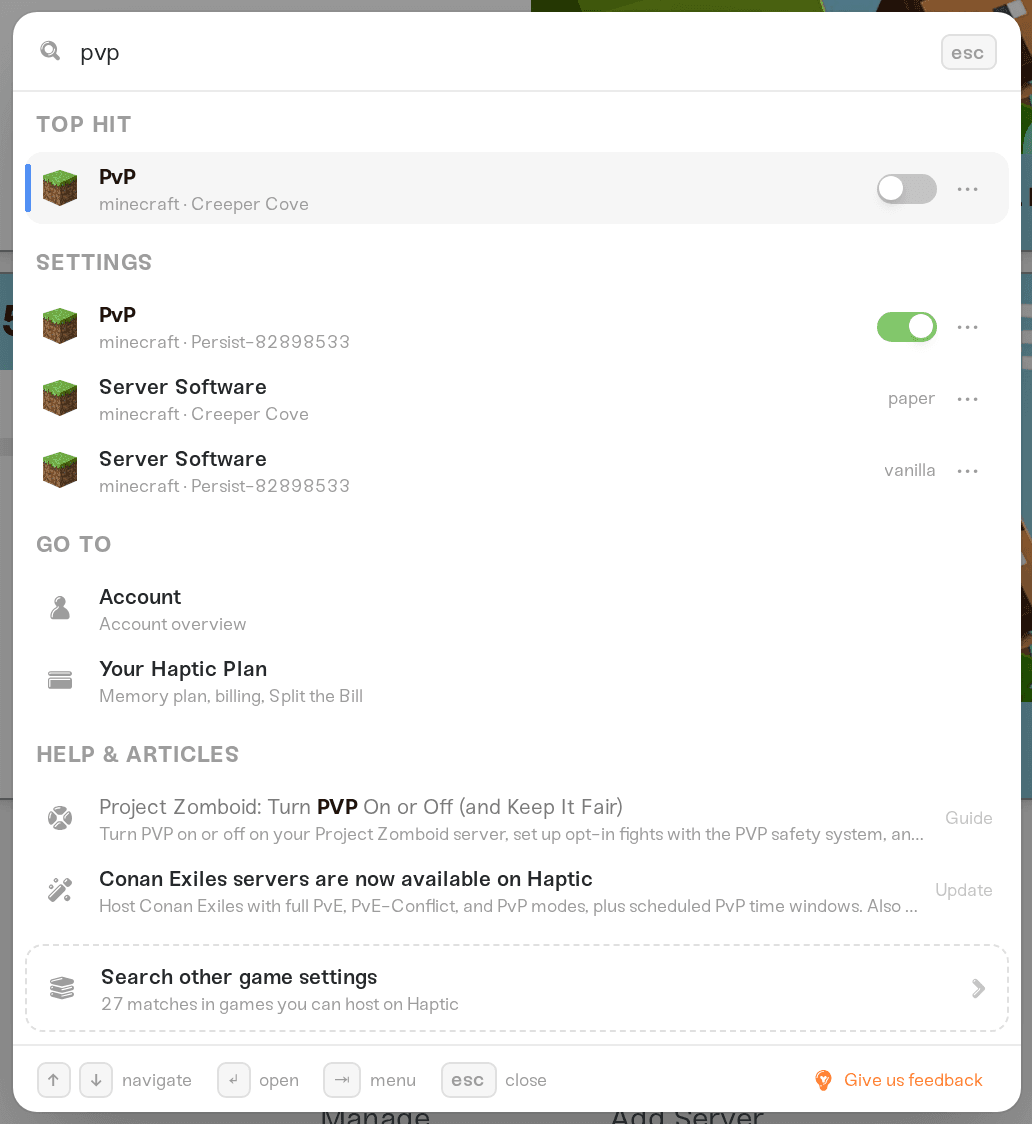
Type a setting's name, for example "pvp" or "difficulty". Every match shows which server it belongs to, and then:
Toggles, dropdowns, sliders, and text fields save right from the row. Flip the switch and you will see Saved., or Saved. It will apply the next time this server powers up. when the change needs a restart, exactly as if you had saved from the server's card. Change your server settings explains which changes apply when.
A few careful settings send you to the card instead. Anything that could reset your world shows its current value in the results, and passwords stay hidden behind dots; choosing one guides you to the setting on your server's card and rings it with a spotlight, so there is no hunting once you arrive.
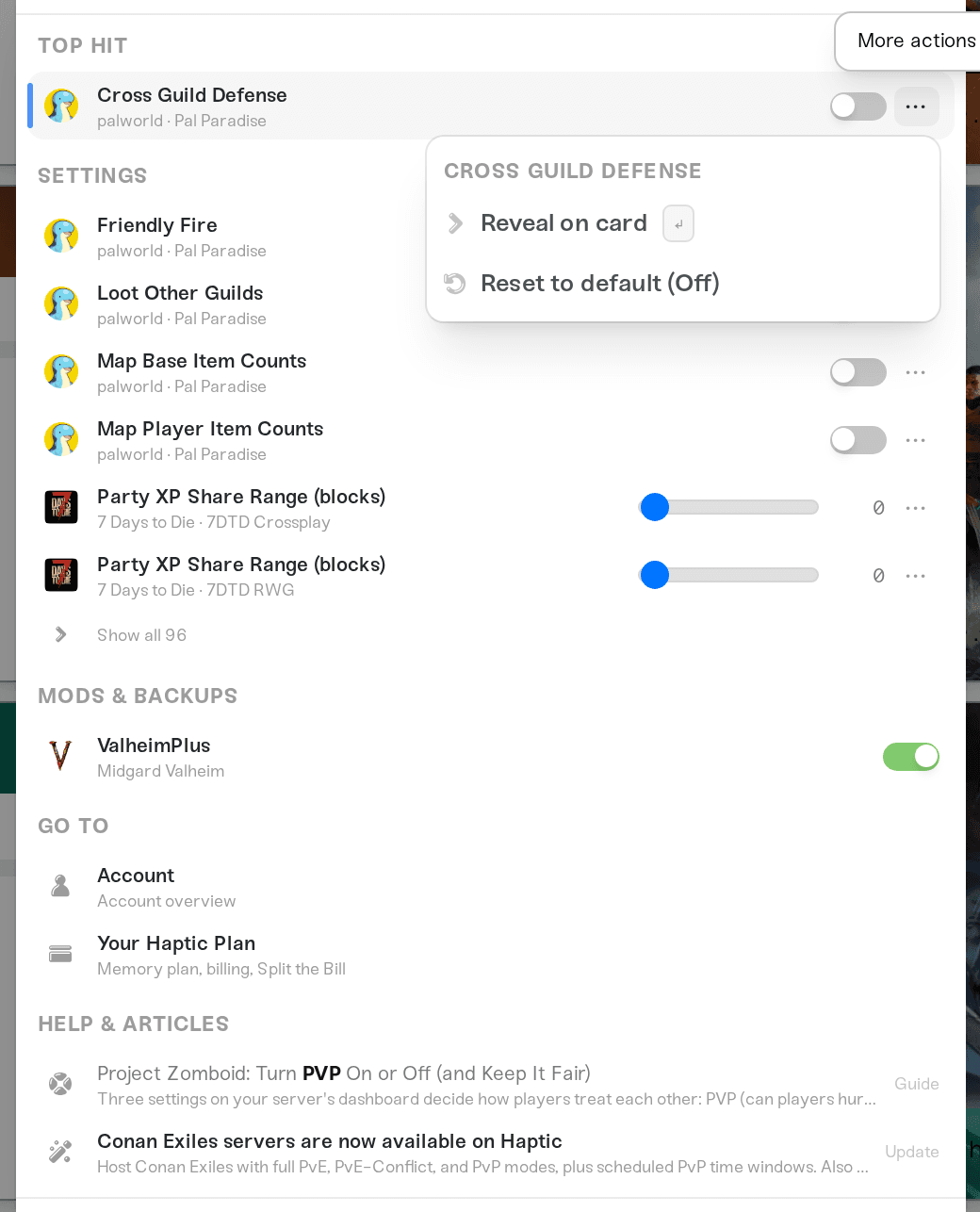
Setting rows also have a ··· menu (or press Tab on the highlighted row) with Reveal on card, Copy value (Copy password on hidden fields), and Reset to default when the value differs from stock.
Quick actions
Search does things, not just finds things. Type what you want to do:
Add a server, Change your plan, Invite a friend, Split the Bill link, Change your password, and Change your hostname root cover your account.
Create a backup of your server, Find mods for it, Request a mod for it, and Public page for it appear for each of your servers. Find mods shows up on games with mod support, and Request a mod on games where we take mod requests.
Actions that live somewhere else in the dashboard walk you there: the palette shows Taking you there… while the dashboard clicks through to the right spot on your behalf, then spotlights the control it landed on. Click anywhere or press Esc to take the wheel back.
Keyboard navigation
The palette's footer is the cheat sheet:
↑ and ↓ move through the results.
Enter opens the highlighted result, or operates its control when the row has one: a toggle flips, a dropdown opens.
Tab opens the highlighted row's ··· menu.
Esc backs out one layer at a time: an open menu or panel first, then your typed query, then the palette itself.
Need help?
If search cannot find something you know exists, tell us. There is a Give us feedback button right in the palette's footer, or reach us on Discord or at support@haptic.gg. A screenshot of the palette with your query typed in helps us fix the miss quickly.



