Download your world
 HapticGuide
Your world is yours, and you can download it any time. Every backup on your server's Backups card downloads as a .zip with your complete world inside,…
Your world is yours, and you can download it any time. Every backup on your server's Backups card downloads as a .zip with your complete world inside, whether your server is running or powered down. You can also grab individual files from the Files card or over SFTP. Downloading never touches your server or your other backups, so there is nothing to break by trying.
Your world is yours
You never need a reason to take a copy of your world, and you never need our permission. Common ones:
You want a personal copy sitting safely on your own drive.
You want to play the world locally or host it for friends yourself.
You are moving to another host and want a clean copy to upload there.
You are winding down your subscription and want everything out first.
None of these require canceling, stopping your server, or asking us. Download as often as you like.
First, make sure your latest progress is in a backup
Backups are taken automatically: at least once per day while your server is running, every 60 minutes while players are connected, and every time your server shuts down, restarts, or goes to sleep. So the newest backup is usually already the state you want.
If people are playing right now and you want this exact moment, open the Backups card and click New Backup. It saves your world to disk right now and uploads a fresh snapshot; the server keeps running, players may just notice a brief pause. If your server is powered down, you are already covered: every normal power down takes a backup on the way out.
Download a backup
Open your dashboard, find your server's card, and click Detail view.
Find the Backups card and expand it to see the full list.
Look at the Status column: the row with the green checkmark is the one that holds your current world. Its tooltip reads "This backup contains your current world progress. The server was last saved from this state."
Click that row to open Backup Details, then click Download Backup. Your browser downloads a
.zipnamed after your server and the backup's date.
Download Backup works in every server state, online or offline, and for every backup in your list, not just the newest. It is a copy, so nothing changes on the server and the backup stays right where it was.
What is inside the download
The .zip contains your world save files as they were at that backup, plus the server files that were backed up alongside them. The exact file set depends on the game. To see precisely what a backup holds before you download it, open Backup Details and click Show file list: it expands into the full list of files with their sizes. The dialog also shows which mods were installed when the backup was taken, which helps if you are rebuilding the setup elsewhere.
If there is a specific file the backup does not include, you can still fetch it straight from the server with the Files card or SFTP, below.
Download individual files instead
Sometimes you do not want the whole world, just a config file or one folder. Open your server's Detail view and use the Files card:
One file: click it. Files that cannot be previewed show a Download button.
Any files or folders: tick the checkbox next to each one. A bar appears above the list showing what you selected, with a Download zip button that packages your selection into a single
.zip.
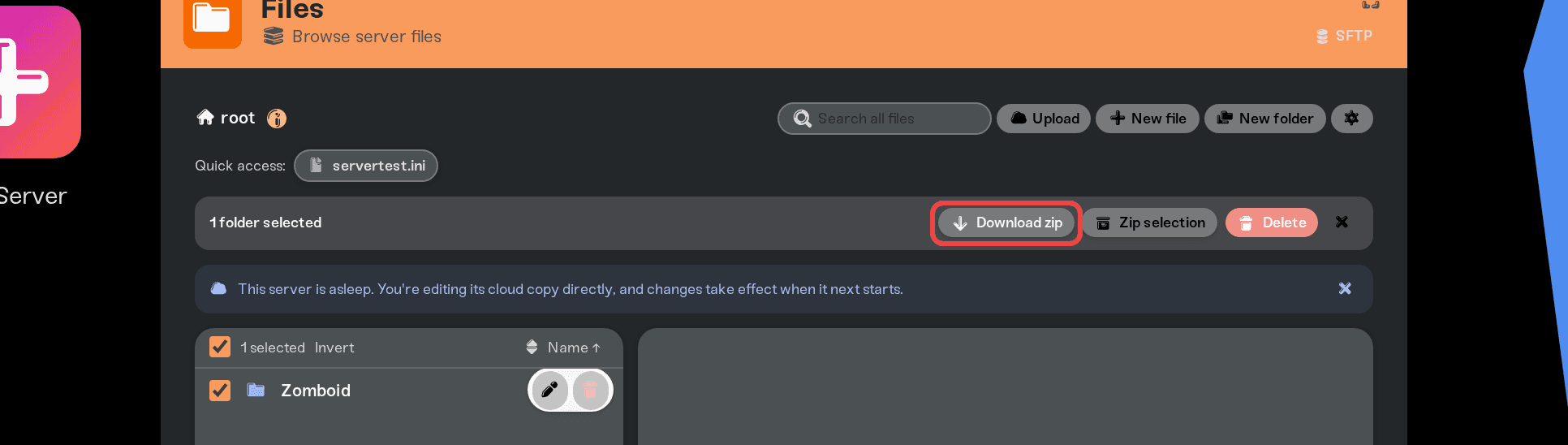
For bigger jobs, the SFTP button on the Files card connects the server to an SFTP app like FileZilla or WinSCP, and you can drag entire folders to your PC. See Connect with SFTP for the setup, and Manage your server files for everything else the Files card can do.
Note the difference: the Files card shows your server's live files as they are right now, while a backup is a snapshot from a specific moment. For "the whole world, safely", a backup is the easier grab.
Every backup in one place: Data Recovery
If you have several servers, you do not need to open each one. Go to Account > Data Recovery in your dashboard. It lists every backup across all your servers in one place, with a download arrow on each row. This tab shows for accounts with an active subscription.
Backups from servers you have deleted appear here too, under Recently Deleted, for 6 months after deletion. Those cannot be self-downloaded yet; if you need one back, message us and we will help you restore it. How long Haptic keeps your backups has the full retention picture, including what happens after you cancel.
Download a backup first. After the 6-month window, backups from deleted servers are removed for good.
Using the world once it is on your PC
What you do with the download depends on the game: some load a server save straight into single player, others need the files placed in a specific folder. For Palworld we have a full walkthrough: Move your world from your server back to co-op. For other games, message us on Discord and we will point you at the right folder for your game and platform.
And this door swings both ways: if you come back, or the world evolves on your PC, you can put it straight back on your server. Upload your world covers that, and your current server world is backed up automatically before any swap.
Need help?
Message us on Discord or email support@haptic.gg. Tell us the server name and what you are trying to do with the world (local play, another host, safekeeping), and we will make sure you leave with exactly what you need.
Back up your server, creating and naming backups.
Restore a backup, rolling your server back instead of taking files out.
How long Haptic keeps your backups, retention windows and the 6-month grace periods.
Palworld: move your world back to co-op, the game-specific walkthrough.
Upload your world, bringing a world onto your server.



