Upload an existing world to your server
 HapticGuide
You can bring a world you have been playing on, from single-player, co-op, or another host, to your Haptic server. There are two ways: switch on Upload…
You can bring a world you have been playing on, from single-player, co-op, or another host, to your Haptic server. There are two ways: switch on Upload Existing World while creating a new server, or use the Upload World button on an existing server's Backups card. Uploading never destroys anything: before a new world replaces an old one, we save your current world as a backup you can restore any time. Uploads can be up to 10 GB.
First, get your world files
The upload happens in your browser, so the world needs to be on the computer you are using. Where the files live depends on the game. Eight games have a dedicated walkthrough that names the exact folder on your PC and the traps specific to that game:
Valheim: Upload your existing world
Palworld: Move your co-op or single-player world to your server
Minecraft (Java): Move your singleplayer world to your server
Minecraft (Bedrock): Upload your world, including .mcworld files
Satisfactory: Move your existing save to your server
Windrose: Move your world to your server
Enshrouded: Move your world to your server
Core Keeper: Move your world to your server
For every other game, the upload box itself shows what it accepts, with a Full upload guide link right above it that takes you to that game's support hub.
Option 1: upload while creating a server
If you are setting up a brand-new server, you can hand it your world before it ever starts:
On My Servers, open the New Server panel and pick your game.
On the settings step, find Upload Existing World and switch it on. The tooltip says it best: "Upload a world you've been playing on. Your server will use this world instead of generating a new one."
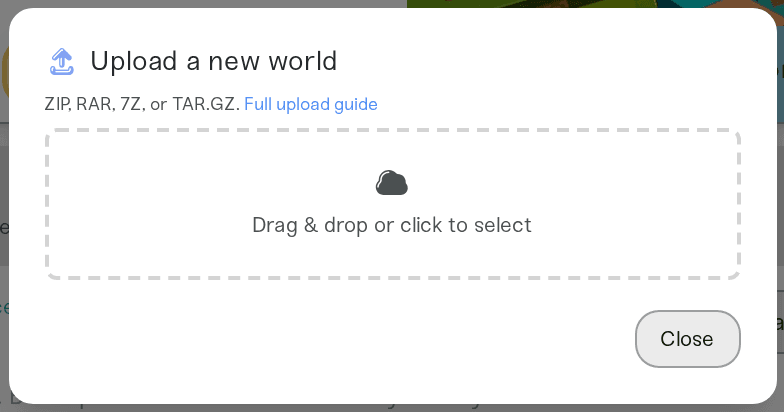
Drop your world into the box that appears (Drag & drop or click to select), or click it to browse.
Finish creating the server as normal. When it starts for the first time, it loads your world instead of generating a fresh one.
Two small notes for this path:
For Minecraft (Java and Bedrock), the World Seed field locks once a world is staged, because the seed is determined by your uploaded world.
Switching the toggle off discards the file you staged. Nothing is kept, so just switch it back on and pick the file again if you change your mind.
Option 2: upload to a server you already have
You can replace the world on an existing server any time:
Power down the server first. The upload button stays disabled while the server is running, with the tooltip "Power down the server before uploading a new world." See Start, stop, and restart your server if you need a hand.
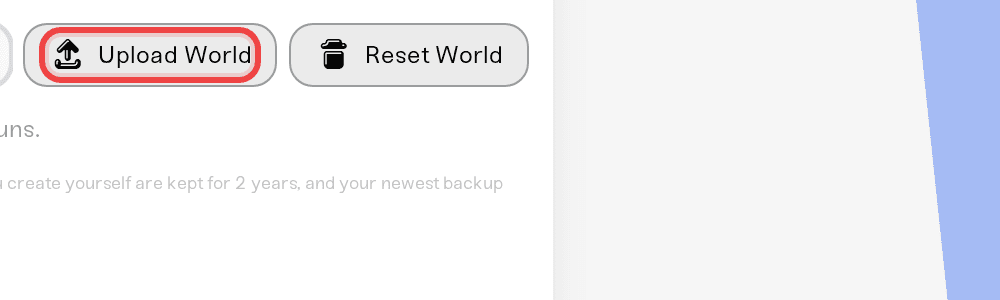
Open your server's card on My Servers and go to its Backups card. Click Upload World, to the right of the green New Backup button.
In the Upload a new world dialog, drag your world in, or click the box. For games where the world is a folder (like Valheim and Palworld), clicking offers Select file(s) and Select folder; dragging the folder in also works and skips your browser's extra confirmation prompt.
For some games we can check the file right in your browser and tell you what we found, for example "Found Valheim world" with the world's name. Palworld also shows a What transfers with this upload summary so there are no surprises later.
Review the confirmation and click Upload and replace world. This is the last stop before anything changes, and it repeats the safety net in writing: your current world stays safe, a snapshot called "Backup before world upload" is saved in Backups first, and you can restore it any time to roll back.
Wait for the import to finish, then power up. Expect a few minutes; the server cannot power up mid-swap.
Icarus works differently. An Icarus server holds many prospects, and uploading one of yours (a prospect's .json file, or your Prospects folder) adds it next to them, so the button reads Upload and add prospect. A prospect with the same name as one on the server replaces only that one, after the same backup. Only a dedicated server's whole save folder replaces every prospect. See Icarus: Prospects, Open World, and the server lobby.
What files are accepted
Almost every game takes a ZIP, RAR, 7Z, or TAR.GZ archive of the world. A few games also accept their own native files, and two have special rules:
| Game | What the upload box accepts |
|---|---|
| Valheim | ZIP, RAR, 7Z, .fwl + .db (or .old backups), or your whole world folder |
| Palworld | ZIP, RAR, 7Z, .sav files, a save folder, or a Game Pass wgs folder |
| Terraria | ZIP, RAR, 7Z, or .wld |
| Icarus | ZIP, RAR, 7Z, TAR.GZ, a prospect .json file, or a Prospects folder |
| Core Keeper | ZIP, RAR, 7Z, TAR.GZ, a .world.gzip file, or your worlds folder |
| Hytale | ZIP, RAR, 7Z, TAR.GZ, or your save folder (when you add a server) |
| FiveM / RedM | ZIP, RAR, 7Z, or .sql |
| Conan Exiles | ZIP, RAR, 7Z, or .db |
| Factorio | The .zip save file Factorio itself wrote. Do not re-zip it |
| Everything else | ZIP, RAR, 7Z, or TAR.GZ |
A few more useful facts:
The limit is 10 GB per upload. Larger files are refused before any uploading starts.
Dragging a plain folder works for every game (except Factorio, whose save is already a single file). Your browser packages it into a ZIP for you; you will briefly see "Packaging folder…". Browser packaging tops out at 2 GB: if your folder is bigger than that, zip it on your computer first and upload the ZIP, which gets the full 10 GB.
Don't drag files out of an open ZIP or RAR window. Browsers cannot read files dragged straight out of an archive viewer, so the upload box will ask you to extract the archive first or upload the archive file itself.
Don't upload an empty ZIP. On Windows, right-click > New > Compressed (zipped) Folder makes a blank ZIP with nothing inside, and the upload box refuses it. Drag the world folder in instead and your browser packs it. To make a ZIP yourself, right-click the folder and choose Compress to ZIP file (on Windows 10: Send to, then Compressed (zipped) folder).
Counter-Strike 2 has no world upload, because CS2 is round-based and has no persistent world to import. Hytale worlds can be uploaded while creating a server, but not onto an existing Hytale server.
Hytale: upload your world's save folder. Open Worlds in Hytale, pick the world and choose Open Folder (or press Win+R and paste
%APPDATA%\Hytale\UserData\Saves). Drag your world's folder straight into the upload box, no ZIP needed. The universe folder inside it works on its own too. Every world in it comes across, with your players and their Memories. Upload one world's folder at a time, not the whole Saves folder.
What happens to your old world
Nothing is deleted. Right before your new world is installed, we snapshot the server's current world into the Backups list, where it appears with an Old world badge. Restore it whenever you like and you are back to exactly where you were before the upload; see Restore a backup. We also take a snapshot of the freshly imported world (badge: Uploaded), so if anything gets corrupted weeks later you can return to the clean, just-uploaded state.
Watching the progress
After you confirm, a progress row appears under the Backups card header and walks through the whole swap: "Uploading your file" while your browser sends the file, then the server-side import phases such as "Saving old world", "Installing world", and "Almost ready".
Two things worth knowing:
Keep the tab open while your file is uploading. That first phase runs from your browser, so closing the tab interrupts it.
Once the upload finishes, everything else runs on our side. You can close the tab, reload, or check from another device; the progress row will still be there, and the import finishes on its own.
If something goes wrong
The flow is built to recover, not start over:
Upload interrupted (lost connection, closed tab): the row says "Upload was interrupted" with how far it got. Click Try again and choose the same file to continue, or Dismiss to drop it.
Uploaded but not applied (for example, you uploaded in another tab and never confirmed): the row says "Your world uploaded but was not applied. Apply it to finish, or discard to start over." Click Apply to server to finish the swap.
Import failed: your server's card shows "World import failed." with what went wrong. For roughly the next 50 minutes your uploaded file is kept on our side, so Retry with the same file re-runs the import without uploading again. Upload a different file opens the picker if the file itself was the problem. On Hytale the card offers only Retry world upload, which opens the picker. Powering up without retrying starts the server with a fresh world instead; your old world stays in Backups as "Backup before world upload", so nothing is lost.
The file was rejected before uploading: the box tells you exactly why, for example a Valheim world missing one of its two files, an empty ZIP, a file over 10 GB, or an unfinished browser download (a
.crdownloadfile). Fix what the message names and try again; nothing on the server changed.
Why the Upload World button is disabled or missing
If the button is greyed out, hover it and the tooltip names the reason. The common ones:
The server is running. Power it down first.
A world import or upload is already going for this server, possibly from another tab. Wait for it to finish, or apply/dismiss the staged world in the progress row.
Recent file edits or a cloud backup are still syncing. Wait a few minutes and try again.
If the button is missing entirely: friends with Operator access cannot replace a world (see Friend roles and permissions), and Hytale and Counter-Strike 2 servers do not offer it, as covered above.
Need help?
If your file keeps getting rejected or an import fails twice, message us on Discord or email support@haptic.gg with your server name, the game, and a screenshot of the error message under the upload box. We can see the import logs on our side and will figure it out with you.



