Friend roles explained: presets and custom permissions
 HapticGuide
When you share a server, you pick a preset per server: Server Operator or Server Admin. Presets are starting points. Click Customise on any server to…
When you share a server, you pick a preset per server: Server Operator or Server Admin. Presets are starting points. Click Customise on any server to switch individual permissions on or off, so a moderator can watch the console without touching settings, or a builder can edit files without seeing backups. Account Admin is separate: full access to every server on your account, now and in the future. You can change any of this at any time from Account > Manage Friends, and changes apply immediately. Billing always stays with you.
If you have not shared a server yet, start with Share server access with friends. This article is about what the access means once it exists.
The presets at a glance
Each friend's row on Manage Friends shows their access at a glance: an Account Admin badge, or a summary like "Admin on 2, Operator on 1". Here is what each preset can do out of the box:
| What they can do | Operator | Admin |
|---|---|---|
| See the server, status, and address | Yes | Yes |
| Start, stop, and restart the server | Yes (see FiveM/RedM note) | Yes |
| Watch the console | No | Yes |
| Send console commands | No | Yes |
| Browse and read files | Over SFTP only, read-only (the Files card does not open) | Yes |
| Edit, upload, and delete files | No | No (turn on with Customise) |
| Connect over SFTP | Yes, read-only | Yes (read-only until Edit files is on) |
| See backups | The list on the card only (the card does not open) | Yes |
| Create and rename backups | No | Yes |
| Download or restore backups | No | Yes |
| See settings | The summary on the card only (the card does not open) | Yes |
| Change settings | No | Yes |
| See passwords (admin, RCON, and database passwords in settings) | No | Yes |
| Manage mods | No | Yes |
| Edit in-game admin, whitelist, and ban lists | No | Yes |
| Reset, wipe, or replace the world | No | Yes |
| Rename the server, change memory or region, stash the server | No | Yes |
| Manage the public page and Wake & Play | No | Yes |
| See everyone's activity (not just their own) | No | No (turn on with Customise) |
| Invite or manage friends | No | No |
| Delete backups or delete the server | No | No |
Neither preset includes editing files, deleting backups, deleting the server, seeing everyone's activity, or managing friends. Those stay with you and your Account Admins unless you deliberately grant them with Customise. Note that Server Admin does include See passwords: an Admin can reveal the admin, RCON, and database passwords stored in settings.
One special case: on FiveM and RedM, restarting and SFTP are admin actions. An Operator on those games sees the restart button disabled with the note "Restart is available to admins."
Which preset to pick
Most owners hand out Server Admin (runs one server) or Account Admin (runs everything, see below). The two per-server presets:
Server Operator: turns the server on and off. The rest of the dashboard is view-only: they see each card's summary (settings, recent backups, mods) but cannot open any card, and they can browse files over SFTP without changing them. Right for a friend who just keeps the server running when you are away.
Server Admin: runs the server day to day: settings, mods, backups, console, world changes, memory. Everything except deleting things and editing raw files (turn Edit files on with Customise if you want that).
Need something in between, like a moderator who watches the console but never touches settings, or a builder who edits files and nothing else? Start from the closest preset and use Customise.
Customise a role
Every preset can be adjusted per server:
Open Account > Manage Friends and click the friend's card to expand it.
Under Server Access, find the server and click Customise.
The grid opens inline under that server (not in a popup). Every permission is a switch; each group has an all-on checkbox in its title and a count of what is on. Hover a permission for what it does, or use the What each permission does link at the top of the grid to open this article. The groups are Power, Console, Files, Backups, Settings, Mods, Players, World, Server, Public page, Activity, and Friends.
Nothing changes until you click Save permissions. One exception: clicking a preset button while the grid is open resets every switch to that preset and saves right away, so anything you had toggled but not yet saved is lost.
Once a share differs from its preset, the server shows a (customised) marker next to its name, and the grid shows "Preset: Server Admin (modified)" with a Reset to preset link. The preset button stays highlighted: it is the preset the custom set started from. Clicking a preset button replaces the custom set with that preset's permissions. Open Customise to see exactly what is on.
Permissions in red with a warning icon are the dangerous ones: downloading a backup (it contains every file, including passwords in config files), restoring a backup, seeing passwords in settings, resetting or wiping or replacing the world, deleting backups, and deleting the server. Switching one on asks you to confirm, naming the friend. The all-on checkbox for a group never turns a red permission on by itself.
You can also customise while inviting: select a server in the invite form, pick a preset, and click Customise under it before sending.
Account Admin: full access to everything
An Account Admin has every permission on all current and future servers on your account, including deleting servers, deleting backups, editing files, inviting friends, and adding new servers. If you add a server tomorrow, they have access automatically.
Before flipping this on:
New servers an Account Admin adds go on your account and use your plan's memory budget. Only hand this role to someone you trust like a co-owner.
Billing is still yours alone. An Account Admin never sees your payment details and cannot change your plan.
The one limit you can place on an Account Admin is the Can edit files switch on their card ("When off, this admin can browse and view files but can't save, upload, rename, or delete."). It starts on.
How to change a friend's access
Changes take effect immediately; the friend does not need to accept anything.
Open Account > Manage Friends and click the friend's card.
Under Server Access, each shared server shows two buttons: Server Operator and Server Admin. Click one; it saves on the spot and replaces any customised permissions with that preset's set. A customised server keeps its preset button highlighted and shows (customised) next to its name.
Next to the buttons, use Customise to fine-tune (as above) or the X to remove that one server.
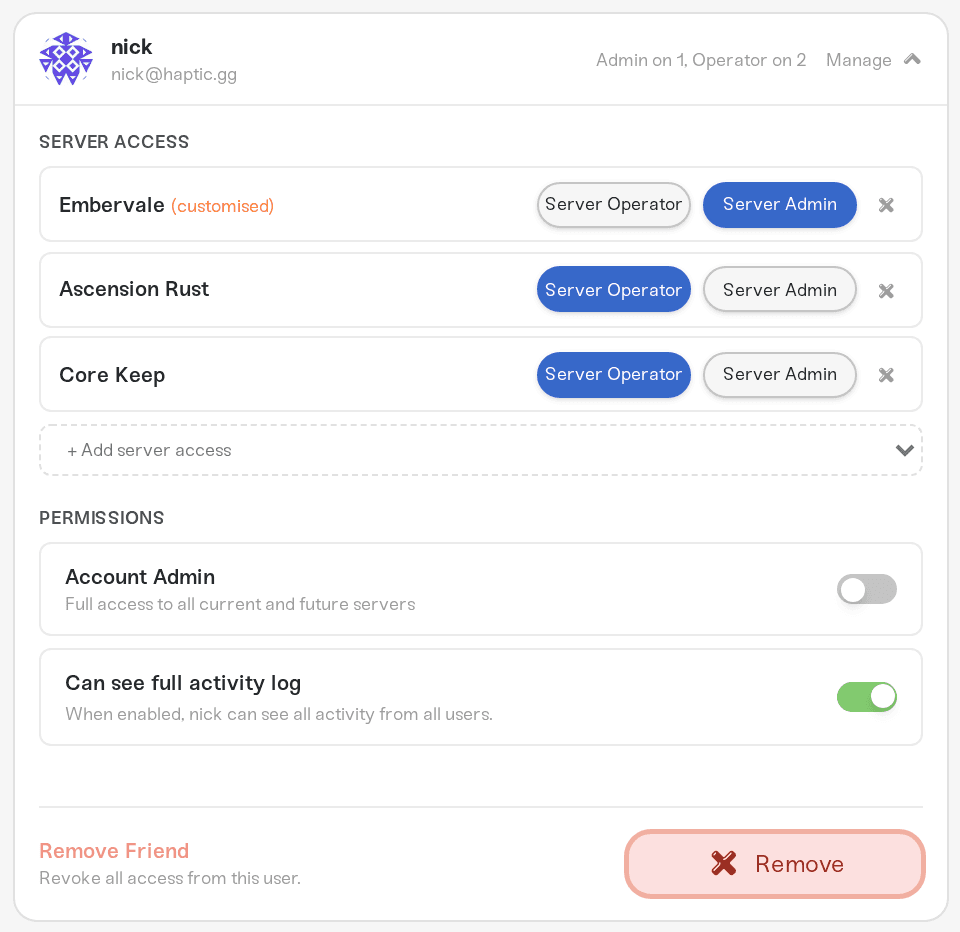
To share another server with the same friend, use + Add server access at the bottom of the list. New servers start as Server Operator; change the preset afterwards.
To promote a friend to Account Admin, turn on the Account Admin toggle under Permissions. It is account-wide, so it is not one of the per-server preset buttons. Turning it off drops them back to per-server access with every server set to Server Operator.
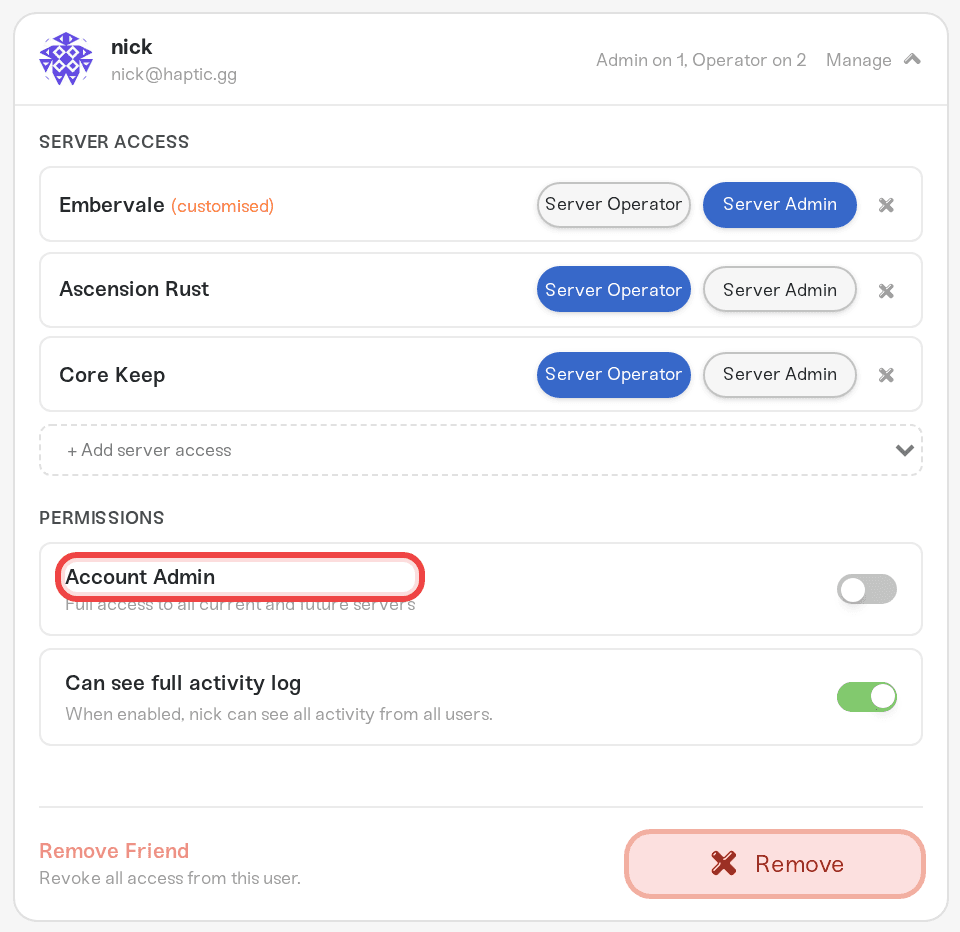
To take access away completely, use Remove Friend at the bottom of the card, or the X next to a single server. A friend who no longer has any access to anything, and has no subscription of their own, is signed out within a minute; a friend who still manages other servers keeps their session.
The activity log switch
A per-server friend normally sees only their own actions in the activity log. Can see full activity log on their card ("When enabled, [friend] can see all activity from all users.") shows them everyone's. It is the same thing as the See all activity permission in Customise.
What your friend sees
Your friend uses their own free Haptic account; they never log in as you. Once they have access, a Shared With Me entry appears in their dashboard menu with a "Viewing [your name]'s servers" badge. If several people share servers with them, that becomes a Switch Owner dropdown.
Operators see the power controls and each card's summary, but the settings, backups, mods, console, and files cards will not open; hovering one shows the note "Operators cannot modify settings". Their SFTP login works but is read-only.
Admins and customised shares see the areas their permissions cover and a dimmed "You don't have access to this" note on the rest. Buttons inside an area follow the same rules: a friend who can see backups but not restore them gets the backup list without the download and restore buttons; one who can watch the console but not send commands sees the command box disabled with "You can view this console but not send commands."
Account Admins get an owner-style view of the whole account, including Manage and Add Server.
Friends never see your billing pages. If they want to help with the cost, that runs through Chip in on a server.
If a friend says something is locked that this article says they should have, check their server on your Manage Friends page: the preset buttons and any (customised) marker tell you exactly what they hold.
Need help?
Message us on Discord or email support@haptic.gg with your friend's preset (and whether it is customised) and a screenshot of what they see.
Share server access with friends: the invite flow itself, step by step.
Invite players to your server: for friends who just want to play, no dashboard access needed.
Manage admins, whitelist, and bans: dashboard access and in-game admin are separate; this is the in-game side.
Let friends wake your server: waking a sleeping server from its public page with a share password, no Haptic account required.
Connect with SFTP: every friend with file access uses their own SFTP login.



