40% OFFOur winter sale is on! We're giving everyone 40% off their new server at checkout!
 FiveMGuide
txAdmin is the web admin panel that comes with FiveM: live console, player list, kicks and bans. Your server runs it once you link your Cfx.re account in…
txAdmin is the web admin panel that comes with FiveM: live console, player list, kicks and bans. Your server runs it once you link your Cfx.re account in your Haptic settings and restart, and Open txAdmin on your server page takes you there. Without a linked account your server runs without txAdmin, and you type commands in the Console card.
Whether your server runs txAdmin depends on one thing: a Cfx.re account linked to your Haptic account. Your server checks each time it starts.
No Cfx.re account linked: your server runs without txAdmin. Type server commands in the Console card's command box. The Files card shows Set up txAdmin, which takes you to the page where you link an account.
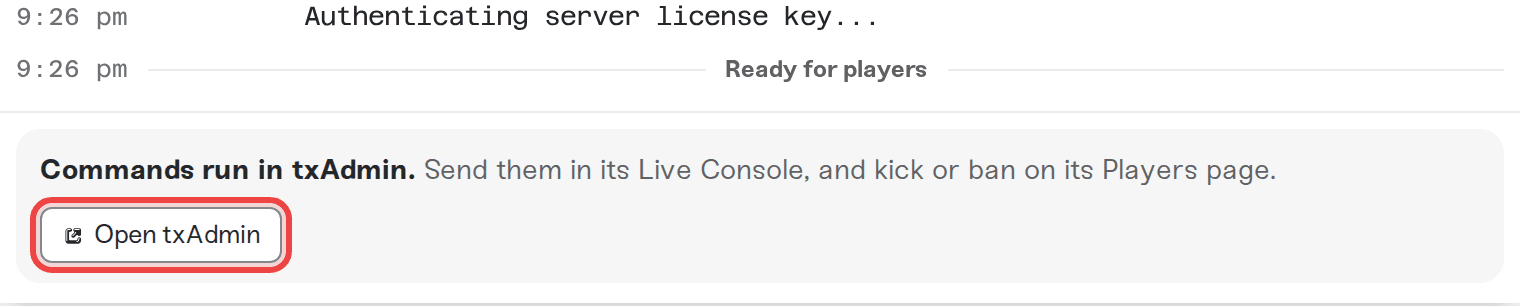
Cfx.re account linked: txAdmin runs your server. The Console card says Commands run in txAdmin. and has an Open txAdmin button.
Both ways run the same server.cfg and take the same commands: see FiveM: Console Commands.
Link your Cfx.re account: Dashboard > Account > Settings > Cfx.re account link. Fill in both your Cfx.re username and your numeric ID (both are on your Cfx.re profile).
Start your server, or restart it if it is running, with the Power buttons. It starts with txAdmin and makes your Cfx.re account the panel's master admin. No setup wizard, no PIN.
On your server's page, press Open txAdmin. Your panel opens in a new tab at your own address (it looks like panel-....haptic.gg).
Sign in with Cfx.re (the orange button in txAdmin).
If Open txAdmin is greyed out, point at it to see why: a new panel address is ready within moments, and a server that has never started gets its address at its first start. If the button says Retry panel, press it.
Run a server command: txAdmin > Live Console. Framework commands such as ESX's setgroup run here too.
Kick or ban: txAdmin > Players. Click a player for their history and identifiers.
Find a player's identifier: click the player on txAdmin's Players page and copy their fivem: or license: value. The admin lines in FiveM: Become an in-game admin take either one.
Add a co-admin: txAdmin > Admins. txAdmin shows a password for them to sign in with; add their Cfx.re ID too and they can use the Cfx.re button instead. Co-admins you add stay across restarts. Each time your server starts, Haptic takes four permissions away from co-admins: All Permissions, Manage Admins, Settings: Change, and Read/Write server.cfg. You keep all of them.
Start, stop and restart with the Power buttons on your server page. Haptic takes a backup each time it powers your server down or restarts it. A restart from txAdmin, by its button or its restart schedule, restarts only the game inside your running server and takes no backup.
Restart on a timetable with Haptic's automatic restarts, which take a backup each time.
Stopping the server in txAdmin stops the game, but txAdmin and your server stay on. Press Power down to turn your server off.
Backups come from Haptic: your server is backed up automatically, and you restore from the Backups card.
Editing in txAdmin's CFG Editor. It opens haptic.cfg, which Haptic writes fresh at every start, so your edits are gone after the next one. Put your lines in server-data/server.cfg on the Files card instead.
Adding yourself on txAdmin's Admins page to get the in-game admin menu. txAdmin and your framework's admin menu are separate: see FiveM: Become an in-game admin.
Message us on Discord with your server name. If the panel will not load, tell us what the Open txAdmin button says.
 © Haptic, LLC
*40% off applies automatically at checkout for your first month. Ends November 22, 2026.


