Palworld: Adding Steam Workshop Mods to Your Server
 PalworldGuide
Yes, your Palworld server supports Steam Workshop mods, right from your dashboard. Open your server's Mods panel, press Add a Mod, pick the Steam Workshop…
Yes, your Palworld server supports Steam Workshop mods, right from your dashboard. Open your server's Mods panel, press Add a Mod, pick the Steam Workshop tab, then search by name or paste a workshop link. We fetch the mod, test it on a real server, install it on your server when it passes, and email you; all you do is restart. You never install UE4SS or any mod loader yourself: Haptic runs that for you.
Adding a workshop mod, step by step
Mods built on PalSchema only work on Windows machines, and mods that only change looks, maps, or menus belong in each player's own game. When a mod cannot work, we tell you why, in the preview where we can, so it does not use up one of your daily requests.
Open the Mods panel
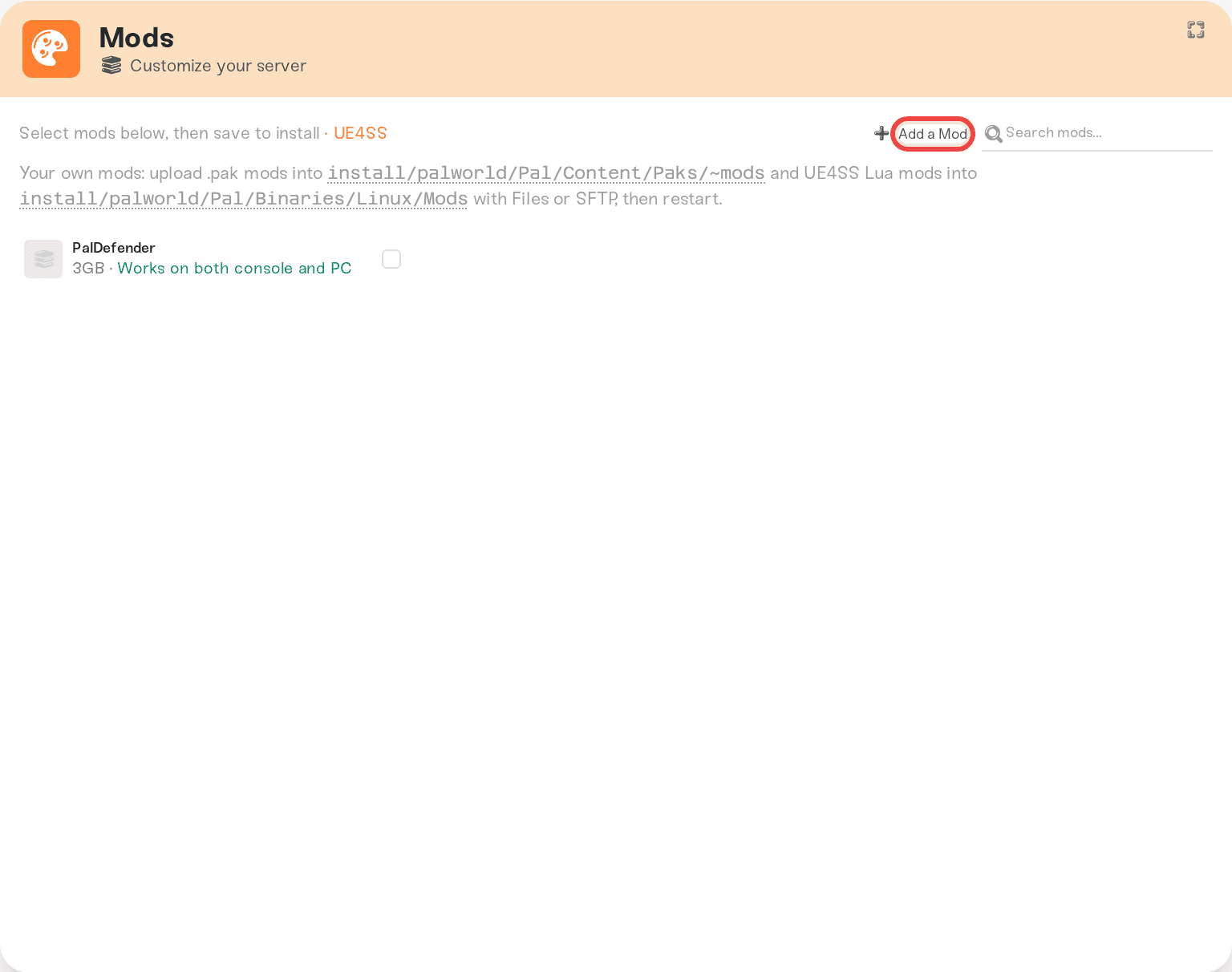
Open your server in the dashboard and expand the Mods panel.
Press Add a Mod
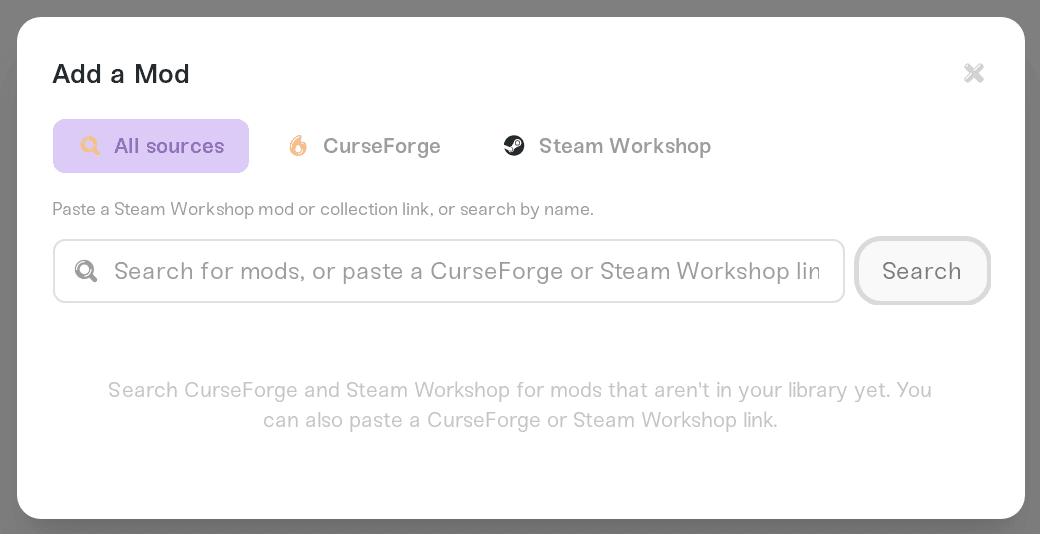
Press Add a Mod, then pick the Steam Workshop tab in the window that opens.
Find the mod
Search for the mod by name, or paste a workshop link like https://steamcommunity.com/sharedfiles/filedetails/?id=.... Pasting works from any tab; we open the right one for you.
Check the preview
The preview shows the mod and anything it depends on. UE4SS shows as already provided: Haptic runs UE4SS on every Palworld server, so there is nothing extra to install (a second copy would crash the server, so we never download it). PalSchema means the mod cannot run here (see below), and the preview says so before you send the request. Other required mods are included automatically and install together.
Add it
Press Install on this server under the preview. If you searched by name instead, click the mod, pick its version, and press Add to server. We fetch the mod from the Steam Workshop, check what is inside, and boot it on a real test server. You do not need to own Palworld on Steam or link any account for this.
Restart when the email arrives
If the mod passes, we install it on the server you requested it from and email you. Restart your server and the mod is live. If it fails, you see a plain reason instead, under Recent adds on the same panel.
CurseForge works too. The same panel has a CurseForge tab, and requests work exactly the same way from either source. When a workshop author publishes an update, we test the new version and your server picks it up; a broken update never replaces a working one.
Why some mods can't work here
Palworld mods come in a few kinds, and the workshop mixes them all together:
Server-side mods (UE4SS Lua): gameplay logic that runs on the server. These are the good ones: every player benefits, consoles included, and nobody installs anything. Most popular gameplay mods are this kind.
Pak mods: most of these change how things look, so they only show for PC players who also install the same mod on their own PC, and console players never see them (that is a platform rule, not a Haptic one). A few pak mods change server game data and work from the server alone. The mod's label in your dashboard tells you which kind you have.
PalSchema mods: PalSchema is a mod framework that only runs on Windows. Haptic's Palworld servers run on Linux, so PalSchema mods cannot work here, and we refuse them with that exact reason instead of letting them fail mysteriously. If the author offers a version without PalSchema, request that one.
Client-side mods: minimaps, map reveals, UI tweaks, visual overhauls. These belong in your own game files on your PC, not on a server. Installing them on a server does nothing, so we don't.
Every request goes through an automatic check plus a real boot test, and the result is always a plain answer: installed and ready, or refused with the reason.
Things that will not fix a refused mod
Requesting it again. The answer comes from what is inside the mod, so it will not change until the author ships a different version.
Asking us to install PalSchema. It is a Windows-only framework; there is no toggle on our side that makes it run on Linux servers.
Requesting UE4SS from the workshop. Haptic already runs UE4SS for you, and the Add a Mod window tells you exactly that.
If a mod you love is refused, check whether the author offers a "server" or "Lua" variant, those usually work. Or send us the link and we will take a look at the specific mod.
Need help?
Ping us on Discord or email support@haptic.gg with the workshop link and your server name. If a request failed, include the reason you saw; it tells us exactly which check refused it.


