Back up your server
 HapticGuide
Every Haptic server is backed up automatically, at no extra cost, and backups cannot be turned off. A backup is taken once a day on Always On servers and…
Every Haptic server is backed up automatically, at no extra cost, and backups cannot be turned off. A backup is taken once a day on Always On servers and every time your server powers down, restarts, or goes to sleep. While players are online your live world is also synced to cloud storage at least every hour, but that sync is not a restore point: you can only restore to the backups in your list. For a restore point right now, press New Backup while the server is online. Everything lives in the Backups card on your server's Detail view.
Where your backups live
Open My Servers in your dashboard.
Press Detail view on your server's card.
Find the Backups card and click its header (or the expand icon) for the full list and the New Backup button.
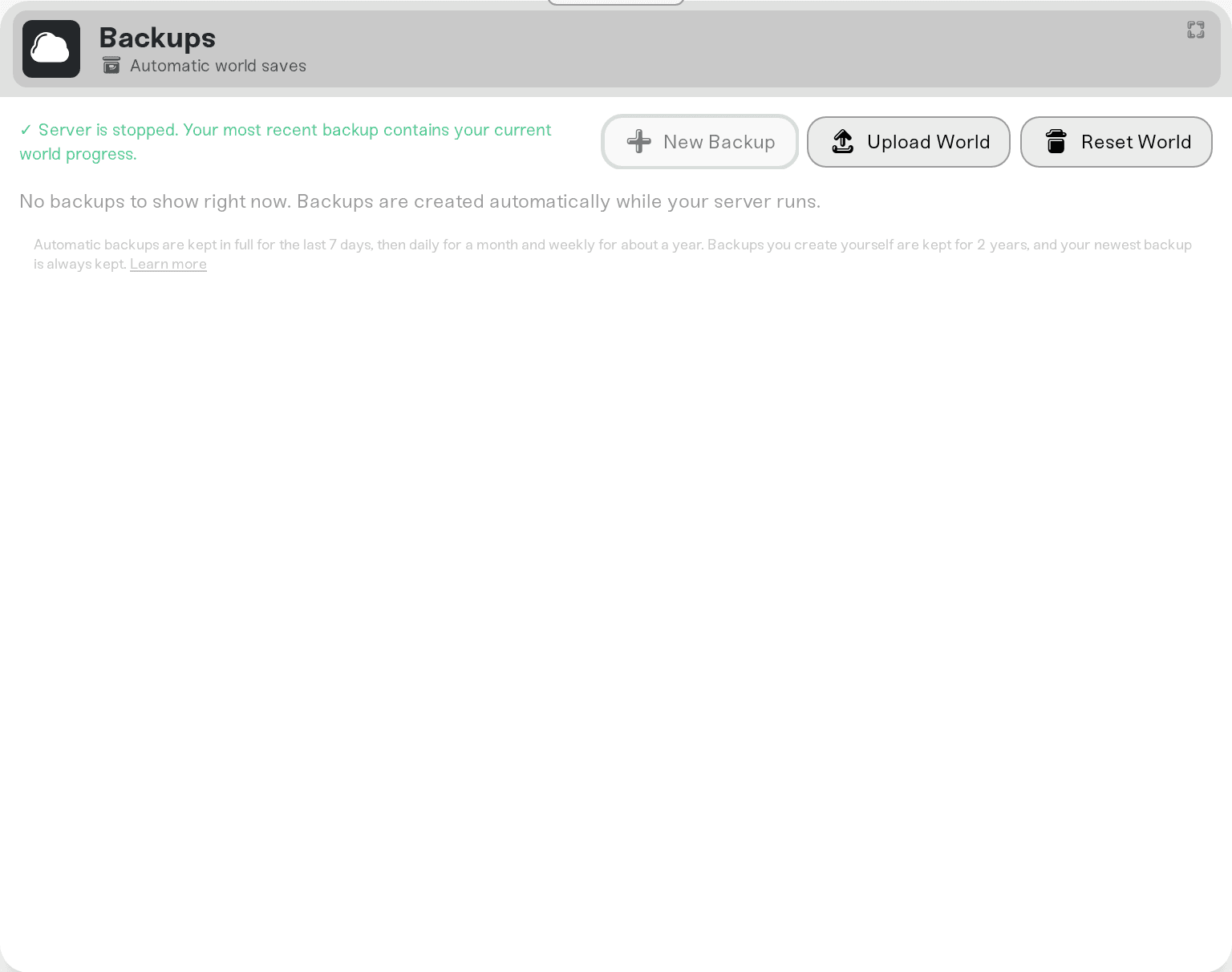
Backups live in cloud storage, separate from your server, so they never use its memory. They are included with every plan: nothing to enable, nothing to pay, and no setting to switch them off or change the schedule.
When a backup is taken
Haptic stores two things: your live world (what loads when the server starts) and backups (snapshots you can restore). A backup is taken:
once a day on Always On servers
when you press Power down or Restart
when a scheduled automatic restart fires
when a Wake & Play server goes to sleep at the end of a session
before risky actions like restoring a backup, uploading a world, or resetting your world, so those are always undoable
any time you press New Backup
Between those moments, while players are online, the server syncs your live world to cloud storage at least every hour. That keeps your current world safe, but it adds no row to your backup list, so it is not something you can restore to.
While the server is online, the top row shows an italic Current session entry with a pulsing green dot: your in-progress save, which lands in the next backup.
What you can restore to
Your restore points are exactly the backups in the list. You cannot roll back to a moment between two backups.
On a Wake & Play server, every play session ends with a Hibernation backup, so each session is a restore point.
On an Always On server that nobody restarts, you get one Daily backup. It holds your world as of its last cloud sync, so it can be a few hours older than its timestamp. Nothing is lost: the sync already saved that state.
For a restore point at any other moment, press New Backup or restart the server.
Every backup wears a Type badge saying why it exists: Manual, Daily, Shutdown, Restart, Auto-restart, Hibernation, Crash recovery, or a safety snapshot such as Pre-restore. Crash recovery means the server stopped without anyone asking it to (the game crashed, ran out of memory, or its host had a problem); it is not a hibernation, and an Always On server normally starts again on its own. A green check in the Status column marks the backup holding your current world progress. An amber Empty or Incomplete flag means the backup may be missing world data; prefer a nearby one when restoring.
Create a backup yourself
Open the expanded Backups card.
Press New Backup in the header.
The server must be online: a manual backup saves your world to disk right now and uploads it, which only a running server can do. Players may notice a few seconds of lag while it saves. The button shows Creating..., then Done!, and large worlds can take a few minutes.
Manual backups are kept for 2 years and are never thinned out. Automatic backups are kept in full for 7 days, then thinned by age, and your newest backup and live world are always kept. The full policy is in How long Haptic keeps your backups.
Name or download a backup
Click the backup's row to open Backup Details.
To name it, type into Name (optional) and press Save. The name shows in the Name column and under Account > Data Recovery.
To download it as a zip of your world files, press Download Backup. Show file list shows exactly what is inside first.
A name is only a label and does not change how long a backup is kept. Downloads work whatever state the server is in.
Things that will NOT do what you might expect
Looking for an off switch. There is none, on any server or plan, and no setting changes the schedule.
Waiting for the hourly sync to give you a restore point. It never appears in the list. Press New Backup for a snapshot now.
Naming a backup to keep it forever. A name is only a label. Download a copy of anything that must outlive the keep schedule.
Need help?
If a backup you expected is missing, message us on Discord or at support@haptic.gg with your server name and roughly when the moment you want back happened. Mention the nearest backup you can see in the list.



