Terraria: mods with tModLoader
 TerrariaGuide
Install mods from the Mods card, press Save changes, and your server switches itself to tModLoader. Your players then join with the free tModLoader app…
Install mods from the Mods card, press Save changes, and your server switches itself to tModLoader. Your players then join with the free tModLoader app instead of Terraria, and the mods download to them on their way in. One catch to read before you start: a world made by regular Terraria will not open on a modded server, so plan on a fresh world. Your backups stay safe either way.
Read this first: mods need a fresh world
tModLoader is built on an older Terraria release than vanilla. As of August 2026 it runs Terraria 1.4.4.9 while regular Terraria is on the 1.4.5 line; tmodloader.org has the current state. A world last saved by a newer Terraria cannot be opened by an older one. That is a Terraria rule, not something we control.
So if you already have a world on a vanilla server and you add a mod, the next start fails with a message about the world being saved by a newer Terraria server version. That on-screen message goes on to say the server version usually catches up on its own within the hour: true for a normal vanilla version lag, and not true here. Waiting will not fix a modded server.
The clean path:
Add mods on a new server, or on one whose world you do not mind losing.
On an existing server, do it in this order: stop the server, run Reset World, install and save your mods, then start the server. Reset World is disabled while the server is running (the tooltip reads "Please power down the server before resetting the world.") and it deletes your current world and generates a fresh one the next time the server starts. If you start the server between the reset and the mod save, you just generate another vanilla world and have to do it again. Your existing backups are untouched and stay downloadable. See Reset your world.
Already stuck in this state? Uncheck every mod on the Mods card. That sets Mod Loader back to None (Vanilla) for you (you can see it in the expanded Overview card once the last mod is gone). Press Save changes and restart. Your world loads again.
Install your mods
Open the Mods card
Go to your server's Detail view and expand the Mods card. The catalog lists the tModLoader mods Haptic has imported and tested for Terraria, not the whole Steam Workshop. Not listed? Press Add a Mod in its header (Add a mod we don't have yet).
Pick what you want
Check the box on each mod you want (the tooltip reads Check to install), or press Select Mod in its detail panel. Nothing is installed yet; you are staging changes.
Save changes
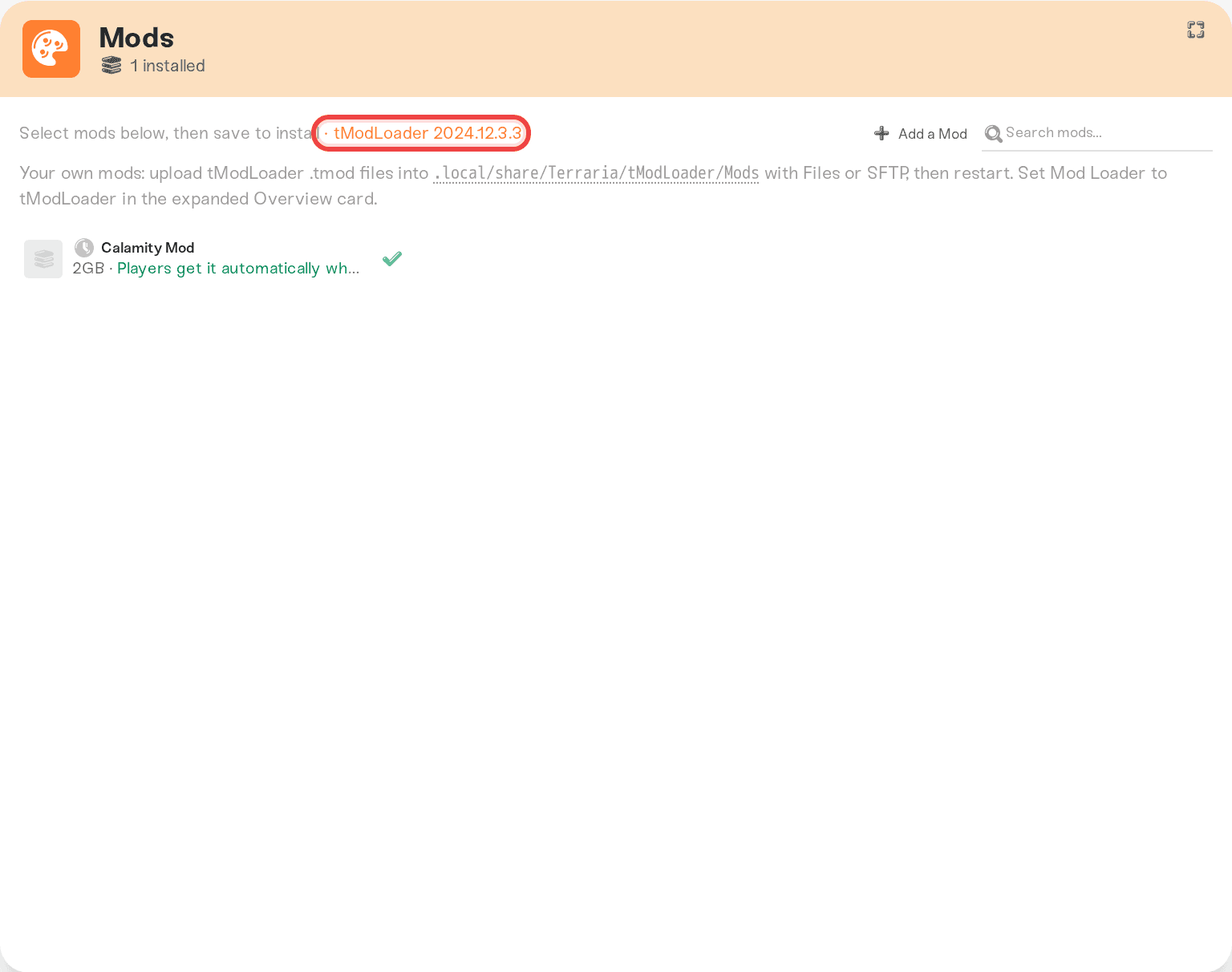
A Save changes popup appears at the bottom of the page. Press it. Until you do, nothing is saved and your server is still on vanilla. Saving your first mod is also what flips the server from vanilla to tModLoader: the chip in the Mods card header then shows tModLoader plus its version, so you can always see which loader you are on.
Restart the server
Mod changes apply on the next start. During boot the status tile walks through the loader download, then a line per mod like Installing Calamity Mod (1/3), then Checking mod compatibility, so you can see how far along it is.
Big mods take a while on that first boot. Calamity alone is around 300 MB.
What your players need to do
Two things, and only the first is manual.
They launch tModLoader, not Terraria. tModLoader is a separate free app on Steam for anyone who owns Terraria. Install it, run it, then use Multiplayer and Join via IP with your server address. A regular Terraria client cannot connect to a modded server, and a tModLoader client cannot connect to a vanilla one.
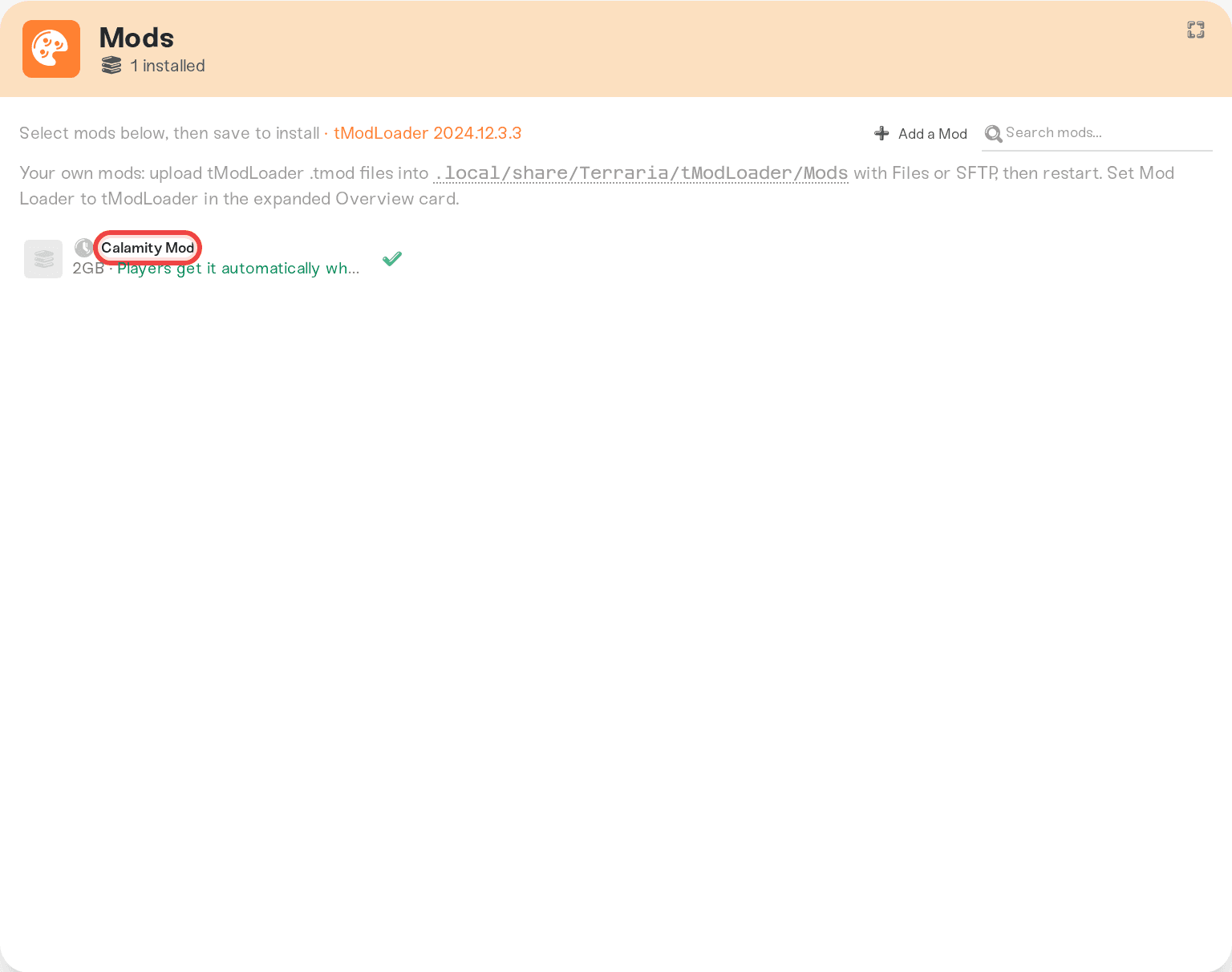
They do not have to install your mods by hand. tModLoader downloads the server's mods as they connect and asks them to reload once. Mods with this behavior show the label Players get it automatically when they join on their row in the Mods card.
That download happens at join time, so a long mod list makes the first connection slow. Players who would rather not wait can subscribe to the same mods in the tModLoader mod browser ahead of time.
If the server will not start after adding a mod
Check the status tile on your server card first, because it names the cause.
"... is not compatible with tModLoader ..." means that mod was built for a different tModLoader release. We check every catalog mod before the server boots, so it fails in seconds instead of hanging. Remove that mod, or pick a version of it built for the current release.
"saved by a newer Terraria server version" is the world problem above, and on a modded server it does not clear on its own. Reset the world, or drop back to vanilla.
Mods you upload yourself
Any .tmod file you drop into .local/share/Terraria/tModLoader/Mods/ through the Files card or SFTP is kept across restarts and enabled automatically on every boot. That folder only exists, and is only read, while your server is running the tModLoader loader: on a vanilla server an uploaded .tmod does nothing at all. You do not need to touch enabled.json; it gets rewritten from your mod list each time the server starts.
Uploaded mods skip the compatibility check that catalog mods go through. If one of them is built for the wrong release, tModLoader simply ignores it at load instead of stopping the boot.
Keeping mods updated
When a mod author publishes an update, we download the new version automatically, but your server keeps running the old one until it restarts, and players who already have the update cannot join in the meantime.
The Restart on mod updates dropdown, right below Auto Restart in the expanded Overview card, decides what happens next: Off, just notify me, When the server is empty, or After a 5-minute warning (players get warnings in game 5 minutes and 1 minute ahead).
Memory
Large content mods plus a Large world need more memory than vanilla Terraria. If your server gets sluggish or restarts on its own after a big modpack, that is usually the cause. See Understanding your memory budget.
Need help?
Reach us on Discord or at support@haptic.gg. Include your server name, the mod list you installed, and a screenshot of the status message on your server card.


