Invite players to your server
 HapticGuide
Everything a friend needs to join lives on the colored strip at the bottom of your server card: click the address to copy it, and use the shortcut row next…
Everything a friend needs to join lives on the colored strip at the bottom of your server card: click the address to copy it, and use the shortcut row next to it to copy the password, send a ready-made Share message, or open your server's public page. Your friends do not need a Haptic account to play, just the address (and the password, if your game uses one). The address stays the same across restarts and sleep, so you rarely have to send it twice.
What a friend needs to join
The server address, for example
odin.vesta.haptic.game:7699. Send it exactly as shown on your card, including the:portpart at the end.The server password, if your game uses one (Valheim and Palworld do, Minecraft does not; see below).
The right connection details for their platform. Console players on crossplay games often use a join code instead of the address; crossplay Minecraft has separate Java: and Bedrock: addresses.
That is it. Joining your server does not require a Haptic account, and nothing your friends do in game can touch your dashboard.
Copy your server address
Open My Servers in your dashboard.
Find the colored strip at the bottom of your server's card. The address on it is your join address.
Click the address. It flashes Copied hostname! and the full address, port included, is on your clipboard. (Hovering it shows Copy server hostname.)
Paste it to your friend, and they paste it into the game's multiplayer, server browser, or direct connect screen.
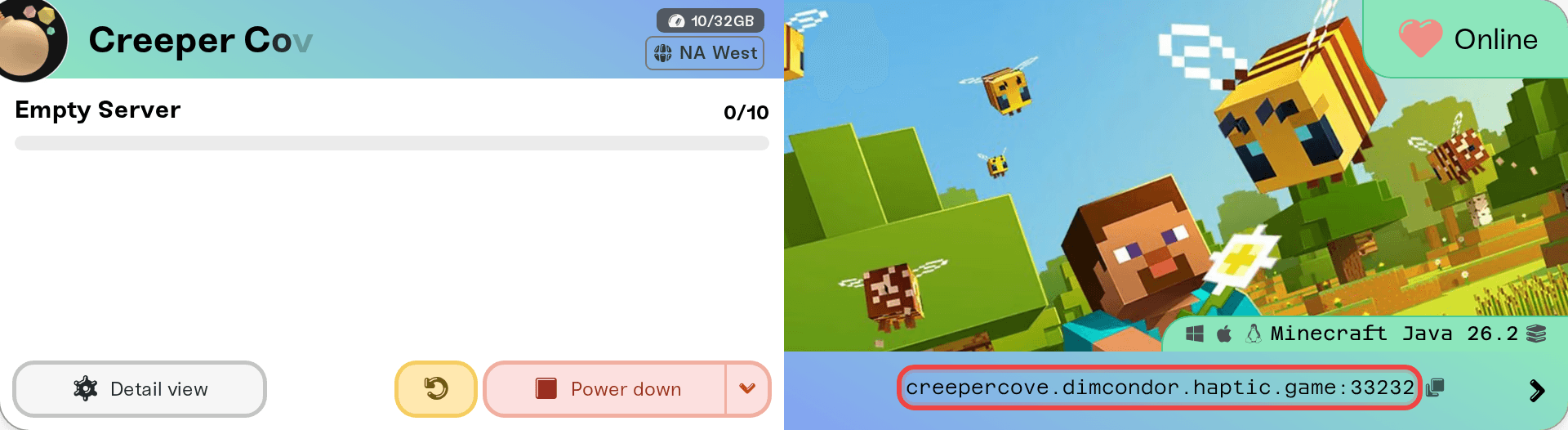
The address stays visible while your server is online, offline, or sleeping, so you can grab it any time; it only hides for a moment while the server is starting or restarting. And because it is a hostname rather than an IP, it stays the same across restarts and sleep, so friends can save it in their game once. Two things do change it: moving your server to another region gives it a new port number, and renaming it changes the name itself. After either one, send your friends the fresh address; see Change your server region and Change your server address. More on how the address works in What are custom hostnames?
With Bedrock Crossplay on, the strip splits into a Java: row and a Bedrock: row; each is click-to-copy, and console or mobile friends need the Bedrock one. See Minecraft: Java and Bedrock Crossplay on Your Server.
The shortcut row: password, share, and more
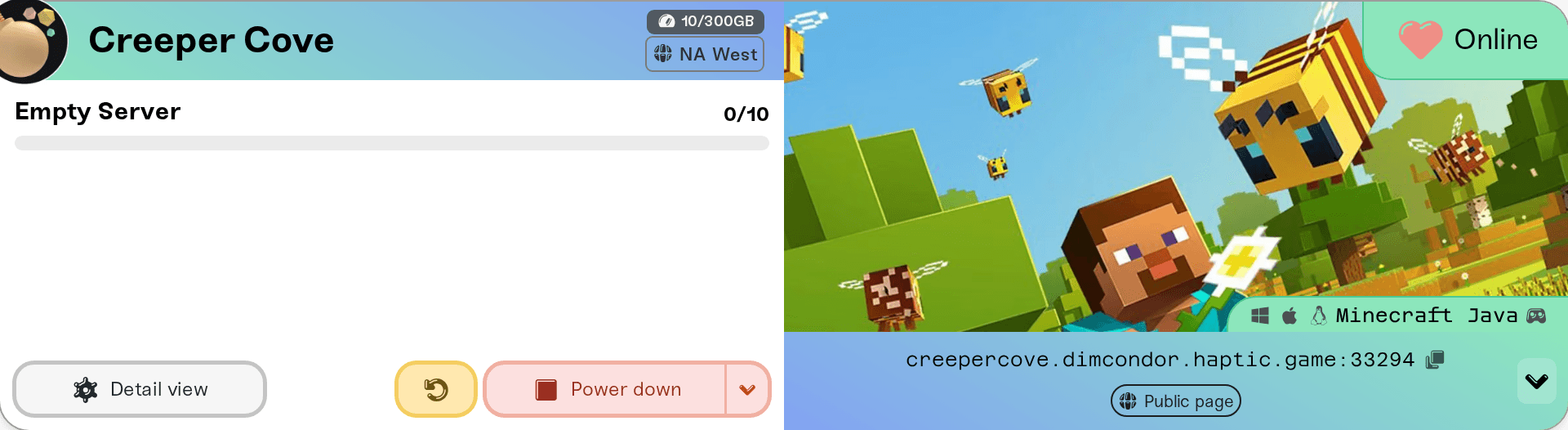
On a desktop browser, click the small arrow (chevron) at the right end of the address strip. Its tooltip lists what is inside: password, share, public page, and connection options. On mobile the shortcut pills are always visible right under the address, no chevron needed.
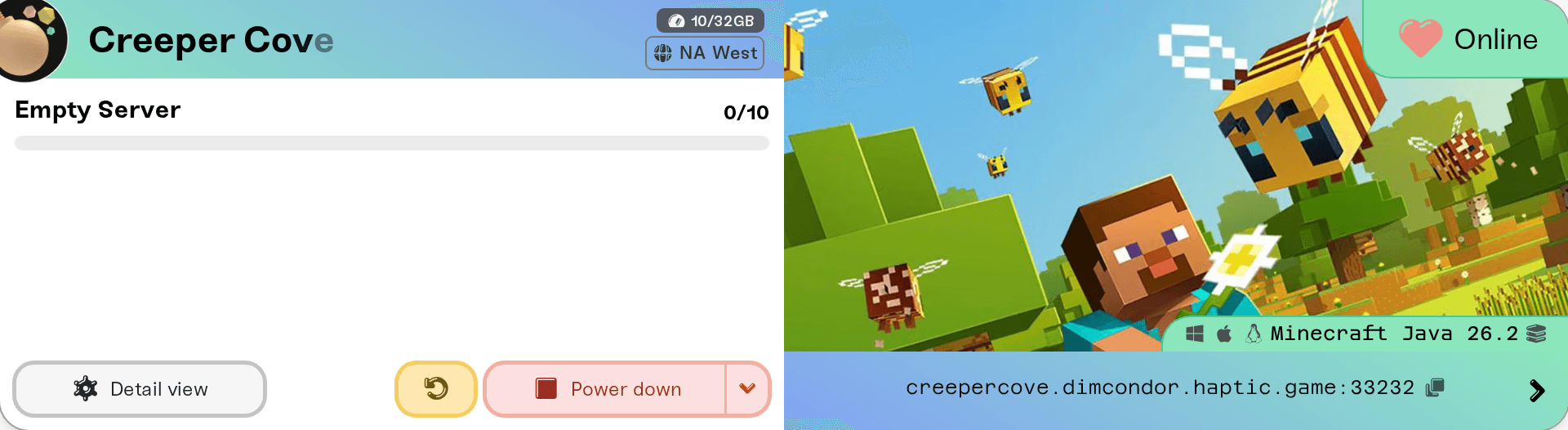
Which pills you see depends on your game and your server's state:
Copy password (tooltip Copy server password): copies the join password so you can paste it to your friend alongside the address. Games with role-based passwords, like Enshrouded, show a pill per role instead: Admin, Friend, and Guest, each copying that role's password.
Share (tooltip Share your server hostname and password with friends): opens your device's share sheet with a ready-made message: the game, the address, the password if one is set, and extra details like the Valheim join code or the Minecraft Java and Bedrock sections. One tap sends the whole thing to Discord, iMessage, WhatsApp, wherever. This pill appears in browsers with a share sheet, which mostly means phones and Safari.
Join with the Steam logo (tooltip Join on Steam): launches the game through Steam and connects it straight to your server. Handy for testing your own connection. It shows only while the server is Online, on desktop, for Steam games. A few games cannot accept an address from Steam this way; those show a Copy hostname pill instead.
Join Code (tooltip Copy crossplay join code): copies the six-digit code console players type in game on crossplay servers like Valheim. It appears only while the server is online, because the code is issued fresh each time the server starts. See Valheim Crossplay: How Console Friends Join Your Server.
Public page with a globe icon (tooltip Open your public server page): opens your server's shareable web page. It shows once you have set up the public page for that server.
Does your friend need a password?
Quick ways to tell:
If the shortcut row has a Copy password pill, yes: send the password with the address.
If the row instead says *This server has no password\*, anyone with the address can join. You can set one in your server's settings; see Set or remove your server password.
Minecraft has no join password at all; that is a Minecraft rule, not a Haptic limit. To control who joins, use the whitelist instead: Manage admins, whitelist, and bans.
FiveM and RedM do not use a join password either; players sign in with their own Cfx.re account when they connect.
Inviting people to a sleeping server
A sleeping Wake & Play server keeps its address, but the game itself will not respond until the server wakes up. Two ways to handle that:
Wake it yourself from the dashboard before your friends connect. See What is Wake and Play?
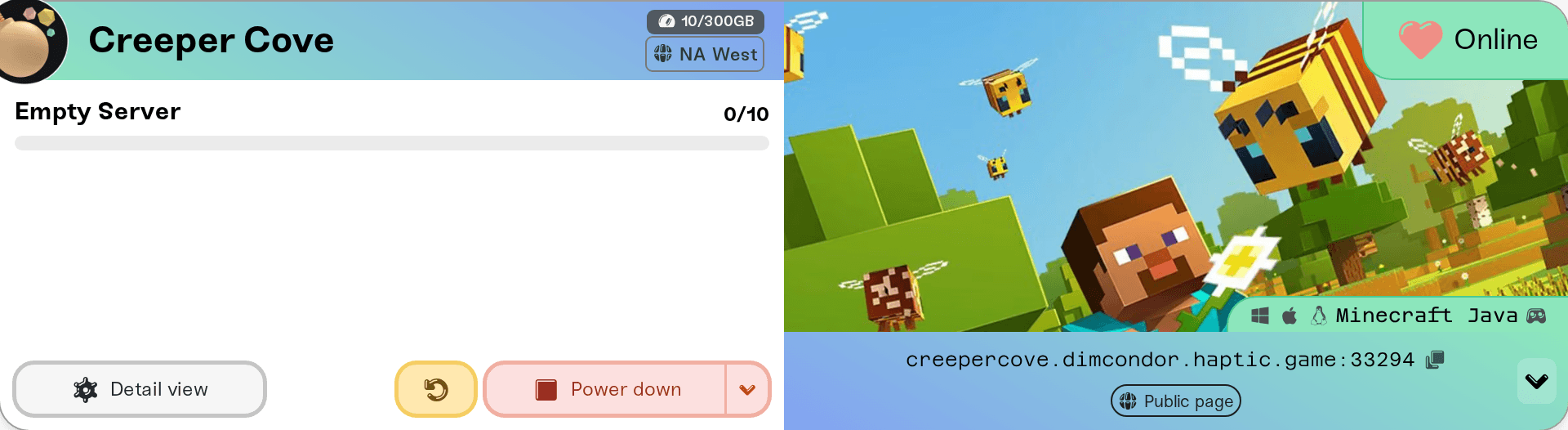
Let friends wake it without you. Turn on your server's public page and the Friends can wake this server option, then send friends the page link and its share password. The page shows the server's status, a wake button whenever it is asleep, and the join address once it is online, so your group never waits for you to log in.
The Public page pill in the shortcut row opens that page so you can copy its link.
Set it up with Set up a public page for your server and Let friends wake your server with a share password.
This is not the same as sharing your dashboard
Sending the address and password lets people play on your server. It does not let them start, stop, or change anything. If you want a friend to help run the server (restart it, edit settings, manage backups), invite them from Manage Friends in your dashboard instead; they get their own free Haptic account and only the permissions you choose. See Share server access with friends.
If a friend can't connect
Double-check they pasted the full address including the :port, that they are on the right edition or platform for your game, and that the server is actually running. If it still fails, walk through I can't connect to my server; every step there applies to friends too.
Need help?
Ask us in Discord or email support@haptic.gg. Tell us the game, what your friend sees when they try to join (a screenshot of the error helps), and whether you can join with the same details yourself.



