Restore your server to an earlier backup
 HapticGuide
Restoring a backup rewinds your server's world to the moment that backup was taken. It is safe to try: Haptic always saves a fresh snapshot of your current…
Restoring a backup rewinds your server's world to the moment that backup was taken. It is safe to try: Haptic always saves a fresh snapshot of your current world first, tagged Pre-restore, so even a restore you regret can be undone. Stop your server, click the backup you want in Backups, then press and hold Restore Backup. Most restores finish in under 2 minutes, and closing the tab never interrupts one.
Before you start: stop your server
Restore only works while your server is powered down. If the server is running, the Restore Backup button is disabled and shows Stop server to restore.
Power the server down from its card first (how to start, stop, and restart your server). Once it is stopped, the Backups card confirms you are safe to proceed: "Server is stopped. Your most recent backup contains your current world progress."
One thing that trips people up: this is the opposite of creating a backup. New Backup needs the server online; Restore Backup needs it offline.
Step 1: Open your server's backups
Go to My Servers in your dashboard and click Detail view on your server's card.
Find the Backups card and click the expand icon to see the full list.
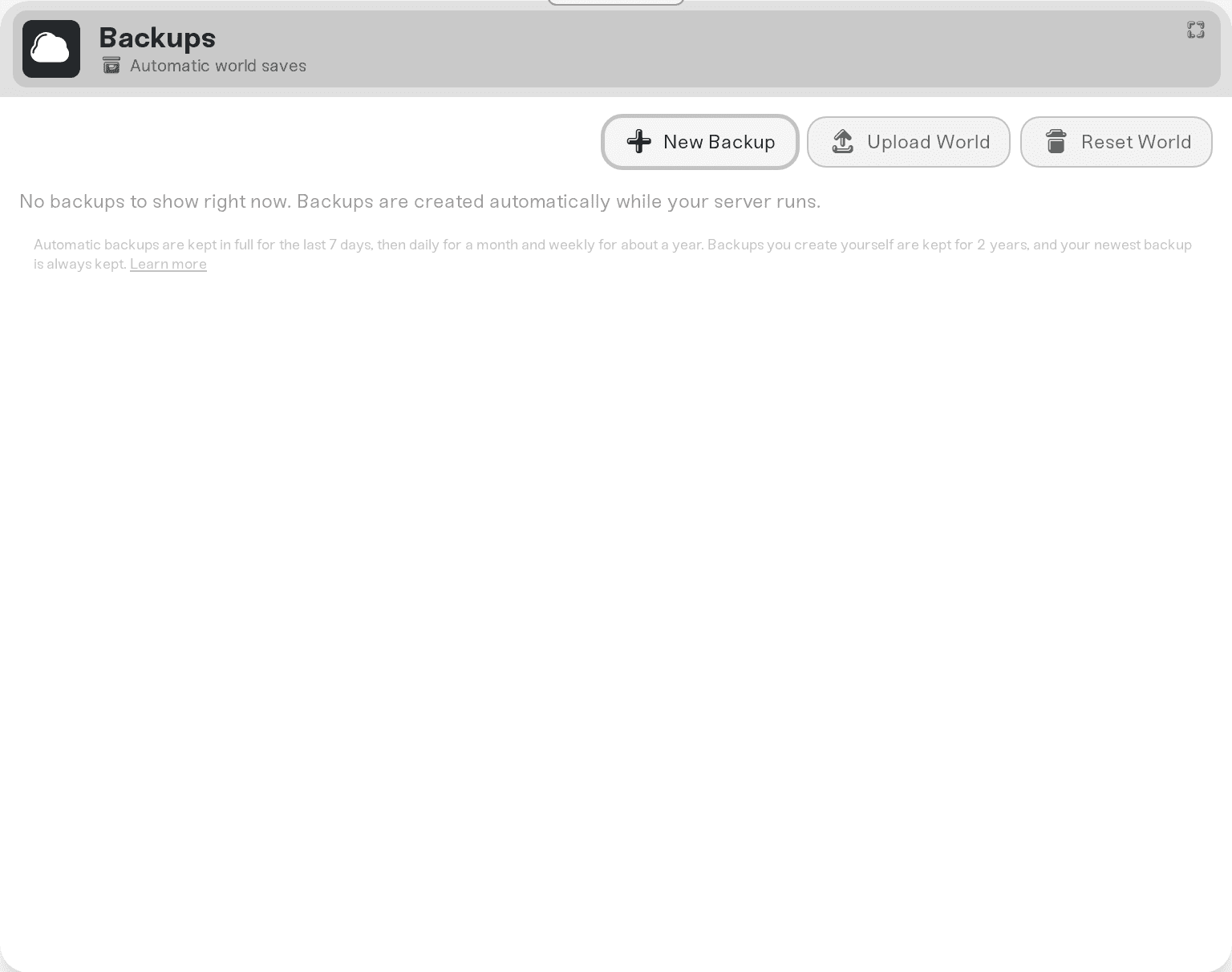
Every backup is listed with its date, name, type, game version, file count, and size, grouped by month. The green check in the Status column marks the backup that matches your current world: "This backup contains your current world progress. The server was last saved from this state."
Step 2: Pick the moment to go back to
Choose the backup from just before the thing you want to undo: the raid, the failed mod experiment, the accidental deletion. The Type badges tell you where each backup came from (for example Manual, Shutdown, Daily), and hovering a badge explains it. Backups you named yourself show that name in the Name column.
Not sure which one is right? Click a backup to open Backup Details, then use Show file list to see exactly what is inside, or Download Backup to inspect it on your PC first. Creating, naming, and downloading backups are covered in Back up your server and Download your world.
A backup flagged Empty contains no world data, and one flagged Incomplete has far fewer files than your other backups, so part of the world may be missing. Prefer a nearby backup without a warning. Restoring one anyway will not delete anything: your current world is saved first, so you can undo.
Step 3: Press and hold Restore Backup
Click the backup's row to open the Backup Details dialog.
Read the warning above the button: "This swaps your server back to this save. Any progress since then will be lost." The same message ends with a time estimate for this specific world.
Press and hold the blue Restore Backup button until the ring fills. It says "Hold to confirm..." while you hold; a single click does nothing, which is deliberate protection against accidental restores.
"Lost" is less final than it sounds: because a Pre-restore snapshot of your current world is saved first, you can bring that progress back later (see "Undo a restore" below).
If you picked a backup flagged Empty, an extra dialog appears first: "Restore empty backup?" with the choices Cancel and Restore anyway. Unless you specifically want an empty world, cancel and pick a different backup.
What a restore actually replaces
A restore swaps your server's save data back to what is in the backup, nothing more. The Show file list link in Backup Details shows the exact files the restore will put back. Things that live outside those files, like your server's address, memory, and the settings you manage in the dashboard, are not rewound.
Game specifics vary: in Valheim, for example, player characters live on each player's own PC, so a world restore never touches anyone's skills or inventory. See Valheim backups and restore for that game's details.
How long it takes
The dialog shows an honest estimate before you confirm, based on how many files your world has:
Most worlds: "Restores of this world usually finish in under 2 minutes."
Worlds with many files: usually 3 to 8 minutes, or 10 to 30 minutes for very large ones.
Extremely file-heavy worlds (some long-running modded worlds have hundreds of thousands of files): the restore can take an hour or more, and the dialog tells you roughly how long. Leave the server stopped and let it run.
The restore runs entirely on Haptic's side. Closing the tab, putting your laptop to sleep, or logging out never interrupts it.
What you'll see while it runs
The moment you confirm, a toast reads "Switching your server to this save." and the Backups card shows a blue banner: "Switching to an earlier save from {date}... The restore is running on Haptic's servers, so closing this tab won't interrupt it. Power Up, Restore, and Delete stay unavailable until it finishes."
Your server's card also shows a progress bar that walks through three steps ("Restoring: copying backup (step 1 of 3)", then applying files, then finishing up) with a percentage and elapsed time. If the percentage pauses for a while, the restore is still working; the label switches to "Still restoring. Storage is responding slowly…" when that happens. Do not force anything mid-restore, just let it finish.
When it completes you get a toast: "Backup from {date} restored. Your server will use this save the next time it starts." Power the server up and you are back at that moment.
Undo a restore
Restored the wrong backup, or went back further than you meant to? Nothing is gone.
Right before every restore, Haptic saved your world as it was at that moment. Look in the backup list for the newest backup with the orange Pre-restore badge: "Safety snapshot of the world that was active right before you restored an older backup. Restore this to undo that restore."
Restore that snapshot the same way (stop the server, press and hold Restore Backup) and your world is back where it was before the bad restore. Since every restore creates a new Pre-restore snapshot, you can never restore yourself into a corner.
Why is Restore Backup greyed out?
Hover the disabled button; the message tells you exactly what is blocking it.
| Message | What it means | What to do |
|---|---|---|
| "Stop server to restore" | The server is still running | Power it down, then restore |
| "A backup is being created. Wait for it to finish." | A backup is uploading right now | Wait a minute or two and try again |
| A world operation message | A restore, world upload, or world reset is already running | Let the current operation finish first |
Need help?
If a restore fails, the message on screen explains what happened, and it is always safe to run the restore again. Stuck, or not sure which backup holds the moment you want? Message us on Discord or email support@haptic.gg with your server name and the date and time of the backup, and we will find it with you.



