40% OFFOur winter sale is on! We're giving everyone 40% off their new server at checkout!
 HapticGuide
Turn on Show Resource Usage in the Basic section of your server's Overview card. Your server card then shows a live Memory Usage bar and a CPU Usage bar…
Turn on Show Resource Usage in the Basic section of your server's Overview card. Your server card then shows a live Memory Usage bar and a CPU Usage bar whenever the server is online, and the change applies right away with no restart. When the memory bar sits in yellow or red most of the time, that is your sign to add memory. On a phone, it is in the Overview pane of your server card.
Go to My Servers and press Detail view on your server's card.
Click the Overview card's header to expand it. The Show Resource Usage checkbox only appears in the expanded card, near the bottom right of the Basic section.
Tick Show Resource Usage and press Save changes in the popup at the bottom of the page. You will see "Applied new settings.": this setting takes effect immediately, so there is nothing to restart.
Collapse the card by clicking its header again. The two bars now sit at the bottom of your server's card, above its buttons, while the server is online.
Two shortcuts:
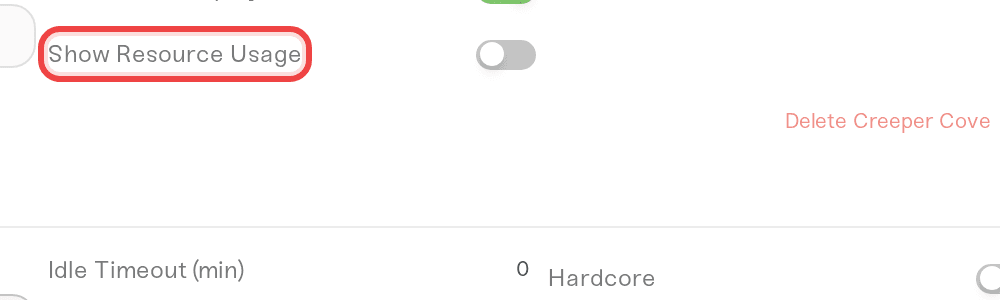
Search instead. Press Ctrl+K (Cmd+K on Mac), type "resource", and flip the switch on the Show Resource Usage row for your server. It saves on the spot and shows Saved.
At creation time. The same checkbox is in the server settings step when you add a new server.
To undo, untick the box and save again, or flip the switch back in search. Hiding the bars changes nothing about the server itself.
Both bars are live readings from the running server. They only exist while the server is online, and each stays empty and grey until the first reading arrives.
Memory Usage shows how much memory your server is using right now against everything it has, written as used / total. The total is your allocation plus any free memory boost your game gets; hover the numbers for the breakdown. The bar is green with room to spare, yellow as the server nears its limit, and red, with the numbers in bold red, when it is nearly full.
CPU Usage shows what share of its allowed CPU the server is using right now, with a small line next to the label tracing the recent trend. Same colours.
If a notice is showing on the card, the bars step aside until it is cleared.
The memory bar decides. A server that keeps drifting into yellow and red while people play needs more memory, and that is one of two moves:
Move memory you already have. If another server on your plan holds memory it does not need, shift it across from Manage on My Servers. See Understanding your memory budget.
Grow your plan. Upgrades apply immediately. See How to upgrade or change my plan.
The dashboard also nudges you. When a server is using most of its memory, the bars switch themselves on for the owner. If it runs close to its limit for a while, a warning triangle appears on the card with Your world is growing; if it actually ran out and had to restart, the triangle turns red with Your server ran out of memory. Hover or tap the triangle for a one-tap Add button when your plan has unallocated memory, or a link to add memory to your plan.
CPU is different. A red spike during a big fight or a world save is normal. A CPU bar that stays red usually points at heavy mods or expensive settings rather than memory, so start with My server is lagging.
Reading the memory chip on the card as usage. The small chip on every server card is how much memory the server has been given, not how much it is using.
Restarting to "reset" the numbers. A restart lowers the bars for a while. If the same world and players push memory back into red, the server needs more memory, not more restarts.
Turning the bars off. Hiding them does not change what the server uses.
Swipe your server card to its Overview pane: Show Resource Usage is in the list there. Once it is on, the bars sit on the card above the power buttons while the server is online. You can also tap the round search icon in the top bar, type "resource", and flip the switch on the result row.
Ask us on Discord or at support@haptic.gg. Include your server name, the game, and a screenshot of the card while the bars are in the red.
How to upgrade or change my plan
 © Haptic, LLC
*40% off applies automatically at checkout for your first month. Ends November 22, 2026.



