Manage admins, whitelist, and bans from your dashboard
 HapticGuide
For games with player lists, your server's Overview card has an Admins tab where you add admins or operators, whitelist players, and ban troublemakers, all…
For games with player lists, your server's Overview card has an Admins tab where you add admins or operators, whitelist players, and ban troublemakers, all without editing a single config file. Search for the player, pick a role, click Add Player, then save. On Minecraft Java and Project Zomboid the change applies immediately while the server is online; on other games it applies the next time the server starts.
Where to find it
Open your dashboard, go to My Servers, and open your server.
On the Overview card, click the Admins tab. On Project Zomboid the tab is called Admins & Whitelist, because both jobs live in the same list there.
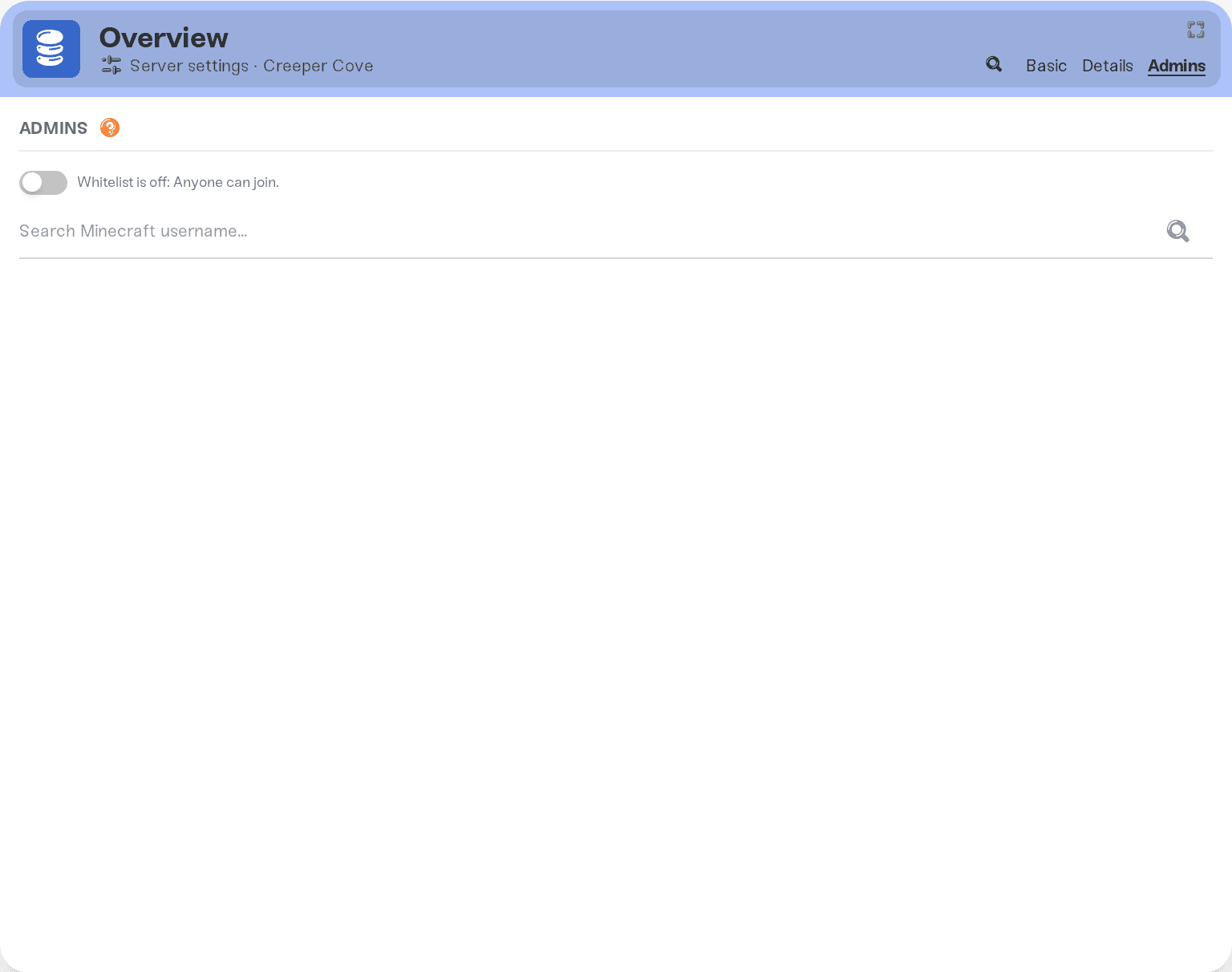
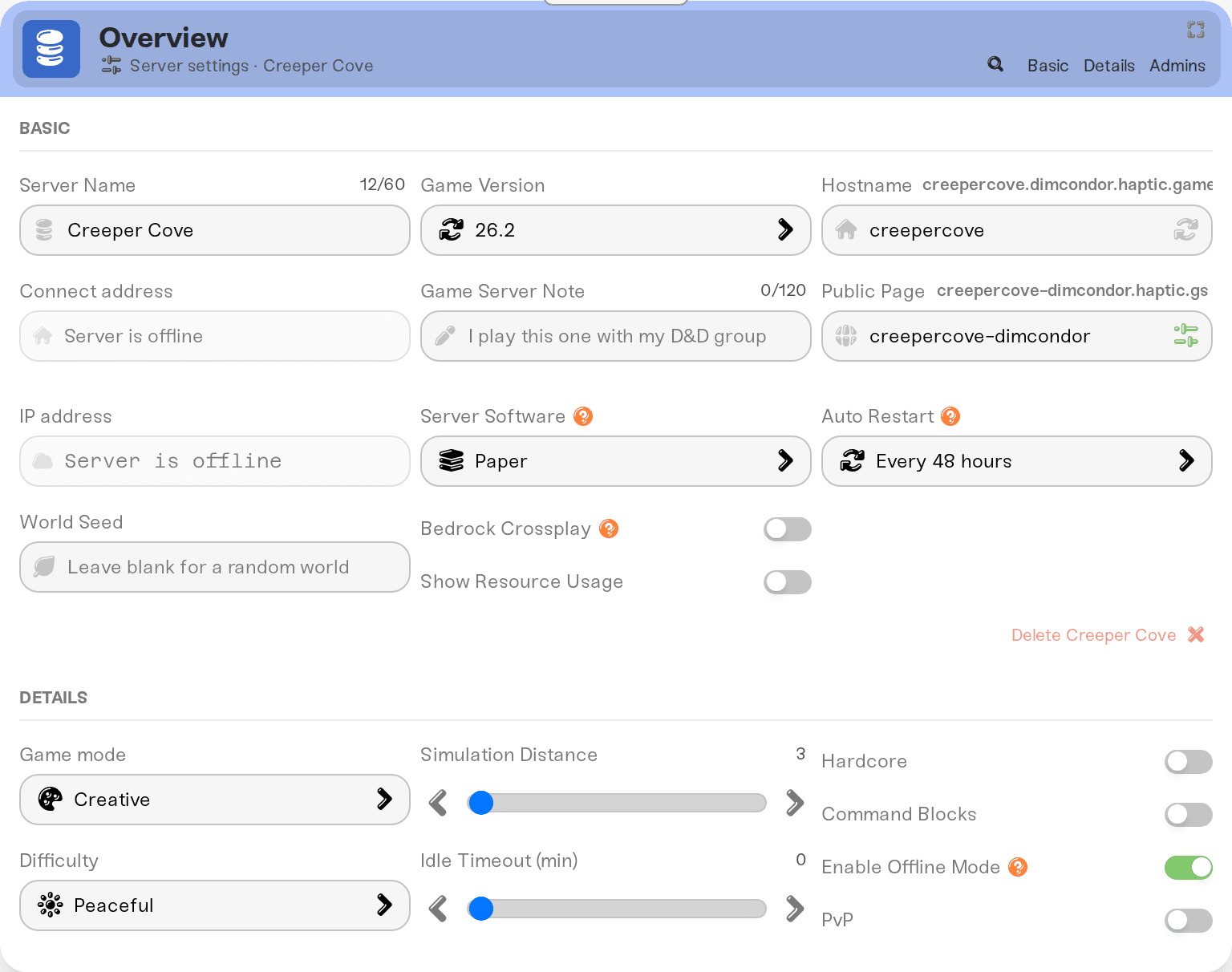
The tab appears for games where the server keeps player lists: Valheim, Minecraft Java, Minecraft Bedrock, Rust, Don't Starve Together, Core Keeper, Factorio, Project Zomboid, and 7 Days to Die. If your game is not in that list, admin access works differently; see My game has no Admins tab below.
Add an admin, whitelist a player, or ban someone
The flow is the same in every game:
Type the player's name or ID into the search box and press Enter. What the box accepts depends on the game; see the table below. For Steam games you can also paste the player's Steam profile link.
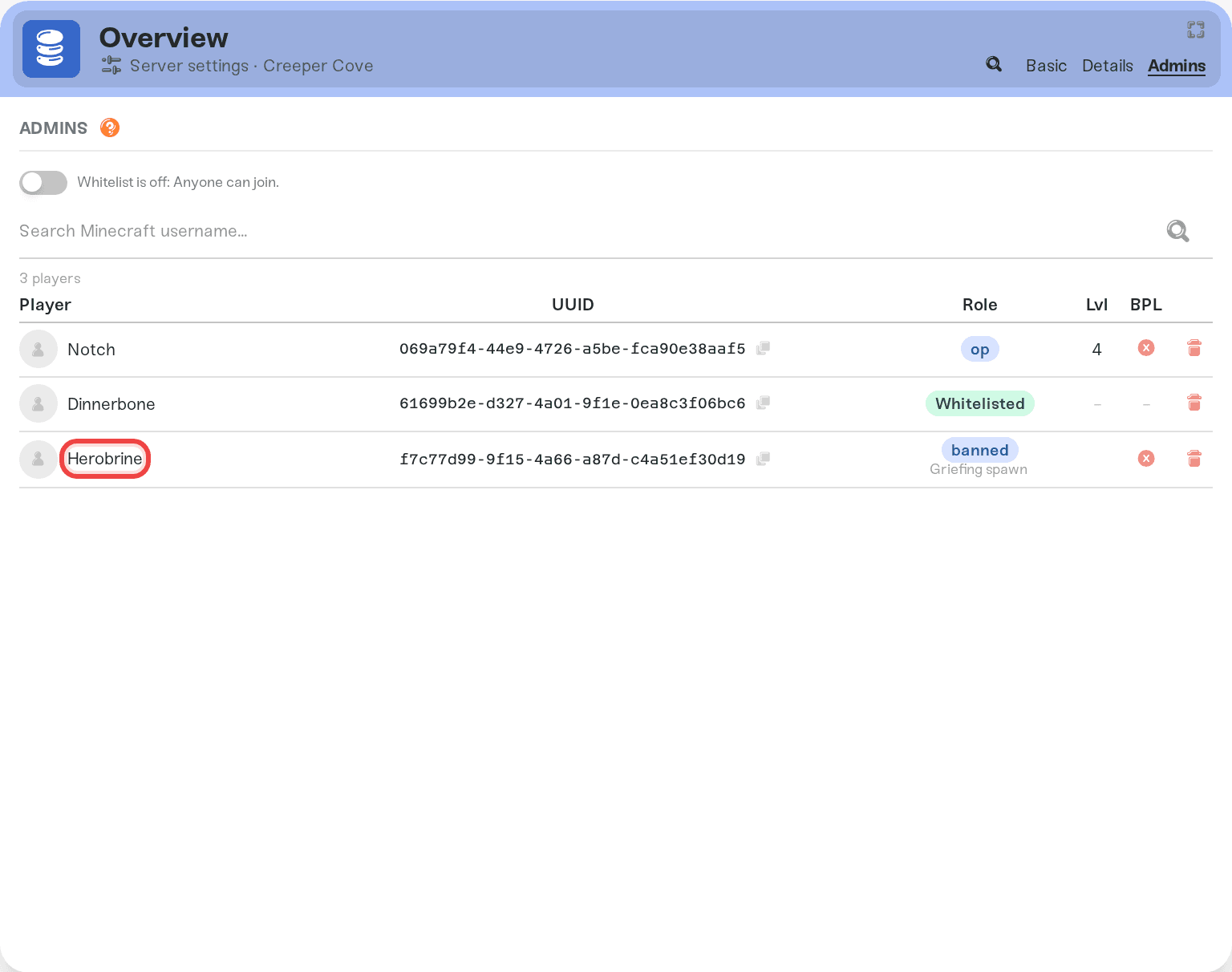
When the player is found, their card appears with Role: pills. Pick the role you want. Hover a pill to see exactly what that role can do.
Some games show extra options here. Minecraft has Level: buttons 1 to 4 that control which commands an operator can use, and a Bypass limit: toggle that lets them join even when the server is full. 7 Days to Die has a Permission level: field where 0 means full access and higher numbers mean fewer permissions.
Click Add Player.
Save with the Save changes button in the popup at the bottom of the page (it reads Save on mobile). Nothing applies until you save.
If you see Player not found., double-check the spelling and that you are searching by the right kind of ID for your game. Brand-new Bedrock gamertags can take a while to show up in search; you can look up the player's 16-digit XUID at cxkes.me and paste that instead.
To take a role away again, click the red trash icon (Remove player) on the player's row, then save. That is also how you unban someone.
What each game calls things
Every game has its own names for these roles, and its own way of identifying players. The dashboard uses each game's native terms:
| Game | Find players by | Roles you can pick |
|---|---|---|
| Valheim | Steam name, SteamID, or profile link | Full Admin, Allow, Ban |
| Minecraft Java | Minecraft username | Operator, Whitelisted |
| Minecraft Bedrock | Gamertag or XUID | Operator, Whitelist |
| Rust | Steam name, SteamID, or profile link | Owner, Moderator, Ban |
| Don't Starve Together | Klei User ID (KU_XXXXXXXX) | Full Admin, Whitelist, Block |
| Core Keeper | Steam name, SteamID, or profile link | Full Admin, Moderator |
| Factorio | Factorio.com username | Full Admin, Whitelist, Ban |
| Project Zomboid | Steam search, or in-game username | Full Admin, Moderator, Game Master, Observer, Priority, Whitelist |
| 7 Days to Die | Steam name, SteamID, or profile link | Admin, Whitelisted, Banned |
The ban-flavored roles (Ban, Banned, Block) reject the player when they try to join. The whitelist-flavored roles (Whitelist, Whitelisted, Allow) mark players who are allowed in when the server is invite-only.
Turning on the whitelist
On Minecraft Java and Minecraft Bedrock, a toggle at the top of the Admins tab turns the whitelist on and off, with a status line that tells you the current state, for example "Whitelist is off: Anyone can join." Bedrock uses Minecraft's own name for it, the allowlist: "Allowlist is active: Only listed XUIDs can join."
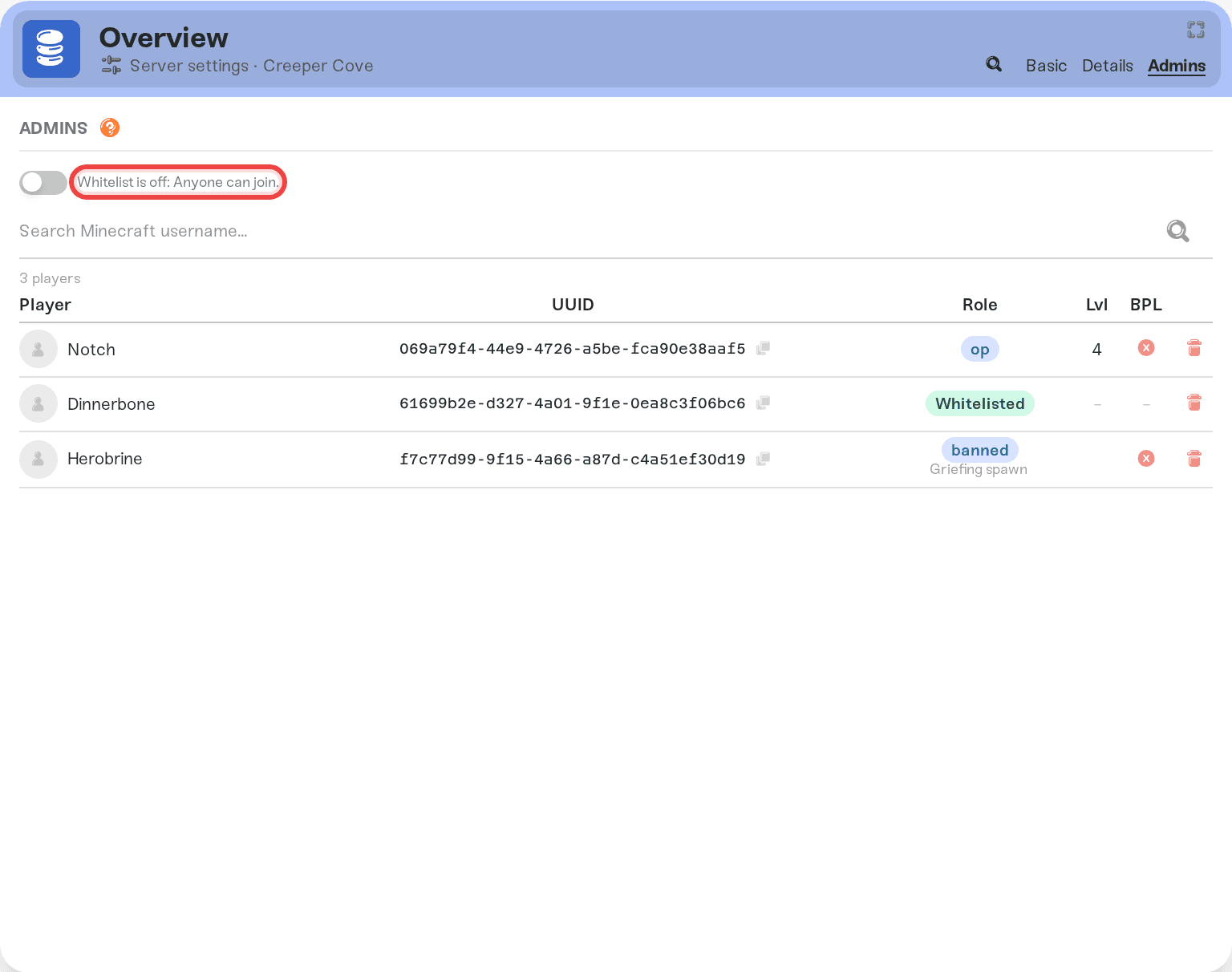
Turning it on opens a Warning! dialog first, because an active whitelist blocks every player who is not on the list, including you. Add yourself before you confirm with Enable Whitelist (Bedrock: Enable Allowlist). Two Bedrock quirks worth knowing:
Bedrock reads the allowlist when the server starts, so plan a restart for the change to take effect.
Bedrock operators do not bypass the allowlist on their own, so when you add an operator while the allowlist is on, we add them to both lists automatically. Their row shows Op + Allowlist.
The other games each handle it their own way. On Valheim, adding anyone to the Allow list makes the server invite-only. On 7 Days to Die, the server closes to non-listed players as soon as the whitelist has any names on it. Factorio has a Whitelist toggle of its own among your server settings; with it on, only players on the whitelist can join. Project Zomboid whitelisting works through per-player login passwords; see the next section. If you just want a door key instead of a guest list, a server password is usually the simpler tool.
Project Zomboid: usernames and whitelist passwords
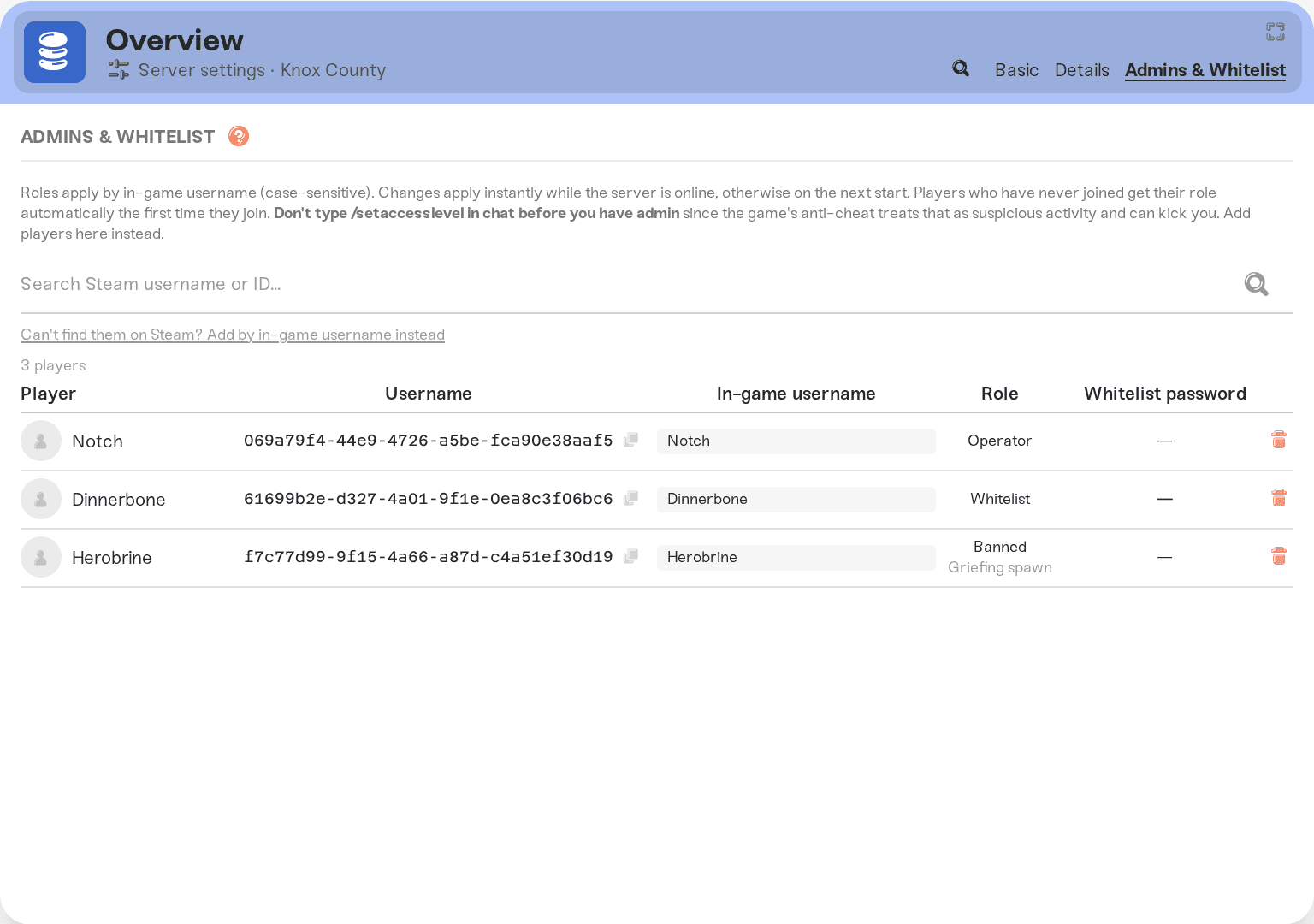
Project Zomboid identifies players by their in-game username, which is case-sensitive and not necessarily their Steam name. Every add has an In-game username: field; make sure it matches the name the player logs in with. If you cannot find someone on Steam, the "Can't find them on Steam? Add by in-game username instead" link below the search box lets you type the name directly.
When you pick the Whitelist role, the dashboard generates a Whitelist password: for that player, with a copy button. Send them their username and password; they enter both when joining. Anyone you have shared dashboard access to the server with can see this password too.
One important warning, straight from the dashboard: do not type /setaccesslevel in chat before you actually have admin. The game's anti-cheat treats that as suspicious activity and can kick you. Add yourself here instead, then use commands in-game. The full story, including what each PZ role can do, is in Become an admin on your Project Zomboid server.
When changes apply
Minecraft Java and Project Zomboid: changes apply immediately while the server is online. No restart needed for adding or removing admins and whitelist entries. If the server is offline when you save, changes apply on the next start.
Rust bans: a ban or unban applies immediately while the server is online, and a banned player who is on the server is kicked. If the server is offline when you save, it applies on the next start. Owner and Moderator changes apply the next time the server starts.
Every other game (Valheim, Bedrock, Don't Starve Together, Core Keeper, Factorio, 7 Days to Die): changes apply the next time the server starts. Save first, then restart your server.
For power users who edit list files like ops.json or adminlist.txt directly: the dashboard roster and those files sync in both directions, and the files win when the server boots. If you save roster changes while the server is offline, the save popup reminds you: "Your server is offline. If its list files were edited directly, those edits will win when it starts. Roster changes apply to the files on the next start." And if a list file has a syntax error, the server uses it as-is and the dashboard roster pauses until you fix or delete the file in the Files card; a yellow note in the Admins tab tells you which file. See Edit config files if you prefer working in the files.
My game has no Admins tab
Some games do not use player lists for admin access, so there is nothing for the tab to manage:
Palworld uses an admin password instead of an operator list: How to become an admin on your Palworld server.
FiveM and RedM manage admins inside txAdmin and your framework (QBCore, ESX): Become an in-game admin and Using txAdmin.
If your game is not covered by either and you want someone kicked or banned, message us and we will point you at the right tool for that game.
Need help?
If a player you added still does not have their powers after a restart, or search cannot find someone you know exists, message us on Discord or at support@haptic.gg. Include your server name, the game, the player's name or ID, and a screenshot of the Admins tab, and we will take a look together.



