Change your email, password, or display name
 HapticGuide
Everything in this article lives in one place: click your avatar in the top-right corner, choose Account, then open the Settings tab. Email and password…
Everything in this article lives in one place: click your avatar in the top-right corner, choose Account, then open the Settings tab. Email and password changes take effect right away. Changing your password signs you out on all your other devices on purpose; that is a safety feature, not a bug. Forgot your password? Use the Forgot password? link on the sign-in page and we will email you a reset link.
Where your account settings live
Sign in at haptic.gg and click your avatar in the top-right corner.
Choose Account, then open the Settings tab.
The page has two columns: your profile on the left (avatar, display name, email notifications) and Security on the right (email, password, and sessions).
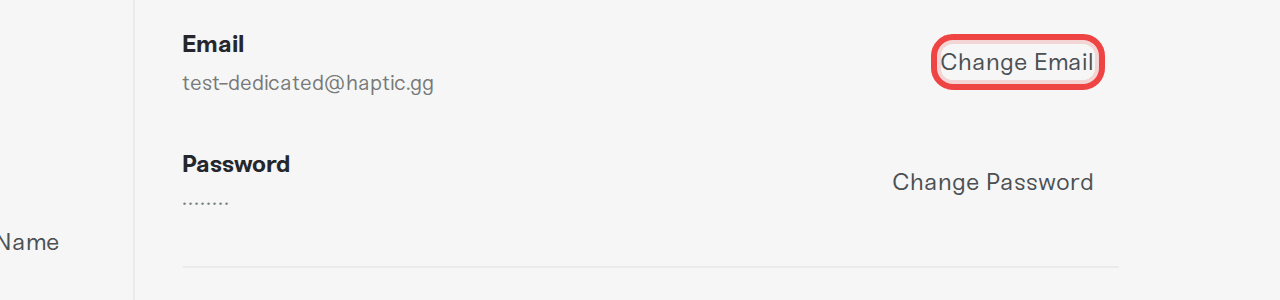
Change your email
In the Security column, find Email. The address you currently sign in with is shown underneath. Press Change Email.
Type the new address into New email, and again into Confirm new email. The two must match exactly.
Press Update Email.
The change applies immediately; there is no confirmation link to click. You will see "Email updated successfully." and you sign in with the new address from now on.
Because the change is instant, a typo means future sign-ins and password reset links point at an address you do not own. If that happens, message us right away and we will sort it out.
Change your password
In the Security column, find Password and press Change Password.
Fill in Current password, then your New password (at least 6 characters, and it must be different from your current one), then Confirm new password.
Press Update Password.
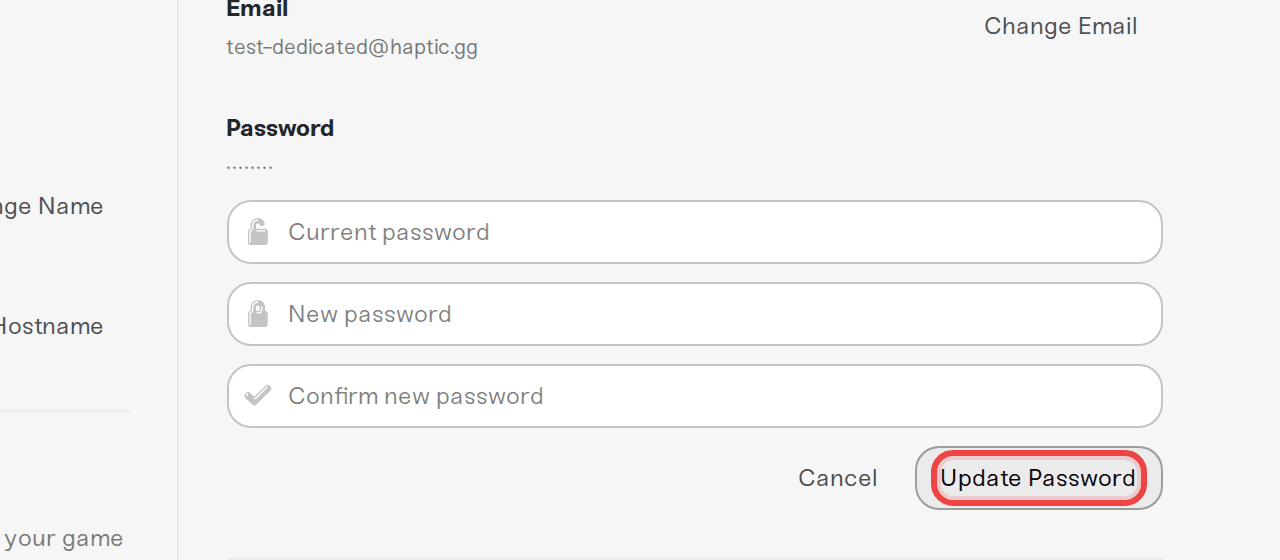
You will see "Password updated successfully.", and two more things happen on purpose:
Every other browser and device is signed out. Only the browser you changed the password in stays signed in. If your phone suddenly asks you to sign in again, that is this protection working, not a bug: it makes sure nobody who knew the old password stays signed in.
We email you "Your Haptic password was changed" so you find out fast if someone else changes it. If you get that email and it wasn't you, reset your password immediately using the steps below.
If you see "Current password is incorrect." and you cannot remember the right one, use the reset link instead; it works even while you are signed in on another device.
Forgot your password?
On the sign-in page, press Use email instead (the link under the Google and Discord buttons), then press Forgot password? under the log-in form. Or go straight to haptic.gg/forgot-password.
Enter the email on your Haptic account and press Send reset link.
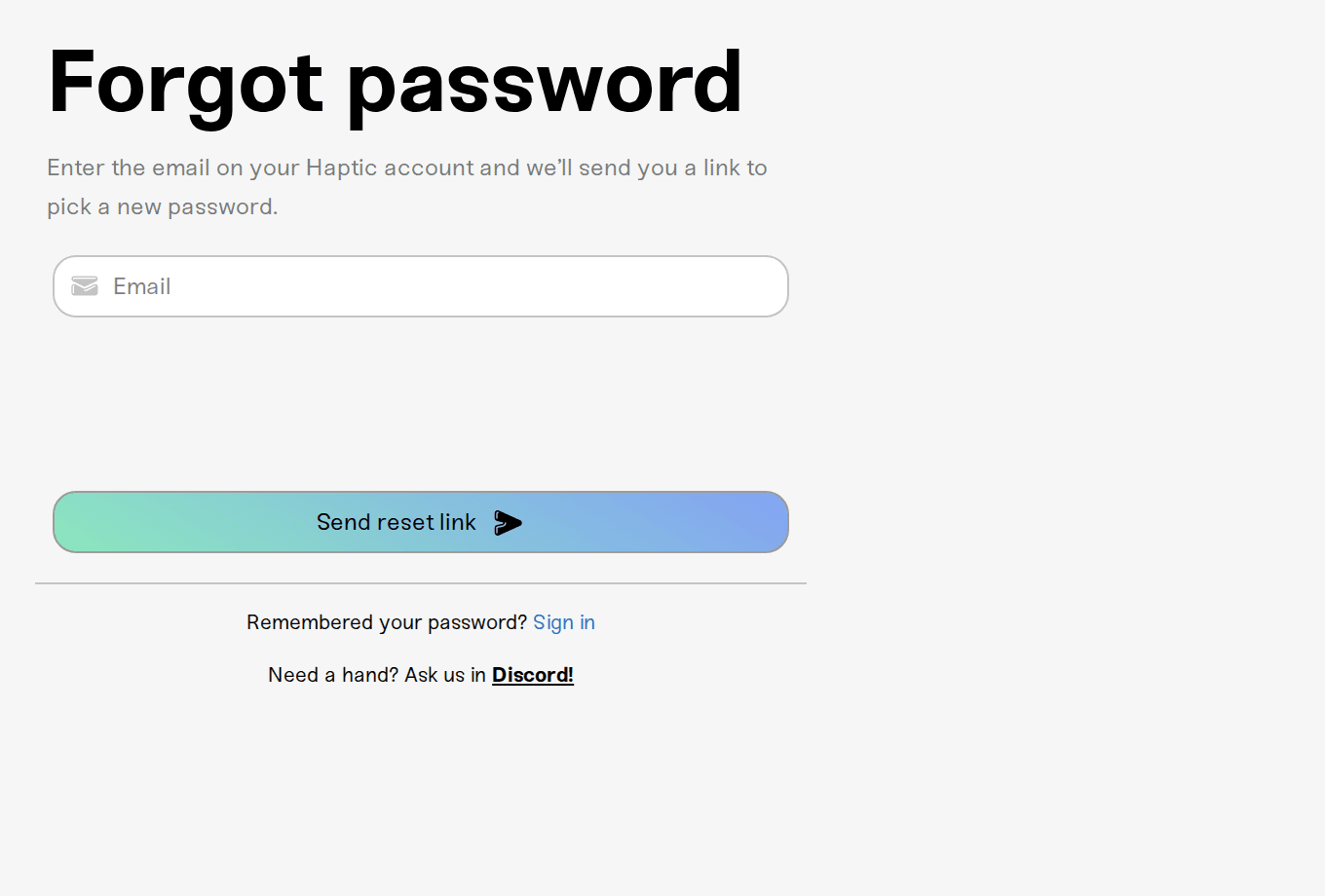
If the address matches a Haptic account, we email you a link to pick a new password. The link only works for 60 minutes. No email after a minute or two? Check your spam folder, and make sure you entered the address you signed up with.
Click the link in the email. It opens a Reset your password page: press Continue. The link is only used up when you press Continue, so an email scanner that opens it first does no harm.
On the Choose a new password page, type your new password twice and press Update password. You are signed in right away and taken to your dashboard.
A reset gives you the same protections as a normal password change: all your other devices are signed out, and you get the confirmation email. If the page tells you the link has expired, press Request a new reset link and use the fresh email.
If you signed up with Discord or Google you normally sign in through them, so there may be no Haptic password to reset. If a reset link does not arrive or does not work for your account, message us and we will sort it out.
Change your display name
Your display name is your public identity on Haptic. It is shown to friends you invite to your servers, to anyone viewing your public server page, and to contributors who chip in on your plan. If you have not set one, we show the first part of your email address instead.
In the left column under General, find the Display Name row.
Press Change Name (it reads Add Display Name if you have never set one), type the new name, and press Update Name.
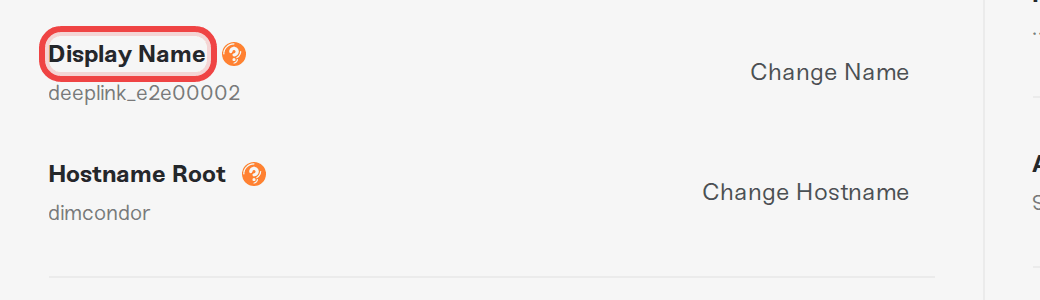
Display names are 3 to 20 characters: letters, numbers, and underscores only. Each name can only be used by one account, so if you see "This display name is already taken", pick a variation.
Change your avatar
Your picture sits next to your name at the top of the General section. Where it comes from depends on how you signed up:
Signed up with email: your picture comes from Gravatar, a free service that links an image to your email address. Press the Change on Gravatar link under your name to set or update it there, using the same email address as your Haptic account.
Signed up with Discord or Google: the label reads Synced from Discord or Synced from Google. Your picture comes from that account, so update it there; it cannot be edited inside Haptic.
Sign out everywhere else
Left a shared PC signed in, or just want peace of mind? In the Security column, find Active Sessions and press Log Out Everywhere. Confirm in the dialog and every other browser and device is signed out; the browser you are using stays signed in. You do not need to change your password to do this, though if you think someone else knows your password, change it too.
Need help?
If a change will not save, you are locked out, or you suspect someone else has been in your account, message us on Discord or email support@haptic.gg. Tell us the email on your account and what you were trying to change, and include a screenshot of any error message.
What are custom hostnames? explains the Hostname Root field that sits under your display name.
Chip in on a server and your server's public page are two of the places your display name appears.



