Hytale: Join Your Server
 HytaleGuide
Your server card shows one address, like kweebec.vesta.haptic.game:7699. Friends open Hytale, go to Servers, choose Direct Connect, paste that address…
Your server card shows one address, like kweebec.vesta.haptic.game:7699. Friends open Hytale, go to Servers, choose Direct Connect, paste that address exactly as shown (the port at the end matters), and type your server password if you set one. Your server does not appear in Hytale's in-game server browser, so send the address or your public page link. Hytale is PC only during Early Access.
Copy your server address
Open My Servers and look at the colored strip at the bottom of your server's card.
Click the address. It flashes Copied hostname! and the full address, port included, is on your clipboard.
Send it to your friends as is. They do not need a Haptic account to play.
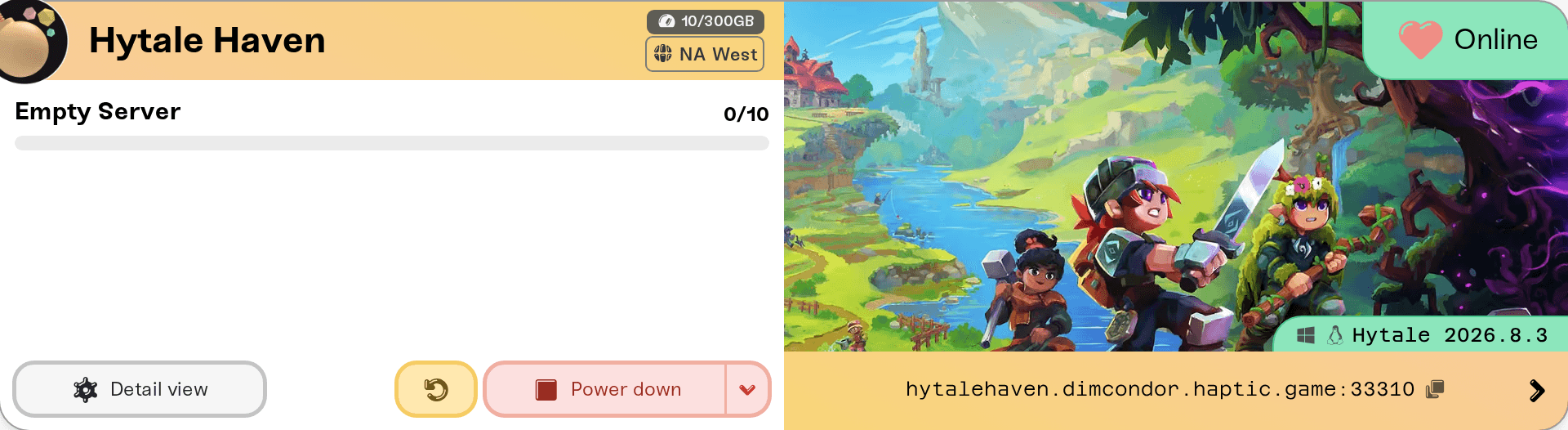
The number after the colon is your server's port. Haptic assigns it, so it is not Hytale's default 5520. Sending the hostname without the port, or typing 5520, is the most common reason a join fails.
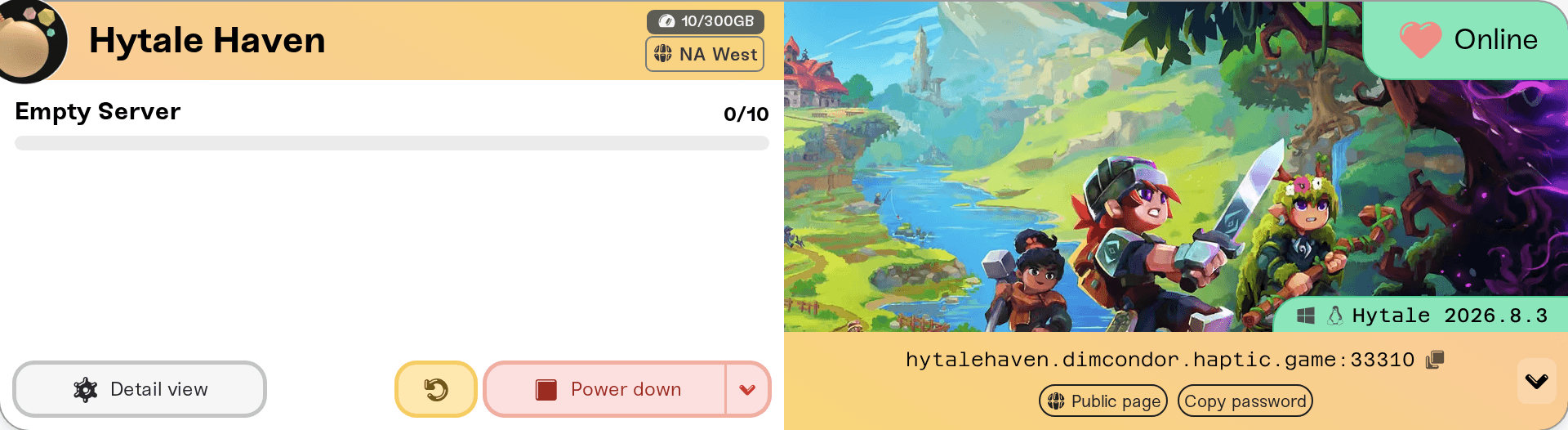
If your server has a password, click the small arrow at the right end of the strip and use Copy password (on a phone the buttons sit under the address, no arrow needed). On desktop, that expanded row reads *This server has no password\* when none is set, which means anyone with the address can join. Add or clear one in the Server Password field of your server settings: set or remove your server password.
Join from the Hytale Launcher
Hytale is not on Steam. Players install and start it through the Hytale Launcher with their Hytale account, on Windows, macOS or Linux, and the launcher keeps the game up to date on its own. Players on any of the three can join the same server. Menu names shift a little between Hytale versions, but the flow is the same:
Start Hytale and open Servers from the main menu.
Choose Direct Connect for a one-time join, or Add Server to save it for next time.
Enter the address from your card,
hostname:port, exactly as copied.Click Connect. If the server has a password, Hytale asks for it now.
Check that your card says Online first. If it says Offline or Sleeping, start it from the dashboard. To let your group start it without you, turn on your server's public page, then turn on Friends can wake this server in Public Page Settings (that toggle stays greyed out until the public page is on) and send friends the page link plus its share password: let friends wake your server.
Your server is not in the in-game server browser
Hytale's in-game server list only shows servers registered with Hytale's own server directory, and Haptic Hytale servers are not registered there. Searching your server name inside the game will not find it, and that is expected rather than a fault on your server.
Share the address instead, or share your server's public page, which gives friends one link with the live status and the join address: set up your server's public page.
If someone cannot get in
The card is not Online. Start or wake the server, then retry.
The port is missing or wrong. The address has to end in the exact
:portshown on your card.Versions do not match. Hytale requires the game and the server to run the same version. After a Hytale update, players restart their launcher so the game updates, and you restart your server so it picks up the new build. Players who opted into Hytale's pre-release branch cannot join either, because Haptic runs the stable release: Hytale updated and nobody can join.
The whitelist is on. If the Admins tab reads "Whitelist is active: Only listed players can join.", add the player there or turn the whitelist off. Both apply live, with no restart: admins, whitelist, and bans.
The password changed. A new server password takes effect on the next server start, so restart once and resend it.
They are on a console. Hytale is PC only during Early Access, so PlayStation, Xbox, and Switch players cannot join yet. That is a Hytale rule, not something we control.
Something on their network. VPNs, firewalls, and school or work networks block game traffic; a phone hotspot is a quick test. Full checklist: I can't connect to my server.
Nothing about joining, failed or successful, changes your worlds or player data.
Need help?
Ask in Discord or email support@haptic.gg. Include your server name, the exact address the player typed, and a screenshot of the message they see.


