Project Zomboid: Your Players Get the Mods Automatically
 Project ZomboidGuide
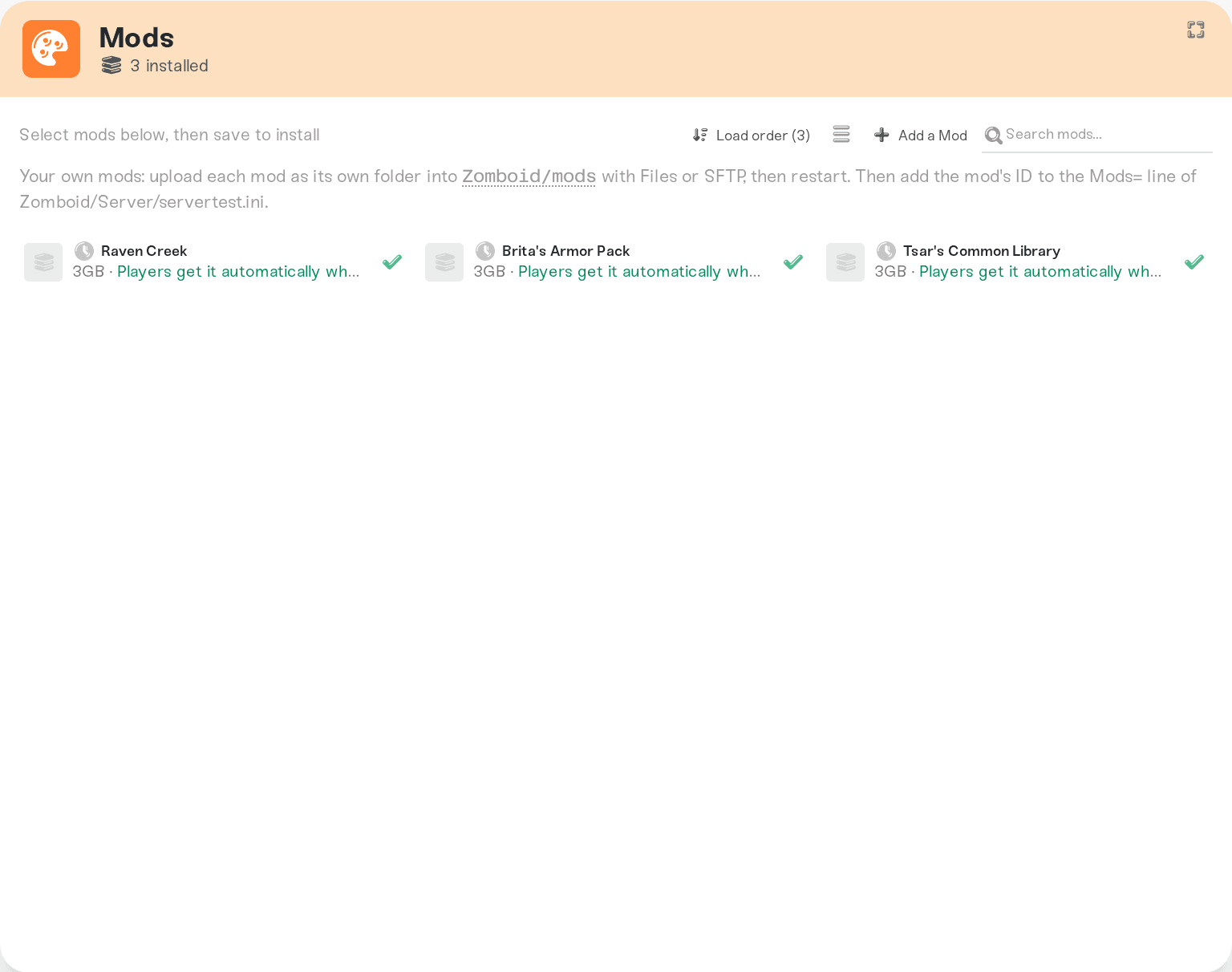
Adding Workshop mods in the Mods panel of your server dashboard is the whole job. When players join your Project Zomboid server, the game downloads any…
Adding Workshop mods in the Mods panel of your server dashboard is the whole job. When players join your Project Zomboid server, the game downloads any missing mods automatically through the Steam Workshop, then loads them in. Your friends install nothing by hand. If joins suddenly fail with a checksum error after weeks of working, a mod author shipped an update: restart your server and it is fixed.
How joining works for your players
You add mods to your server in the Mods panel.
A player connects to your server like normal.
The game shows a Steam Workshop prompt listing any mods they are missing. One click accepts, Steam downloads them, and the game loads them in.
They spawn in with everything active. Next time they join, the mods are already on their PC.
The first join can take a few minutes on a big mod list, since Steam downloads everything once. That is normal.
Why joins can suddenly fail after weeks of working
Mod versions have to match between the server and each player. Here is the wrinkle: when a mod author publishes an update, your players' games update automatically through Steam. The server needs that same update too, or joining players get kicked with a checksum or version mismatch error.
Haptic handles the server side for you. We watch the Workshop for updates to your installed mods and download the new versions to your server automatically. Your server keeps running the old copy until its next restart, so until then your dashboard shows a notice and the mod is marked pending restart in the Mods panel.
So if everyone played fine yesterday and gets kicked today, a mod probably updated. Restart your server and have them join again. That fixes almost every case.
If the update landed moments ago, the fresh copy may still be on its way to your server. Wait a few minutes for the mod-update notice in your dashboard, then restart once more.
Make mod updates fully hands-off
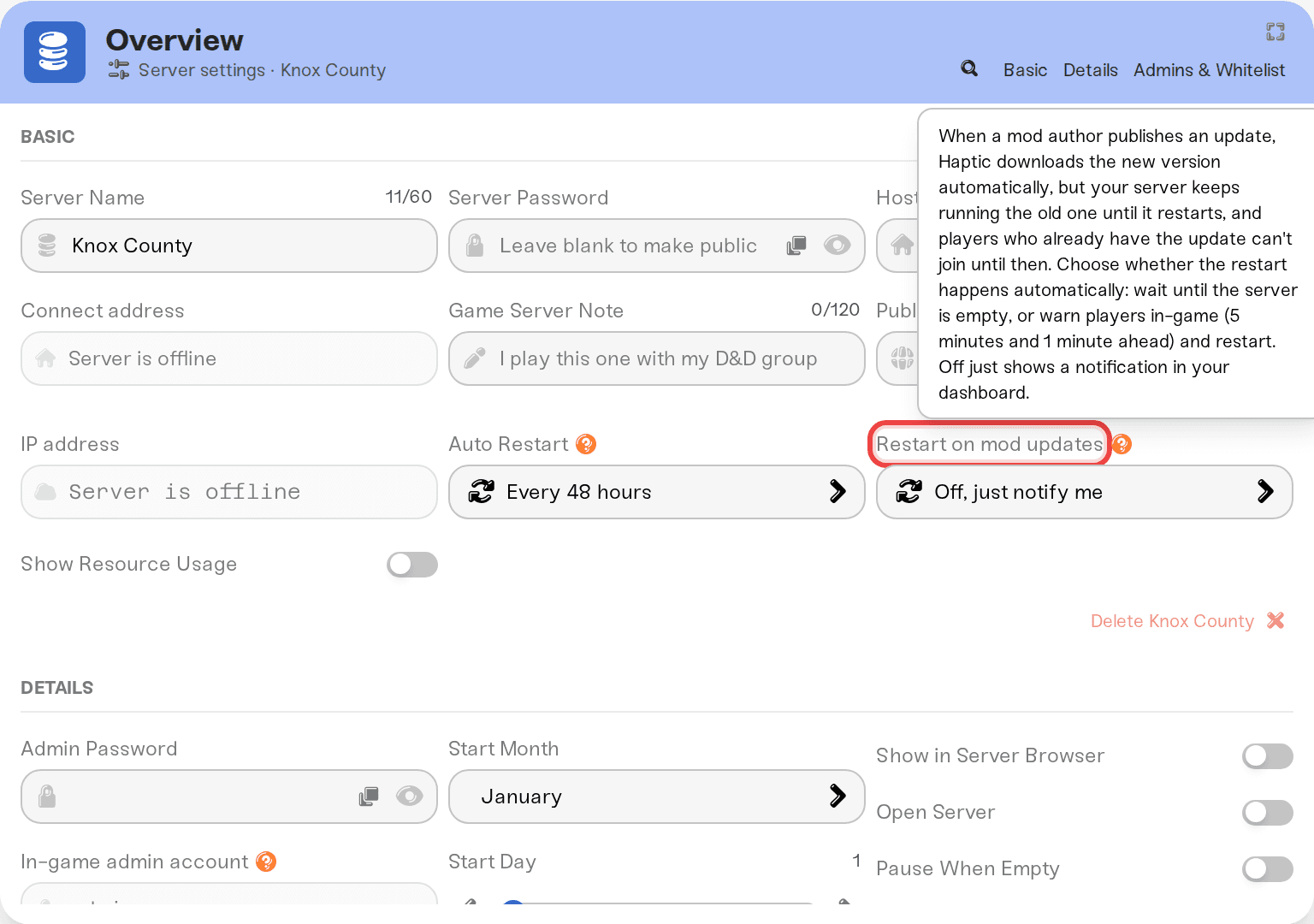
You can let the server restart itself when we download a mod update. In your server's settings, next to Auto Restart, set Restart on mod updates to one of:
Off, just notify me: the default. You get the dashboard notice and restart when it suits you.
When the server is empty: the restart waits until nobody is online.
After a 5-minute warning: players get in-game warnings 5 minutes and 1 minute ahead, then the server restarts.
What about console friends?
Project Zomboid has no console version. It is a PC game, so there is nothing to check and nobody gets left out. Everyone who owns the game can join.
If the server won't start after adding a mod
One broken mod can stop the whole server from starting. If your server fails to start right after you added something:
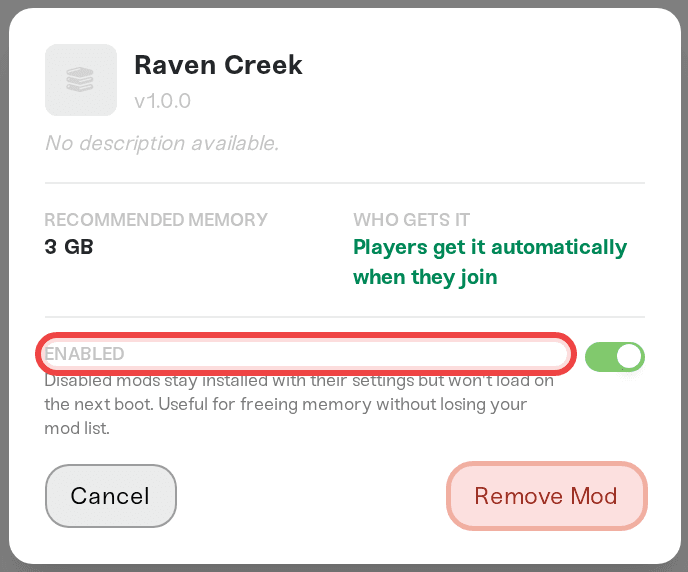
Open the Mods panel, click the most recently added mod, and turn off its Enabled toggle.
Start the server again.
If you added several mods at once, disable them all, then re-enable them one at a time, starting the server in between, until you find the one that breaks it.
Disabling a mod does not delete anything from your world. It stays installed with its settings, and you can re-enable it any time, for example once the author ships a fix.
Things that will NOT fix a version-mismatch kick
Players reinstalling the game or the mod: their copy is already current, Steam keeps it updated. The server is the side that needs a restart.
Removing and re-adding the mod on the server: a plain restart already loads the updated version.
Turning off Verify Mod Files: that setting exists for the rare mod that asks for it. Leave it on; the real fix is a restart.
Need help?
Message us in Discord or email support@haptic.gg. Include your server name, the exact error your player sees (a screenshot is perfect), and the name of any mod you added recently. We will check your server's mod versions for you.


