FiveM: Move your existing server to Haptic
 FiveMGuide
Moving from another host is one upload, one setting, and the license key you already have. Zip your old server's resources folder (add txData to bring your…
Moving from another host is one upload, one setting, and the license key you already have. Zip your old server's resources folder (add txData to bring your txAdmin bans) and hand it to Upload World, set Framework to Custom (bring your own), start once with your existing Cfx.re license key, then drop your database export into server-data/sql and paste back the few server.cfg lines you need. Your old host's files are untouched, but one key runs one server at a time, so the old one has to be off while you test here.
From your old host you need three things: the resources folder, one .sql database export (HeidiSQL, phpMyAdmin, and mysqldump all work), and optionally txData.
Step 1: Create the server on Custom
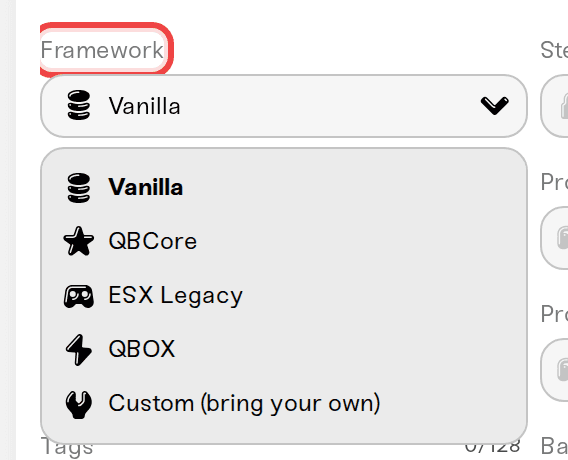
Create a FiveM server and set Framework to Custom (bring your own), so no managed framework is installed and your own stack arrives on a clean server. Pick QBCore, ESX Legacy, or QBOX only if you want a fresh framework here and are bringing extra scripts on top: an old database imported over a fresh install can clash with its tables.
Step 2: Upload your resources with Upload World
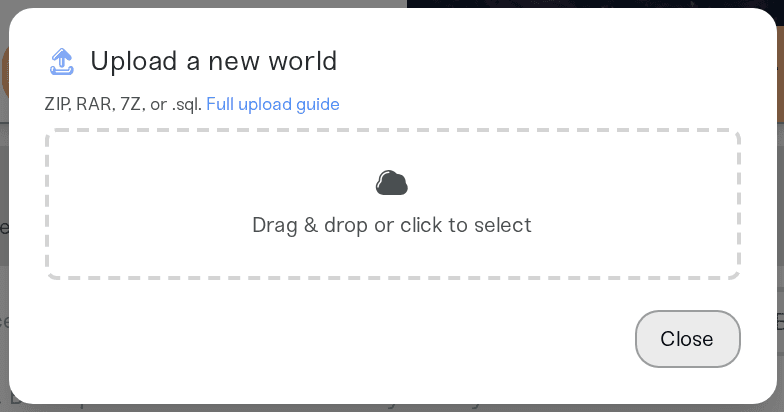
On FiveM servers, Upload World is a server importer. Build a ZIP (RAR works too) with resources at the top of the archive or one folder deep:
my-server.zip
  resources/      required: your scripts, cars, MLOs
  txData/         optional: txAdmin bans and player history
On the server's Backups card, click Upload World, drop the ZIP in, and confirm. Power the server down first if it has already run. (You can also switch on Upload Existing World while creating the server.) Your resources land in server-data/resources, and txData lands in its own txData folder alongside server-data, not inside it.
Two things the importer does on purpose: your old server.cfg is dropped, wherever it sits in the archive, because its license key and database lines would start the server here with dead credentials (step 5 covers what to paste back). And txAdmin logs, cache, and login tokens are left out of txData, while bans and player history come along.
If you see "No FiveM / RedM resources/ folder found in this upload", re-zip with the resources folder inside. Over 10 GB? Copy your scripts in over SFTP to /server-data/resources instead; for resources the result is the same. txData by hand is not: the target is /txData/default/, a raw copy keeps the logs and tokens the importer strips, and txAdmin's config.json and admins.json are reset to your Haptic settings on every start.
Step 3: Stop the old host, start on Haptic
Stop the server at your old host first. A Cfx.re key runs one server at a time, so the server here will not authenticate until the old one is down.
Press Start. The first time, Haptic asks for your Cfx.re license key (plus framework and game build). Use a key from the same Cfx.re account as before, because escrow (Tebex) scripts are locked to the account their key belongs to; see Install custom scripts and resources.
The first start takes a few minutes, and the Console card's Needs attention panel names anything that failed. Framework scripts may complain until your database is in; that is expected.
Step 4: Import your database
After that first start, open the Files card, open server-data, then the sql folder. Upload your .sql export into it and Restart: it is imported during the next start, and CREATE DATABASE and USE lines are ignored, so an export from any host lands in the right place. Details: Import SQL files.
Skip the bare .sql option in Upload World for a migration. It is built for dumps taken on Haptic, and an export from another host can fail the start or land in the wrong database.
Step 5: Put your config lines back
Open server-data/server.cfg in the Files card. It is yours, and edits stick across restarts. Paste back only what you need: convars your scripts read, API keys and webhooks, your Tebex secret, and add_ace / add_principal permission lines. Restart when done.
Leave these out:
mysql_connection_string: Haptic sets the database connection for you. A leftover line points at your old host and is the number one cause of Database connection failed in the Console card.sv_licenseKey: the key lives in the Cfx.re License Key setting, not the file.Slots, name, ports, and listing lines (
sv_maxclients,sv_projectName,endpoint_add_*,sv_master1): use the Max Players and Project Name settings; the rest is managed for you.ensurelines: every folder with anfxmanifest.luaunderserver-data/resourcesstarts automatically. Keep a line only to pin when a resource starts; see Install custom scripts and resources.sv_enforceGameBuild: put that number in the Game Build setting; see Game builds and DLC content.
After the move
txAdmin: logins do not transfer. Click Open txAdmin and sign in with your Cfx.re account; if you brought txData, your bans and player history are there. See Manage your server with txAdmin.
Players: share the Connect address from the Share with your players card. The server browser listing follows a few minutes after each start, and Cfx.re can take up to 15 minutes; see Server not showing in the server list.
Need help?
Message us on Discord or email support@haptic.gg with your server name and a screenshot of the upload message or the error in the Console card.


