Connect to your server's database (HeidiSQL and friends)
 RedMGuide
Browse and edit your RedM server's MariaDB database live from HeidiSQL, Navicat, or DBeaver through a secure SSH tunnel.
Every RedM server on Haptic has its own private MariaDB database. You can connect to it from your PC with HeidiSQL, Navicat, DBeaver, or any MySQL client that supports an SSH tunnel. The connection goes through the same secure address you use for SFTP, so your database is never exposed to the open internet. If you only need to run .sql files, the simpler Import SQL files flow needs no database program at all.
Before you connect
Power your server on
The tunnel reaches the database inside your running server, so a stopped server has nothing to connect to.
Set your SFTP password
On the dashboard, go to Account → Settings and set a password in the SFTP section. This is its own password, separate from your Haptic login.
Get your database login
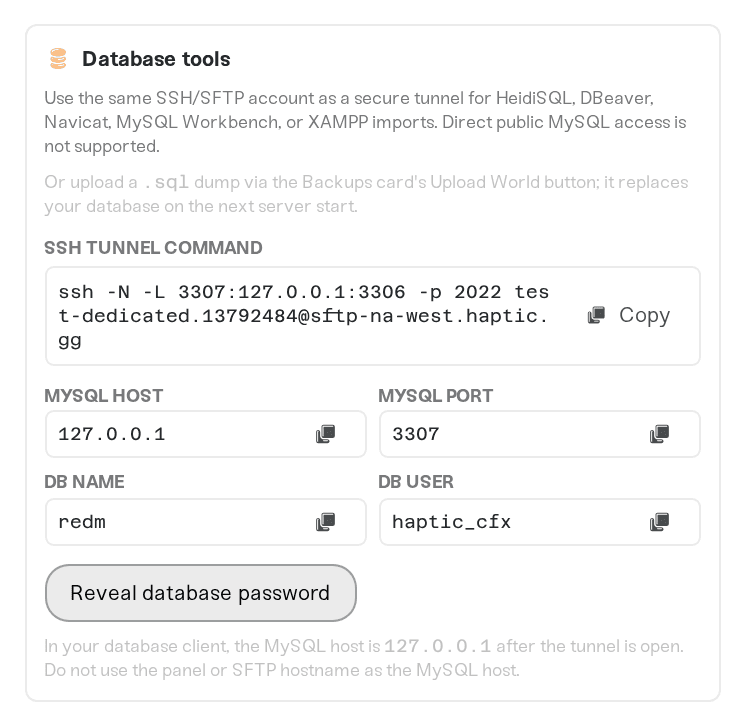
Open your server, click Connect via SFTP on the Files card, and look for the Database tools section. It shows the database name and lets you reveal the database password. The database user is haptic_cfx.
HeidiSQL
Create a new session with these settings:
Network type: MariaDB or MySQL (SSH tunnel)
SSH host + port:
sftp-REGION.haptic.ggport2022(REGION isna-east,na-west, oreu-west, shown in your SFTP modal)SSH username: your SFTP username, shown in the SFTP modal
SSH password: your SFTP password from Settings
Hostname / IP:
127.0.0.1Port:
3306(if you run MySQL or XAMPP locally, set the local forwarded port to3307instead)User:
haptic_cfxPassword: reveal it in the Database tools section
Database: shown in the Database tools section
Click Open. You are now looking at your server's live database: player characters, money, inventories, and whatever your scripts store.
Navicat, MySQL Workbench, DBeaver
Same idea: enable the SSH tunnel option in the connection profile, put your SFTP details in the SSH fields, then use 127.0.0.1:3306 with the haptic_cfx login for the database itself.
Command line (OpenSSH)
ssh -N -L 3307:127.0.0.1:3306 -p 2022 YOUR_SFTP_USERNAME@sftp-REGION.haptic.ggLeave that running, then point any MySQL client at 127.0.0.1:3307. You can verify the host key fingerprint at haptic.gg/sftp-fingerprints.
Working with a local XAMPP or phpMyAdmin setup
A common workflow: build and test your scripts locally against XAMPP, then move the data to your Haptic server.
Export your local database to a .sql file (phpMyAdmin → Export, or HeidiSQL → Export database as SQL).
Small files: connect with HeidiSQL through the tunnel and run the file against your server’s database.
Big dumps or lots of files: upload them to the server-data/sql folder in your Files tab and restart your server. They import automatically during startup. Full guide: Import SQL files.
Things that will NOT work
Root access or other databases. The
haptic_cfxuser can only touch your own server’s database. CREATE DATABASE, DROP DATABASE, and switching databases are blocked on purpose.Connecting without the tunnel. Port 3306 is not reachable from the internet. Any client that cannot do an SSH tunnel cannot connect directly; use the sql folder instead.
Connecting while the server is off. Power the server on first.
Troubleshooting
Connection refused: make sure the server is online and the SSH host matches your server’s region.
SSH login fails: reset your SFTP password in Settings and try again with the new one.
Locked out after failed attempts: too many wrong passwords locks SFTP for a while. Wait it out, or message us and we will clear it.
Tunnel connects but the database login fails: re-reveal the database password in the Database tools section; it is the
haptic_cfxuser, not your SFTP login.Port 3306 already in use on your PC: forward to local port
3307instead and point your client at127.0.0.1:3307.
Need help?
Message us on Discord with your server name, the client you are using (HeidiSQL, Navicat, and so on), and a screenshot of the error. We will get you connected.


