Change your server settings
 HapticGuide
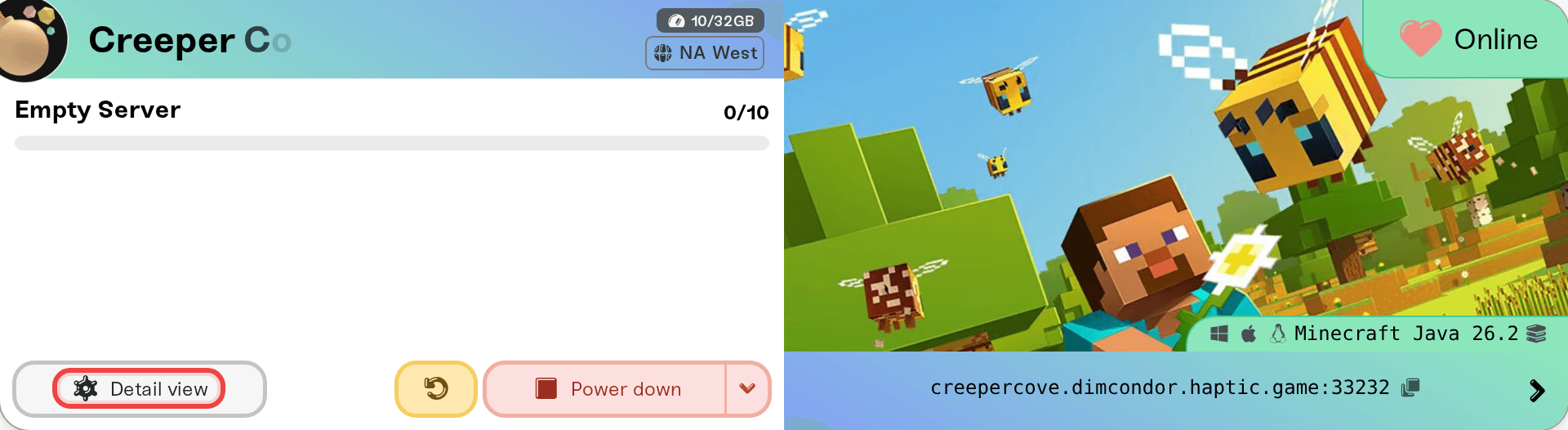
Every server's settings live in one place: open My Servers, press Detail view on the server's card, and look at the Overview card. Edit what you like, then…
Every server's settings live in one place: open My Servers, press Detail view on the server's card, and look at the Overview card. Edit what you like, then press Save changes in the popup that appears at the bottom of the page. Saving never restarts your server for you: most changes apply the next time the server powers up, and the message after saving tells you which kind you made. Your world and backups are never touched by a settings change, with one clearly marked exception (world seed style settings, which warn you in orange before you save).
Where your settings live
Go to My Servers in your dashboard.
On your server's card, press Detail view. The card opens into a grid of cards: Overview, Backups, Mods, Console, and on most servers Files.
Settings are in the Overview card, the one whose header reads Overview with "Server settings" underneath.
The Overview card has tabs in its title bar:
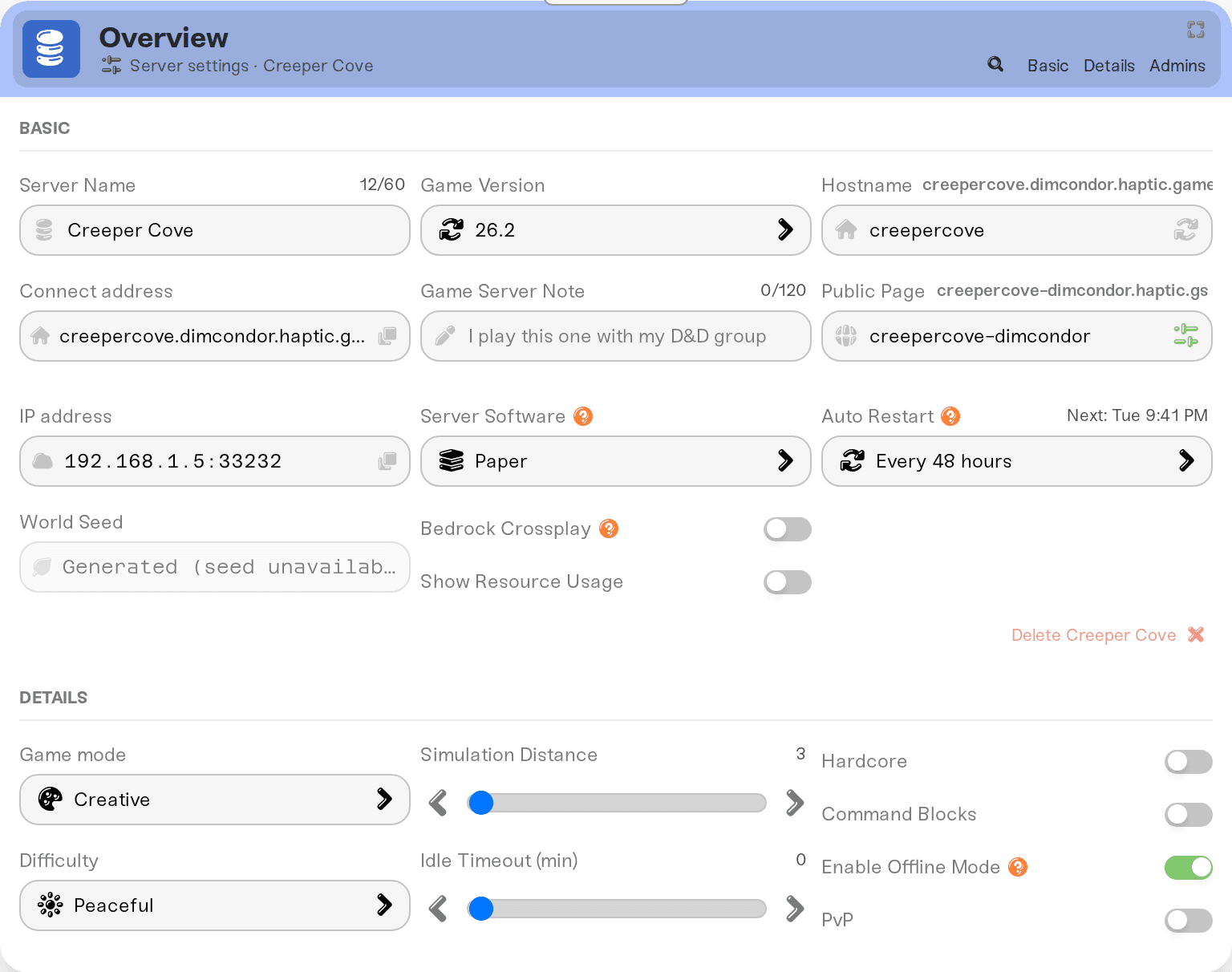
Basic holds the fields every game shares: Server Name, Server Password (on games that use one), your join address, Game Version, a private Game Server Note, and the Public Page controls.
Details holds the settings specific to your game: difficulty, world options, player limits, and so on. Each game has its own set, shown as toggles, dropdowns, sliders, and text fields.
Some games add more tabs. Games with an admin roster get an Admins tab (labeled Admins & Whitelist for Project Zomboid), and Hytale gets a Worlds tab for per-world settings.
Two tips for finding more:
Expand the card. Click the Overview card's header to expand it. A few controls only appear expanded, including Auto Restart, the Server Software picker on Minecraft Java, and the delete button. See set up automatic server restarts.
Search instead of hunting. The magnifier icon in the Overview title bar opens the search palette; type a setting's name and jump straight to it, or change it right from the palette. See find anything with search.
Make a change and save it
Edit as many settings as you want in one sitting. As soon as anything differs from what's saved, two things happen:
The changed field's label turns orange with a small warning triangle. Hovering it shows Unsaved Changes.
A popup slides up from the bottom of the page reading Your server has unsaved changes., with Cancel and Save changes buttons.
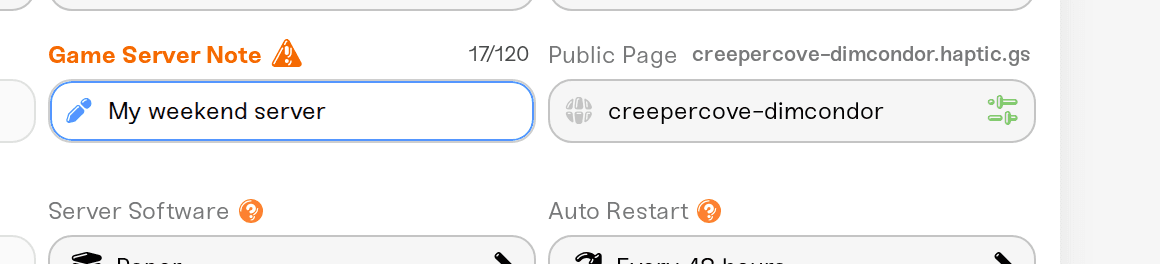

Press Save changes to commit everything at once, or Cancel to throw away all your edits and put every field back the way it was. Nothing is saved until you press Save changes, so you can experiment freely.
A few settings ask you to confirm before they even flip: a Warning! dialog explains the side effect, with a Cancel button and a confirm button. That is normal for changes that are hard to undo, like settings that permanently change your world. (Switching Minecraft server software works differently: the save popup itself shows a preview spelling out exactly what the switch means before you commit.)
When your changes take effect
Saving never restarts your server automatically. After you save, the message in the corner tells you which of two things happened:
"Settings will be applied the next time this server powers up." Most game settings work this way. The server keeps running with the old values until it next starts, whether that's a restart you trigger, an automatic restart, or waking up after sleep. If you want the change now, restart the server yourself: see start, stop, and restart your server.
"Applied new settings." Some changes take effect immediately, no restart needed: the Show Resource Usage toggle and, on some games, live admin and whitelist edits. A join-address rename is also live and gets its own message, "Server address updated." Public page settings are saved from their own Public Page Settings window with the Save public page button, and those apply right away too.
So if you changed a setting and nothing seems different in game, the answer is almost always: the server hasn't restarted yet. Restart it and the change will be there.
The one change that touches your world
A small number of settings define the world itself, like a World Seed. Changing one of these needs a fresh world, and the save popup makes that impossible to miss: an orange World reset required. banner appears, reading "Changing this setting requires a fresh world. Your current world data will be cleared when you save. Your existing backups are safe." If you don't want a fresh world, press Cancel. Your backups always survive a world reset; see restore a backup.
Locked or grayed-out settings
When a setting won't let you change it, the lock always comes with a reason. Hover it and you'll see one of these:
Not enough memory. Features that need more RAM lock with a message like "Requires at least 5 GB available. This server has 4 GB available. Add more memory on the server card above." The lock only applies to turning the feature on; you can always turn it back off. See understanding your memory budget.
Game version too old. Some features need a newer game version and tell you which one; pick a newer Game Version above and the lock opens.
Locked by mods. Installed mods can pin your game version ("Locked to {version} by installed mods. Remove version-specific mods to change.") or your server software ("Locked by installed mods. Remove all mods to change.").
Settings that conflict. Some combinations aren't allowed by the game, so picking one narrows the other, with a tooltip explaining why. If a conflict slips through, saving is blocked with the reason until you fix it.
You're an operator on someone else's server. Operators can open the Detail view but see "Operators cannot modify settings" and can't edit. See friend roles and permissions.
Every game is a little different
The layout is the same everywhere, but the contents follow the game:
The Details tab is unique per game. For deep dives, see the game guides: Valheim world modifiers and presets, changing Valheim world settings on an existing server, and Project Zomboid sandbox settings.
Not every game has a Server Password field. FiveM and RedM use Cfx.re accounts instead of a join password, and Enshrouded uses per-role passwords in its Details tab. See set or remove your server password.
The Admins tab only appears on games with an admin or whitelist system. See manage admins, whitelist, and bans.
Advanced: edit the config files yourself
The Overview card covers the settings the dashboard knows about, which is everything most people ever need. If you want a setting the dashboard doesn't show, the game's raw config files are yours to edit in the Files card of the same grid, with the same save-then-restart rule. See edit config files and manage your server files.
Need help?
Can't find a setting, or saved a change that didn't do what you expected? Message us in Discord or at support@haptic.gg with your server name, the setting you changed, and a screenshot of the Overview card, and we'll sort it out with you.



