Use the server console: watch logs and send commands
 HapticGuide
Every server has a Console card on its page: a live view of everything your game server prints, with a command box at the bottom. Use it to watch your…
Every server has a Console card on its page: a live view of everything your game server prints, with a command box at the bottom. Use it to watch your server start up, see who joins and leaves, and send admin commands like say, save-all, or ShowPlayers. The command box works while your server is online; the log view fills up from the moment it starts. Logs are not kept after a stop or restart, so copy anything you want to keep first.
Find the console
Open My Servers and open your server's page. The Console card is the one with the yellow title bar. Its subtitle tells you two things at a glance: that it shows server logs since last start, and the connection status (Connected, Connecting, Offline, or Error).
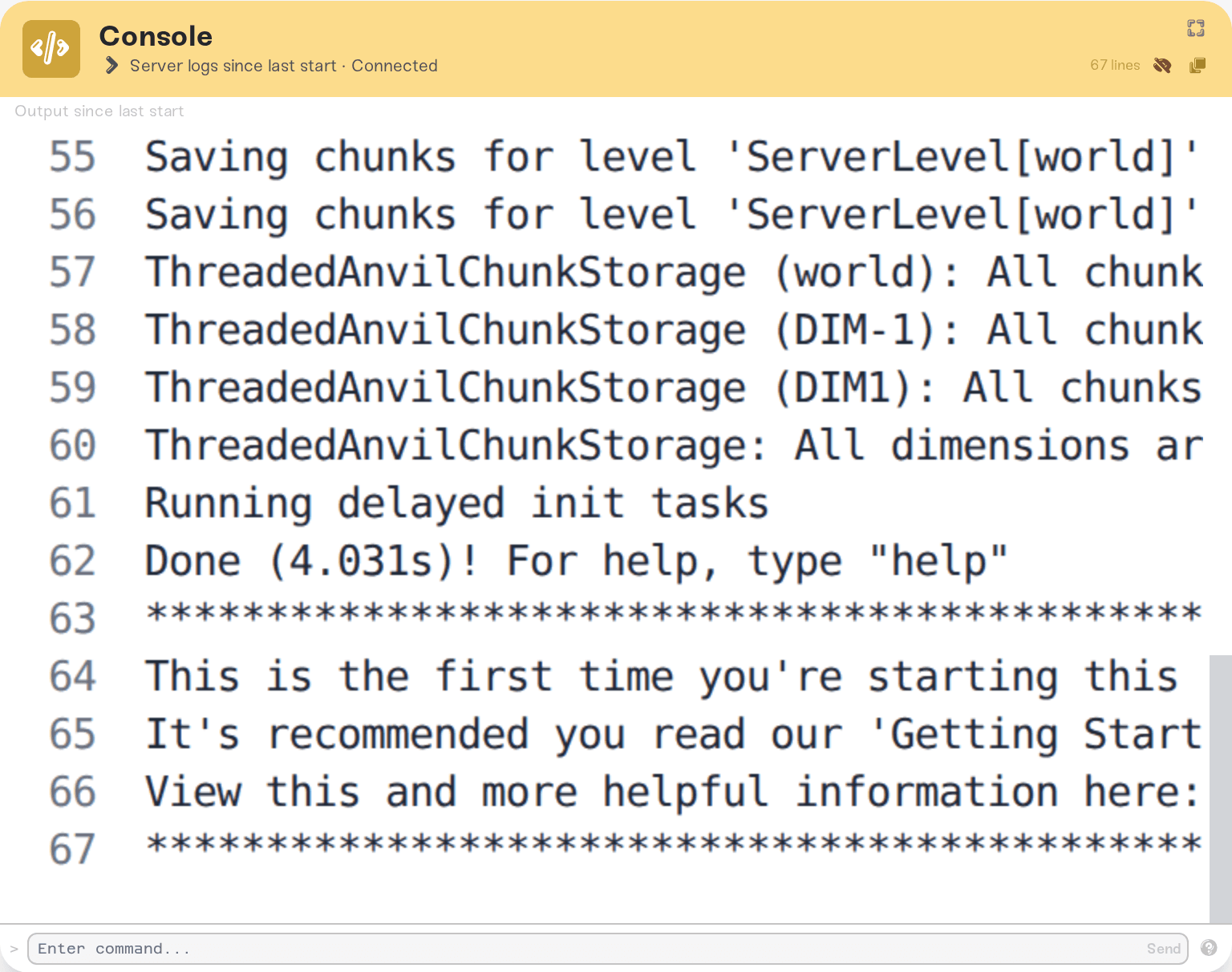
If the status shows Error, click Retry in the card's subtitle to reconnect. Offline just means your server is not running, so there is nothing to stream yet.
Read your server's logs
The big area in the middle is your server's output, numbered line by line, newest at the bottom. New lines appear in real time and the view follows along automatically. If you scroll up to read something older, a blue Jump to latest button appears when new lines arrive; click it to snap back to the bottom.
A few things worth knowing:
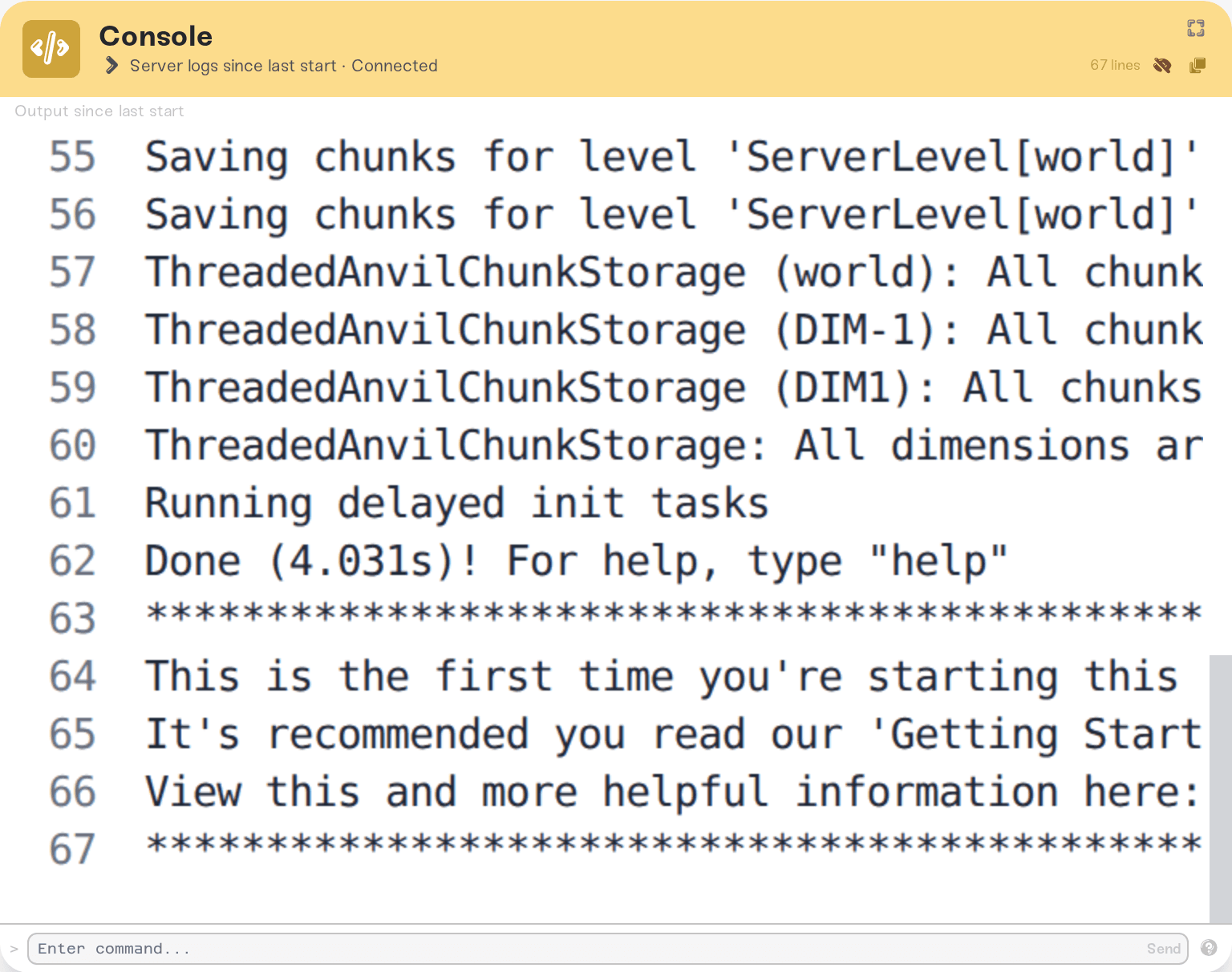
Logs start fresh on every start. The view is labeled Output since last start for a reason: when your server stops, restarts, or goes to sleep, the console starts over. History is not saved, so if you need a record of something (an error, a crash, a griefing incident), copy the logs before restarting.
You start with the most recent 200 lines. Scrolling all the way to the top loads older chunks automatically. To grab everything since the last start in one go, use Load All in the card's title bar; a line counter shows how much you have loaded, and Recent only trims the view back to the latest 500 lines.
Verbose prefixes are hidden by default. Game servers stamp every line with timestamps and thread tags. The eye icon in the title bar toggles this: it is set to hide the noise by default, and clicking it shows the full raw lines.
Copy everything with one click. The copy icon in the title bar copies all loaded logs to your clipboard and briefly shows Copied!. This is exactly what to use when support asks for your logs: press Load All, click copy, and paste the result into Discord or an email.
Send a command
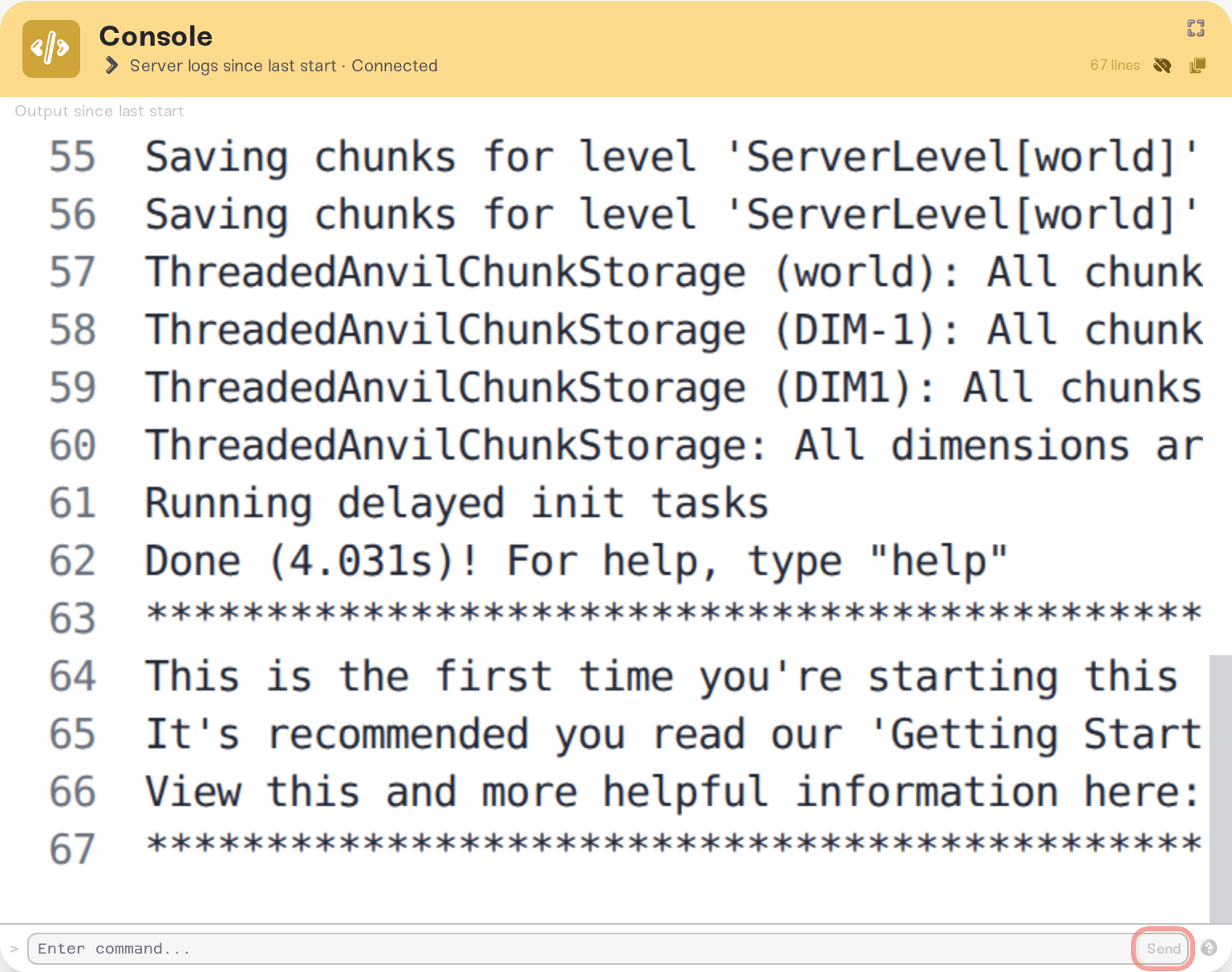
The command box sits at the bottom of the card. While your server is online and the console shows Connected, the box reads Enter command....
Type a command, for example
liston a Minecraft server.Press Enter or click Send.
Your command echoes into the log view as
> list, and the server's response appears in the stream (most games; see the per-game notes below).
Two conveniences:
Command history. Press the Up and Down arrow keys in the box to cycle through commands you have sent before. History is remembered per server on your browser, up to your last 100 commands, so your usual commands are one keypress away even days later.
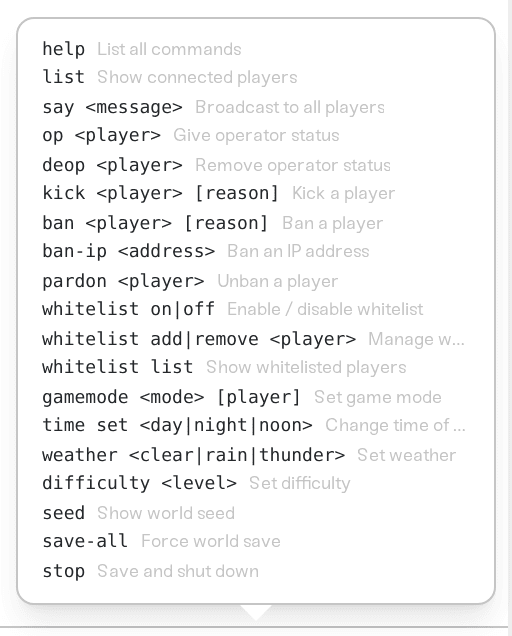
Built-in command reference. For many games, a question-mark icon sits next to the box. Hover it for a cheat sheet of that game's most useful console commands, plus any quirks worth knowing.
Per-game support and quirks
The log view works the same for every game. Commands differ:
Minecraft Java and Bedrock: full command support. Type commands without the leading slash you would use in game chat:
list,say Hello,op YourName. See Minecraft: Keep Inventory, Set Spawn, and Commands for the operator side.Palworld: commands are case-sensitive and take no leading slash:
ShowPlayers,Save,Broadcast <message>. Player commands likeKickPlayerwant a Steam ID, whichShowPlayerslists for you.Rust: full RCON support; responses appear automatically in the log stream.
statusshows server info and who is online.Terraria: commands like
playing,say <message>, andsave, no leading slash.Don't Starve Together: a Lua console. Most commands use the
c_prefix, likec_listplayers()andc_save(), and some do not print a response.Valheim: the server accepts commands like
save,kick, andban, but it does not print anything back, so do not expect a response in the log view. For admins and bans, the Admins section is the easier path.Satisfactory: an Unreal Engine console. Most commands run silently; send
?to list what is available.FiveM and RedM: the console here is a read-only log stream. The box tells you where commands actually run: "Commands run in the txAdmin console. Open txAdmin from the Files card." See Manage your server with txAdmin.
Core Keeper and Enshrouded: these games' server software has no command input at all, so the box shows "This game's server does not accept console commands". That is how these games work everywhere, not a Haptic limit. You still get the full live log view.
Why you cannot type in the box
The command box tells you why it is disabled; here is what each message means.
| The box says | What it means |
|---|---|
| Start your server to send commands | Your server is offline. Start it from its card, then the box unlocks once the console connects. See Start, stop, and restart your server. |
| Connecting... | The log stream is still attaching. This normally takes a moment; if it lands on Error, click Retry in the card subtitle. |
| Operators cannot send commands | You have operator access to a friend's server, which is view-only for the console. The owner or an admin can send commands. See Friend roles and permissions. |
| This game's server does not accept console commands | The game itself has no console input (Core Keeper, Enshrouded). |
| Commands run in the txAdmin console. Open txAdmin from the Files card. | FiveM and RedM commands belong in txAdmin, not here. |
Handy commands to know
A few everyday jobs, in the games people ask about most:
| You want to | Minecraft Java | Palworld | Rust | Don't Starve Together |
|---|---|---|---|---|
| See who is online | list | ShowPlayers | status | c_listplayers() |
| Message everyone | say Restarting in 5 min | Broadcast Restarting-soon | say Restarting in 5 min | c_announce("Restarting soon") |
| Force a world save | save-all | Save | save | c_save() |
A message before a planned restart is the classic use: warn your players, force a save, then restart from the dashboard.
For adding admins, whitelisting, and banning, you can use console commands, but the Admins tab on your server's Overview card is the better home for them: it is point-and-click, it shows the current lists, and it stays in sync with the lists your server actually uses. See Manage admins, whitelist, and bans.
Be careful what you paste
The console talks straight to your game server with full admin power, so a moment of care pays off:
Do not run commands you found online without knowing what they do. Some are destructive with no confirmation step: in Don't Starve Together,
c_regenerateworld()deletes the world and generates a fresh one, and in Terraria,exit-nosaveshuts the server down without saving. If you are unsure what a command does, ask us first.Use the dashboard to stop or restart, not console commands. Commands like
stop,quit,DoExit, orc_shutdown()end the game process behind the dashboard's back, so your server's status can look wrong for a bit and crash protection can treat it as a crash. The Power down and Restart controls on your server's card do a clean shutdown and keep everything in sync.Do not type passwords or other secrets. Everything you send is echoed into the log view, and everyone you have shared the server with can read the console. Set passwords in your server's settings instead: see Set or remove your server password.
Settings changes made by command may not stick. Your dashboard settings are applied when the server starts, so prefer changing settings from the dashboard over console tweaks that a restart can undo.
Need help?
If a command does not do what you expected, or the console shows an error you cannot place, we are happy to read it with you. Press Load All, click the copy icon, and paste your logs to us on Discord or by email to support@haptic.gg, along with the command you ran and the game you play.



