Satisfactory: move your existing save to your server
 SatisfactoryGuide
Yes, the factory you've been building in single player or co-op can move to your server. Upload your save from the Backups card on your dashboard (a .sav…
Yes, the factory you've been building in single player or co-op can move to your server. Upload your save from the Backups card on your dashboard (a .sav file, several of them, or your whole save folder) and power up: the server loads it by itself and keeps loading it at every start. Your current world is backed up first and stays on the server too. You can also send a save from the game's own Server Manager instead.
Where your save lives on your PC
Press Win+R, paste
%LOCALAPPDATA%\FactoryGame\Saved\SaveGames, and press Enter.Inside is one folder per account, named with a long number (your Steam or Epic account). Open it. Every
.savfile in there is a save; one game usually has several, one per autosave.Not sure which is the right one? Sort by Date modified. Save names also match what you see in the game's Load Game menu.
Played on a friend's world? The files are on the PC that hosted it, in the same place. Ask them for the .sav files.
Route 1: upload from the dashboard
Power down your server. Upload World is disabled while the server is running.
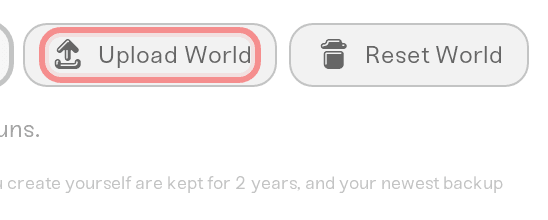
Open the Backups card and click Upload World, next to New Backup.
Drop in your save. Any of these works:
one
.savfile, or several (pick them together);the folder named with your account number, dragged in whole;
a ZIP, RAR, 7Z, or TAR.GZ of any of the above, or of the whole
SaveGamesfolder.
The upload finds the saves wherever they are inside. Password-protected archives are rejected.
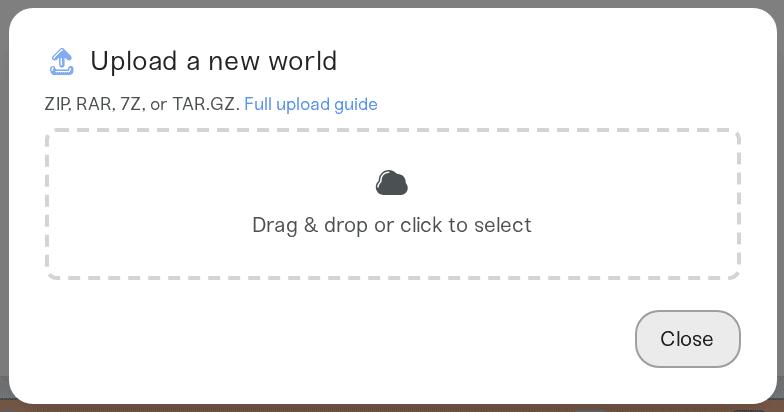
Click Upload and replace world (on a brand-new server with no backups yet, the button reads Upload world) and wait for the import to finish.
Power up. The server loads your upload and from now on loads it at every start. Players join through Server Manager as usual.
Setting up a brand-new server? Switch on Upload Existing World during setup and drop the same files there. The first power-up loads your save.
What the upload does to the saves already on your server
Nothing is deleted. Your uploaded saves are added next to the ones the server already has. The game that was running before is still there in Manage Saves, and a full copy of the server's saves is kept first as Backup before world upload in the Backups list. Restore it any time to go back.
Same file name: if a save in your upload has exactly the same file name as one on the server, your upload replaces that one file. The dashboard tells you which, and the old copy is in Backup before world upload.
Several games in one upload: they are all added, and the one you saved most recently is the one that loads. The dashboard names it. To play another, sign in to Server Manager as Administrator and load it from Manage Saves.
Blueprints: if you upload your whole
SaveGamesfolder, the blueprints in itsblueprintsfolder come along too.Files that aren't saves (logs, settings, other games' files) are left out. An upload with no Satisfactory save in it is refused, and nothing on your server changes.
Route 2: upload from inside the game
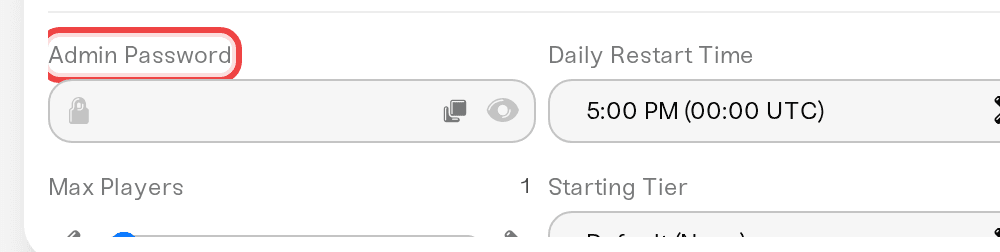
If you'd rather skip the dashboard: in Server Manager, sign in as Administrator with the Admin Password from the Details tab of your server's Overview card (click the eye icon to reveal it).
Then open Manage Saves and use its upload option to send a save from your PC to the server, and load it from the same tab. Satisfactory offers this for every dedicated server.
"I uploaded my save but the server still runs the old world"
Did the server start since the upload? The upload loads at the next power-up. If the server was already running, restart it.
Is your save from the Experimental branch? A save from a newer game version than the server's can't be read, so the server keeps its previous world. See the next section.
Still on the old world? Contact us with the server name and the name of the save you uploaded. Your upload is on the server either way.
Stable and Experimental saves
A save written on the Experimental branch may not open on a stable server. If your game runs Experimental, turn on Experimental Branch on the Details tab before uploading, or switch your game back to stable first. Once Experimental has touched a save, moving that save back to stable can cause problems, so keep a copy of the original before you switch. See Satisfactory: Experimental branch and updates.
Which save loads after a restart?
Satisfactory decides that with its own Auto-Load Session Name setting: at every start the server loads the most recent save of that game (Satisfactory wiki). A dashboard upload sets it to your uploaded game, and the save we make each time the server stops keeps that game's latest progress, so a restart picks up where you left off.
Switched to a different game in Manage Saves? Loading it changes what's running now. To make it the one that loads at every start, change Auto-Load Session Name in Server Manager's server settings too.
Where saves live on the server
If you need the raw files, open the Files card or connect with SFTP. Every save is in .config/Epic/FactoryGame/Saved/SaveGames/server/, and blueprints are in .config/Epic/FactoryGame/Saved/SaveGames/blueprints/, one folder per game. That's not under FactoryGame/Saved/ where you might expect it.
To bring a world back to your PC, download a backup, unzip it, and with the game closed copy the .sav files from its server folder into your account folder from the first section, then look for the game in Load Game.
Need help?
Reach us on Discord or at support@haptic.gg. Include your server name, the exact message under the upload box, and the name of the save you uploaded.
Satisfactory: connect and create your first world, the same Server Manager and Admin Password flow, for a brand-new server.
Satisfactory: God Mode, flight, and the other creative settings


