Let friends wake your server with a share password
 HapticGuide
Your friends can start your server themselves, any time, without a Haptic account. Turn on Friends can wake this server in your server's Public Page…
Your friends can start your server themselves, any time, without a Haptic account. Turn on Friends can wake this server in your server's Public Page Settings, then send your group two things: your public page link (yourserver.haptic.gs) and the share password. When the server is offline, the page shows a Wake server button; a friend clicks it, types the share password, and watches the server start. Works on both Wake & Play and Always On plans.
Turn it on
Open your dashboard, go to My Servers, and find your server's Overview card.
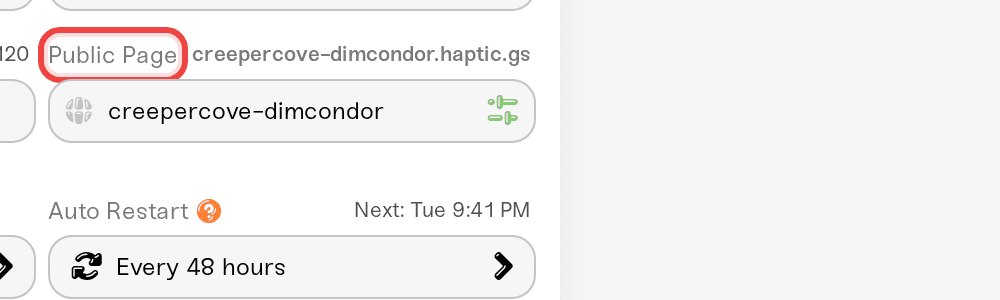
In the Public Page field, click the green sliders icon (Public page settings).
Make sure Enable public page is on and your server has a saved public URL. If you have not set up the page yet, set up a public page for your server first; it takes a minute.
Scroll to the Friend wake section at the bottom and turn on Friends can wake this server. As the toggle's description says: "Anyone with your public page link and the share password below can start this server when it's offline."
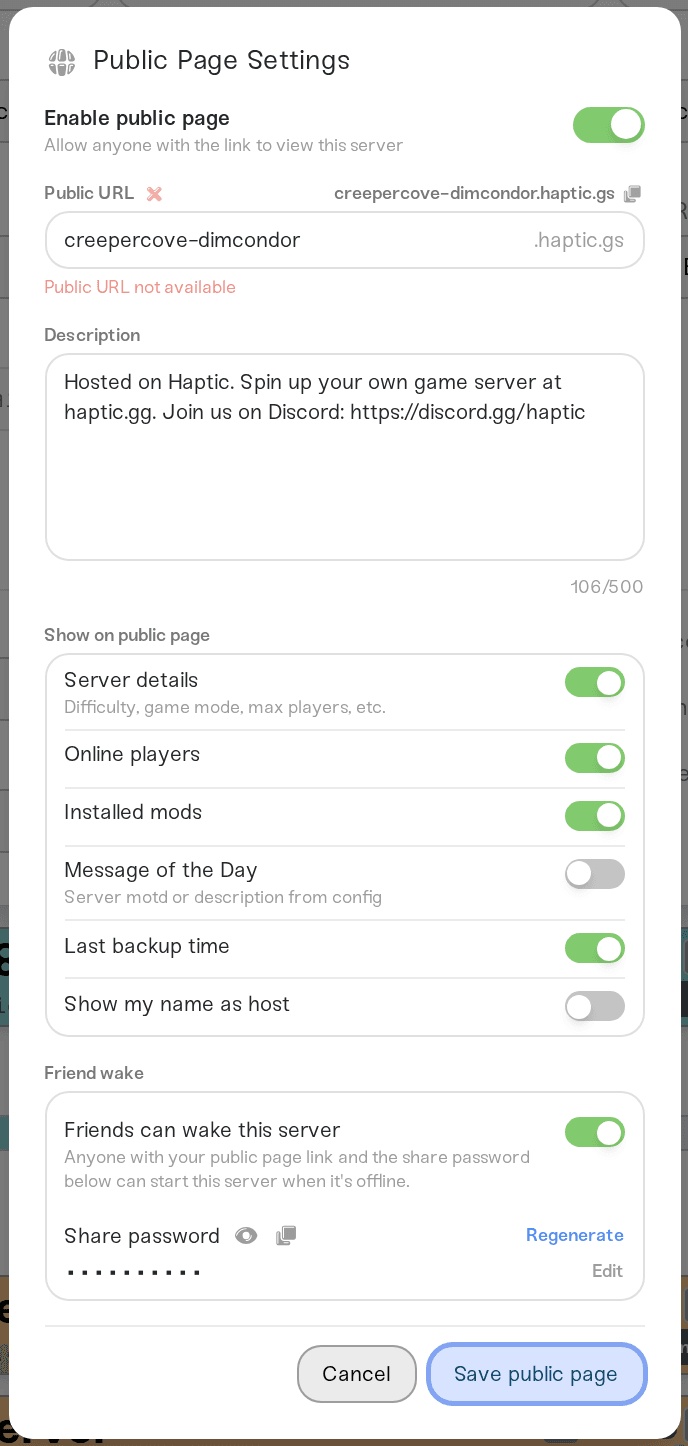
Unlike the rest of the dialog, you do not need to press Save public page for the friend wake switch to take effect. Flip it and it is live.
That is the whole setup. Haptic creates a share password for you automatically the first time you open these settings: 10 characters, letters and numbers only, with look-alike characters (like 0/O and 1/l) left out so it is easy to read aloud.
Send your friends two things
Your public page link:
yourserver.haptic.gs. It is shown next to the Public Page field; click it to copy.The share password: in the Friend wake section, click the eye icon to reveal it or the copy icon to copy it.
The share password only wakes the server. It does not let anyone into your dashboard, and it is completely separate from any in-game join password your server may have. If your game world is password protected, friends still need that password to actually join; see Set or remove your server password.
Change or reset the share password
In the same Friend wake section:
Edit lets you type your own password (4 to 64 characters). Press Save; you will see "Share password saved."
Regenerate replaces it with a fresh random one. It is a two-step click: the link changes to Confirm? for a moment, and only a second click regenerates. You will see "Share password regenerated." and the new password is revealed.
The old password stops working the moment you regenerate or edit. That is your kick switch: if the password leaked beyond your group, regenerate and share the new one with the people you trust.
Why you don't see a wake button on your public page
This one causes real confusion, so here it is plainly: the wake button only exists while the server is offline.
While your server is Online, the public page shows the join address (and a Steam Join button for supported games) instead. There is no wake button and no password box anywhere on the page, because there is nothing to wake. If you open your own public page while your server is running and go looking for the wake or password option, you will not find it, and nothing is broken.
Two things to remember:
The wake settings (the toggle and the share password) live only in your dashboard's Public Page Settings, never on the public page itself.
The wake button appears to visitors only while the server is offline. Stop the server, refresh your public page, and you will see exactly what your friends see.
What your friends see
Your friends do not need a Haptic account. Here is their side of it, worth forwarding to your group:
Open the link the owner sent you (it looks like
something.haptic.gs). The bar at the top shows the server's status: Online, Starting, or Sleeping (a moon icon; this shows for any offline server).While the server is sleeping, you will see a Wake server button with the note "Anyone with the share password can wake this server". (On Always On plans the button says Start server and the note says "Anyone with the share password can start it.")
Click it, type the share password the owner gave you, and click Wake server.
The page switches to Starting with a spinner and updates itself; no need to refresh. Most servers are up within a minute or two. When the status flips to Online, the join address appears; click it to copy, open your game, and connect.

If you typed the wrong password, the dialog stays open and says "That password isn't right. Ask the server owner for the share password."
If a friend can't wake it
"That password isn't right." They are using an old or mistyped password. Reveal the current one in Public Page Settings and resend it. Did you regenerate recently? Everyone needs the new password. Too many wrong guesses in a row also triggers a short cooldown; wait a few minutes and try again with the right password.
"Wake via link is turned off for this server." The Friends can wake this server toggle is off, or the public page was disabled. Turn both back on in Public Page Settings.
"This server was started a few times recently. Give it a few minutes." A fairness limit: a server can be woken through the public page 3 times per half hour. This resets on its own; it never affects you starting the server from your own dashboard.
"The owner needs to sort out billing before this server can start. If you want to help, ask them for their chip-in link." Your subscription needs attention before the server can run. Friends can pitch in via Chip in on a server if you share your chip-in link.
"Preparing the server. It will start automatically." Not an error. The wake was accepted and the server will come up on its own; the page keeps showing Starting.
No button, just "Sleeping" and "The owner can wake this server up anytime." Friend wake is turned off for this server. Only the owner can start it, from the dashboard.
If a wake has been stuck on Starting for more than 15 minutes, the page will say it is taking longer than usual. Try once more, and if it still will not come up, that is one for us.
Need help?
Message us on Discord or email support@haptic.gg. Tell us your public page address, whether the button your friend saw said Wake server or Start server, and the exact message they got; a screenshot of the page is perfect.
Friend wake is view-and-wake only. To let a friend manage settings, files, or the console, see Share server access with friends.
Friends with Operator access to your dashboard do not see the Public Page controls; see Friend roles and permissions.



