Install mods on your server
 HapticGuide
Every server has a Mods card in its dashboard. Check the mods you want, press Save changes in the popup at the bottom of the page, then restart your…
Every server has a Mods card in its dashboard. Check the mods you want, press Save changes in the popup at the bottom of the page, then restart your server: mods only load on a server start. Removing a mod is the same flow in reverse, and if removing one would delete content from your world, we take a safety backup automatically first. Your world data is never touched by installing a mod.
Open the Mods card
Go to My Servers in your dashboard.
On your server's card, press Detail view.
Find the Mods card. Under the title it shows how many mods you have (for example 3 installed), or Customize your server if you have none yet.
Click the card header (the hint says Expand Mods) to open the full catalog with search.
You can browse, install, and remove mods while your server is offline or asleep. Nothing here requires the server to be running.
> If a friend shared their server with you as an operator, the Mods card is read-only for you. Only the owner and friends with a higher role can change mods. See Friend roles and permissions.
Browse the catalog
The catalog only lists mods that already work on Haptic: everything in it has been imported and tested for your game.
Type in the Search mods... box to filter by name or description.
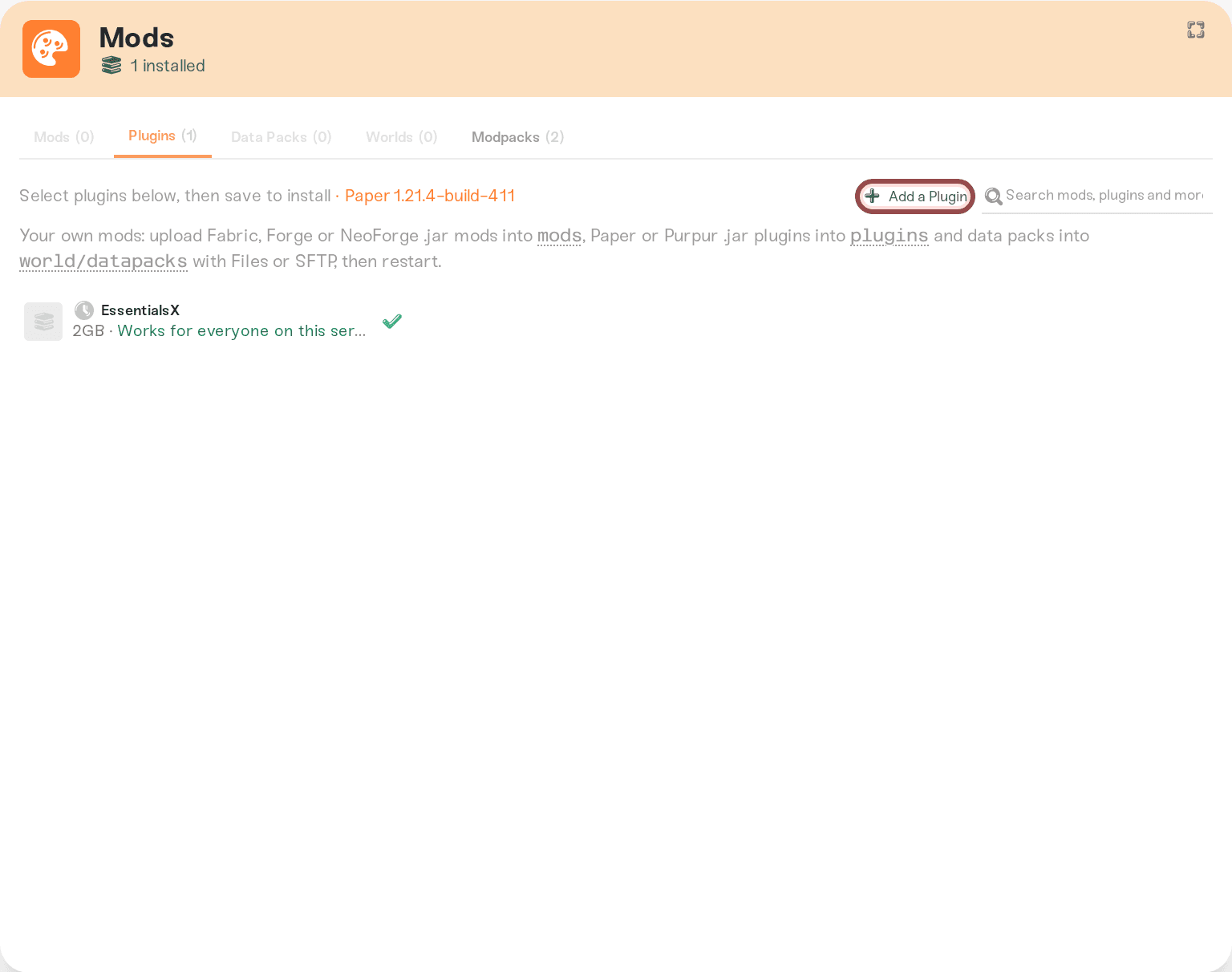
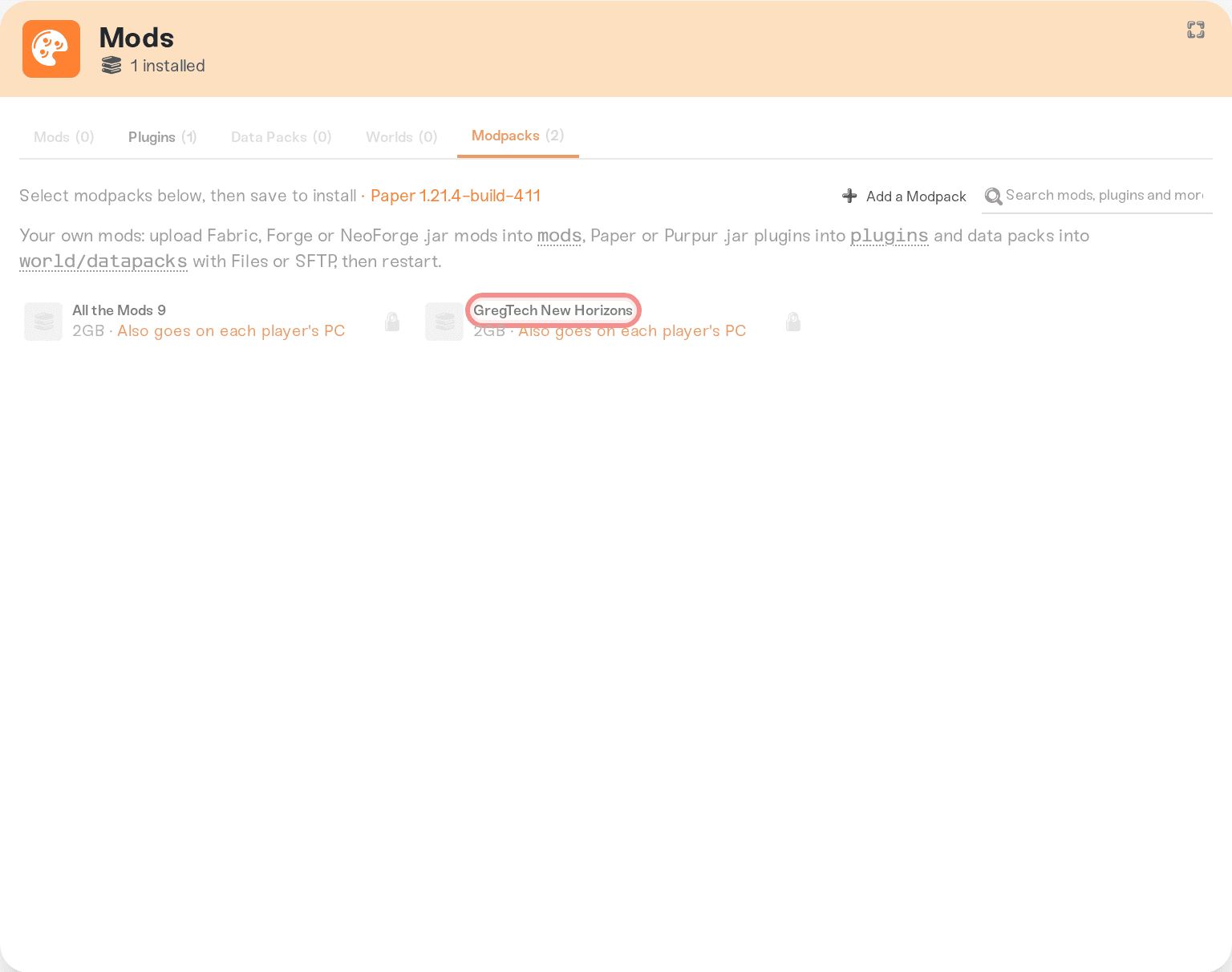
On Minecraft Java, tabs split the catalog by type: Mods, Plugins, Data Packs, Worlds, and Modpacks, each with a count. Worlds are one at a time: the header switches to Select a world below, then save to install (one at a time).
The header line also shows the mod loader your server runs (for example BepInEx 5.4.2202 or tModLoader). On Minecraft Java it also shows your server's pinned game version next to a small lock icon (for example 1.21.4). Mods must be compatible with your server's setup, which is why some rows are locked (more below).
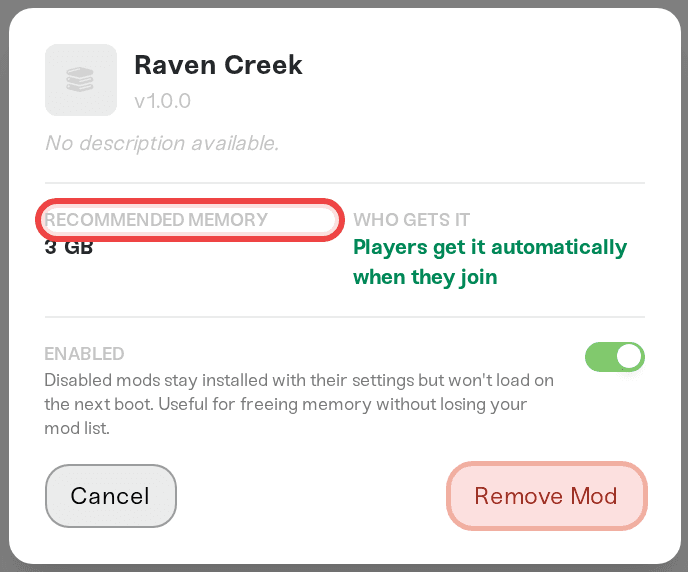
Click any row to open the mod's detail panel: the description, Recommended Memory, a chip explaining who needs the mod (server, players, or both), and a View on source website link. If the mod needs other mods to work, a Required dependencies section lists them with the note "These will be installed alongside [the mod] automatically", so you never have to hunt down dependencies yourself.
Can't find the mod you want? If your search matches nothing (or almost nothing) in the catalog, the card looks it up on your game's mod sites and lists what it finds under Available to add. Press Add next to one to pick its version, or Search more for the full search. We test each one on a real server first, usually in about a minute, then add it to your server. You can also press Add a Mod in the card header to search yourself: see Add a mod we don't have yet.
Install a mod
Check the box on each mod you want (the tooltip reads Check to install), or press Select Mod in its detail panel. Nothing installs yet; you are just staging changes.
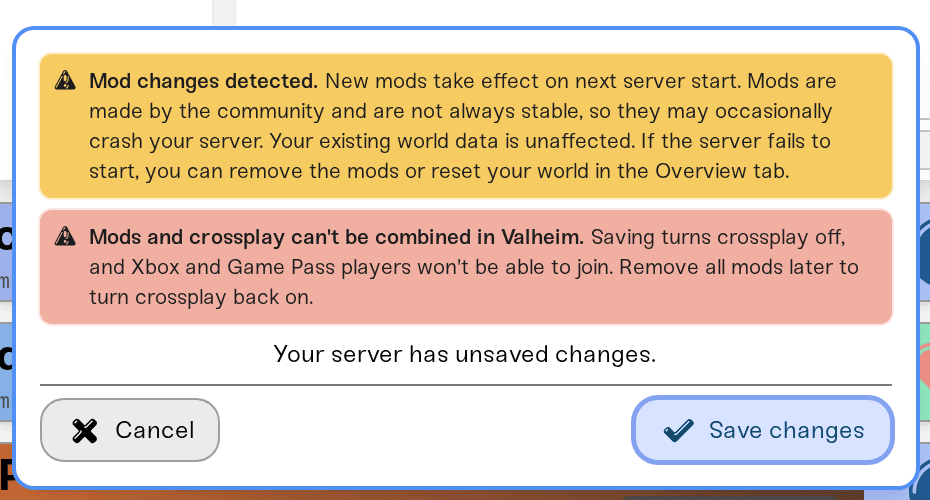
A Save changes popup appears at the bottom of the page with a yellow notice: "Mod changes detected. New mods take effect on next server start. Mods are made by the community and are not always stable, so they may occasionally crash your server. Your existing world data is unaffected. If the server fails to start, you can remove the mods or reset your world in the Overview tab." Press Save changes.
Restart your server. Mods only load during a server start, so until then each new mod shows a small clock icon meaning Pending restart. See Start, stop, and restart your server.
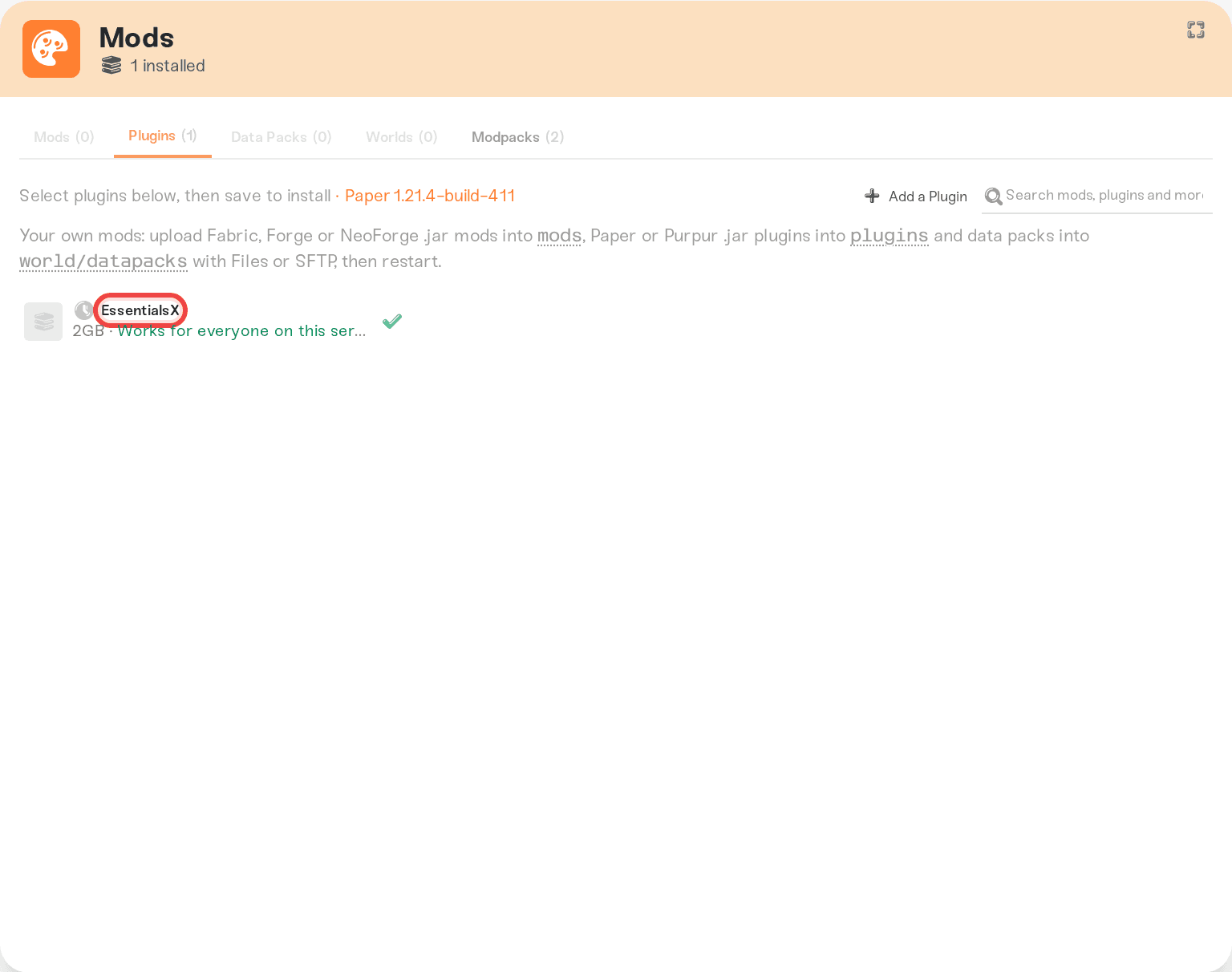
After that first start, a mod with settings writes its config file to your server's files. The detail panel reminds you: "Restart your server to load this mod. If it has settings, its config file will appear in the Files tab after that first start." See Edit config files.
How to tell a mod's status
Next to each installed mod you may see a small icon:
Clock: Pending restart. The mod is saved but has not been loaded yet.
Red triangle: Install failed on last boot, with the error in the tooltip.
Minus: Skipped on last boot.
While your server is online, its card on My Servers also shows a small layered-squares icon; hover it to see the loader and every mod's status at a glance.
If a yellow Re-test failed chip appears on a mod, our background compatibility testing found a problem with the installed version. A notice at the top of the card explains it "may crash your server the next time it starts" and recommends disabling it until the author ships a fix. Disabling a mod (instead of uninstalling) is covered in Mod load order and on/off toggles.
Why some mods show a padlock
A padlocked, dimmed row is not broken: it means that mod cannot run on your server as it is set up right now. Hover the row (or open its detail panel) to see the exact reason:
"Requires 4GB memory (server has 3GB)": the mod needs more memory than your server currently gets. The detail panel shows an Upgrade your plan to get more memory link, and Understanding your memory budget explains how memory is shared.
"Requires version 1.20.1-1.21.4, but server is 1.21.11": the mod does not support your server's game version. On Minecraft Java, installing your first mod pins the server's game version so mods and game can't drift apart; that pinned version is the lock chip in the card header.
Mixing conflicts: some content types can't share a server (for example, Minecraft mods and plugins need different server software). The tooltip names the conflict.
Uninstall a mod
Uncheck the mod (tooltip: Uncheck to remove), or press Remove Mod in its detail panel.
Press Save changes in the popup.
Restart your server so the change takes effect.
If a mod you are removing has already put content into your world, the popup warns you in orange: "Mods will be permanently removed from your world. Items, blocks, and entities from these mods will be deleted when your server next starts. A safety backup will be created automatically before saving." The Save button reads Creating backup… while that backup is taken, so you can always go back: see Restore a backup.
If you only want a mod out of the way temporarily (to test a crash, or to free memory), disable it instead of uninstalling: it keeps its settings and simply doesn't load. See Mod load order and on/off toggles.
Where your game's mods come from
Every game pulls from its official mod community, so you'll find the same mods you'd use anywhere else:
| Game | Mods come from | What you can install |
|---|---|---|
| Minecraft Java | CurseForge and Modrinth | Mods, plugins, data packs, worlds, and modpacks |
| Minecraft Bedrock | CurseForge | Add-ons and texture packs |
| Valheim | Thunderstore | Mods (BepInEx) |
| Terraria | Steam Workshop | Mods (tModLoader) |
| Conan Exiles | Steam Workshop | Mods |
| DayZ | Steam Workshop | Mods |
| Project Zomboid | Steam Workshop | Mods |
| Don't Starve Together | Steam Workshop | Mods |
| Palworld | CurseForge and Steam Workshop | Mods |
| Rust | uMod | Plugins (Oxide) |
| Satisfactory | ficsit.app | Mods |
| Factorio | Factorio Mod Portal | Mods |
| Hytale | CurseForge | Mods |
| Windrose | CurseForge | Mods |
On Steam Workshop games you can also paste a Workshop mod or collection link into the Add a Mod search to install items directly, without waiting for the testing queue. That flow is covered in Add a mod we don't have yet. And if the mod you want isn't published anywhere (including one you are building yourself), most games can load it straight from your server's files: see Upload your own mods.
Two game-specific notes worth knowing before you install:
Valheim: mods and crossplay can't be combined; installing a mod turns crossplay off, and most Valheim mods must also be installed on every player's PC. See Valheim: mods or crossplay and Valheim: your players need the mods too.
Factorio: Nintendo Switch players can only join Factorio servers with no mods installed. The Mods card reminds you of this on Factorio servers.
When a mod gets an update
On Project Zomboid, Terraria, and Conan Exiles, we watch the Steam Workshop for you. When an author publishes a new version of a mod you run, your server's copy is updated automatically and the dashboard tells you the mod "was updated on the Steam Workshop", with the affected mods flipping to the Pending restart clock. Restart when convenient to load the new versions; on Project Zomboid, players who already have the newest version can't join until you do. Don't Starve Together is the one exception: it downloads the newest versions itself every time the server starts, so it is always current without a notice. More detail in Project Zomboid: mods download automatically.
On other sources, your server keeps the exact version you installed, so an update never surprises you mid-week. When you want a newer version, open Add a Mod and pick the new version from the version list to add it. Versions we already carry are marked Already available in green: those are already in your catalog, so they can't be added again.
Who else needs to install the mod?
It depends on the game and the mod. Each row in the catalog carries a chip that answers it, such as "Works for everyone on this server", "Players get it automatically when they join", or "Required on every player's PC to join". Check the chip before you install so nobody gets locked out; the full guide is Server-side vs client-side mods.
Games without a Mods catalog
If your game doesn't have mod support on Haptic yet, the Mods card says so and includes a box to tell us which mods you'd like us to prioritize; those suggestions genuinely steer what we build next. FiveM is the special case: it uses resources and scripts rather than mods, and you manage its framework (QBCore, ESX, QBOX) from the Details section of the Overview card instead.
Need help?
Message us on Discord or email support@haptic.gg. If a mod fails to install or crashes your server, include your server name, the mod's name, and a screenshot of the red triangle's tooltip or the console output, and we'll dig in with you.



