Stash a server and switch games
 HapticGuide
Stashing takes a server off your active list without deleting anything. A stashed server keeps its world, settings, mods, and backups, but uses none of…
Stashing takes a server off your active list without deleting anything. A stashed server keeps its world, settings, mods, and backups, but uses none of your plan's memory, so that memory is free for a different server. Move memory between servers any time from Manage on My Servers: reduce one server to 0 GB to stash it, give the memory to another, and press Save changes. Nothing you stash is ever lost, and stashing costs nothing.
What stashing means
Your plan gives you a memory budget (2 to 32 GB), and memory is the only thing you pay for. Every active server holds a slice of that budget, whether it is online or not. A stashed server holds none: it shows the status Stashed, it cannot be started, and its world sits safely in storage until you bring it back.
This is also how you switch games. There is no button that turns a Minecraft server into a Valheim server; instead, you create a server for the new game and stash the old one. Both worlds stay saved, and only the active one uses your memory. See Can I add more game servers? for the bigger picture.
Stash a server
Open Manage
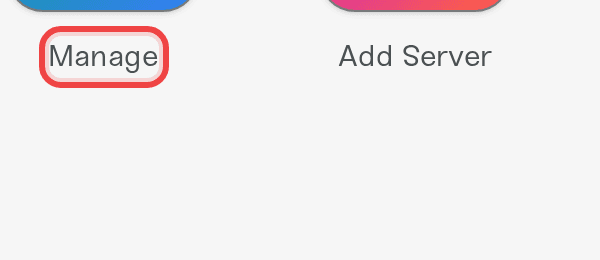
Go to My Servers and press Manage. Your server cards roll up into a compact list, and the Memory Budget bar appears at the top.
Reduce the server to 0 GB
On the card of the server you want to stash, press the - button until it reads 0GB. If the server is currently online, the buttons are disabled with Power down to change memory: stop the server first, then reduce it.

Press Save changes
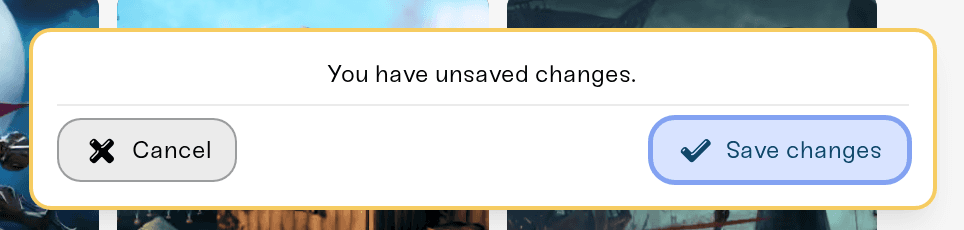
A card with You have unsaved changes. appears at the bottom of the screen. Press Save changes (or Cancel to undo everything). On save, the server moves into the Stashed Servers section. Nothing is deleted.
One rule to know: at least one of your servers must stay active with 2 GB or more, so you cannot stash everything at once.
Bring a stashed server back
Open Manage and find Stashed Servers
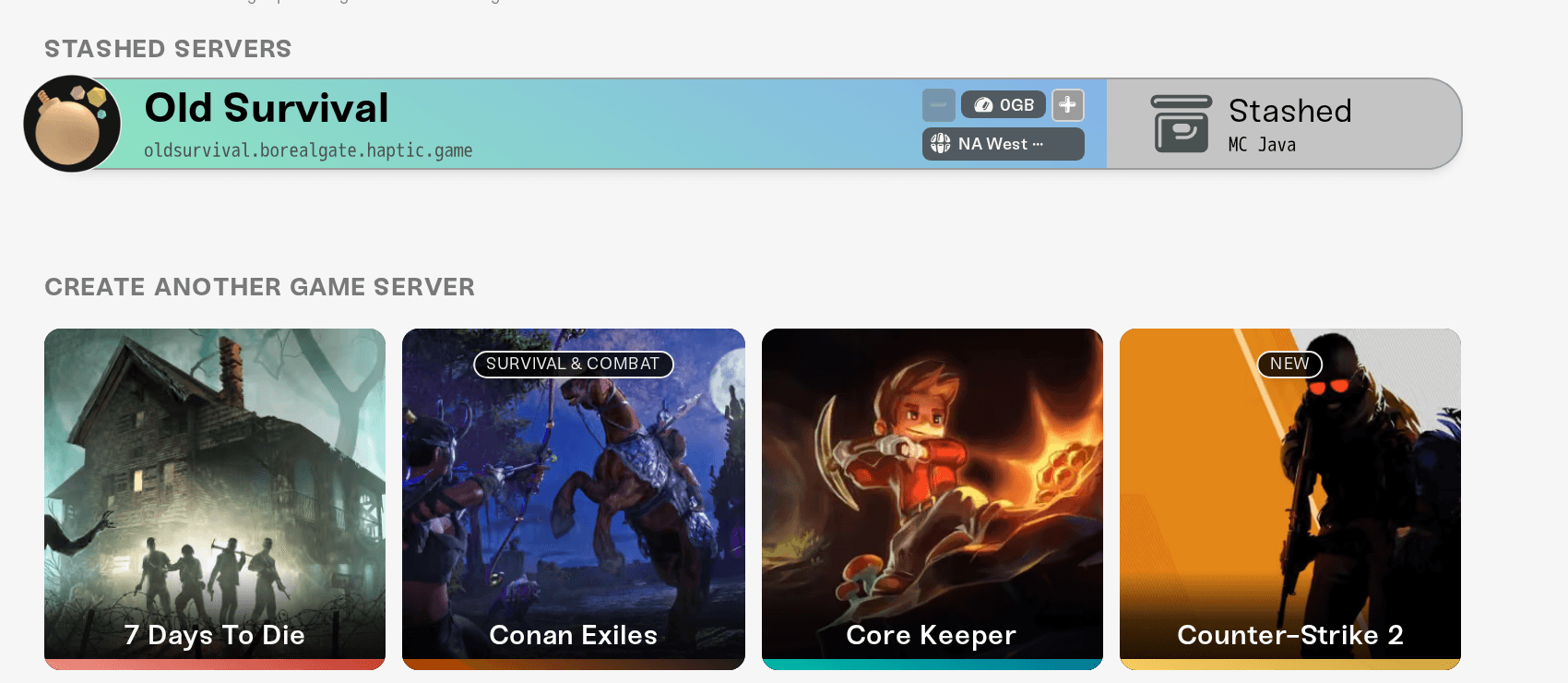
The Stashed Servers section sits below your active servers in the Manage view.
Give it memory
Press + on the stashed server until it has at least 2 GB. Some games need more; the page tells you if a game requires a higher minimum. If your budget is full, reduce another server first so the memory is free to move.
Press Save changes
The server becomes active again with its world, settings, and mods exactly as you left them. Start it whenever you are ready. (The power button on a stashed card is disabled with This server is stashed. Allocate memory in Manage Servers to activate it., which is exactly this fix.)
Switch which server uses your memory
Swapping is one save, not two. In Manage, reduce the server you are done with to 0GB, press + on the one you want to play, and press Save changes once. The first server is stashed and the second activates in the same step.
If the new game does not have a server yet, press Add Server instead and pick the game. On the Allocate Memory step you can reduce an existing server to 0 GB right there, so it is stashed as part of creating the new one. You can also press Stash {Game} server instead below the create button to build the new server straight into your stash for later, using no memory at all.
How many servers can you stash?
You get 3 stash spots for every 2 GB of your plan's memory: a 2 GB plan can stash 3 servers, a 4 GB plan 6, an 8 GB plan 12, and so on. When you hit the cap you will see Stash limit reached with your count and an Upgrade your plan link; adding memory raises the cap instantly. See How to upgrade or change my plan.
What a stashed server keeps
Everything. Your world, settings, mods, backups, and the server's address all stay with the server while it is stashed, and stashed servers are free forever. You can even open a stashed server's card and edit its settings while it waits.
Stashing is not deleting. If you actually want a server gone for good, that is a separate, permanent action: Delete a server.
If stashing or activating is blocked
The - button is disabled with "Power down to change memory". The server is online. Stop it, then adjust its memory. See Start, stop, and restart your server.
"Recent file edits are still backing up. Try again in a few minutes." You changed files recently and we are still copying them to safe storage. This guard exists so a stash can never lose your latest edits; wait a few minutes and try again.
"Stash limit reached." You are at your plan's stash cap. Activate or delete a stashed server, or add memory to your plan to raise the cap.
"You don't have permission to stash this server." On servers shared with you, only the owner and friends with an admin role can stash or activate; the operator role cannot. See Friend roles and permissions.
Need help?
If a server will not stash or come back, message us on Discord or email support@haptic.gg with the server's name and a screenshot of the Manage view, and we will sort it out with you.



