FiveM: Connect to your server's database (HeidiSQL and friends)
 FiveMGuide
Every FiveM server on Haptic has its own private MariaDB database. You can connect to it from your PC with HeidiSQL, Navicat, DBeaver, or any MySQL client…
Every FiveM server on Haptic has its own private MariaDB database. You can connect to it from your PC with HeidiSQL, Navicat, DBeaver, or any MySQL client that supports an SSH tunnel. The connection goes through the same secure address you use for SFTP, so your database is never exposed to the open internet. If you only need to run .sql files, the simpler Import SQL files flow needs no database program at all.
Before you connect
Your server must be powered on. The tunnel reaches the database inside your running server, so a stopped server has nothing to connect to.
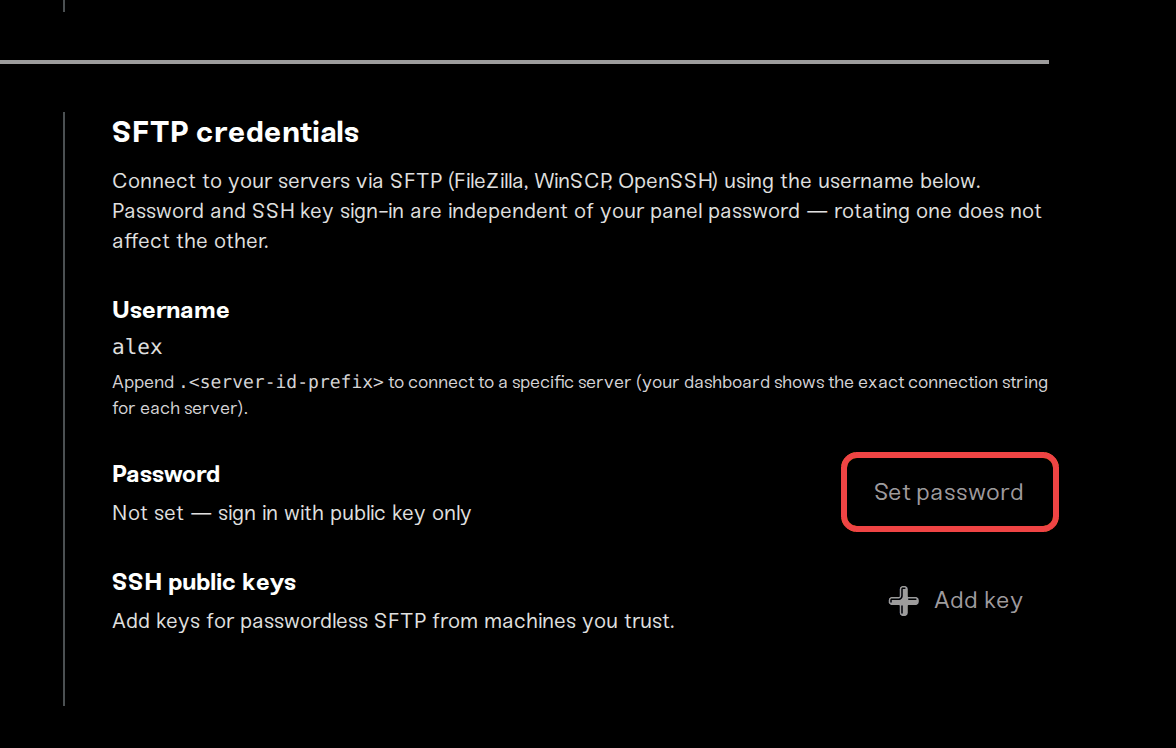
Set your SFTP password on the dashboard under Account → Settings, in the SFTP section. This is its own password, separate from your Haptic login.
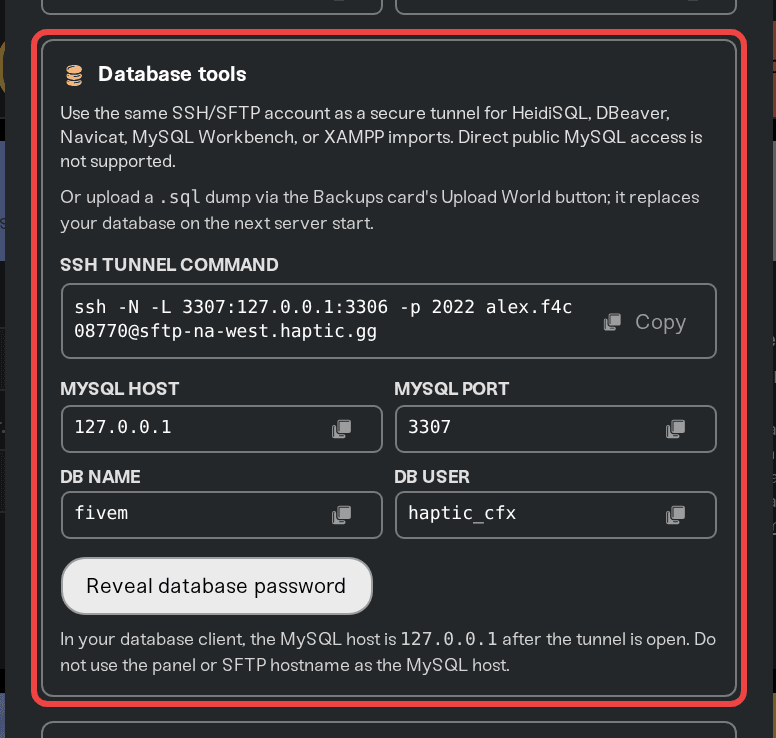
Get your database login: open your server, click Connect via SFTP on the Files card, and look for the Database tools section. It shows the database name and lets you reveal the database password. The database user is
haptic_cfx.
HeidiSQL
Create a new session and set Network type to MariaDB or MySQL (SSH tunnel). HeidiSQL then splits the settings across two tabs, and the fields look similar on both. Fill in each tab exactly as below.
The "SSH tunnel" tab
This tab logs you in to Haptic. It uses your SFTP details, not your database details.
| Field | Value |
|---|---|
| SSH host + port | sftp-REGION.haptic.gg and port 2022 (REGION is na-east, na-west, or eu-west, shown in your SFTP modal) |
| Username | Your SFTP username, which looks like yourname.1a2b3c4d (copy it from the SFTP modal) |
| Password | Your SFTP password from Account → Settings |
| SSH executable | plink.exe (see below) |
| Local port | Leave as is, or set 3307 if you run MySQL or XAMPP on your own PC |
Four things trip people up here:
The host field takes the hostname only. Put
sftp-na-west.haptic.ggin it, notyourname.1a2b3c4d@sftp-na-west.haptic.gg. The username goes in its own field below.The port is
2022. Most guides for other hosts say22, and the field may default to22. Ours is2022. It is not3306, and it is not the local port.The username here is your SFTP login, not your database name. Typing
fivemin this box is the single most common mistake.The username changes if you delete and recreate the server. The part after the dot identifies the server, so a rebuilt server has a new username. Copy it again from the SFTP modal and your saved session will connect.
The SSH executable must be
plink.exe, notssh.exe. HeidiSQL builds a PuTTY command line, so Windows' ownssh.execannot run it even when it is installed. If the error says "Could not execute SSH command ... the system cannot find the file specified", this field is why. plink normally sits in your HeidiSQL folder; if it is not in the dropdown, install PuTTY and point the field atplink.exe.
The "Settings" tab
This tab is the database itself, reached through the tunnel you just set up.
| Field | Value |
|---|---|
| Hostname / IP | 127.0.0.1 (always this, never your server's join address) |
| Port | 3306, always, even if you set Local port to 3307 on the other tab. This is the port at the server end, not on your PC |
| User | haptic_cfx |
| Password | Reveal it in the Database tools section |
| Database | Shown in the Database tools section (fivem for FiveM, redm for RedM) |
Click Open. You are now looking at your server's live database: player characters, money, inventories, and whatever your scripts store.
Navicat, MySQL Workbench, DBeaver
Same idea: enable the SSH tunnel option in the connection profile, put your SFTP details in the SSH fields, then use 127.0.0.1:3306 with the haptic_cfx login for the database itself.
Command line (OpenSSH)
ssh -N -L 3307:127.0.0.1:3306 -p 2022 yourname.1a2b3c4d@sftp-REGION.haptic.ggReplace yourname.1a2b3c4d with the SFTP username from your SFTP modal. Leave that running, then point any MySQL client at 127.0.0.1:3307. You can verify the host key fingerprint at haptic.gg/sftp-fingerprints.
Working with a local XAMPP or phpMyAdmin setup
A common workflow: build and test your scripts locally against XAMPP, then move the data to your Haptic server.
Export your local database to a
.sqlfile (phpMyAdmin → Export, or HeidiSQL → Export database as SQL).Small files: connect with HeidiSQL through the tunnel and run the file against your server's database (Load SQL file, then execute).
Big dumps or lots of files: upload them to the server-data/sql folder on your Files card and restart your server. They import automatically during startup. Full guide: Import SQL files.
Things that will NOT work
Root access or other databases. The
haptic_cfxuser can only touch your own server's database.CREATE DATABASE,DROP DATABASE, and switching databases are blocked on purpose.Connecting without the tunnel. Port 3306 is not reachable from the internet. Any client that cannot do an SSH tunnel cannot connect directly; use the sql folder instead.
Connecting while the server is off. Power the server on first.
Troubleshooting
| Problem | Fix |
|---|---|
| Connection refused | Make sure the server is online and the SSH host matches your server's region |
| SSH login fails, or the tunnel never opens | Check the SSH tunnel tab: host is the hostname only (no username@ in front of it), port is 2022, and Username is your SFTP login, not fivem |
| "Access denied for user 'fivem'" | You put the database name in the SSH tunnel tab's Username field. That field wants your SFTP username |
| "Lost connection ... reading initial communication packet" | Two causes: Hostname on the Settings tab must be 127.0.0.1, and Port on the Settings tab must be 3306. We only forward to 3306, so any other port is refused and the connection closes right after it opens |
| "Could not execute SSH command", "the system cannot find the file specified" | Set SSH executable to plink.exe. Nothing was dialled yet; HeidiSQL could not start the SSH program itself |
| SSH password rejected | Set or reset your SFTP password under Account → Settings and try again with the new one |
| Locked out after failed attempts | Too many wrong passwords locks SFTP for a while. Wait it out, or message us and we will clear it |
| Tunnel connects but the database login fails | Re-reveal the database password in the Database tools section; it is the haptic_cfx user, not your SFTP login |
| Port 3306 already in use on your PC | Forward to local port 3307 instead and point your client at 127.0.0.1:3307 |
Need help?
Message us on Discord with your server name, the client you are using (HeidiSQL, Navicat, and so on), and a screenshot of the connection settings you entered.

Import SQL files into your server's database: no database program needed.
RedM servers work exactly the same way; the twin article lives under RedM support.


