Palworld: how Xbox, PS5, and Mac friends join your server
 PalworldGuide
Crossplay is on by default on every Palworld server, at no extra cost: Steam, Xbox, PlayStation 5, and Mac players can all share your world. Xbox and PS5…
Crossplay is on by default on every Palworld server, at no extra cost: Steam, Xbox, PlayStation 5, and Mac players can all share your world. Xbox and PS5 friends find your server by searching its exact Server Name in Palworld's in-game community server browser, then enter your server password. Steam and Mac friends can do the same, or join directly by address. Send your group two things: the exact server name and the server password.
What to send your friends
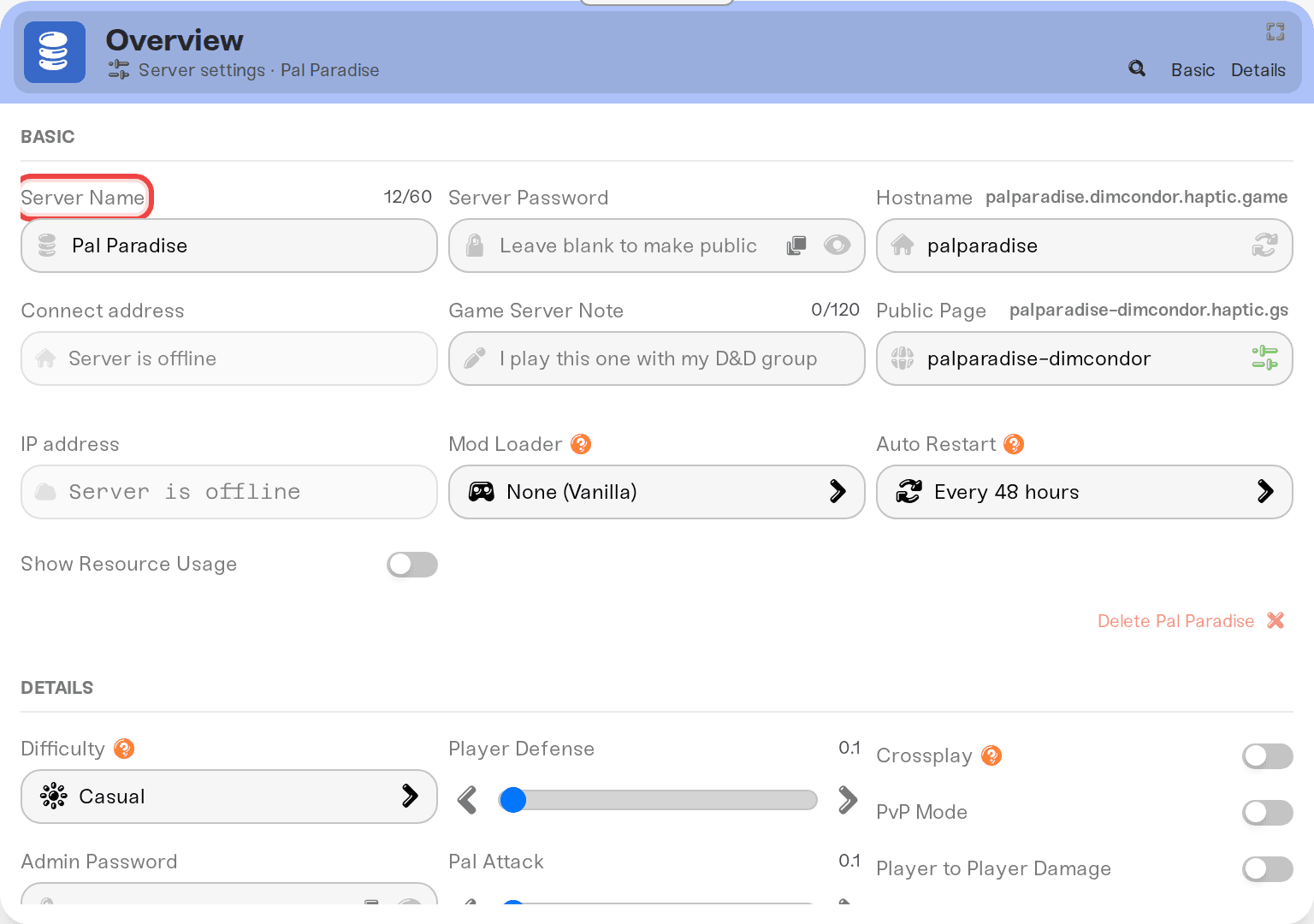
1. The exact Server Name. Open your server on My Servers with Detail view; the Server Name field is in the Overview card's Basic tab. Copy and paste it rather than retyping it. The Server Description field (in the Overview card's Details tab) shows in the browser listing and helps friends confirm they picked the right server.
2. The server password. Every new Palworld server comes with a random password already set. On your server card, click the small > chevron next to the address and use Copy password.
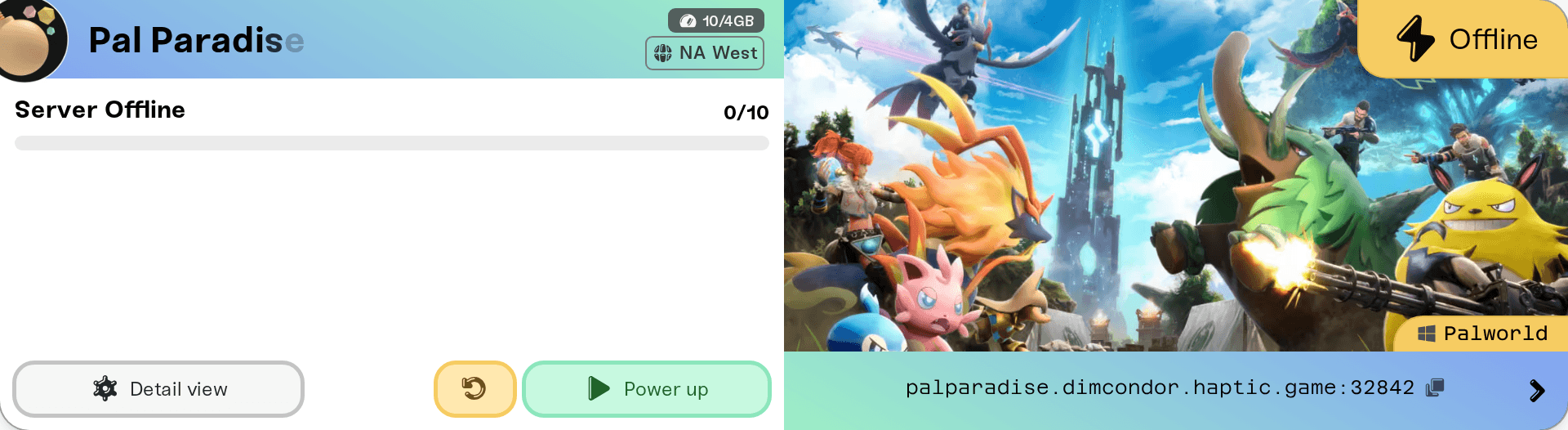
Share the password; do not clear it. Crossplay lists your server publicly, so the password is what keeps strangers out of your world. To change it, see Set or remove your server password.
Xbox and PlayStation 5: the community browser is the only way in
The Xbox and PS5 versions of Palworld cannot join a server by IP or address. That is a Palworld rule, not something we control, and it is why your server is listed in the in-game browser. PC Game Pass players are on the Microsoft Store version and join the same way as Xbox. Your friends join like this:
Start Palworld and choose Join Multiplayer Game.
Search the community server list for your exact Server Name.
Select the server and enter the server password when asked.
The browser only shows a slice of the public servers, so scrolling will not find yours; searching the exact name will. After the first join, Palworld's Recent Servers tab keeps the server one click away.
Steam and Mac friends: browser or address
Steam and Mac players can search the community browser exactly like console players, or skip the search and join by address. Send them the address shown on your server card (including the :port part). In Palworld, they open Join Multiplayer Game, tick the Enter Password checkbox next to the address bar at the bottom, paste the address, and connect. Forgetting that checkbox is the most common reason a direct join fails on a password-protected server.
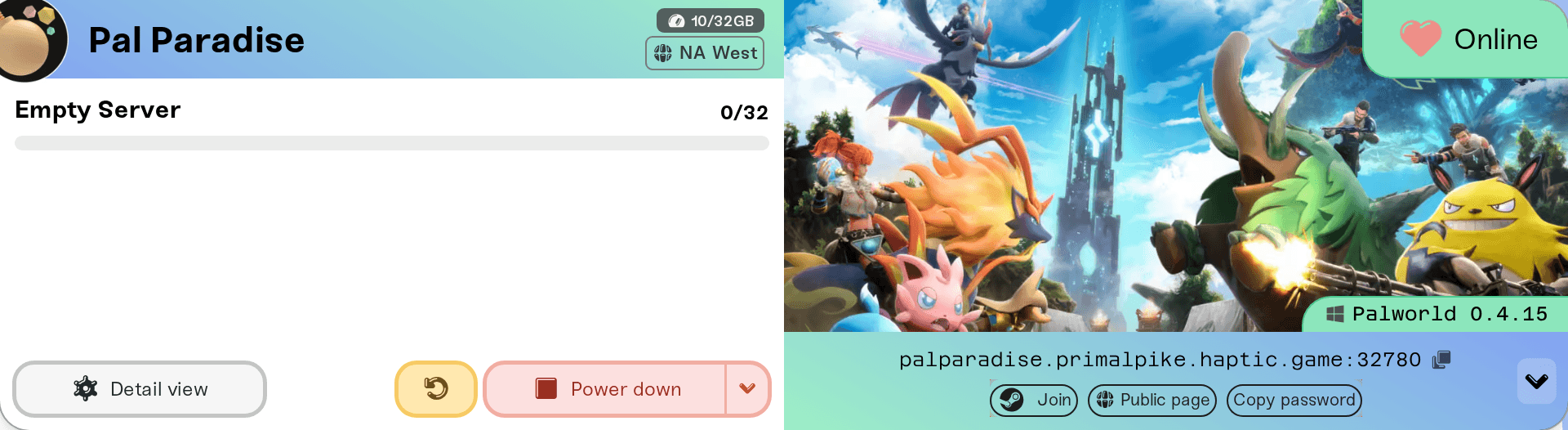
The Join button with the Steam logo next to the address is your own shortcut: it shows on your dashboard on desktop while the server is Online, and launches Palworld through Steam straight into your server. If you have set up a public page, Steam players get the same one-click Join button there. It builds a Steam link, so Mac and console friends use the name or the address instead.
Friend cannot find the server? Check these
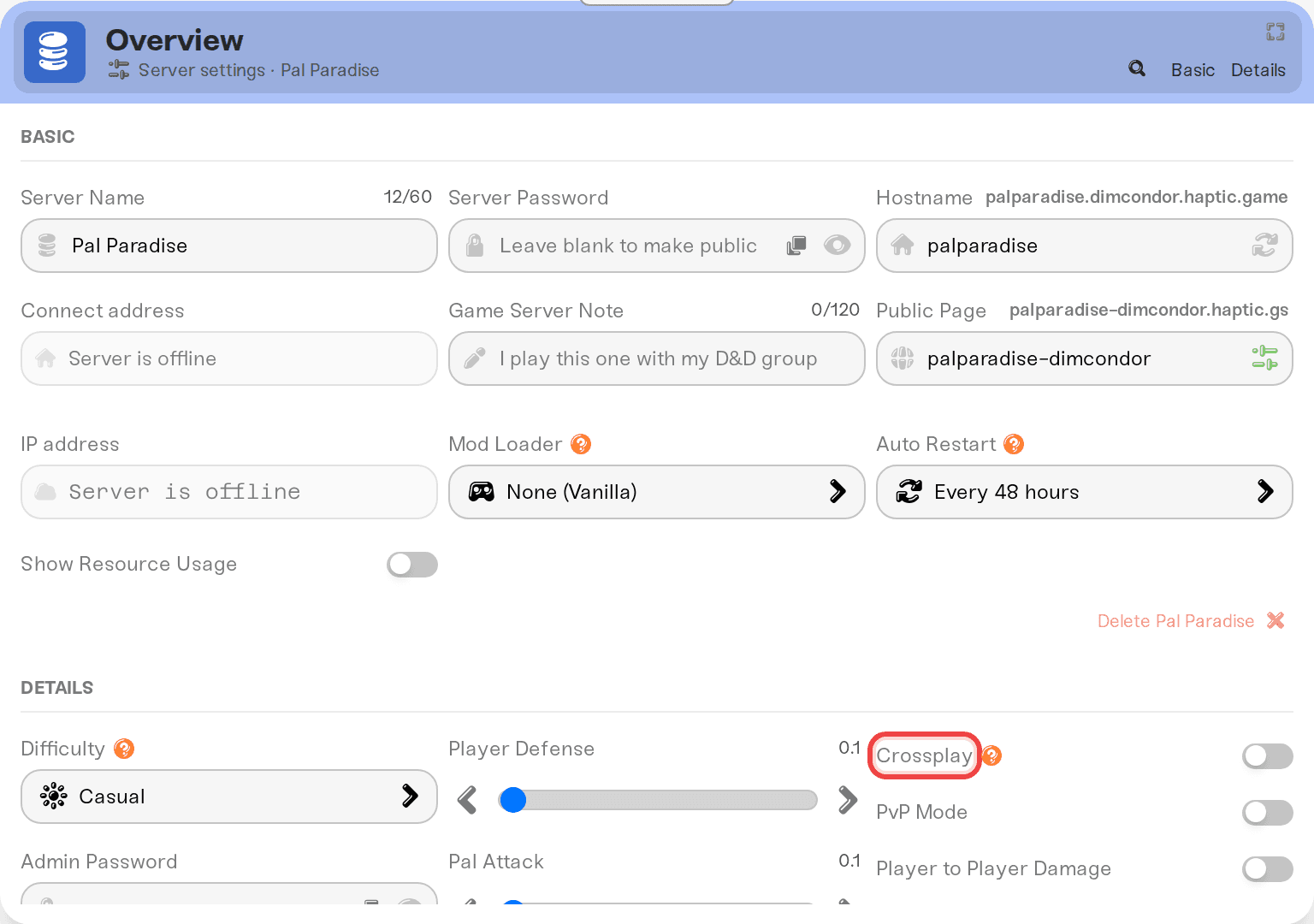
Crossplay is on. It is the Crossplay checkbox in the Overview card's Details tab, on by default. Turning it off delists the server and locks it to Steam players. If you just switched it back on, save and restart the server: the setting only reaches Palworld on start.
You renamed the server but have not restarted. Name changes apply on restart; after it, the server is findable under the new name only.
The search is not exact. Have them paste the full server name you sent, and check it for typos.
The server is asleep or stopped. Only a running server is listed. Start it from your dashboard, or, if you have turned on Friends can wake this server, let friends wake it themselves from your server's public page.
They landed somewhere else. Your dashboard's player list shows a platform badge on each player (Steam, Xbox, PlayStation, Apple), so you can confirm your console friend is on your server and not on a similarly named one.
Need help?
Ask in Discord or email support@haptic.gg. Include your server name and which platform the joining player is on.
Palworld updated and nobody can join: if everyone could join yesterday and nobody can today, it is probably a game patch.
Invite players to your server: the address strip and its shortcut pills in detail.
Change your server address: renaming the Server Name does not change the join address, and the other way round.


