Admins, whitelist, and bans on your Hytale server
 HytaleGuide
Operators, the whitelist, and bans all live in the Admins tab of your server's Overview card. Search the player by Hytale username or UUID, pick a role,…
Operators, the whitelist, and bans all live in the Admins tab of your server's Overview card. Search the player by Hytale username or UUID, pick a role, click Add Player, then Save changes. If your server is running when you save, the change applies within seconds and no restart is needed. Nothing here touches your worlds or player data.
Find a player's UUID
Hytale identifies players by account UUID, not by display name. The search box (Search Hytale username or UUID...) looks the UUID up for you, so usually you just type the name.
If it answers Player not found., ask the player to type /uuid in Hytale's chat and search that instead. Both searches use the same player lookup, so if the UUID comes back not found too, that account cannot be added from the Admins tab yet: there is no add-by-hand option. Try again later.
Make someone an operator
Open My Servers, open your server, and click the Admins tab on the Overview card.
Type the username or UUID and press Enter.
On the player card, pick Operator next to Role:, then click Add Player.
Click Save changes in the popup at the bottom of the page.
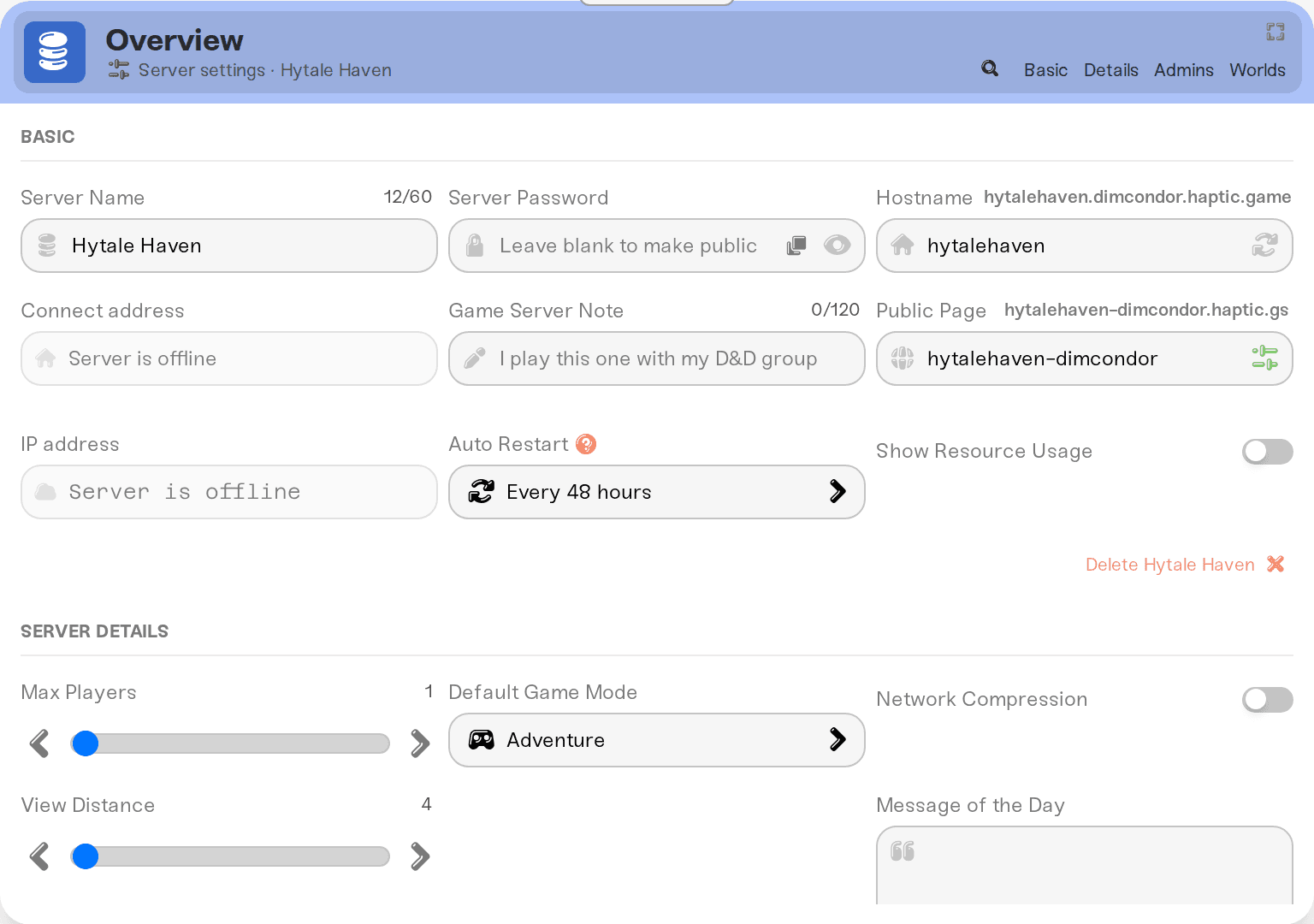
Operators get every server permission (Hytale's hytale:Admin group) and can run admin commands in game. Owning the server on Haptic does not make your character an operator, so add yourself first.
To take a role away, click the trash icon (Remove player) on that row and save.
Whitelist your friends
Search each friend, pick Whitelist, and click Add Player. Add yourself too.
Flip the whitelist toggle at the top of the tab. A Warning! dialog reminds you that non-listed players cannot join; confirm with Enable Whitelist.
Click Save changes.
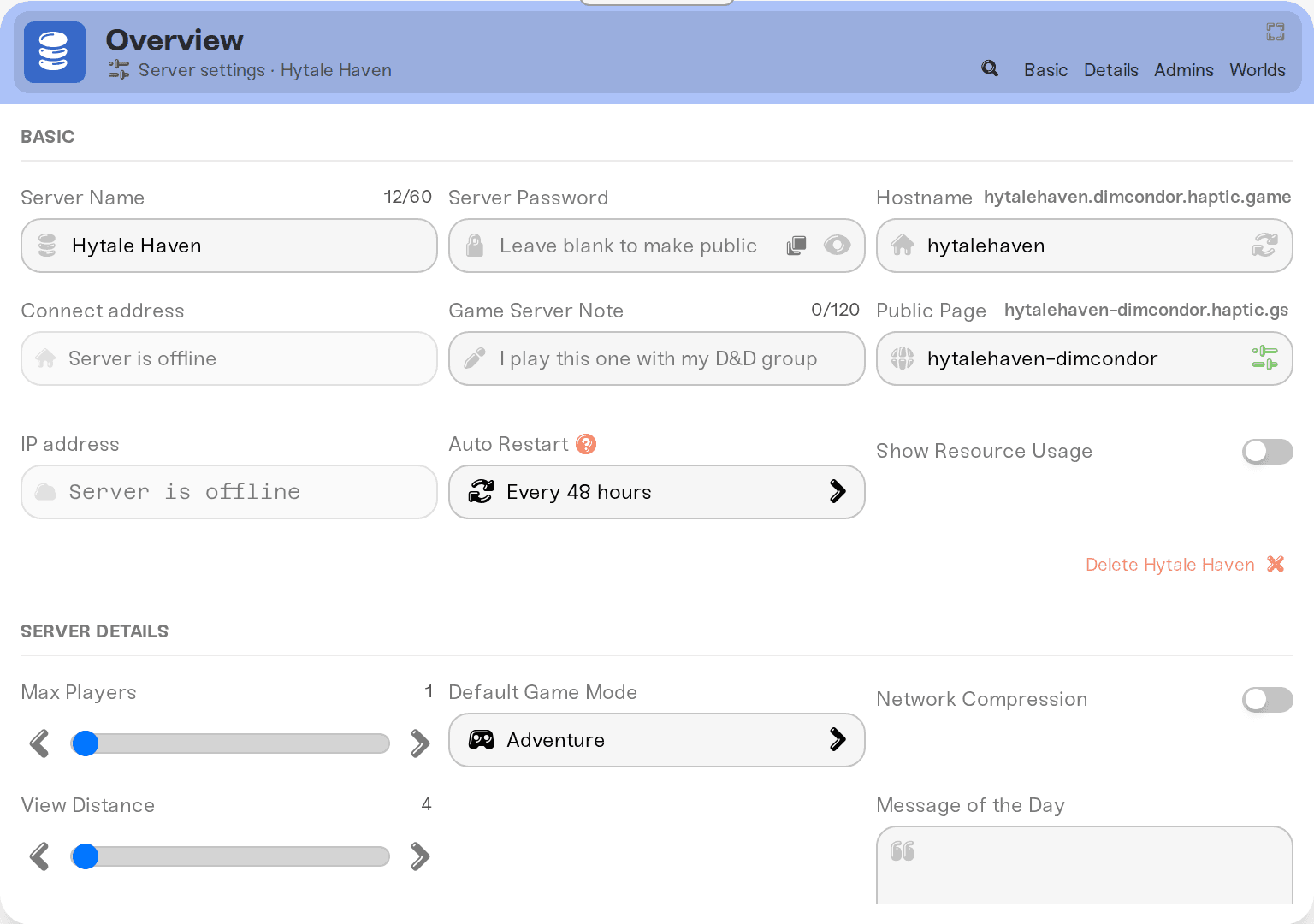
The text beside the toggle tells you where you stand: "Whitelist is active: Only listed players can join." or "Whitelist is off: Anyone can join." If you only want a door key rather than a guest list, a server password is the simpler tool.
Since Hytale's Update 6 the server keeps its whitelist as a join permission in permissions.json, and the on/off switch as RequireJoinPermission in config.json. Every time your server starts, we set that switch to match the toggle, grant access to the players on your Admins tab list, and take it away from players you removed there. This also works for changes you save while the server is off. Players you add with whitelist add in the console keep access, but they do not appear in the Admins tab. In the console, whitelist status always answers "disabled" on the current Hytale version, even when the whitelist is on (a Hytale bug), so trust the toggle instead.
Ban a player, with a reason
Search the player and pick Banned next to Role:. A Reason: field appears; type up to 128 characters, or leave it empty.
Click Add Player, then Save changes.
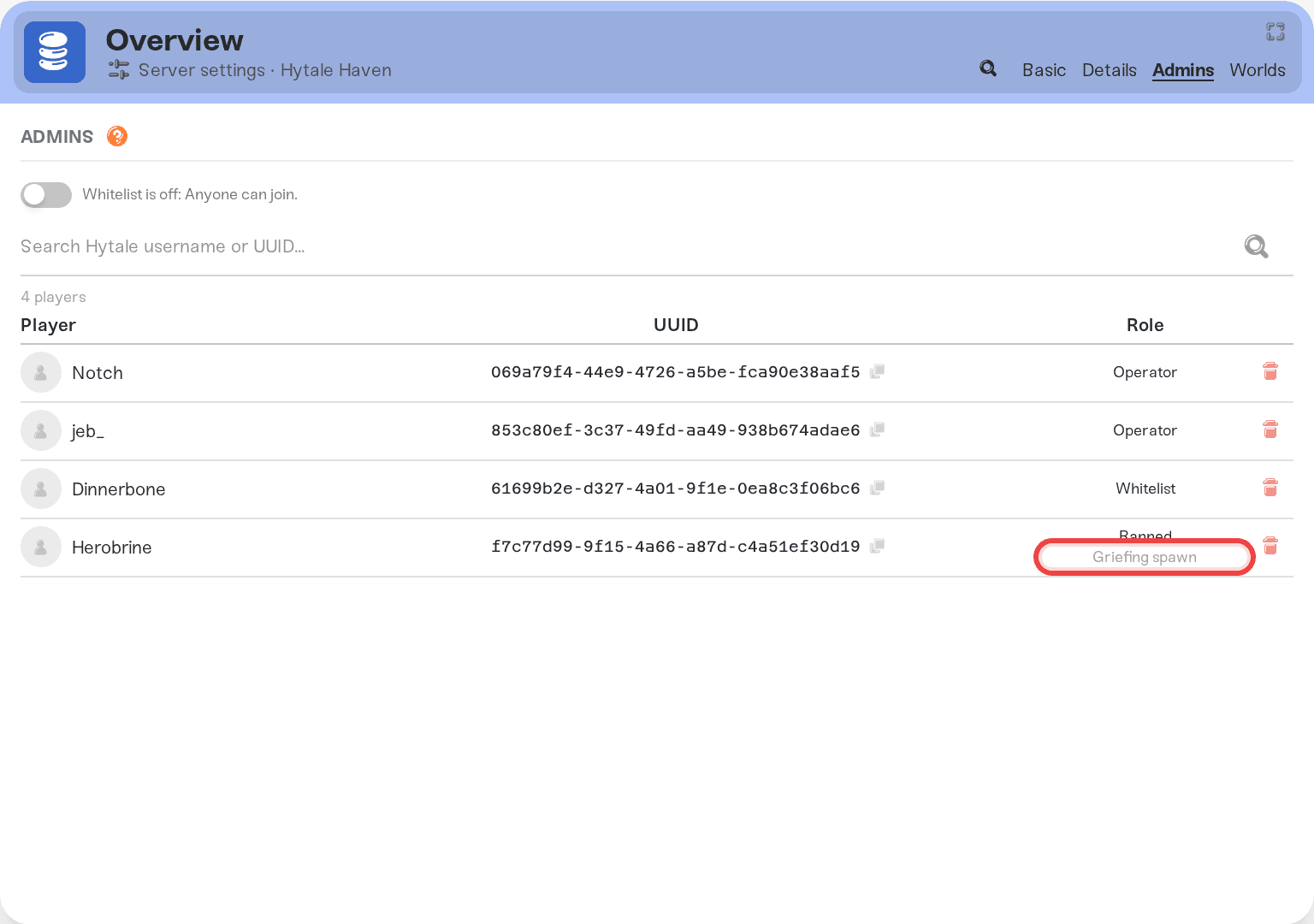
The reason is saved with the ban and shows as grey text under the player's role in the roster. To change it, remove the row and save, then add the player back with the new text and save again: doing both in one save leaves the running server untouched. To lift a ban, remove the row and save.
A ban applies as soon as you save, as long as the server is running. If the player is somehow still connected, run kick <player> from the Console card.
Do I need to restart?
No, as long as the server is running when you hit Save changes. The save sends the matching console commands to your server (op add, op remove, whitelist add, whitelist remove, ban, unban, whitelist enable, whitelist disable), which is why the pending-restart indicator you see for other settings never appears for these.
Two cases to know:
Saved while the server was offline. The popup notes that if your list files were edited directly, those edits win when the server starts. Start the server, then check the Admins tab and redo anything that did not stick.
A command was refused. If the running server rejects one, a warning appears after the save (it names the command when only one failed). Restart the server to apply those changes from the saved lists.
Console and the files
Operators and bans also work from the Console card using UUIDs: op add <uuid>, ban <uuid>, unban <uuid>, plus who for who is connected. Those changes go to the list files, and the Admins tab picks them up from those files on the next server start, not right away. For the whitelist, the Admins tab is the source of truth: the console's whitelist commands work until the next start, which re-applies your Admins tab list and toggle (see the note above).
On disk, operators and whitelisted players are in permissions.json and bans are in bans.json, at the root of your server files. Edits to operators and bans there win when the server starts, and the roster updates to match. The whitelist.json.migrated file next to them is the list Hytale imported from your dashboard at the last start. If one of those files has a syntax error, the server uses it as-is and roster syncing pauses until you fix it; a note in the Admins tab names the file. See Edit config files if you prefer working that way.
Need help?
Reach us on Discord or at support@haptic.gg. Include your server name, the player's username and UUID, and a screenshot of the Admins tab.


