Project Zomboid: Game Updates, Builds, and Your World
 Project ZomboidGuide
When Project Zomboid patches, Steam updates your players' games within minutes, but your server keeps running its current build until it restarts. Until…
When Project Zomboid patches, Steam updates your players' games within minutes, but your server keeps running its current build until it restarts. Until then, updated players get kicked for a version mismatch. The fix is one Restart from your dashboard. Updates never wipe your world.
What happens on patch day
The Indie Stone pushes a patch, and Steam updates your players' games right away.
Your server is still on the old build, so anyone who updated gets kicked with a version or file mismatch when they try to join.
Haptic mirrors the new server build automatically, usually within an hour or two of it landing on Steam. Nothing to download or install on your side.
You press and hold the yellow Restart button on your server card until the ring fills. During startup the server loads the newest mirrored build, and everyone on the new patch can join again.
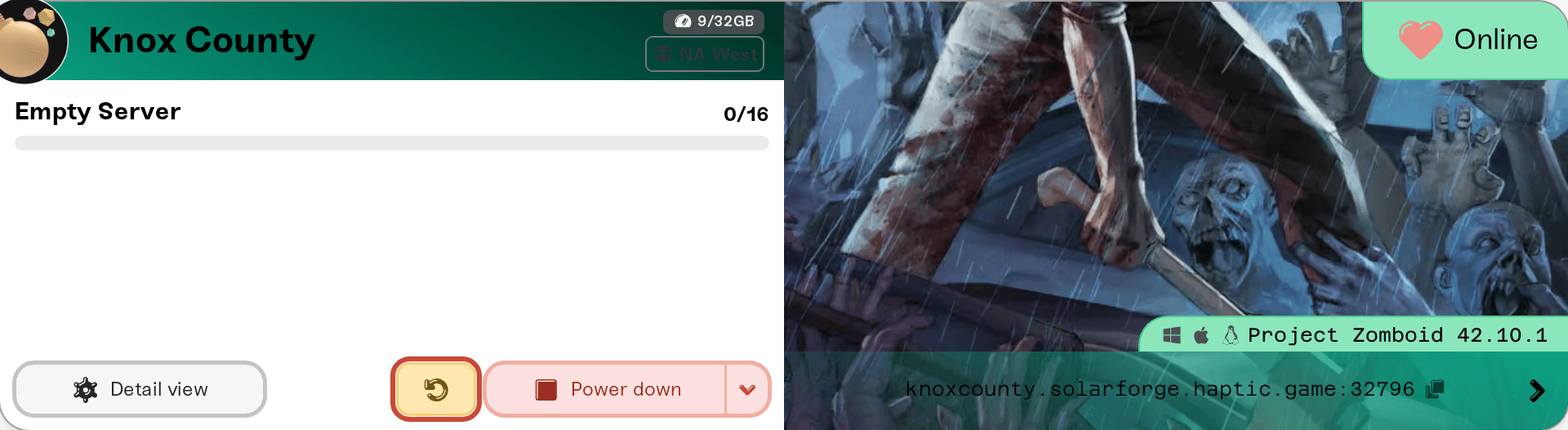
Any start counts, not just a restart. A server that was powered down or asleep comes back on the newest build on its own.
When your server is behind the newest mirrored build, your server card shows an orange New update available warning next to the status, and the server restarts onto the new build by itself once it has been empty for 15 minutes, so nobody is kicked. If players are waiting to join, restart it yourself. If players still hit the mismatch after a restart, the build had not been mirrored yet: give it a while and restart again.
Which build your server runs
Your server runs the stable public branch, which is Build 42. There is no branch selector: no Build 41, no unstable beta, and no way to pin or roll back to an older build. A group that wants to stay on an older build cannot host that on Haptic today.
A player who opted into a Steam beta of Project Zomboid is on a different build than the server and gets the same mismatch kick. They opt out in Steam under the game's Properties, then the Betas tab, by choosing None.
Stay current without thinking about it
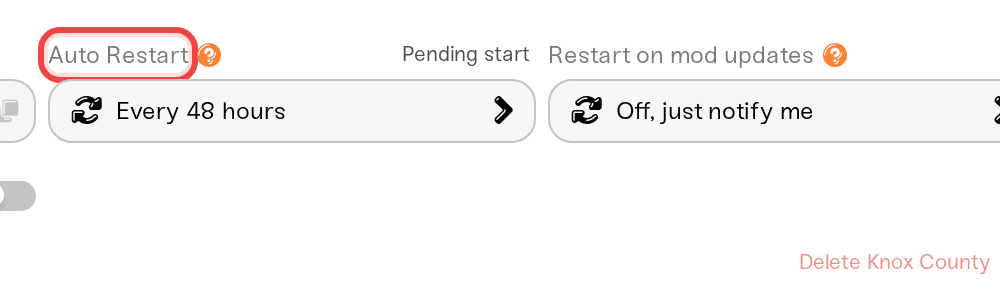
Auto Restart, in the Basic tab of your server's expanded Overview card, doubles as hands-off updating. New servers start on Every 48 hours; set it to Every 24 hours (daily) and your server picks up patches on its own within about a day, without kicking anyone. A new schedule only arms on the next server start, so restart once by hand after changing it. How the schedule waits for a quiet moment is in Automatic server restarts.
Will the update wipe our world?
No. A game update never deletes or resets your save. Your map, bases, characters, and loot are exactly as you left them after the server comes back on the new build.
The one caveat is on the game's side: very occasionally The Indie Stone ships a patch that changes the save format so an older world cannot load on the new build. That is rare, and it is a Project Zomboid change rather than something we control. The next section covers what to do if it happens.
The server crashes or won't stay up after an update
Work through these in order.
Mods first. After a game patch, some Workshop mods need days to catch up, and an out-of-date mod is by far the most common reason a server falls over right after updating. Open the Console card to see which mod the error names, then open that mod's row in the Mods card and use its Enabled switch (unchecking the row stages an uninstall instead). That keeps the mod and its settings, so it is easy to undo. See Mod load order and on/off toggles.
A save-breaking patch. If the server still crashes with every mod off, and the crashes started with a game update, the new build may be unable to read your existing world. There is no way to run the server on the old build, so the way forward is a fresh world: download your latest backup first so you keep the old save files, then use Reset World in the Backups card.
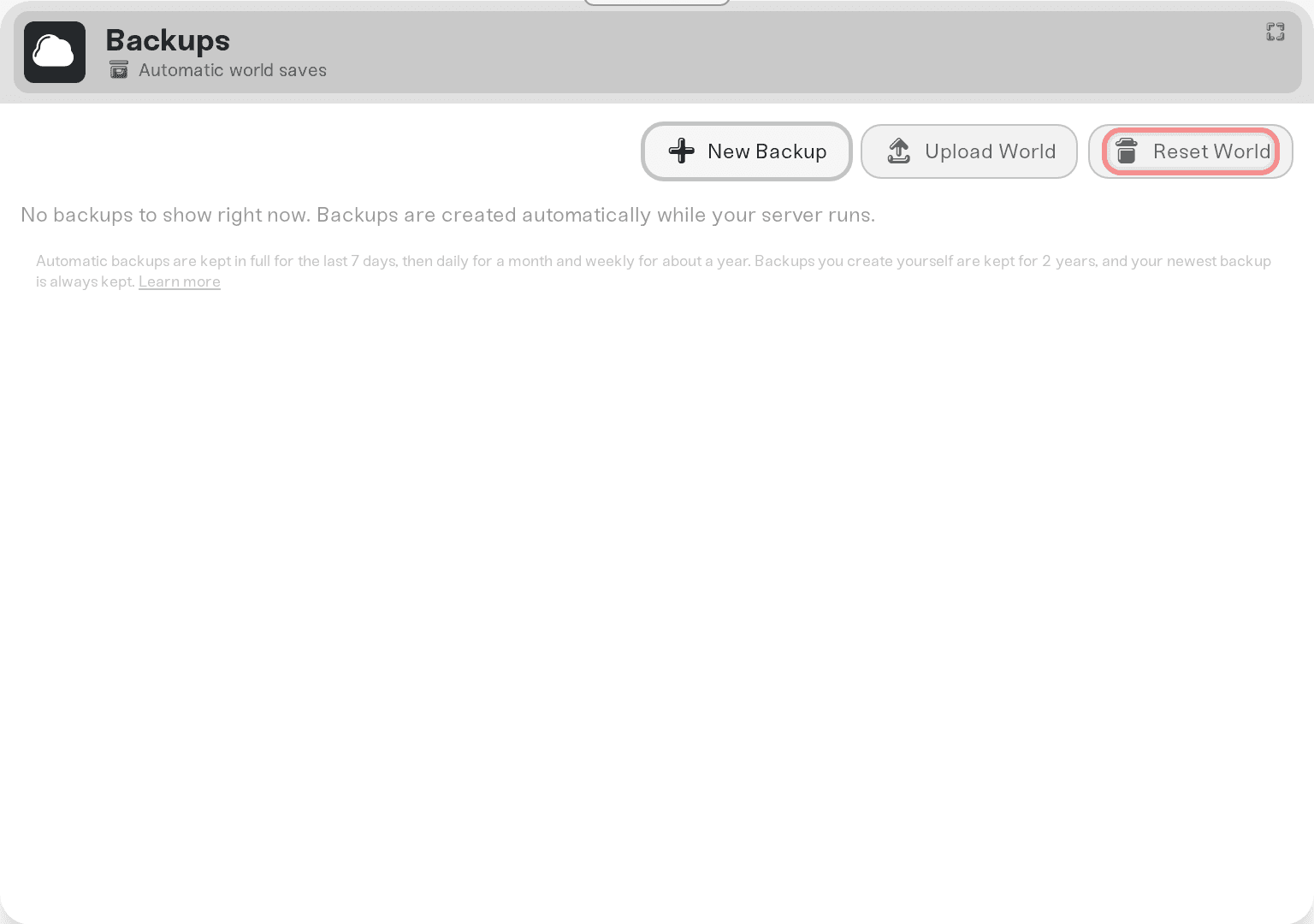
Restoring an older backup rewinds your world, not the game: the server still starts on the newest build afterwards. That helps when the world itself was damaged, not when the new build cannot read the old save format.
Need help?
Reach us on Discord or at support@haptic.gg. Include your server name, when the trouble started, and a screenshot of the error or your Console output.


