Reset your world and start fresh
 HapticGuide
Reset World deletes your server's current world and generates a brand new one the next time the server starts. It is safe to use: right before anything is…
Reset World deletes your server's current world and generates a brand new one the next time the server starts. It is safe to use: right before anything is deleted, Haptic saves your current world as a backup tagged Reset world, so you can restore it later if you change your mind. Your settings, mods, backups, and server address all stay exactly as they are; only the world itself is replaced. You will find the button in the Backups card on your server's Detail view, and it only works while the server is powered down.
What a reset wipes, and what it keeps
A reset removes the world save and nothing else.
Wiped (after being backed up first):
The world itself: terrain, builds, bases, chests, and all in-game progress.
Player characters and inventories, in games that store them inside the world save (Minecraft, Palworld, Project Zomboid, and most others). Valheim is the big exception; see the per-game notes below.
In Project Zomboid only: player bans made in-game, because the game keeps them inside the world save.
Kept:
Every backup you already have, including the fresh one tagged Reset world.
All your server settings. They apply to the new world too, so difficulty, passwords, and world options carry over.
Your installed mods and their load order.
Admins, whitelist, and player access you manage from the dashboard.
Your server's address, region, and memory.
If you want a specific world rather than a random new one, resetting is the wrong tool: upload your world instead, which swaps in a world you already have.
Before you start: power down your server
Reset World only works while the server is stopped. If the server is running, the button is disabled and the tooltip says Power down the server first. Stop the server from its card, then come back (how to start, stop, and restart your server).
Step 1: Find Reset World
Go to My Servers in your dashboard and click Detail view on your server's card.
Find the Backups card and click the expand icon to open the full view.
Reset World sits in the header row, next to Upload World and New Backup.
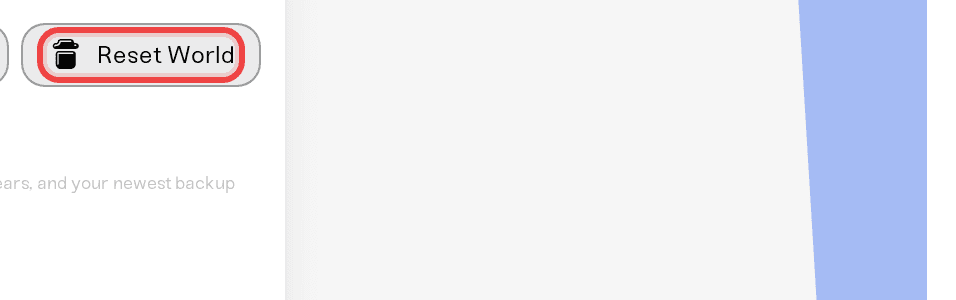
Hover the button and the tooltip spells out the deal: "Deletes your current world and generates a fresh one on next start." and "Your current world is saved as a backup first, so you can restore it from the list below if you change your mind."
If you do not see the button at all, check the "Why is Reset World missing" section below; a few games use a different flow.
Step 2: Read the confirmation
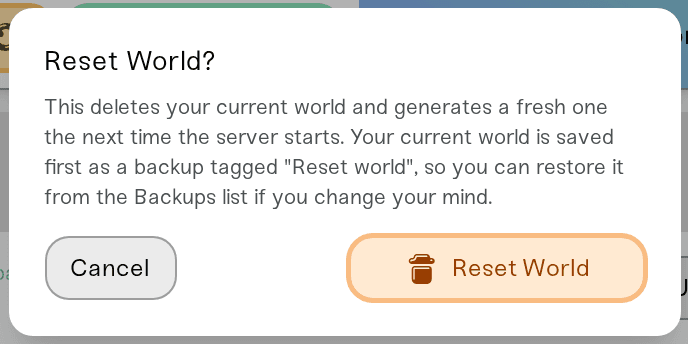
Clicking Reset World opens a dialog titled Reset World? that repeats what is about to happen:
> "This deletes your current world and generates a fresh one the next time the server starts. Your current world is saved first as a backup tagged \"Reset world\", so you can restore it from the Backups list if you change your mind."
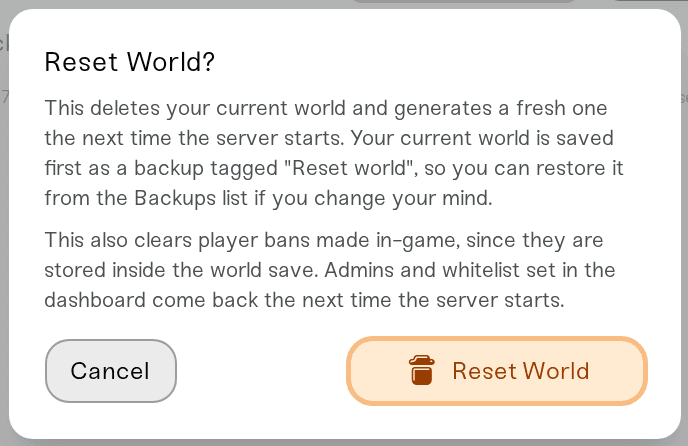
On a Project Zomboid server the dialog adds one game-specific warning:
> "This also clears player bans made in-game, since they are stored inside the world save. Admins and whitelist set in the dashboard come back the next time the server starts."
Step 3: Press and hold to confirm
The orange Reset World button in the dialog is a press-and-hold control: hold it down for about a second and a half while the ring fills, and it reads "Hold to confirm..." as you hold. A single click does nothing; that is deliberate protection against accidental resets.
Once you confirm:
Your safety backup is saved first. Haptic snapshots your current world before deleting anything; for large worlds this can take a few minutes. If you stopped the server moments ago, the backup taken at shutdown already matches your world exactly, so that one becomes the safety snapshot instead of a duplicate. (If your server has never started and there is no world data yet, there is nothing to snapshot, so you may not see a new backup; that is normal.)
The old world is deleted. The reset runs on Haptic's side, so closing the tab does not interrupt it. Power Up stays unavailable until it finishes.
You get a confirmation: "World has been reset. A fresh world will generate on next start. Your previous world is saved in the backups list below."
Now power the server up. It generates a brand new world on that first start, which can take a little longer than a normal boot.
Changed your mind? Restoring your old world
Your previous world is sitting in the Backups list as the newest backup, normally named World before reset and wearing the Reset world badge. (If your newest backup was one you made yourself and it already matched your world exactly, that backup serves as the safety snapshot and keeps its own name.) Its tooltip says it plainly: "Snapshot of your world taken automatically right before you reset it. Restore this to undo the reset and get your previous world back."
To undo the reset: stop the server, click that backup, and press and hold Restore Backup. The full walkthrough is in Restore your server to an earlier backup. Your newest reset snapshots are protected from the normal thinning of automatic backups, just like backups you make yourself, and are kept for up to 2 years, so the old world will still be there if you change your mind months from now. Only if you reset over and over do the oldest reset snapshots start aging out on the normal automatic schedule (how long Haptic keeps your backups).
Per-game notes
Minecraft (Java and Bedrock): after a reset, the World Seed setting unlocks again before the next start. It still holds whatever you typed last time, so the new world will regenerate on that same seed unless you clear the field (blank means a new random world) or type a different one. Change it before powering up.
Valheim: the new map generates with a fresh random seed; there is no dashboard field to pick a Valheim seed, so landing on a chosen seed means creating that world in Valheim and uploading it (find or choose your world seed). Nobody loses skills or gear, because Valheim stores characters on each player's own PC, not in the server's world. Deciding whether to reset for Valheim 1.0? See Valheim 1.0: keep your world or start fresh.
Palworld: characters, Pals, and the Global Palbox live inside the world save, so everyone starts a fresh character on the new world.
Project Zomboid: in-game player bans are cleared with the world (they live inside the save). Admins and whitelist set in the dashboard are re-applied automatically the next time the server starts.
Rust: Rust has no Reset World button on purpose. Use Wipe Server on the server's Overview card instead, which lets you choose between a map wipe, a map plus blueprints wipe, or a full wipe, and optionally set a new seed. See Rust: wipes, maps, and seeds.
FiveM and RedM: world reset is not available; these servers keep their state in a database rather than a world save.
Counter-Strike 2: there is no world to reset, so the button does not exist.
If your server crashed after a mod change
When a server fails to start and mod changes look like the cause, the red banner on the server's card offers a one-click version of this flow: "Server failed to start. This may be due to mod changes. You can reset your world and try again with a fresh start." The Reset World & Retry button there does the same safe reset (your backups are untouched) and then starts the server immediately with a fresh world. More on mod troubleshooting in Install mods on your server.
Why is Reset World missing or grayed out?
Missing entirely:
Your server is a Rust, FiveM, RedM, or Counter-Strike 2 server (see the per-game notes above).
You are a Server Operator on a server shared with you. The owner, Server Admins, and Account Admins can reset the world; ask them. See Friend roles and permissions.
Grayed out: hover the button; the tooltip names the blocker.
| Message | What it means | What to do |
|---|---|---|
| "Power down the server first." | The server is still running | Stop it, then reset |
| "A backup is being created. Wait for it to finish." | A backup is uploading right now | Wait a minute or two and try again |
| A world operation message | A restore, world upload, or another reset is already running | Let it finish first |
Need help?
Not sure whether to reset, or did a reset not go the way you expected? Message us on Discord or email support@haptic.gg with your server name and roughly when you pressed the button, and we will check it together. Your old world stays in your backups either way.



