Connect to your server with SFTP
 HapticGuide
Every Haptic server includes SFTP access, so you can browse and transfer your server's files with FileZilla, WinSCP, Cyberduck, or any other SFTP app. Set…
Every Haptic server includes SFTP access, so you can browse and transfer your server's files with FileZilla, WinSCP, Cyberduck, or any other SFTP app. Set an SFTP password once in your account settings, then grab your exact host, port, and username from the SFTP button on your server's Files card. Two details cause most failed connections: the port is 2022 (not 22), and your SFTP password is separate from your Haptic login.
When SFTP beats the web file manager
Your dashboard already has a full file browser on the Files card, and for everyday jobs (editing a config, uploading a few mods) it is the faster option. See Manage your server's files.
SFTP shines when the job is big:
Big folder trees. Thousands of small files (modpacks, resource packs, whole worlds) transfer faster and more reliably through an SFTP client.
Bulk downloads. Pull entire folders to your PC with one drag.
Your own tools. Some people just prefer their desktop app, and that is reason enough.
One thing SFTP does not change: the 2 GB per-file limit is the same on both paths, so a single file larger than that cannot be uploaded either way.
Everything you do over SFTP is the same file tree you see in the dashboard, and your uploads and downloads show up in the File activity list on the Files card, so there is one shared history no matter which way you connect.
Step 1: Set your SFTP password
SFTP sign-in is deliberately separate from your Haptic account login. Before your first connection you need to set an SFTP password (or add an SSH key, covered below).
Open your account settings
Go to Dashboard, open Account, then the Settings tab, and scroll to the SFTP credentials section.
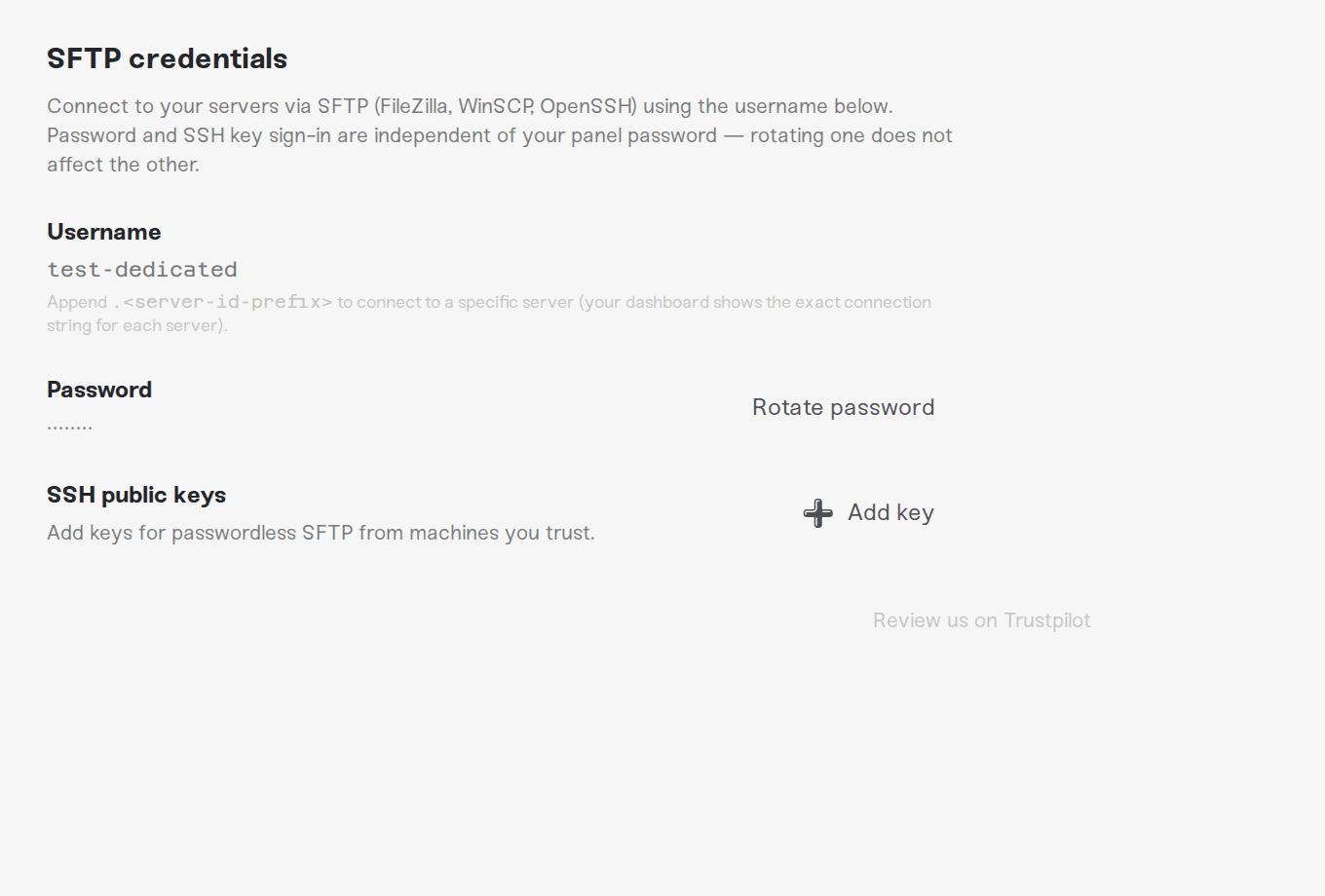
Set the password
On the Password row, click Set password, enter it twice in New SFTP password and Confirm new SFTP password, and save. You will see the toast "SFTP password set."
As the form itself says: "This password is used only for SFTP. It does not change your panel password and is not affected by panel MFA." The reverse is also true: changing your Haptic login password never touches your SFTP password. Later you can come back and click Rotate password to replace it.
Prefer no password at all? On the SSH public keys row, click Add key and paste a public key (the dialog walks you through generating one with ssh-keygen -t ed25519 and pasting the contents of ~/.ssh/id_ed25519.pub). Keys let your machine sign in without typing a password, and you can add a key for each of your devices and remove any of them at any time.
Step 2: Get your server's connection details
Each server has its own username and host, so grab the details from the server you want to connect to.
Find the SFTP button
Go to My Servers, select your server, and look at the Files card. Its title bar has a small SFTP chip (hover shows "Connect via SFTP"). It is there even when the card is collapsed.
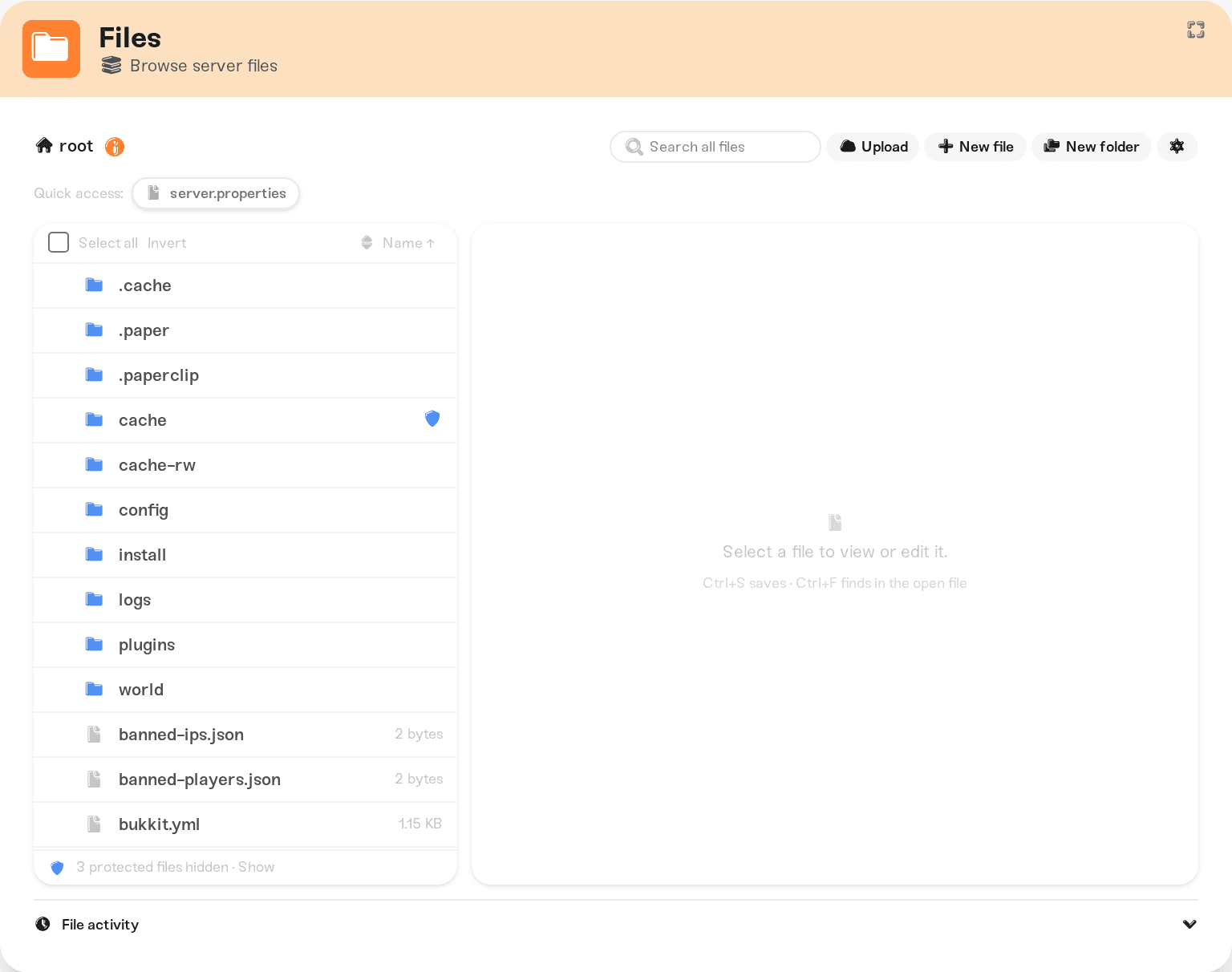
Copy your details
Clicking the chip opens the Connect via SFTP window with everything an SFTP app asks for, each with its own Copy button:
Host: your server's SFTP address, based on its region (for example
sftp-eu-west.haptic.gg).Port: always 2022. This is the one everyone gets wrong; port 22 will not connect.
Username: your SFTP username plus a dot and an 8-character server code, like
yourname.a1b2c3d4. The suffix tells us which of your servers to open, so copy the whole thing; the username without the suffix will not sign in.Region: shown for reference. If you move your server to another region, the host changes with it, so come back here for the new one.
The Connection string at the top is the same thing as a ready-to-paste terminal command (sftp -P 2022 yourname.a1b2c3d4@sftp-eu-west.haptic.gg), and Open in SFTP client launches whatever SFTP app your system has set as default, with the details pre-filled.
SFTP works whether your server is running or not
The Connect via SFTP window shows your server's state at the top, and the good news is simple: online, asleep, and stopped servers all accept SFTP. When the server isn't running, you are editing the same files on disk that the next start reads, perfect for fixing a config that breaks the boot, or staging mods before you start it up.
Two states are worth waiting out:
"Server is starting up": SFTP connects fine, but the game is still writing its config files as it boots, so hold off on editing configs until it settles.
"Server is stopping": wait for it to finish: edits made mid-shutdown can be overwritten by the shutdown save.
Two smaller caveats while a server is asleep or stopped: very large uploads can be refused until the server runs again (start it first for multi-gigabyte files), and the FiveM/RedM database tunnel needs the server running.
First connection: verify the host key
The first time you connect, your SFTP app shows a host key fingerprint and asks whether to trust it. This is normal, and it is worth ten seconds of care: the fingerprint proves you are talking to the real Haptic server and not something in between.
Open haptic.gg/sftp-fingerprints (also linked at the bottom of the Connect via SFTP window as Verify host fingerprint) and compare the SHA-256 fingerprint for your server's region with what your app shows. They must match exactly.
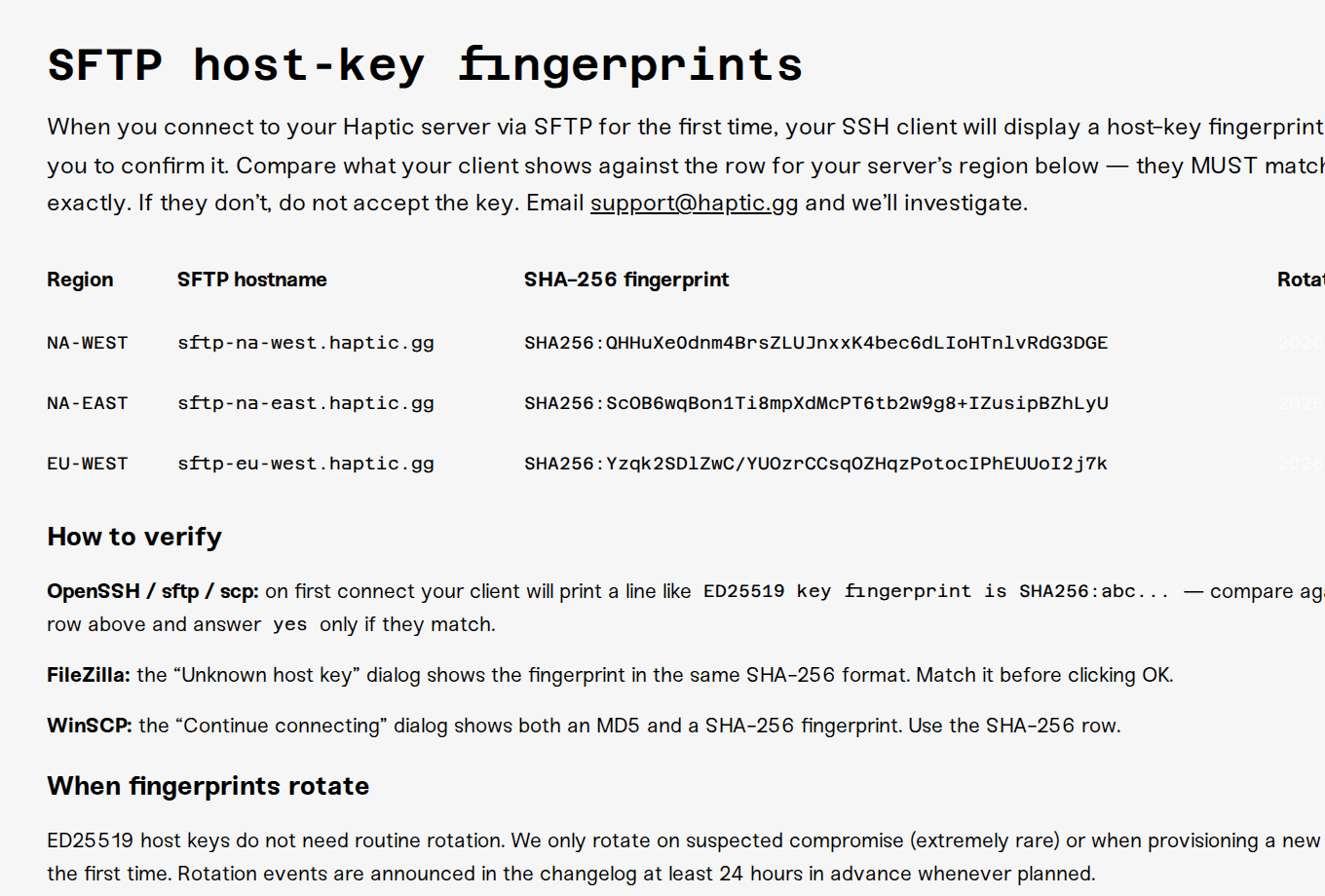
FileZilla shows it in the "Unknown host key" dialog.
WinSCP shows an MD5 and a SHA-256 fingerprint in its "Continue connecting" dialog; compare the SHA-256 one.
Command line prints a line like
ED25519 key fingerprint is SHA256:...; answeryesonly if it matches.
Cancel the connection and email support@haptic.gg so we can investigate. A mismatch is either a rare planned key rotation (the fingerprints page explains those) or something we absolutely want to know about.
Connect with FileZilla
FileZilla is free, and works on Windows, Mac, and Linux (filezilla-project.org).
Create the site
Open File > Site Manager and click New site. Set the protocol to SFTP - SSH File Transfer Protocol.
Fill in your details
Host: the Host value from the Connect via SFTP window.
Port:
2022.Logon Type: Normal.
User: the full Username, including the
.codesuffix.Password: your SFTP password.
Connect
Click Connect. On the first connection, verify the fingerprint in the "Unknown host key" dialog as described above, then confirm. Your server's files appear in the right-hand pane; drag and drop between the panes to transfer.
Connect with WinSCP
WinSCP is a popular free Windows client (winscp.net).
Create the site
Open WinSCP and choose New Site. Set File protocol to SFTP.
Fill in your details
Host name: the Host value from the Connect via SFTP window.
Port number:
2022.User name: the full Username, including the
.codesuffix.Password: your SFTP password.
Connect
Click Login. On the first connection, compare the SHA-256 fingerprint in the "Continue connecting" dialog as described above, then continue. Drag and drop between the local and server panes to transfer.
Other clients (Cyberduck, Termius, and so on) want the same four values; there is nothing Haptic-specific beyond the port and the username format.
What you can and cannot touch
You land directly in your server's folder and see the same files as the dashboard's file browser. Not sure which folder holds what? The Connect via SFTP window includes a "Where things live in [your game]" box for most games, listing the paths for worlds, configs, and mods, with per-game warnings.
A few guardrails apply over SFTP, the same ones that protect you in the dashboard:
Haptic-managed files are read-only. A small set of files is managed by us so your server can boot (the dashboard marks them with a shield). You can download and read them, but overwriting, renaming, or deleting them fails with a permission error. That error is the guardrail working, not a broken connection.
World and save folders cannot be deleted or renamed over SFTP. An SFTP client has no way to ask "are you sure?", and a mis-drag here could wipe a world, so those operations are blocked on purpose. To remove or replace world data, use the dashboard's file browser (which asks for confirmation first), Reset your world, or Upload your world. Writing files into those folders still works, this only blocks deleting and renaming them.
Some config files are rebuilt when the server starts. Settings you manage from your dashboard (and, for FiveM/RedM, from txAdmin) are written into their files on every boot, so hand edits to those specific files get overwritten. Edit config files explains which files stick and which are managed.
One editor at a time. If someone else with access is editing the server's files at the same moment, your session may be refused with a message that another session is editing this server's files. Wait a moment and reconnect.
And a safety note worth knowing before you do anything drastic: your server is backed up, so even a bad day over SFTP is recoverable.
Troubleshooting
"Authentication failed" or password rejected
Almost always one of these four, in order of likelihood:
You used your Haptic account password. SFTP has its own password; set or rotate it under Account > Settings > SFTP credentials.
No SFTP password exists yet. The Connect via SFTP window warns "No SFTP password set yet" if so. Set one (Step 1 above), or add an SSH key.
The username is missing its suffix. Sign in with the full value from the Connect via SFTP window, like
yourname.a1b2c3d4, not the bare username and not your email address.Wrong port. Port 2022. On port 22 you will never reach us.
"SFTP locked out"
Too many failed sign-ins in a row temporarily lock SFTP for your account; this usually happens when a client is set to auto-retry with a wrong password saved. Fix the saved credential first, then go to Account > Settings > SFTP credentials, where an amber SFTP locked out banner shows how long the lockout has left and a Reset lockout button clears it immediately. If you do nothing, it expires on its own; the banner shows the countdown.
If sign-ins still fail right after a reset, stop the client from retrying, wait a few minutes, and try once with the corrected password.
Connection refused or timing out
Check the server's state in the Connect via SFTP window. Asleep or stopped? Use the Wake server / Start server button there. Starting or stopping? Wait for it to settle and reconnect.
Check the port one more time: 2022.
On a strict network (office, school, some public Wi-Fi), outbound connections on unusual ports may be blocked. Try from your home network or a mobile hotspot to rule that out.
"SFTP is disabled for this account"
If the SFTP credentials section shows this banner, SFTP has been switched off for your account and your credentials will not work until it is restored. Message us and we will sort it out.
The host key changed
If your client suddenly warns that the host key does not match what it saw before, check haptic.gg/sftp-fingerprints first: on the rare occasion we rotate a key, the page shows the new fingerprint and the rotation date, and the warning is expected. If the page does not match what your client shows, do not connect, and email support@haptic.gg.
Need help?
Ask us in Discord or email support@haptic.gg. Include which client you are using (FileZilla, WinSCP, something else), a screenshot of the error or your client's message log, and your server's region, and we will get you connected.
Manage your server's files: the in-dashboard file browser, uploads, and File activity.
Edit config files: which files stick, which are rebuilt on boot, and per-file history.
Upload your world and Download your world: the guided flows for moving whole worlds.
FiveM and RedM servers get an extra Database tools box in the same Connect via SFTP window, for connecting tools like HeidiSQL to the server's database through a secure tunnel.
Removing an SSH key under Account > Settings takes effect immediately; active sessions using that key are disconnected on their next operation.



