Palworld: Move Your World From Your Server Back to Co-op
 PalworldGuide
Download a backup of your Palworld server, copy the SaveGames files into your PC's save folder, and play the world in co-op. Covers the host character catch.
Your world is yours, and you can download it any time. Every backup on your Backups tab contains the complete world: terrain, bases, Pals, items, and every player's character. Download one, copy the SaveGames files into Palworld's save folder on your PC, and the world appears in your co-op world list. One honest catch: the person who hosts the co-op game starts as a new character (a Palworld rule, explained below); everyone else keeps theirs.
Why you might do this
You are pausing for a while and want the world on your own machine.
You want to play co-op with a friend directly instead of on a server.
You are moving to another host and want a clean copy to upload there.
You just want a personal copy sitting safely on your own drive.
You do not need to cancel or stop anything to do this. Downloading a backup does not affect your running server.
What is in the download
`SaveGames/Level.sav` and `SaveGames/LevelMeta.sav`, the world itself: bases, Pals, containers, and guilds.
`SaveGames/Players/`, one file per player character.
`PalWorldSettings.ini`, your server settings, plus mod files if your server used mods. Useful if you are moving to another host.
Move it to your own PC (Steam on Windows)
Download a backup
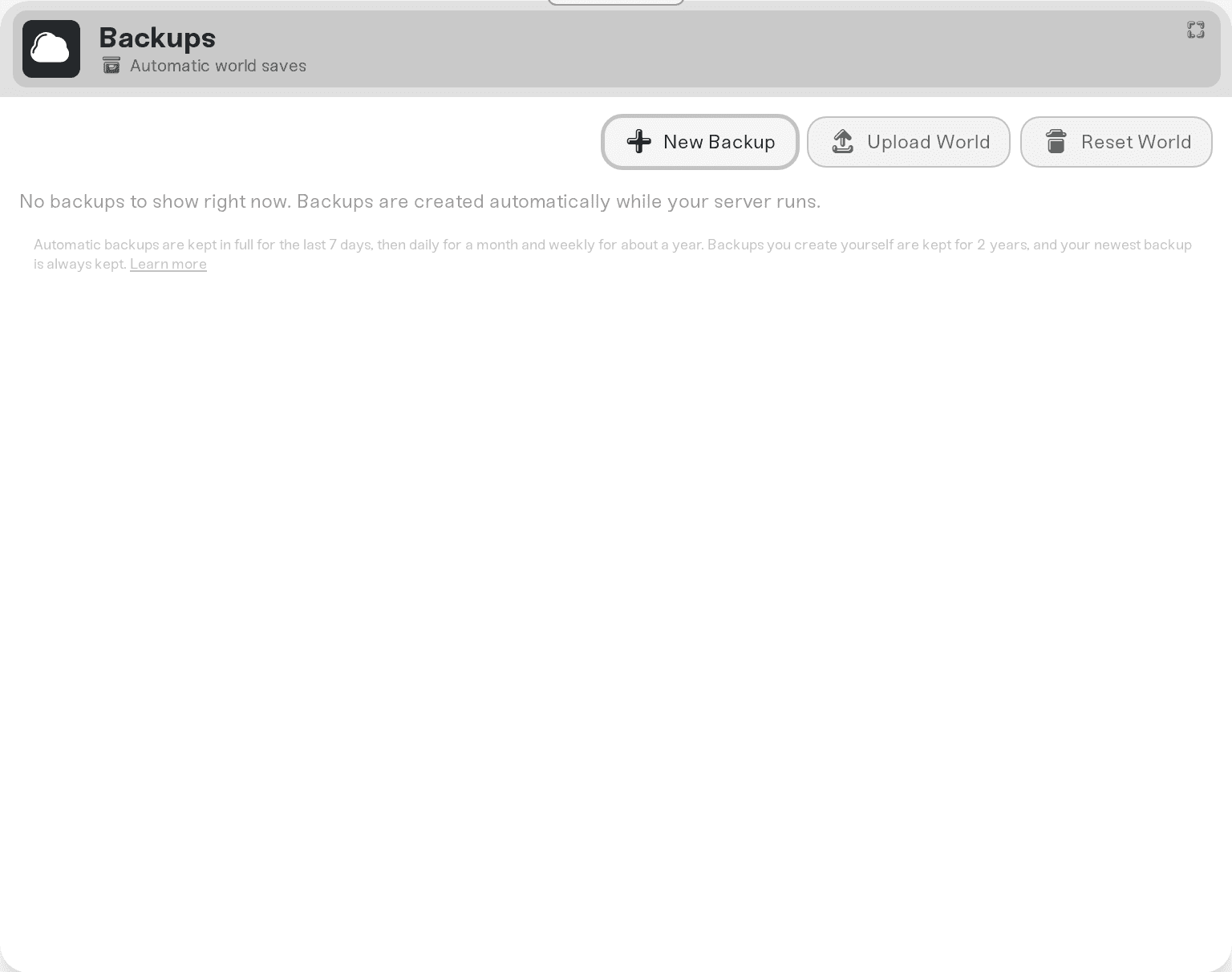
In your dashboard, open your server and go to the Backups tab. Pick the backup you want (the newest one is usually right) and click Download Backup. You get a .zip file.
Unzip it
Unzip the file somewhere easy to find, like your Desktop.
Open Palworld's save folder
Press Win+R, paste %LOCALAPPDATA%\Pal\Saved\SaveGames, and press Enter. Open the folder named with your long Steam ID number.
Create a new world folder
Create a new folder in there. The name must be 32 characters long, using only the numbers 0-9 and the letters A-F, for example A1B2C3D4E5F60718293A4B5C6D7E8F90. Palworld uses that folder name as the world's ID, so it must not match a folder you already have.
Copy the world files in
Copy everything from inside the unzipped SaveGames folder into your new folder. When you are done, the new folder should directly contain Level.sav, LevelMeta.sav, and a Players folder. If you see another SaveGames folder inside it, you have gone one level too deep. Leave PalWorldSettings.ini and any other files outside SaveGames where they are; co-op does not use them.
Start Palworld
Open your world list. The world from your server should be there. If you have several worlds, match it by the most recent date.
Easy to undo. To undo any of this, delete the folder you created. Nothing here touches your server or the backup, so you can try again as many times as you like.
The host character catch
When you play co-op, Palworld saves whoever is hosting under a fixed ID that means "the host of this world". On a dedicated server there is no host in that sense, so every player, including you, is saved under an ID that comes from their platform account.
Bring that world back to co-op and the game looks for the host's fixed ID, does not find it, and offers you character creation. Your friends are unaffected: their characters are already saved under their account IDs, so they log straight back into their own characters, bases, and Pals.
Your old character is not gone. It is still in the world files under your server ID; it is just not attached to the host slot. Two practical ways around it today:
Have someone else host. If a friend hosts the co-op world, you join as a regular player and your character loads normally. Only the person hosting hits this.
Message us. If this is blocking you, reach out on Discord before you cancel. Reattaching a character to a different ID is the same thing your dashboard already does when a world moves onto your server, and we would rather help you than have you lose a character on the way out.
Things that will NOT fix the host character
Downloading a different backup. Every backup has the same ID layout, so this changes nothing.
Renaming files in the `Players` folder. The character's ID is also written inside the world file in many places. Renaming the file alone leaves a character with no Pals, no base ownership, and an empty Palbox. This is the most common way people damage a save.
Community "host save fix" tools built for the opposite direction. Most are designed to move co-op saves to a server, and several popular ones no longer read current save files. If a tool corrupts your copy, your backup on Haptic is untouched, so you can start over.
What does not carry over, and why that is fine
Your map exploration. Fog of war lives on each player's own PC, per world, so it was never on the server to begin with. You may still start with a dark map because the game treats the copied world as a new one. Black map after moving your world covers the fix in about two minutes.
Your server's world settings. Palworld keeps dedicated-server settings in a config file (
PalWorldSettings.ini, included in your download) rather than inside the world, so co-op uses whatever world settings you choose when you load it. Your rates and difficulty for the server itself are unchanged and stay in your dashboard.
Other platforms
Steam on Linux or Steam Deck: same steps, but the save folder lives inside Palworld's Proton folder rather than
%LOCALAPPDATA%. Look undercompatdata/1623730in your Steam library folder, then follow the same path fromAppData/Local/Pal/Saved/SaveGames.Xbox and PC Game Pass: Game Pass stores saves in a packed container instead of plain folders, so a world cannot simply be copied in. Downloading your backup still works and your world is safe, but loading it in the Game Pass version needs a community conversion tool. Message us if this is you and we will point you at the current one.
PlayStation: PlayStation gives no way to add save files to a game, so a world cannot be moved back to a PS5 co-op game. That is a PlayStation rule, not a Palworld or Haptic one. Your world is still downloadable and will still work on PC.
Need help?
Message us on Discord or email support@haptic.gg. Tell us the server name and which backup you downloaded, and say whether you play on Steam, Game Pass, or PlayStation, since the answer differs per platform.
Move your co-op world to your server, the inbound version of this guide.
Black map after moving your world, for the dark map after any move.
Backups stay downloadable for 6 months after you cancel, so you can grab a copy even after your subscription ends.


