Icarus: Prospects, Open World, and the server lobby
 IcarusGuide
An Icarus server does not have one permanent world. It has prospects: saved runs you start and load from a lobby inside the game, one at a time. A brand…
An Icarus server does not have one permanent world. It has prospects: saved runs you start and load from a lobby inside the game, one at a time. A brand new server sits in that lobby until somebody starts a prospect, which is normal and not a fault. For a persistent world that never expires, start an Open World prospect. Your saved prospects stay on the server between restarts.
What a prospect is
A prospect is Icarus's version of a world save. There are three kinds:
Missions: timed drops with a set objective.
Outposts: a persistent base area with no timer.
Open World: a persistent, full-size sandbox with no timer. This is what most server groups want.
Your server can hold many saved prospects, but only one runs at a time. When none is running, everyone who joins lands in the lobby instead of the world. That is where prospects are created, loaded, and swapped.
Start your first Open World
Start your server from the dashboard and join it in game.
You land in the lobby.
Create a new prospect there and pick the Open World type.
Everyone else joins the server normally and drops into the same world.
To switch to something else later, an admin types /ReturnToLobby in the in-game chat, which sends everyone back to the lobby to load or create another prospect. Starting a new prospect does not delete the old ones, so your saved Open World stays on the server and you can load it again later.
The three prospect settings on your dashboard
These live on the Details tab of the Overview card in your server settings.

Auto-Resume Prospect (on by default): after a restart, the server reloads the last active prospect on its own. Turn it off if you want the server to wait in the lobby every time so an admin picks what runs. Change it here and nowhere else: Haptic writes
ResumeProspectinto yourServerSettings.inifrom your dashboard every time the server starts, so editing that one key in the file does not stick.Players Can Launch Prospects (on by default): anyone in the lobby can create or load a prospect. Turn it off and only admins can, which is the setting you want for a curated server where you control what is running.
Players Can Delete Prospects (off by default): leave it off. With it on, any player in the lobby can permanently delete a saved prospect. It is off out of the box so a stray click or a griefer cannot wipe your group's progress.
Being an admin in Icarus means typing /AdminLogin followed by your Admin Password into the in-game chat. That password is generated for you and shown in the same settings card, so nobody gets admin by accident.
Changes save from the dashboard and apply on the next start. See changing your server settings for how saving and restarting work.
How many players can join
Max Players is a normal server setting, set to 8 by default.
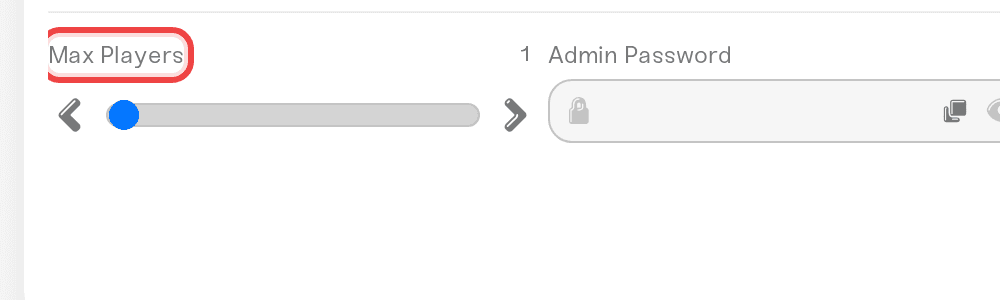
Eight is the count Icarus officially supports, and dedicated servers can go higher: the dashboard lets you set up to 20. Expect a real cost for that, because every extra player adds meaningful CPU and memory load, and a crowded prospect is the most common reason an Icarus server starts to feel heavy. If you push past 8, watch performance and give the server room (understanding your memory budget).
Bring a prospect from your PC
Your prospects are .json files in %LOCALAPPDATA%\Icarus\Saved\PlayerData, in your Steam ID folder, under Prospects. Upload one, or the folder, with Upload World on Backups. It joins the server's prospects; a same-name one is replaced after a backup.
Two things that catch people out
Resetting the world deletes every prospect. Reset World clears all of your server's Icarus data, not just the prospect that is currently running. If you only want to stop playing one prospect, leave it in the lobby instead. Take a backup first if you are unsure; see reset your world.
Do not change ShutdownIfEmptyFor and ShutdownIfNotJoinedFor from -1. Both keys are already in your ServerSettings.ini, set to -1 on purpose, because Wake & Play already puts your server to sleep after about an hour with nobody on. Waking is manual: you press Wake up in your dashboard when you want to play, and the server never wakes on its own. Generic "best server settings" guides tell you to set them to a number of seconds. Do that and the game shuts itself down a few minutes after the last player leaves, which looks exactly like a crash.
Your other edits to ServerSettings.ini do stick, apart from the server password and the Admin Password, which your dashboard writes into the file on every start too. Open the file from the ServerSettings.ini chip next to Quick access in your Files card.
Need help?
Reach us in Discord or at support@haptic.gg. Include your server name, the prospect type you are trying to run, and a screenshot of the lobby or settings screen you are stuck on.


