Rust: Oxide plugins on your server
 RustGuide
Rust plugins run entirely on the server: your players install nothing. Install plugins from the Mods card (the uMod catalog), or upload your own .cs files…
Rust plugins run entirely on the server: your players install nothing. Install plugins from the Mods card (the uMod catalog), or upload your own .cs files into install/rust/oxide/plugins/ from the Files card or over SFTP. The Oxide loader switches on by itself the moment you install a catalog plugin; there is no separate Oxide install step. Plugins, their settings, and their data are backed up with your server and survive restarts and every type of wipe.
Install a plugin from the catalog
On My Servers, open your Rust server's Detail view and expand the Mods card. The catalog is uMod, the same plugins you would download from umod.org.
Search for the plugin, check its box, and press Save changes in the popup at the bottom of the page.
The loader chip (Oxide plus its build number) appears in the Mods card header as soon as the save lands. Then restart your server: the restart is what loads the plugin.
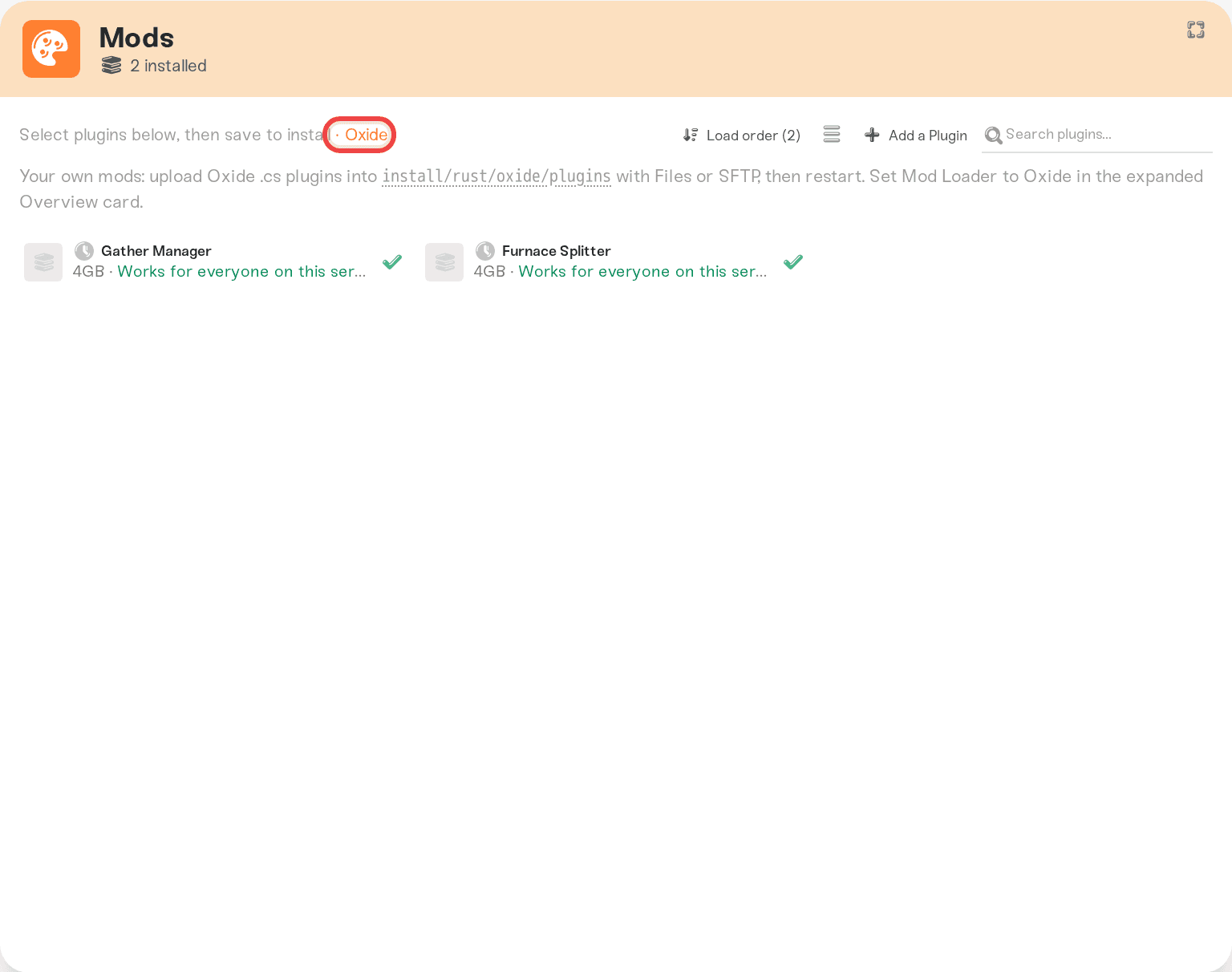
Status icons, removing a plugin, and the rest of the check, save, restart flow are in Install mods on your server. A plugin not in the catalog yet can be added from the same card with its Add a Plugin button: Add a mod we don't have yet. Catalog plugins keep the exact version you installed; add the newer version when you want it.
Upload your own or paid plugins
Plugins you wrote, bought from a marketplace, or got from somewhere other than uMod go in the folder Oxide reads from:
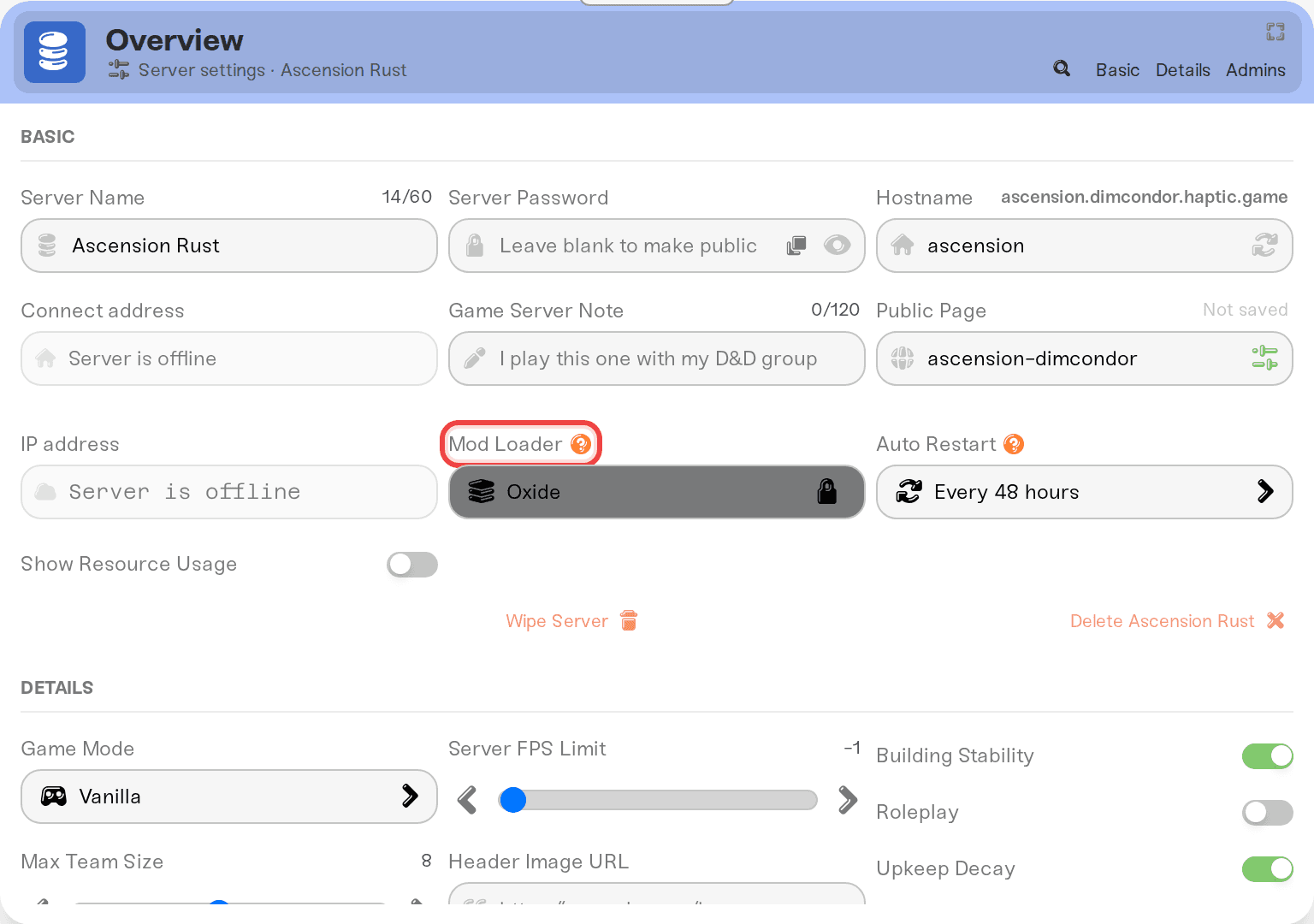
Make sure the loader is on. With no catalog plugins installed, expand your server's Overview card, open the Basic tab, switch Mod Loader from None (Vanilla) to Oxide, save, and restart once. While plugins are installed the picker is locked ("Locked by installed mods. Remove all mods to change."), which is normal.
Open the Files card and go to
install/rust/oxide/plugins/.Press Upload, choose Files, and pick the
.csfile (or drag the file straight onto the card). One file per plugin, directly in that folder, not in a subfolder: Oxide only loads.csfiles sitting at the top ofoxide/plugins/.Restart your server.
Over SFTP the path is the same: /install/rust/oxide/plugins/. If a paid plugin ships extra files, its instructions say where they belong.
Files you upload here are yours: restarts and catalog installs leave them alone. Unchecking a catalog plugin in the Mods card removes only that plugin's file, and only on the next server start; deleting your own .cs file in the Files card takes it off disk right away. A plugin is code running on your server, so only install plugins from sources you trust.
Edit a plugin's settings
Oxide keeps its folders next to your plugins: open install/rust/oxide/ in the Files card, where you will see plugins/, config/, and data/. One thing to know up front: a plugin writes its settings file the first time it actually loads on a running server, so the config/ folder can look empty until you have started the server once with the plugin installed. Give it a full boot, then come back and the <PluginName>.json will be there. (Rust takes a couple of minutes to load the map before plugins load, so a server you stop right after starting may not have gotten there yet.)
Settings:
config/<PluginName>.json, one file per plugin. Open it, edit, and press Save. Every save keeps the previous version in the file's History, so a broken edit is a two-click undo (Edit config files).Data (what the plugin has recorded, like kits or player stats):
data/. Usually nothing to edit; useful when a plugin's instructions tell you to reset its data.
A settings change applies when the plugin reloads: run oxide.reload <PluginName> in your server's Console (Use the server console), or restart the server.
Wipes do not touch your plugins
Wipes delete world and player files only, so your plugins, their settings, their data, and the loader all stay put and load again on the first start after the wipe (Rust: wipes, maps, and seeds). If a plugin keeps per-wipe data (kits claimed, zones placed), resetting that on a new map is the plugin's job; most do it, and the ones that do not say so in their instructions.
Things that will not work
Carbon, or your own Oxide build. Oxide is the only loader on Haptic, and Haptic installs and manages it for you. There is nothing to download or upload for the loader itself.
Editing
server.cfgto load plugins. Plugins are picked up from the folder; no config line is needed.Asking players to install anything. There is no client side to an Oxide plugin. If a player cannot join, the cause is elsewhere: I can't connect to my server.
Need help?
Reach us on Discord or at support@haptic.gg. Include your server name, the plugin's name, and a screenshot of the red triangle tooltip in the Mods card or the console lines that mention the plugin.


