Palworld: Global Palbox transfers between worlds and servers
 PalworldGuide
The Global Palbox carries Pals between worlds and servers, and exporting never deletes anything: the game saves a copy of the Pal's data and the original…
The Global Palbox carries Pals between worlds and servers, and exporting never deletes anything: the game saves a copy of the Pal's data and the original stays where it is. A fresh Haptic server has Global Palbox Export on and Global Palbox Import off, so Pals can leave your server but cannot arrive. To allow imports, tick one checkbox in your server's Details tab, save, and restart.
How the Global Palbox works
The Global Palbox is a base structure that unlocks early in the Technology tree (level 3) and costs 3 Paldium Fragments, 5 Wood, and 15 Stone. It copies Pals in two steps:
Export: drag a Pal from your regular Palbox into the Global Palbox. The game saves a copy of the Pal's genetic data and the Pal itself stays in that world, so nothing is taken away from your server.
Import: in another world or on another server, build a Global Palbox, open it, and drag the saved Pal into your regular Palbox there. It arrives as the Pal was when you saved it.
The saved data is a snapshot from the moment you exported, so levels gained afterward are not included unless you export again. The game also does not allow two Pals with the same genetic data in one world, so a second import into the same world is refused while the first copy is still there.
Both steps only work where the world allows them. When a server blocks imports, the game tells you the world's settings do not allow Pals to be reconstructed from genetic data. That is a server setting, the same on every host, and on Haptic it is one checkbox.
The two server toggles
Open your server on My Servers, switch the Overview card to the Details tab, and look in the checkboxes near Fast Travel for these two:
Global Palbox Export, default on: players can save Pals to the Global Palbox for use elsewhere.
Global Palbox Import, default off: players can bring Pals from the Global Palbox onto this server. It matches Palworld's own dedicated-server default, and many servers keep it off so nobody imports overpowered Pals from another world and skips the server's progression.
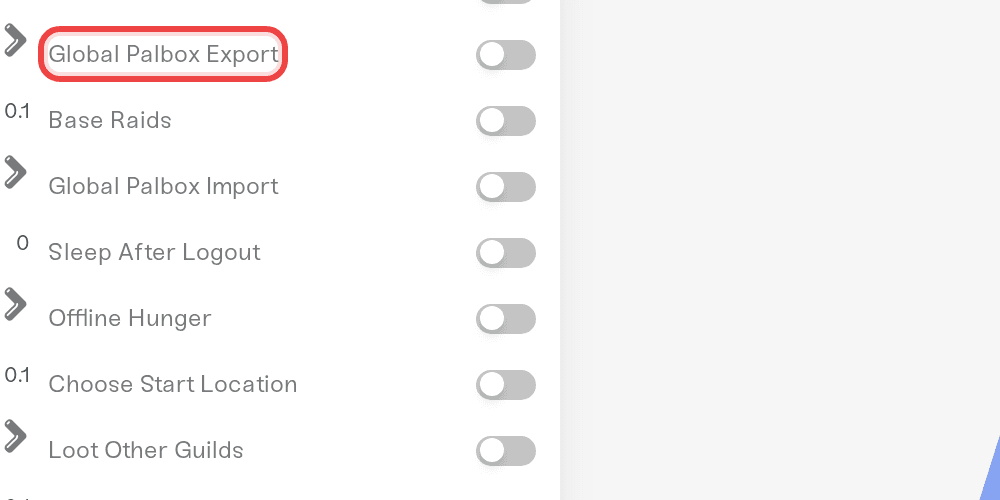
To allow imports: tick Global Palbox Import, press Save changes, and restart the server. Settings apply on the next start; the full flow is in Changing your server settings.
Self-hosting guides sometimes mention a WorldOption.sav file inside the world overriding this setting. That does not apply on Haptic: your dashboard checkboxes are the only switch, including for worlds you uploaded. One thing to know: if you applied the Settings from your world review after uploading a co-op world, it may have copied that world's Global Palbox values into these checkboxes, so check the Import checkbox's current value rather than assuming the default.
The Difficulty dropdown changes these toggles
Palworld's difficulty presets include the Global Palbox settings, and the Difficulty dropdown at the top of the Details tab mirrors them:
Casual, Normal, and Hard turn Export and Import on.
Hardcore turns both off. No Pals in or out; that is part of the game's hardcore ruleset.
A fresh server has Import off, so picking any of the first three presets, even Normal, turns it on. If you use the dropdown and want imports to stay blocked, untick Global Palbox Import again before saving. That same difference is why a new server's field reads Difficulty (Normal Customized), explained in Difficulty and world settings.
Quick answers
"Export works but import doesn't." Check Global Palbox Import on the server the Pal is arriving at. Export on the old world and Import on the new server are the only two switches involved.
"Will exporting delete my Pal?" No. The Pal stays in its home world; the Global Palbox holds a copy.
"Can we bring our Pals from our old world?" Yes, if that world allows exports: each player exports their Pals there, then imports them on your server once Import is on.
Moving your whole world instead? You do not need the Global Palbox for that. World uploads, downloads, and backups carry every Pal in your bases and regular Palboxes. See Move your co-op world to your server and Take your world home.
Need help?
Reach us on Discord or at support@haptic.gg. Include your server name and a screenshot of the two Global Palbox checkboxes in your Details tab.


