Change your server address
 HapticGuide
Your server's address, like odin.vesta.haptic.game, has two parts you can change. The first part is that server's Hostname, edited in the server's Basic…
Your server's address, like odin.vesta.haptic.game, has two parts you can change. The first part is that server's Hostname, edited in the server's Basic tab. The middle part is your account-wide Hostname Root, edited in Account > Settings, and changing it updates every server you own at once. Either change goes live the moment you save, with no restart and no waiting. The old address stops working, so remember to send your friends the new one.
First: which name do you actually want to change?
There are two similarly named fields, and mixing them up is the number one source of confusion here.
Server Name is the display name of your game world, up to 60 characters. It shows on your dashboard, and for many games it also sets the name players see in the in-game server browser. Changing it does not change your join address.
Hostname is the first part of your join address, up to 15 characters. This is the field to change when you want a new address.
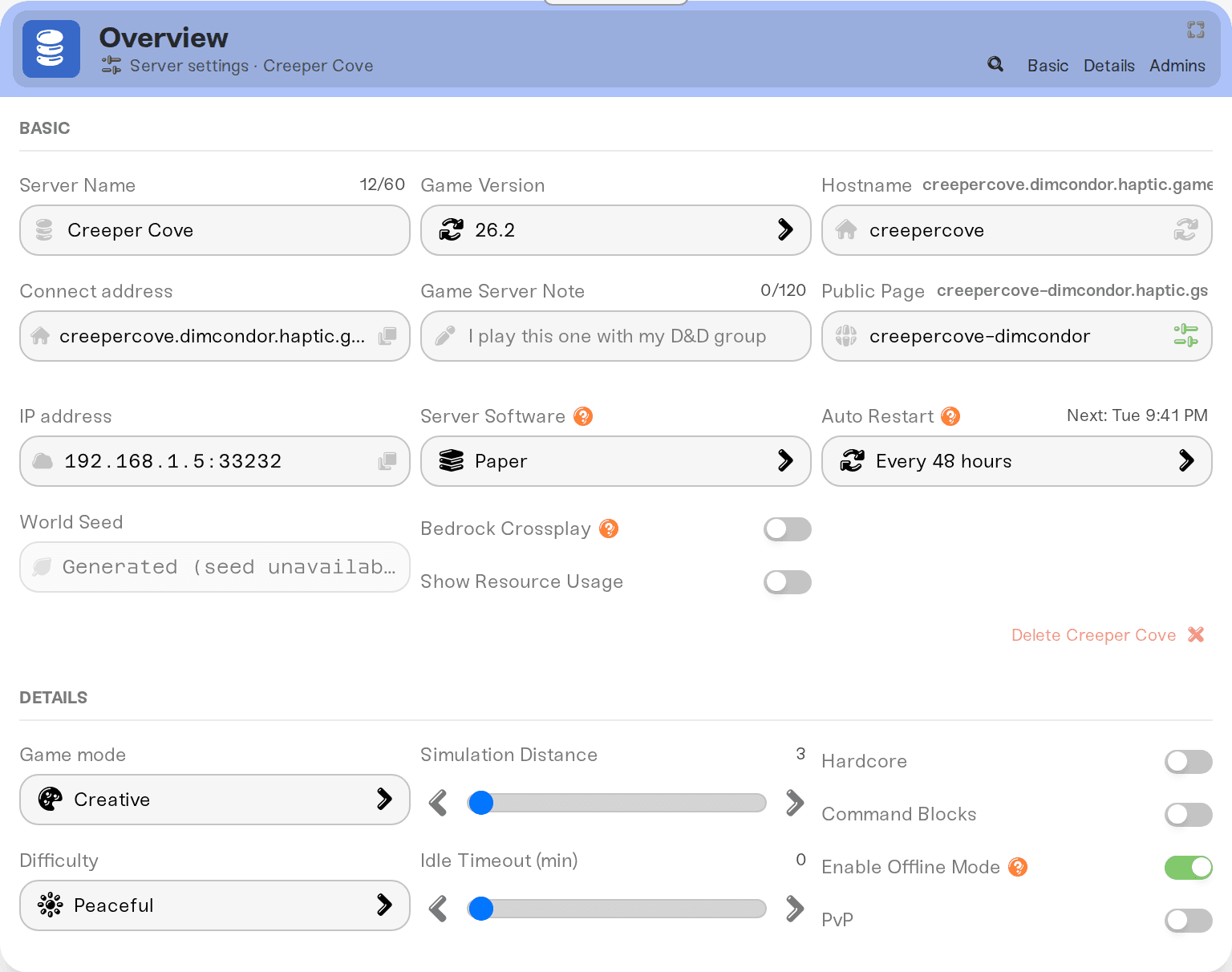
For a full tour of how the address is built, see What are custom hostnames?
Rename one server's address
On My Servers, click Detail view on the server's card.
Find the Server settings card and open the Basic tab.
In the Hostname field, type the new name. Up to 15 characters: letters, numbers, and hyphens. Capitals become lowercase and anything else (a space or an underscore) becomes a hyphen as you type, so what you see is exactly what you get.
Not feeling creative? Click the Randomize button next to the field and we will pick a themed name from that game's name pool. Click it as many times as you like.
Save your change when the Save changes popup appears. You will see the toast "Server address updated." and the new address works immediately.
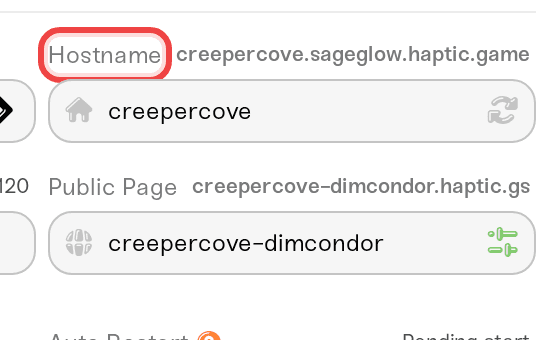
The full address appears in small text next to the Hostname label while you edit, so you can see the result before saving. After saving, click that address to copy it (it flashes "Copied hostname!").
A few things worth knowing:
No restart needed. The rename applies live even while your server is online. Players already in the game stay connected; only people joining later need the new address.
If you instead see the toast "Settings will be applied the next time this server powers up.", the address update could not be applied live and will kick in the next time the server starts. This is rare.
The port number after the colon does not change when you rename the hostname, so the new address is simply the new name with the same port.
Change the middle part for every server at once
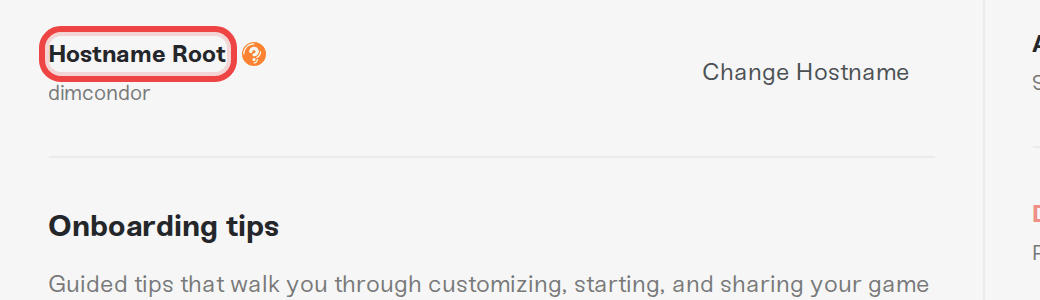
The middle part of the address (vesta in odin.vesta.haptic.game) is your Hostname Root. It is shared by all servers on your account, which is why changing it is an account-level action:
Go to Account and open the Settings tab.
In the Hostname Root row, click Change Hostname (it reads Add Hostname Root if you have never had one).
Type the new root into New hostname root, up to 15 characters. As the help text says, "Changing this will update all server hostnames."
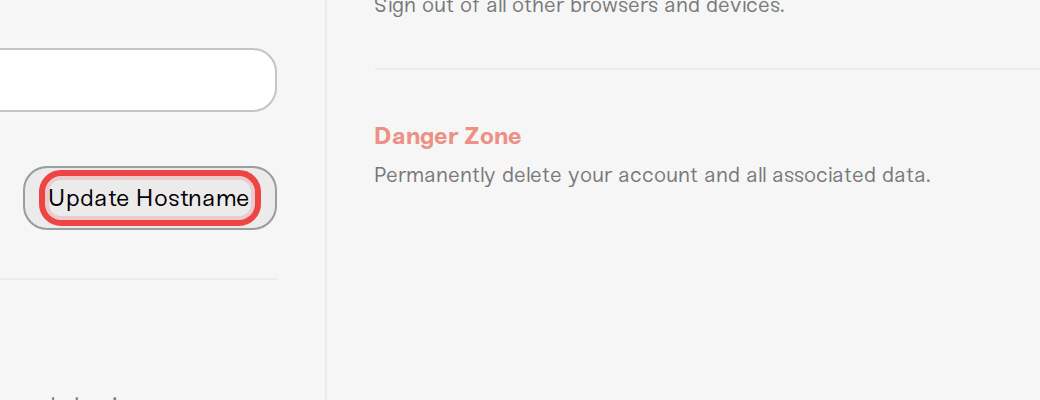
Click Update Hostname (or Cancel to back out). On success you will see "Hostname root updated." and every server address on your account switches to the new root right away.
"Please power down all servers before changing your hostname root."
That message means at least one of your servers is not fully powered down: it is running, in the middle of starting or stopping, or sitting on a red failed-start error. Because this change rewrites the address of every server at once, all of them must be powered down first.
Offline and Sleeping both count as powered down. A Sleeping Wake & Play server does not block the change.
Stashed servers do not block it either.
Stop anything that is Online or mid-restart, wait for the card to show Offline (on a Wake & Play plan it shows Sleeping instead), then try again. See Start, stop, and restart your server.
Other messages you might see
"The hostname isn't available.": another account already uses that root. Roots are unique across Haptic, so pick a variation.
"Hostname root must be 15 characters or less."
"Hostname root must include letters or numbers.": symbols are removed when you save and spaces become hyphens, so the root cannot be made of symbols or spaces alone.
Tell your friends
A rename takes effect the moment you save. There is no propagation period to wait out, and nothing to flush or refresh on your end.
The flip side: the old address stops working, including any entry your friends saved in their game's server list. Send them the new address (copy it straight from the strip at the bottom of your server's card) and have them re-add it. See Invite players to your server for everything worth sending along with it, like the password.
Things that will NOT change your address
Changing the Server Name field. That renames the world, not the address.
Restarting, stopping, or sleeping. Your hostname is stable across all of these; that is the whole point of it.
Moving your server to another region keeps the name part of the address, but the port number after the colon can change. Re-copy the full address after a region move. See Change your server region.
Need help?
Message us on Discord or email support@haptic.gg. If a rename is refused, include a screenshot of the exact message and, for hostname root changes, a screenshot of your My Servers page so we can spot which server is still awake.
What are custom hostnames?: how the three parts of the address fit together.



