Share server access with friends
 HapticGuide
You can give friends their own login to help run your servers, without ever sharing your password. Open Manage Friends on your Account page, enter your…
You can give friends their own login to help run your servers, without ever sharing your password. Open Manage Friends on your Account page, enter your friend's email, choose what they can access, and click Send Invitation. Your friend gets a free Haptic account, sees your servers under Shared With Me, and can do exactly as much as you allow. You stay in full control of billing, and you can change or remove their access at any time.
Which kind of "invite a friend" do you need?
Three different things sound alike here, so make sure you are in the right article:
Friends who just want to play on your server do not need any of this. Send them your server address and they connect from inside the game. See Invite players to your server.
Friends who help run the server (start it, restart it, change settings, manage mods and backups) need dashboard access. That is this article.
Friends who want to help pay for the server use a chip-in link instead; no dashboard access required. See Chip in on a server.
There is also a lighter option: if your friends only need to wake a sleeping server, they can do that from your server's public page with a share password, no Haptic account needed. See Let friends wake your server.
Open Manage Friends
In your dashboard, click the page title in the top bar (for example My Servers) to open the menu, then click Account Settings. The menu also has a shortcut button that reads Share a server before your first share and Shared afterwards; it leads to the same Account page.
On the Account page, open the Manage Friends tab.
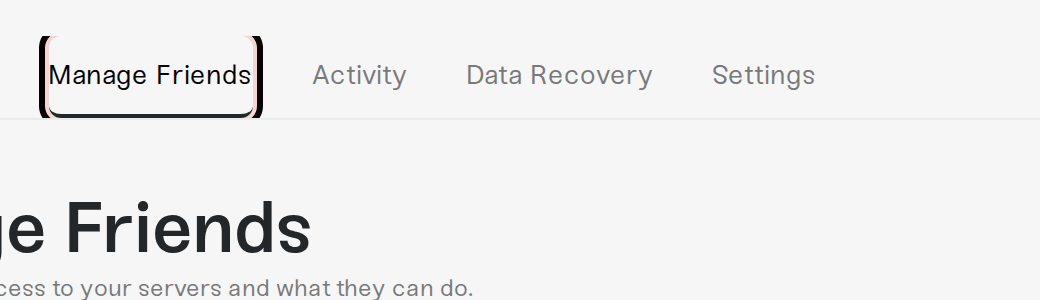
The page header reads Manage Friends, with your invite form on the left and your friends list on the right.
The Manage Friends tab appears once you have a subscription. If your subscription has lapsed, the invite form is replaced by "Reactivate your subscription to invite new friends.", but you can still manage and remove the friends you already have.
Invite a friend
Set a display name first (one time only). If you have not picked one yet, the form asks for it before anything else, because your friends will see it. Type a name (3 to 20 characters, letters, numbers, and underscores) and click Save & Continue. The page then shows "Friends see you as @yourname".
Type your friend's email address in the Friend's Email field.
Choose the Access Level:
Turn on Account Admin to give them full access to all current and future servers, or
Leave it off and pick specific servers from the Servers list below. For each server you select, choose a preset with the two buttons under it (Server Operator or Server Admin), or click Customise to hand-pick permissions.
Click Send Invitation.
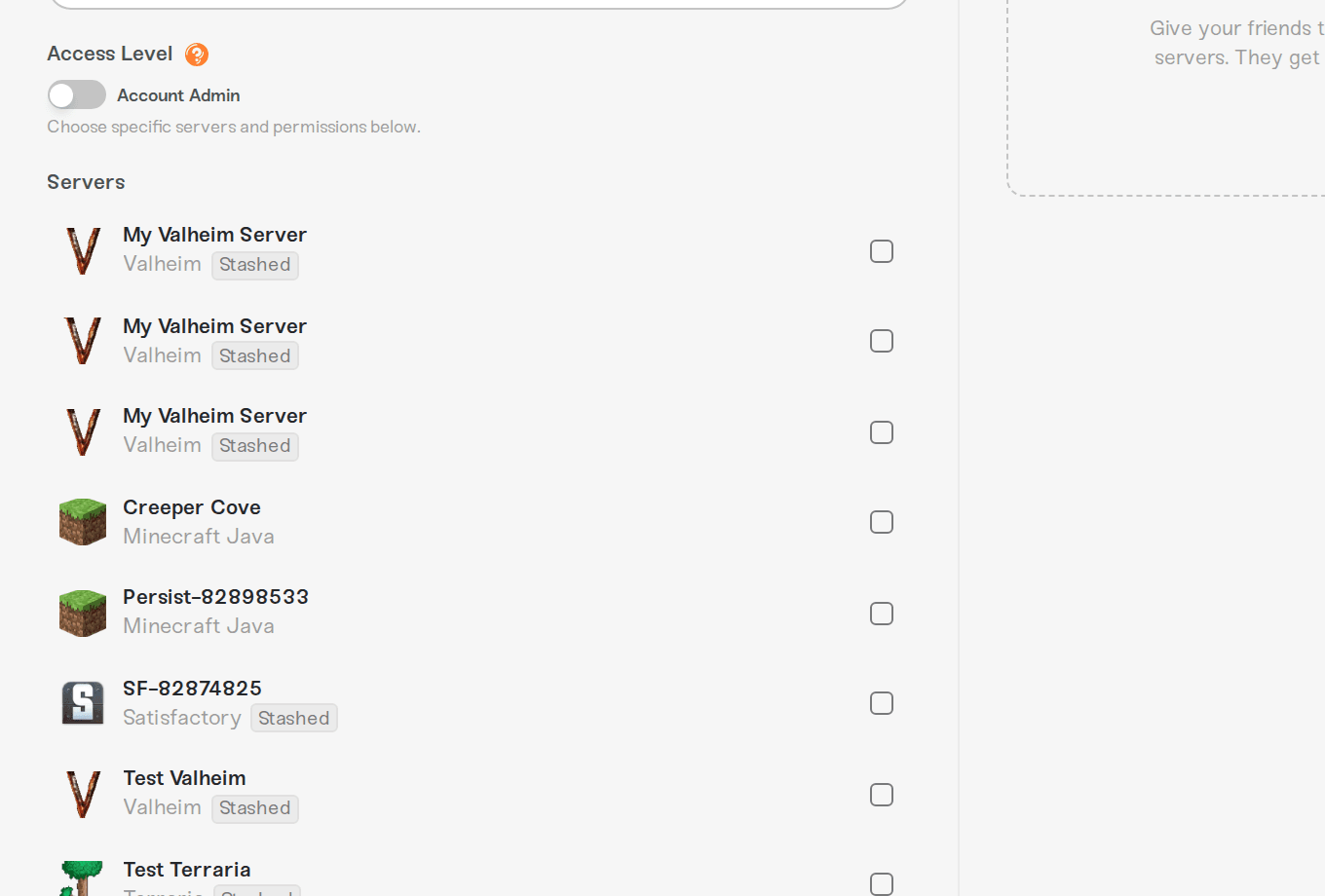
In short: a Server Operator can start, stop, and restart the server (on FiveM and RedM, restart is admin-only) and view the rest without changing anything; a Server Admin can also manage mods, backups, settings, the console, and the world; an Account Admin has full access to everything, including adding servers and changing memory. The full breakdown, including what each preset can do and how to customise one, is in Friend roles and permissions.
You can share stashed servers too; they show a Stashed chip in the list. More on stashing in Stash and switch servers.
New to Haptic? We create their account for them
What happens next depends on whether your friend already has a Haptic account:
Already on Haptic: they are added instantly. The form confirms "Invitation Sent!" with "their email can access your servers now", and they will find your servers the next time they open their dashboard.
New to Haptic: we create a free account for them on the spot. The form shows "Account created for their email" and a Your friend's password box with a Copy button. As the form says: "Share this password privately. They'll change it on first login." Your friend also gets an email ("... invited you to manage their game servers on Haptic!") that includes the password, so nothing is lost if you close the page.
Either way, your friend never pays anything to manage your servers, and your billing stays yours alone.
Pending invitations: the 7-day window
Invites to brand-new accounts sit at the top of your friends list with a yellow Pending badge until your friend signs in for the first time. The card also shows a Password available hint; click the card to expand it and find the Login Credentials section, where you can copy the password again and see its Expires date.
A few things worth knowing about that window:
The card lasts 7 days. After that, the pending card and the password shown on it disappear from your list.
Expiry undoes the invite. If your friend never signs in within those 7 days, the account we created for them is removed along with the access you granted, and the password from the invite email stops working. Your servers and settings are untouched; just send a fresh invitation when they are ready.
Re-inviting refreshes it. If your friend lost the email, send a new invitation to the same address before it expires. The pending card comes back with the same password and a fresh 7-day window; it will not create a duplicate account. After an invite has expired, re-inviting simply starts over with a new password.
Signing in locks it in. As soon as your friend logs in, the Pending badge disappears, they become a regular entry in your friends list, and their access no longer expires.
Changed your mind before they sign in? Expand the pending card, and at the bottom use Cancel Invitation ("Cancel this invitation and revoke all access.") and confirm with Cancel.
Change or remove access any time
Click any friend in the list (the row shows Manage) to expand their card:
Server Access lists each shared server with its two preset buttons (Server Operator and Server Admin), a Customise link for hand-picked permissions, and an X to remove that single server. Use the dashed + Add server access dropdown to share another server; new additions start at Server Operator, and you can change the preset right after.
Permissions holds the Account Admin toggle ("Full access to all current and future servers"), plus Can see full activity log for per-server friends. For Account Admins, the Server Access area instead reads "Account Admins have access to all servers automatically." and offers a Can edit files toggle, in case you want to grant admin powers but keep file editing to yourself.
Remove Friend at the bottom revokes everything: "Revoke all access from this user." Click Remove and confirm. It takes effect immediately.
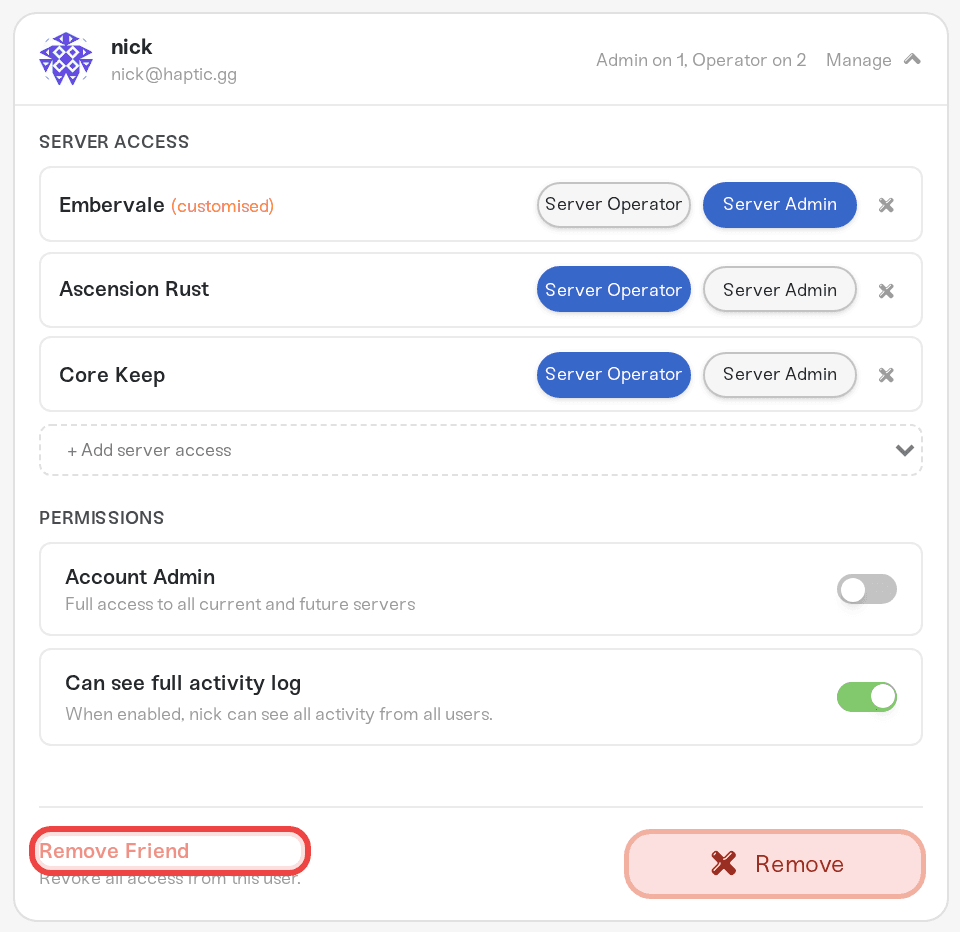
Removing a friend only cuts their access to your servers. Their Haptic account stays theirs, and you can invite them again later. A friend who is left with no access anywhere and has no subscription of their own is signed out within a minute. Friends cannot remove themselves from your account through the dashboard; managing the list is always up to you, from this page.
What your friend sees
Once they sign in, your friend's dashboard menu gains a Shared With Me entry that opens your servers, with a "Viewing your-name's servers" badge at the top. If several people share servers with them, that badge becomes a Switch Owner dropdown.
From there, what they can click depends on the role you gave them: Operators get the power controls and can view the rest, Server Admins get settings, mods, backups, and the console too, and locked controls show a short note explaining why. Account Admins additionally get owner-style Manage and Add Server tools; anything they add lands on your account and your bill, so reserve that role for people you really trust. Details in Friend roles and permissions.
Your friends may also see a Chip In banner on your shared pages, an optional way to help with your bill. That is covered in Chip in on a server.
Things this does not do
It does not put your friend in the game. Dashboard access and in-game access are separate. To play, they still join with your server address like everyone else: Invite players to your server. To make them an in-game admin, see Manage admins, whitelist, and bans.
It does not split the bill. Friends manage servers for free and are never charged. If they want to contribute money, that is Chip in on a server.
It is not the share password. The share password on your public page only lets friends start a sleeping server, without an account: Let friends wake your server.
Need help?
If an invite will not send, your friend cannot log in, or access is not showing up on their side, message us on Discord or email support@haptic.gg. Include the email address you invited and a screenshot of the friend's card on your Manage Friends page.



