Valheim: Upload your existing world
 ValheimGuide
Since Valheim 1.0 your world is a folder named after it inside worlds_local (worlds from before 1.0 are two files, one ending in .fwl and one in .db). Drag…
Since Valheim 1.0 your world is a folder named after it inside worlds_local (worlds from before 1.0 are two files, one ending in .fwl and one in .db). Drag the whole world folder (or both files of an older world) straight into the upload box on Haptic, confirm, and start your server. No zipping needed, and your current server world is backed up automatically before anything is replaced.
Where your world lives
Open your
worlds_localfolder:
Windows: press the Windows key + R, paste
%userprofile%\AppData\LocalLow\IronGate\Valheim\worlds_local, and press Enter.macOS: in Finder open the Go menu, choose Go to Folder, and paste
~/Library/Application Support/IronGate/Valheim/worlds_local.Linux: open
~/.config/unity3d/IronGate/Valheim/worlds_local.
Find the folder named after your world. Inside it are files like
_main.23.fwl2,_main.23.db2, and many.chunkfiles. You never pick anything inside it: the whole folder is your world.
A few things trip people up in this folder:
Leftovers from the 1.0 conversion. A world that existed before 1.0 also has
YourWorld.db.oldandYourWorld.fwl.oldnext to the folder, plus aYourWorld_backup_<date>-<time>pair. Those are the pre-1.0 copy the conversion left behind; the folder is your current world.Folders named
YourWorld_backup_auto-<date>-<time>are Valheim's own automatic backups, not your current world.The files ending in
_mapTexCache,_heightTexCache, and_forestMaskTexCacheare not your world. They are pictures of your map that the game rebuilds automatically. Uploading those cannot work, and the uploader will tell you so.Worlds from before 1.0 are two files,
YourWorld.fwlandYourWorld.db, and Windows often hides those endings, so both show up as just "YourWorld". Sort the folder by Type, or turn on File name extensions in the Explorer View menu.

Upload it
On your server, open the Backups card and click Upload World. (Creating a new server? Turn on Upload Existing World during setup.)
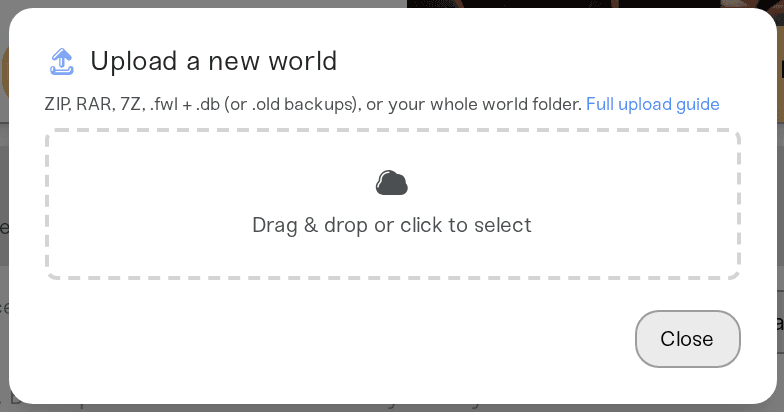
Drag the whole world folder into the box (for a world from before 1.0, drag both files in together). You can also zip your entire
worlds_localfolder and drop the zip in. If you already have an archive, ZIP, RAR, 7Z, and TAR all work.Haptic checks the files right away and shows what it found ("Found Valheim world ..."). If something is off, the message tells you exactly which file is missing or what to grab instead.
Confirm the upload. Your server's current world is backed up first, so you can always go back from the Backups card.
Start your server. Buildings, progression, bosses, and explored areas all come with the world.
Things that will NOT work
Uploading half a world. On a 1.0 world the whole folder belongs together. On a world from before 1.0 the
.fwlholds the world's name and seed and the.dbholds everything you built, and Valheim needs both.Uploading the map cache files (
_mapTexCache,_heightTexCache,_forestMaskTexCache). They are just images.Dragging files out of an open ZIP window. Extract the ZIP first, or upload the ZIP file itself.
Played on a friend's world?
The world lives on the computer that created it (the host). If you joined a friend's game, the files are on their PC, in the same folder as above. Ask them to send you the world folder (or the two files of a pre-1.0 world), then upload it here.
Need help?
Message us on Discord or open a ticket. A screenshot of your worlds_local folder plus the exact message the uploader shows gets you an answer fastest.
Backups: every import takes a backup of the previous world first, restorable from the Backups card.
Characters (inventory, skills, map pins) live on each player's own PC in Valheim and travel with them automatically, so nothing extra to upload there.
Accepted upload formats: the world folder (Valheim 1.0), both files of an older world, or a ZIP, RAR, 7Z, or TAR archive of either.


