Windrose: move your world to your server
 WindroseGuide
Yes, the world you've been playing in co-op or single player can move to your server. Close Windrose, zip the world folder from your PC, upload it from the…
Yes, the world you've been playing in co-op or single player can move to your server. Close Windrose, zip the world folder from your PC, upload it from the Backups card, and power up. Haptic finds the world inside your upload and points the server at it, so there is no config file to edit. Your current server world is backed up first.
Where your world lives on your PC
Press Win+R, paste
%LOCALAPPDATA%\R5\Saved\SaveProfiles, and press Enter.Open your profile folder (usually Default), then RocksDB_v2 (older saves may sit in RocksDB), then the folder named after the game version, then Worlds.
Each world is a folder with a long name of letters and numbers. The right one contains
CURRENT, aMANIFEST-file, several.sstfiles, andWorldDescription.json. Not sure which? Sort by Date modified; the newest is the one you played last.
Played on a friend's world? The files are on the PC that hosted it, in the same place; ask them to zip that folder and send it.
Close Windrose before you zip
While the game runs it keeps a file named LOCK in the world folder. An upload containing that file is rejected: "This Windrose save contains a LOCK file. Close Windrose completely and re-export, then try again." Quit to the desktop first, then zip.
Upload it
Power down your server. Upload World is disabled while the server is running.
Open the Backups card and click Upload World, next to New Backup.
Drag in the world folder or an archive of it. ZIP, RAR, 7Z, and TAR.GZ all work; password-protected archives do not. If your profile is Default, zipping the whole SaveProfiles folder works too: the server starts with the world you played most recently. Any other profile name: zip the
Worlds\<long name>folder itself.A ZIP is checked on the spot and confirms with "Found Windrose world". Folders and other archive types are checked after the upload. Click Upload and replace world (on a server that has never run, the button reads Upload world).
When the import finishes, power up. Haptic detects the imported world and pins it, so the server loads yours instead of creating a fresh one. Other hosts have you hand-edit the server description file for this step; here it's automatic.

Your previous world is kept as Backup before world upload in the Backups list; restore it any time.
Creating a brand-new server? Switch on Upload Existing World during setup and drop the same file there.
If the upload box says no
"...contains a LOCK file": the game was still running. Close it fully (see Close Windrose before you zip) and zip again.
"No Windrose CURRENT file found": the archive doesn't contain a world. Zip the
Worlds\<long name>folder itself, not a parent folder of screenshots or settings."This ZIP is password protected": re-zip without a password.
"This backup is from Windrose release X but your server runs Y"
This warning means the save was written by a different Windrose version than the one your server runs. The import still goes through. Windrose is in Early Access and saves don't always survive version jumps cleanly; that's a Windrose rule, not something we control.
Join right away and check that the world is the one you expect. If your game is newer than the server, restart the server once the matching server update is out. If the world won't load at all, restore Backup before world upload and try again later.
Where the world lives on the server
If you need the raw files, open the Files card or connect with SFTP. Your world is at savegame/SaveProfiles/Default/RocksDB_v2/<release>/Worlds/<id>/. The install/ folder is read-only game files, and the server log is savegame/Logs/R5.log.
Leave server_description.json (in the server's root folder) and WorldDescription.json (in the world folder) alone: the server and the game rewrite them, so hand edits don't stick. Change gameplay settings from the dashboard instead.
Backups, and taking the world back home
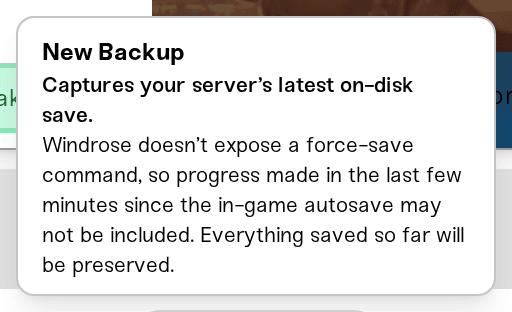
Windrose has no command to force a save, so New Backup captures the last autosave on disk, not the exact second you click; the last few minutes of progress may be missing. For a to-the-minute copy, power the server down first: every normal power down takes a backup on the way out (Force shutdown does not).
To play the world on your PC again, download a backup, unzip it, and with Windrose closed copy the Worlds\<id> folder into the same RocksDB_v2\<version>\Worlds path from the first section. If the game asks you to choose between a Local and a Cloud save at launch, pick Local so the copy you just placed is the one that survives.
Need help?
Reach us on Discord or at support@haptic.gg. Include your server name, the exact message under the upload box, and a screenshot of the world folder you zipped.
Windrose: difficulty presets and custom settings: difficulty lives in the Details tab of the Overview card. An imported world keeps the difficulty it was created with until you set the preset to Custom.


