Manage your server's files from the dashboard
 HapticGuide
Every server has a Files card on its dashboard: a full file browser for your server's files, right in your web browser. You can search every folder, upload…
Every server has a Files card on its dashboard: a full file browser for your server's files, right in your web browser. You can search every folder, upload by drag and drop, download anything as a zip, and create, rename, or delete files and folders. It works whether your server is online, stopped, or asleep; when the server is offline, your changes are saved and take effect the next time it starts. Nothing here requires any extra software, though SFTP is there when you want a desktop app.
Where your files live
Your server's files form one folder tree, starting at root. Broadly, three kinds of things live in it:
Your world: the save data for your map, players, and progress. Each game keeps it in its own place (for example
worlds_local/on Valheim,worlds/on Minecraft Bedrock).Config files: settings files like
server.propertiesorPalWorldSettings.ini. Most of these are easier to change from the Overview card, but you can edit the files directly too. See Edit config files.Mods: folders like
mods/,plugins/, orBepInEx/plugins/, depending on the game. The Mods card installs into these for you.
Every game arranges these differently. In the Files card, the small info icon next to the breadcrumb explains your game's layout, and for most games the Quick access: chips above the listing open your game's main config file in one click.
A few files are managed by Haptic so your server can boot. They are hidden by default; a footer row like 3 protected files hidden · Show reveals them, marked with a shield. You can view them but not change them.
Open the Files card
Go to My Servers and open your server. The Files strip sits directly under the config cards, with the subtitle Browse server files. Click it to expand the browser, or use the Maximize button in its title bar to fill your screen. On a phone, Files is its own pane in the server's card carousel.
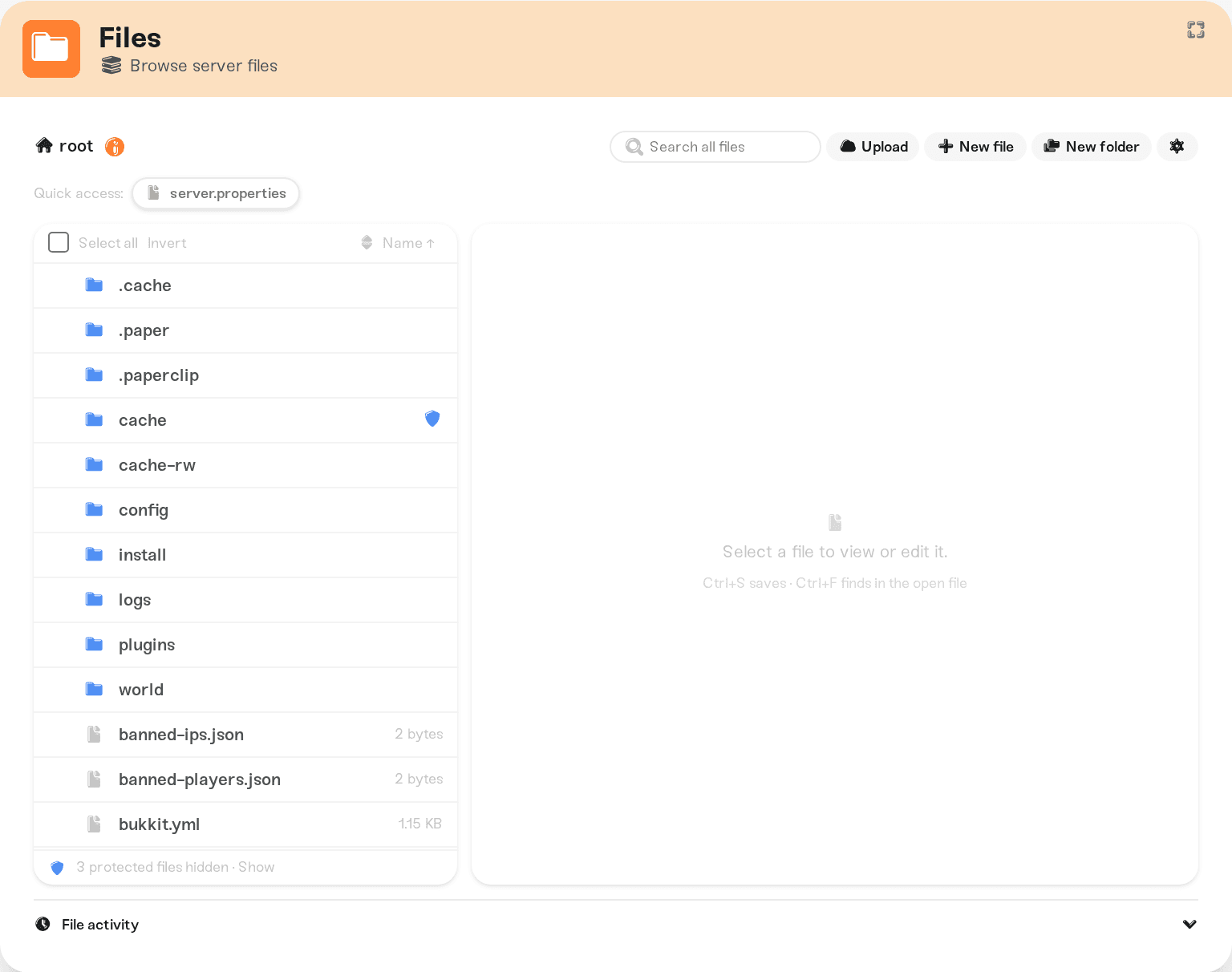
The left side lists the current folder; click a folder to enter it and use the breadcrumb (starting at root) to go back up. Click any file to view or edit it in the right pane.
Find any file fast
Search: the Search all files box in the toolbar searches your entire server, not just the open folder. A status line shows progress, like "12 matches · searched 3,400 files". Press Enter to open the best match, Escape to clear.
Quick access: chips under the toolbar jump straight to your game's main config file (a few games, like Valheim, have none). If it shows "This file hasn't been created yet. It appears after the server's first start.", start the server once.
Sort: the sort control above the listing switches between Name, Size, and Modified; picking the active one flips the direction. Under Modified, rows show times like "5m ago", which is the fastest way to spot what just changed.
Upload files or folders
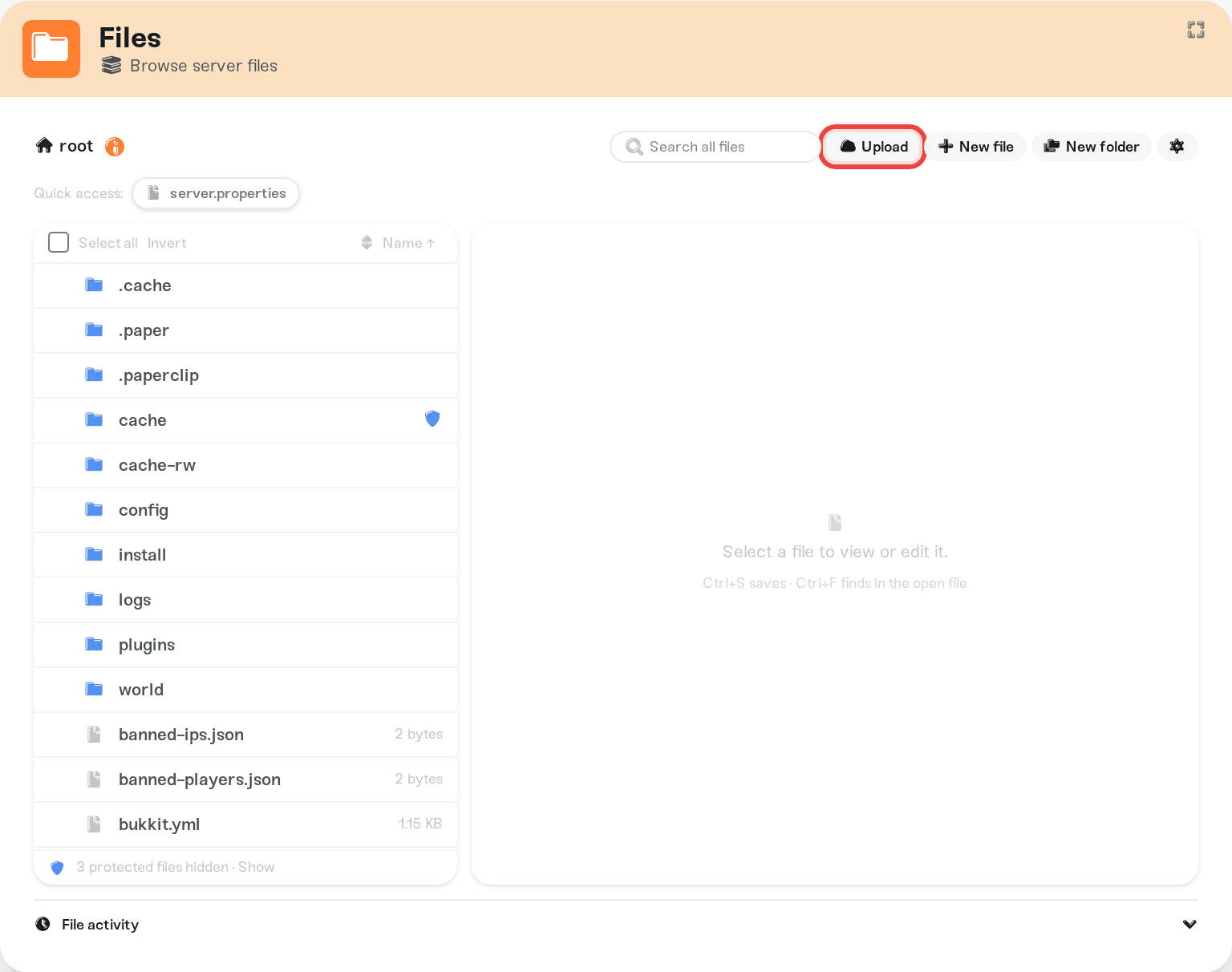
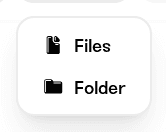
Press Upload in the toolbar and pick Files or Folder, or simply drag files and folders from your computer anywhere onto the card; a "Drop to upload" overlay confirms the destination. Uploads land in the folder you currently have open.
A queue panel appears in the corner and tracks every file. Two things to know:
Existing files are skipped by default. The panel has an If a file exists: toggle set to Skip, so re-uploading something does not replace it; skipped rows are marked "exists". Flip the toggle to Overwrite (before or during the upload) and use Retry with overwrite to replace them on purpose.
Limits: each file can be up to 2 GB, and large imports upload in batches of 200 files. For very large folder trees (say, a modpack with tens of thousands of files), SFTP is faster.
If an upload or delete touches your world's save data, a "This changes world data" warning lists the paths first and suggests a backup. That is your cue to take a backup before continuing. To replace your whole world, use the guided flow in Upload your world instead of raw file uploads.
Download files
Hover over rows to reveal their checkboxes (or use the Select all box at the top), then press Download zip in the bar that appears. Any mix of files and folders comes down as a single zip.
A couple of related paths:
Opening a file that cannot be previewed (binary, or larger than the roughly 1 MB inline preview limit) shows a Download button for that single file.
The clock icon on a file row opens File history, where Download this version grabs any of the last 10 saved versions of that file.
To take your whole world home, see Download your world.
Create, rename, and delete
New file and New folder in the toolbar create entries in the open folder.
Rename: hover a row and click the pencil icon. Renaming keeps the file where it is; only the name changes. Careful with folders your game expects to exist under an exact name.
Delete: hover a row and click the trash icon, then confirm. Deleting a folder deletes everything inside it. For a selection, the Delete button on the bulk bar asks you to type
deletebefore it runs.
Deletes are permanent; there is no trash can. Your safety nets are File history (the last 10 saved versions of each edited file, restorable from the clock icon) and your backups. When in doubt, rename instead of deleting; the rename is your undo button.
Move a file to another folder
There is no move or drag-to-move control in the browser yet. To relocate files:
Select them and use Zip selection to create a zip.
Select the zip and press Unzip, then type the destination folder in Extract into.
Delete the originals and the zip once you have checked the copies.
For lots of moving and reorganizing, an SFTP client is the more comfortable tool.
Zip and unzip
Zip selection on the bulk bar packs the selected files and folders into a named zip in the current folder. Selecting a single .zip (or clicking the archive icon on its row) offers Unzip, with a destination field and a choice between Skip existing files and Overwrite existing files. Only .zip archives can be extracted; for .rar or .7z, extract on your computer first and upload the files.
Online, stopped, or asleep: what changes
The Files card works in every server state; only the plumbing differs.
Online: you are working on the live server. Changes apply immediately, but the game itself may have a file open; if you see "The game has this file open right now", stop the server, make the change, and start it again.
Stopped or asleep: a blue banner explains that you are editing the server's files, or its cloud copy, directly, and that changes take effect the next time it starts. Occasionally a change is staged for the next start instead of saved in place; those rows show an Applies on next start badge, and a summary list above the browser counts them.
One special case: an amber Cloud sync pending banner means your latest play session has not finished saving to cloud backup yet, so file editing is paused to protect it. Start and stop the server once and the card unlocks.
If a button is missing
No Upload, New file, rename, or delete: your role on this server is view-only. Friends with the Operator role can browse and read files but not change them; see Friend roles and permissions.
No zip buttons: a few servers do not support zip actions yet; the buttons hide themselves. Downloading files individually and re-uploading still works.
"No files yet.": some games generate their files on first start. Start the server once and the tree appears.
Need help?
If a file will not upload, a delete will not stick, or you are not sure whether a folder is safe to touch, ask us in Discord or email support@haptic.gg. Include your server name, the file path, and a screenshot of any error, and we will take a look together.
Every change made here is logged: the File activity section under the browser lists edits, uploads, renames, deletes, and SFTP transfers, with who did what.
Edit config files covers the editor itself: saving, file badges, and which edits survive a restart.
Connect with SFTP for desktop apps like FileZilla or WinSCP.
Back up your server and Restore a backup are the safety net for anything you change here.
Reset your world is the right tool for starting fresh; do not hand-delete world folders.



