Move your co-op or single-player world to your server
 PalworldGuide
Upload the whole world folder, attach the host's character from your dashboard, and approve your old settings in one click.
Find your world folder
On Steam, press Win+R, paste %LOCALAPPDATA%\Pal\Saved\SaveGames, and press Enter. Open the folder named with your long Steam ID number. Each world is a folder with a long name of letters and numbers. The right folder contains:
Level.sav(the world itself: terrain, bases, guilds, everything in the palbox)Players(one file per character; this is the part people forget)LevelMeta.sav,LocalData.sav, andWorldOption.savbackup(Palworld's own automatic backups; never upload from here)
Not sure which folder is which? Open Palworld, look at your world list, and match the last-played dates against the folder dates.
Xbox / Game Pass: press Win+R, paste %LOCALAPPDATA%\Packages\PocketpairInc.Palworld_ad4psfrxyesvt\SystemAppData\wgs, and press Enter. Your save lives there in a Windows container format — the scrambled names inside are normal, and you don't need to make sense of them. Close Palworld and the Xbox app first, then upload the whole wgs folder and we convert it during import.
Can't find your save?
The folders above are normally hidden by Windows. You don't need to change any settings: pasting the path into Win+R (or into a File Explorer address bar) jumps straight there.
Played in a friend's co-op world? If they hosted and you joined, the world is saved only on the host's PC. There is nothing to find on yours — ask the host to upload their world folder, or have them zip it and send it to you.
Played on Xbox console? Install Palworld on a Windows PC through the same Game Pass account, launch it once so your save syncs down, then use the Game Pass path above.
PlayStation 5 saves can't be taken off the console. The in-game Global Palbox can move individual pals to your new server world, but the world itself can't move.
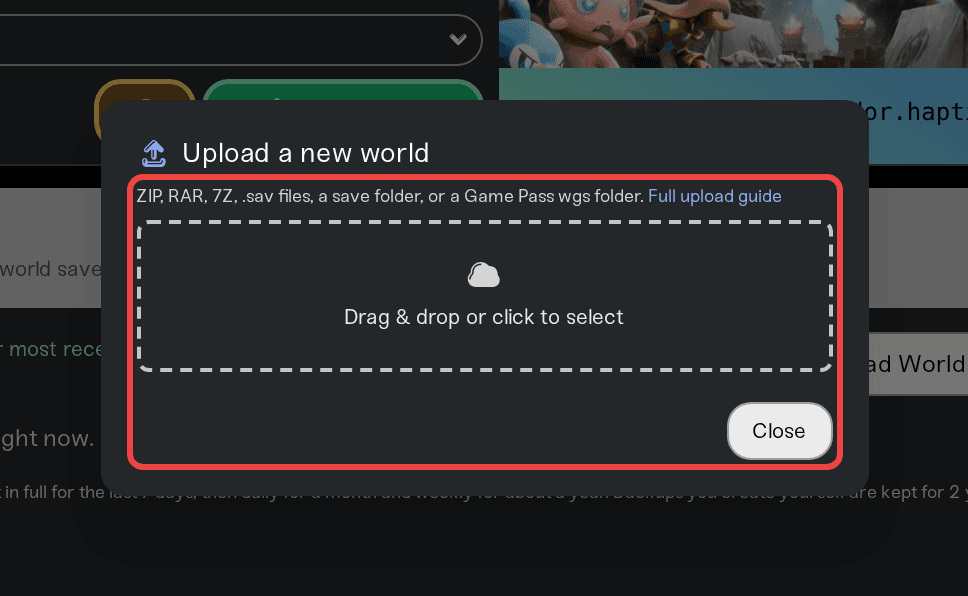
Upload the whole folder
Drag the whole world folder into the upload box on your server, or zip it first. Either works. The upload preview shows when the world was last saved and how many characters are included. If it says no characters found, stop and check that the Players folder came along.
Two quick things before you upload: recall pals from expeditions (tools that relink characters are known to miss pals that are away), and skip the backup folder. Palworld's own backups never include characters, so uploading from there means everyone starts fresh.
You do not need to start the server first so a fresh world can generate. Your upload replaces everything on the server, so a pre-made world just gets overwritten, and starting first can leave confusing leftover files behind. Upload first, then start.
Start the server and have everyone join once
Everyone picks their respawn point again on the first join. That's a normal part of the move, nothing went wrong.
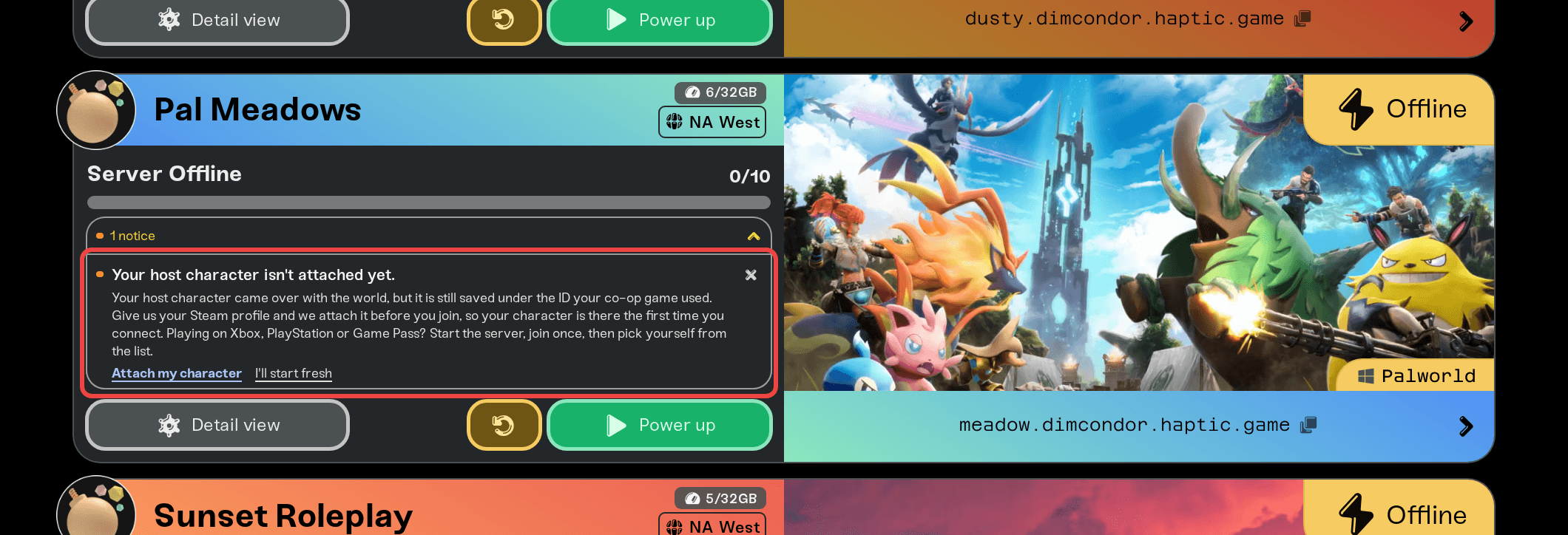
Attach the host's character
If the world came from co-op or single player, the host's character is stored under a special local ID. Your dashboard shows an Attach your character prompt on the server. Pick your account, confirm, and it applies the next time the server starts. The attach also carries your guild membership, so the palbox unlocks with it.
Match any friend who sees the new-character screen
Friends keep their characters automatically in most cases. If a friend still gets the character-creation screen after a full upload, the server sees them as a new identity. This is common when platforms differ, for example a Steam co-op world and a Game Pass or PS5 player.
Have them create the temporary character and log off. Your dashboard then shows a Match character prompt: pick their old character from the list, pick the account they joined with, and it applies the next time the server starts. The full walkthrough, including the safety snapshot and undo, is in a friend gets a brand new character on your server. If the prompt doesn't appear after a restart and another join, contact us and we can attach it from our side.
Approve your world's settings
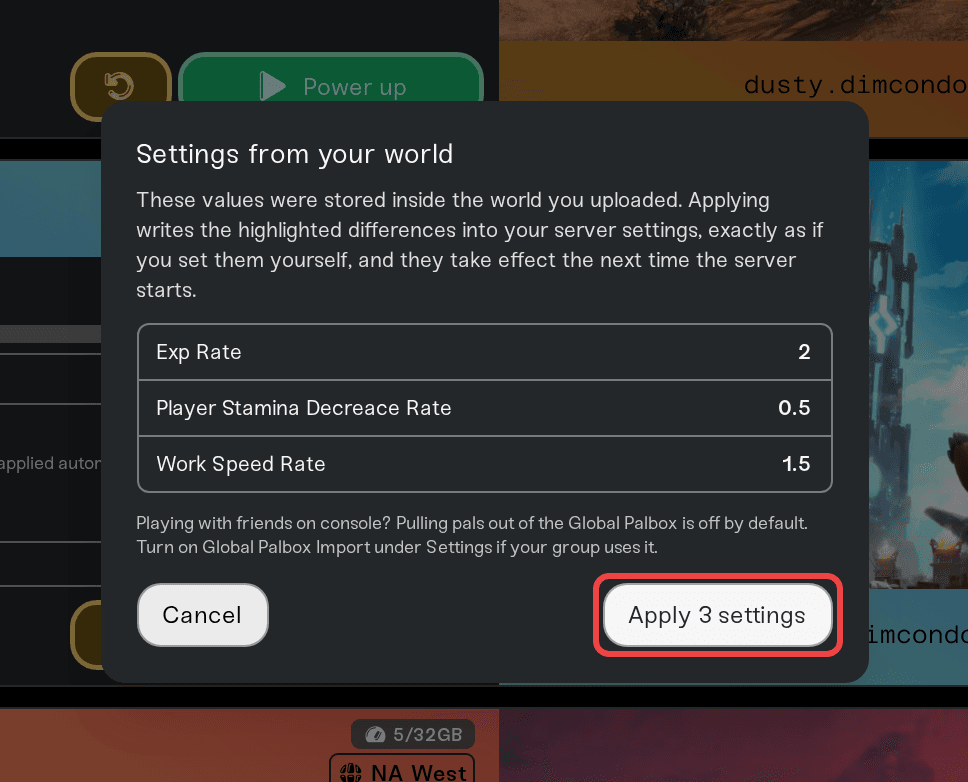
Your co-op world's settings come along with the upload. After the first server start, your dashboard shows Your world's co-op settings came along on the server. Open the review to see every setting from your old world and apply them with one click. They take effect the next time the server starts. Prefer a clean start? Choose Keep my current settings and set your own values under Settings.
Two names differ between the co-op menu and the dashboard: crafting speed is Work speed, and stamina is Player stamina drain (lower means slower drain). Server identity (name, passwords, ports) never comes from the world file; those always live in your dashboard.
That works, and your world is fine. It just isn't needed, and the converted copy skips the safety net. Upload the original co-op folder (the one that contains Level.sav and the Players folder) through the upload box on your server, not by copying files in over SFTP. The import takes a safety backup first, removes WorldOption.sav so your dashboard settings keep working, offers you the co-op settings review, and prompts you to attach your character to your account. A converted world dropped in over SFTP gets none of that.
Whichever folder you upload, make sure everyone's character files from the co-op save come along in Players, so your friends keep their progress.
Behind the scenes, Palworld keeps co-op settings in a file called WorldOption.sav. When that file sits inside a server's world, the game silently ignores dashboard settings entirely, including the admin password. We remove it during import on purpose and offer you its values through the settings review instead, so your dashboard always works. Don't upload it back to force settings; the review is the supported path.
Map exploration and custom pins are stored on each player's own PC, per world. A moved world counts as a new world to your game, so the map starts unexplored for everyone even though bases, characters, and fast travel unlocks all carried over. The fix is copying one file on your PC: see Black map after moving your world for the two-minute fix.
Uploading only
Level.sav: the world arrives but every character is left behind, and the old guild keeps the bases locked.Uploading from the
backupfolder: Palworld's own backups are world-only. No characters, ever.Re-uploading to fix a dark map: the map lives on each player's PC, not in the world files.
Third-party save "fix" or character transfer tools: they often fail on current save versions and can corrupt your world. Character attaching is built into your dashboard, and a backup is taken before every change.
Renaming or re-keying a player file to move a character to another account: a
Players/<id>.savfile only loads when the world lists that same character under that same ID. A file changed by hand or by a converter loads for nobody: that player gets a brand-new character, or cannot join at all. Your server repairs this on its next start (the file goes back under its own ID and your dashboard shows a note). To move the character, use the Match character prompt from step 5 instead: it updates the world and the file together.
If your world is from before Palworld 1.0, the game itself resets mission progress and bounty history and adjusts XP to the new table the first time the world loads on 1.0. That happens in single player too. It's a Palworld rule, not something the move causes.
Going the other way? You can also take your world off the server and keep playing it in co-op: Move your world from your server back to co-op.
If characters are missing after a full-folder upload, or a prompt doesn't appear, message us on Discord or open a ticket and include your server name. We can see exactly what arrived in your upload and fix character attachment from our side.


