Set up your server's public page
 HapticGuide
Every Haptic server can have its own public web page at a haptic.gs address you pick, like my-server.haptic.gs. Anyone with the link can open it, no…
Every Haptic server can have its own public web page at a haptic.gs address you pick, like my-server.haptic.gs. Anyone with the link can open it, no account needed, and you choose exactly what it shows. All of its settings live in your dashboard, not on the public page itself: open your server's Overview card, find the Public Page field, and click the green sliders icon.
What the public page is
The public page is a shareable window into your server. Visitors see whether it is online, the join address when it is running, and whatever extras you choose to show: a description, who is playing, installed mods, and more. It is the easy link to drop in your group chat instead of explaining connection steps to everyone.
Two addresses, two jobs: your dashboard lives on haptic.gg, and your server's public page lives on haptic.gs. If you have friend wake turned on, friends can also start your sleeping server from this page; see Let friends wake your server.
Where the settings live (not on the page itself)
This trips people up, so let's say it plainly: there are no settings on the public page. Visiting your haptic.gs link shows you exactly what a visitor sees, with no edit buttons anywhere. Everything is controlled from your dashboard:
Sign in at haptic.gg and open My Servers.
Open the server's Overview card (the one with "Server settings" under the header).
In the Basic section, find the Public Page field, right below the Note field.
Click the green sliders icon at the right of the field (it is labeled Public page settings when you hover).

That icon opens the Public Page Settings window, where everything in the rest of this article happens.
If you do not see the Public Page field at all, your role on that server does not include public page access; the owner can adjust that. See Friend roles and permissions.
Turn on your public page
In the Public Page Settings window:
Flip Enable public page on. Its description says exactly what it does: "Allow anyone with the link to view this server". While it is off, the other controls are grayed out and the page does not exist for visitors.
Choose your Public URL. Type the part before
.haptic.gs: 3 to 20 characters, lowercase letters, numbers, and hyphens. We suggest one based on your server's address to start. A green check means the name is free; a red X with "Public URL not available" means it is taken, and you can click one of the "Try:" suggestions instead.Write a Description for visitors, up to 500 characters. If your game has a server description or message of the day set, we pre-fill it from there so you are not starting from a blank box. Web links you paste become clickable on the page, as long as you include the
https://part.Click Save public page. You will see "Public page settings saved." when it is done.
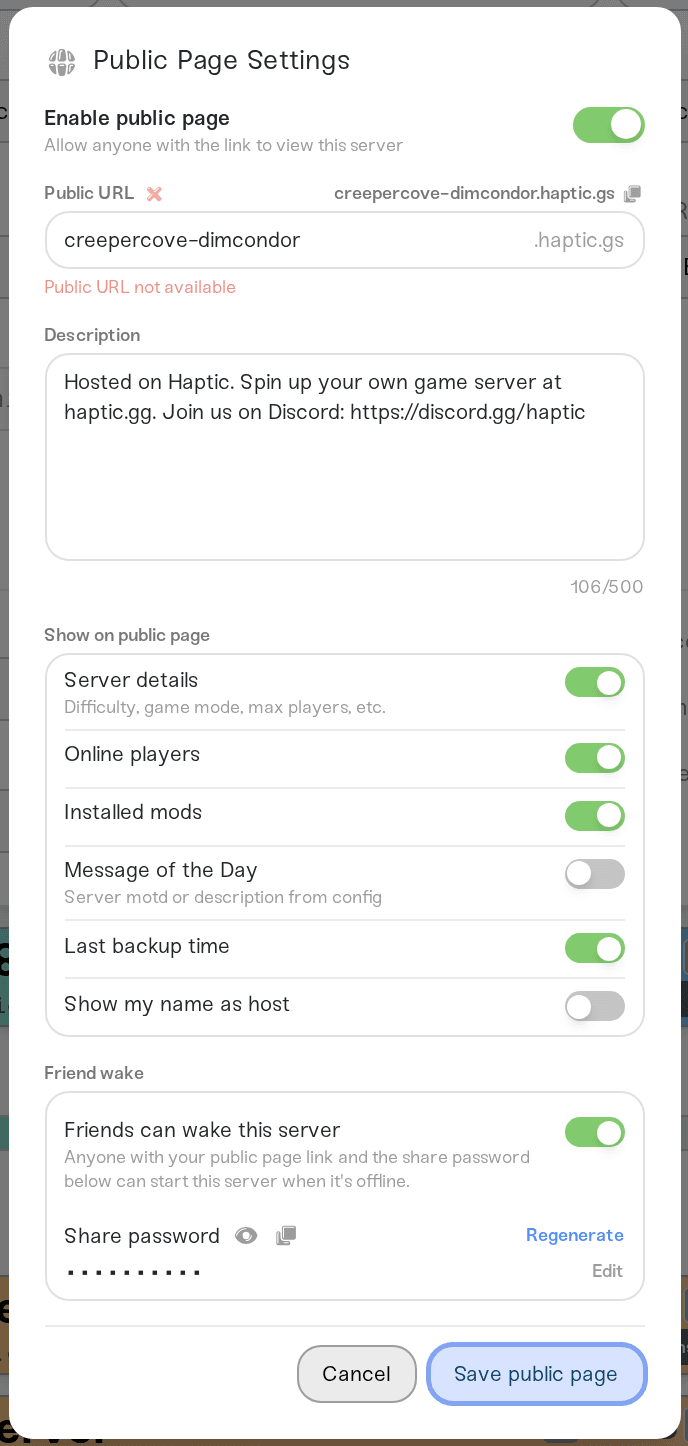
One exception to the Save button: the Friends can wake this server toggle at the bottom of this window saves the moment you flip it. Everything else waits for Save public page, and Cancel discards it.
Choose what visitors can see
The Show on public page group controls what appears on the page. Nothing here is required; with everything off, the page still shows your server's status and description, and the extras area simply says "Integrations for this server are not public."
Server details: a small, safe set of settings like difficulty, game mode, and max players. This is a fixed shortlist per game; your full configuration and any passwords are never shown.
Online players: a "Players online" count with player avatars. It only appears while the server is actually online.
Installed mods: your enabled mods with their versions, listed as "Mods (N)". Custom Workshop uploads that are not public listings show as "Custom Workshop mod" instead of their file names. For Valheim, mods that friends need on their own PC include a download link.
Message of the Day: your server's MOTD or description from its game config, for games that have one.
Last backup time: when the most recent backup was taken, so friends can see the world is being looked after.
Show my name as host: adds "Hosted by" with your display name to the Description card. Only the server owner sees this toggle.
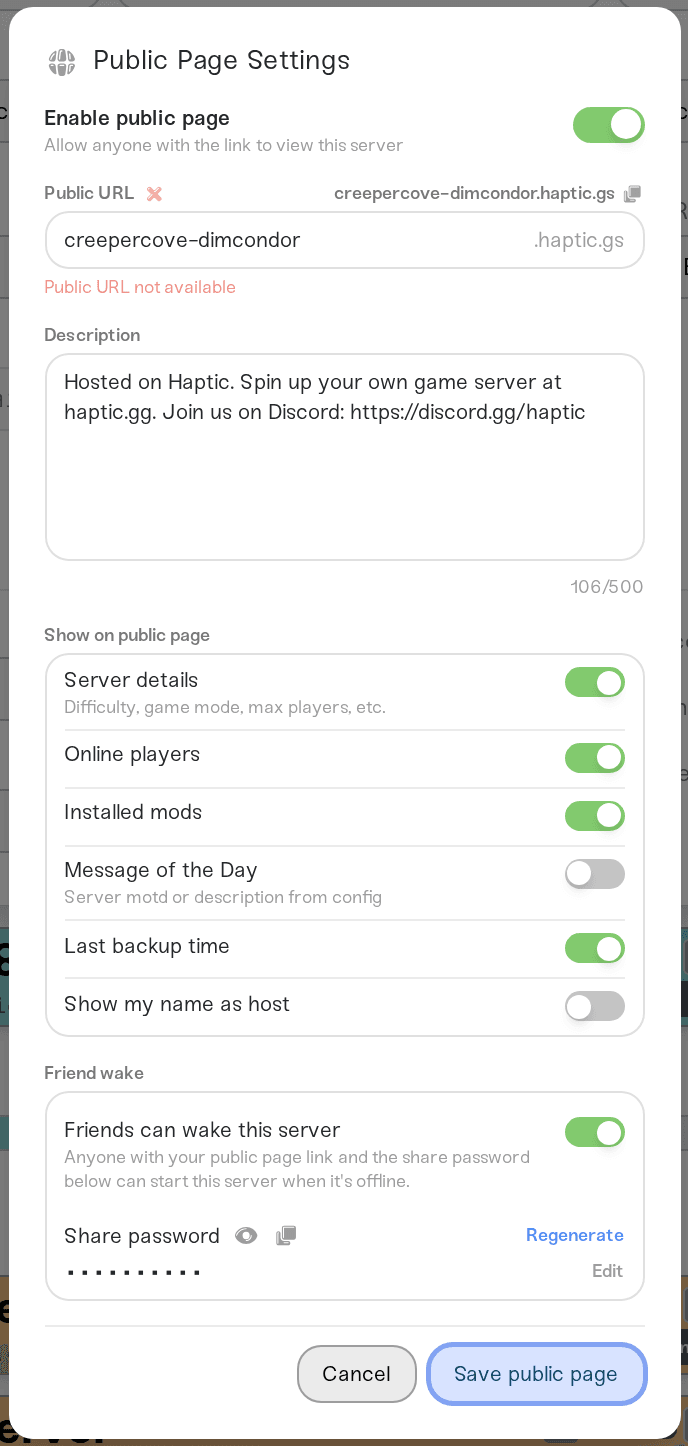
Flip what you want, then click Save public page.
Share the link
Once saved, your full address appears at the top right of the Public Page field on the Overview card. Click the address there, or click the field itself, to copy it; you will see a quick "Copied public URL!" or "Copied Public Page!" confirmation. There is also a copy link next to the Public URL box inside the settings window. Then paste it anywhere: Discord, group chat, a forum signature.
If the field's corner says Not saved, the page is enabled but you have not saved a URL yet; open the settings and hit Save public page. If it says Disabled, the page is off.
What visitors see
The page always opens with a status banner across the top, and it refreshes on its own while the tab is open:
Online (green): the join address is right there to copy, with a Steam Join button for supported games. Crossplay Minecraft shows separate Java and Bedrock addresses.
Starting (yellow): the server is booting; the page flips to Online by itself when it is ready.
Sleeping (blue moon): the server is off. Any offline server shows Sleeping, on Wake & Play and Always On plans alike. If friend wake is on, visitors get a Wake server button (or Start server on Always On); otherwise the page says "The owner can wake this server up anytime."
Inactive (gray): the server is stashed. Visitors see "This server is currently inactive."
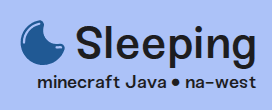
Below the banner sit the Integrations card (the details, players, mods, MOTD, and backup info you toggled on) and the Description card with your text and, if enabled, the "Hosted by" line.
One thing visitors will never see: a wake button while the server is Online. There is nothing to wake at that point, so the page shows the join address instead. If you are looking for the wake and share password controls, they are in the dashboard settings window described above, not on the page.
Turn it off again
Open the same settings window, flip Enable public page off, and click Save public page. Your haptic.gs address stops working and shows a not-found page to anyone who still has the link. Your description and toggle choices are kept, but the address itself is released: when you turn the page back on, you will pick and save a Public URL again, and your old name is only yours if nobody else has claimed it in the meantime.
Need help?
Ping us on Discord or email support@haptic.gg. A screenshot of your Public Page Settings window, plus your haptic.gs address, lets us see exactly what is going on.
Let friends wake your server: the share password and the wake button on this page.
What is Wake and Play?: why your server sleeps and what that means for your world.
What are custom hostnames?: the join address itself, which is separate from your public page URL.
Invite players to your server: getting friends connected once they have the address.



