Minecraft: Change Your Server Settings
 Minecraft JavaGuide
Your Minecraft Java settings live on the Details tab of the Overview card: open My Servers, press Detail view on your server, and edit what you like. Press…
Your Minecraft Java settings live on the Details tab of the Overview card: open My Servers, press Detail view on your server, and edit what you like. Press Save changes, then restart the server, because most changes apply on the next power-up. Allow Flight is one server-wide switch. It is on for everyone or off for everyone, and it cannot be limited to operators.
Where the settings are
Go to My Servers and press Detail view on your Minecraft server's card.
In the Overview card, open the Details tab. The Basic tab holds the shared fields (name, address, Game Version); Details holds everything specific to Minecraft.
Change as many settings as you want. Changed fields turn orange, and a popup at the bottom of the page offers Cancel and Save changes.
Press Save changes. Nothing is saved until you do, and Cancel puts every field back.
Restart the server so the new values load. Hold Restart on the server card, or press Power up if it was stopped.
The save flow, the orange banner for world-changing settings and the locked-field reasons are the same on every game, and are explained in Change your server settings.
The settings on the Details tab
| Setting | Options | What it does |
|---|---|---|
| Game mode | Creative, Survival, Adventure, Spectator | The default mode for all players. Creative gives unlimited resources and flight. |
| Difficulty | Peaceful, Easy, Normal, Hard | How hard mobs hit. On Peaceful, hostile mobs do not spawn. |
| Hardcore | On / Off | One life only. Minecraft bakes this into a world when it is generated, so switching it starts a fresh world. A backup is taken first. |
| Max Players | Number | How many players can be connected at once. Operators can bypass this limit. |
| PvP | On / Off | Whether players can damage each other directly. Lava, TNT and pushed blocks still hurt. |
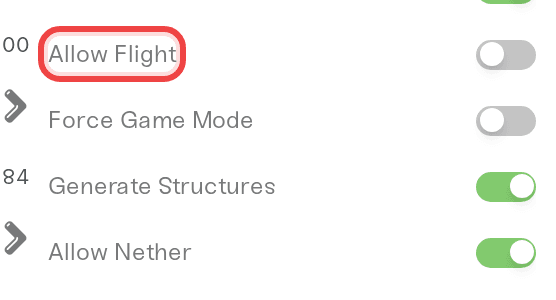
| Allow Flight | On / Off | Whether players may use flight mods in Survival. Off by default: anyone airborne for more than 5 seconds is kicked. No effect in Creative. |
| Force Game Mode | On / Off | Forces every player back to the default game mode when they join or respawn. |
| Spawn Protection | Number | The radius around spawn where players who are not operators cannot break or place blocks. 0 turns it off. |
| Command Blocks | On / Off | Lets redstone run console commands. |
| Enable Offline Mode | On / Off | Turns off account verification. Read the warning before you flip it. |
Other toggles on the tab, such as Allow Nether, Generate Structures, View Distance and Simulation Distance, follow the same save-then-restart rule.
Game rules on Minecraft 1.21.9 and newer
Minecraft 1.21.9 turned PvP, Allow Nether, Command Blocks and Monster Spawning into game rules saved in the world. Haptic sets them from the dashboard at every start, and the console shows a line for each, such as Game rule pvp is now set to false. A /gamerule change made in game lasts until the next restart. Command Blocks is off by default: if your command blocks stopped working after a restart, turn it on.
Minecraft 1.21.2 removed Animal Spawning and Villager Spawning, so they only work on 1.21.1 or older. On newer versions, Latest included, they are greyed out.
Can I allow flight for operators only?
No. Allow Flight is a single on-or-off switch for the whole server. It writes one line to server.properties, and there is no per-player or operator-only version of that setting in the dashboard or in the file. Editing the file by hand does not change that.
Two honest alternatives, depending on what you actually want:
A few trusted people should fly, everyone else should not. Leave Allow Flight off and put those players in Creative mode with the
/gamemode creative PlayerNamecommand. Creative flight is never affected by the switch. Running commands needs Operator status; see Keep Inventory Command for Minecraft Java: Turn It On Any Time.Players use a flight mod or plugin and keep getting kicked. Turn Allow Flight on. It applies to everyone, and the only thing it changes is that the server stops kicking airborne players.
To undo either choice, flip the switch back or run /gamemode survival PlayerName, then save and restart.
Things that will NOT fix it
Adding someone as an Operator does not let them fly in Survival while Allow Flight is off. Operators are exempt from Spawn Protection and the Max Players limit, not from the flight check.
Editing allow-flight in server.properties gives you the same on-or-off value as the dashboard toggle. There is no third option to type in.
Changing a setting without restarting. Saved values wait for the next power-up.
Need help?
Reach us on Discord or at support@haptic.gg. Include your server name, the setting you changed and what happened in game after the restart.


