Don't Starve Together: Mods, mod settings and your own mods
 Don't Starve TogetherGuide
Add Steam Workshop mods from your server's Mods card and restart. Your server downloads them at every start, and players download them automatically when…
Add Steam Workshop mods from your server's Mods card and restart. Your server downloads them at every start, and players download them automatically when they join. Change a mod's settings in modoverrides.lua in the Files card: your values are kept. You can also add any Workshop mod straight into modoverrides.lua, or upload a mod you made yourself into the mods folder.
Add a mod from the Workshop
Open your server in the dashboard and expand the Mods card.
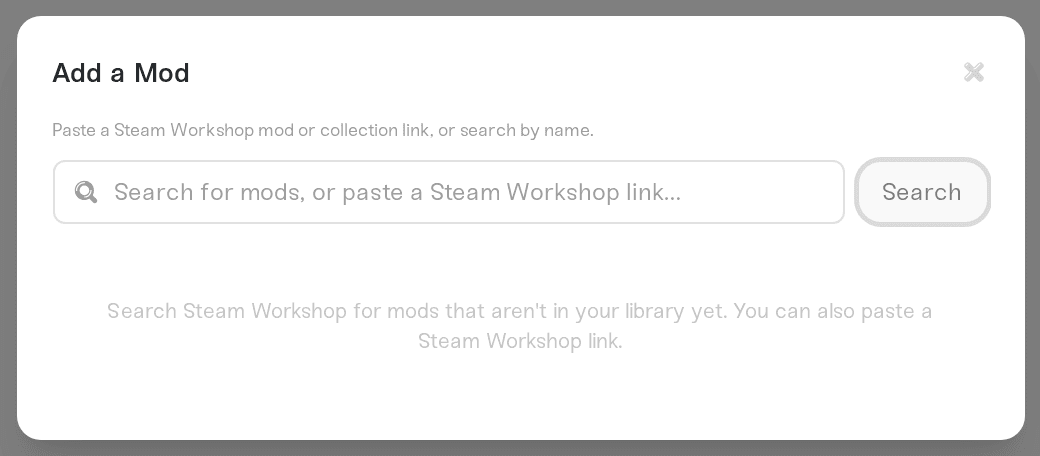
Press Add a Mod. Paste a mod's (or a collection's) Workshop link and it installs straight onto your server. Searching by name files a mod request instead: we test the mod on a real Don't Starve Together server first and email you when it is ready.
Restart your server. The game downloads its mods from the Workshop when it starts. Mods the mod needs (the "Required items" on its Workshop page) come with it.
After the restart the Mods card shows whether each mod really loaded, and if not, why (Steam would not give it to us, or the mod has an error).
Client-only mods (map icons, building guides) run on each player's own PC, not on a server. We refuse those with a message saying so: each player can subscribe on the Workshop and turn the mod on in their own game.
What your players need to do: nothing
Server only mods run on your server alone. All clients require mods also run on every player's game, which downloads them automatically while they join. The Mods card shows which kind each mod is.
Change a mod's settings
Mod options (stack sizes, difficulty, what to show) live in modoverrides.lua:
In the Files card, open
dst-data/DoNotStarveTogether/Cluster_1/Master/modoverrides.lua.Change values under the mod's
configuration_options:
["workshop-374550642"] = {
  enabled = true,
  configuration_options = {
    MAXSTACKSIZE = 99,
  },
},
With caves on, make the same change in
Caves/modoverrides.lua: both halves of the world must run the same mods.Save and restart.
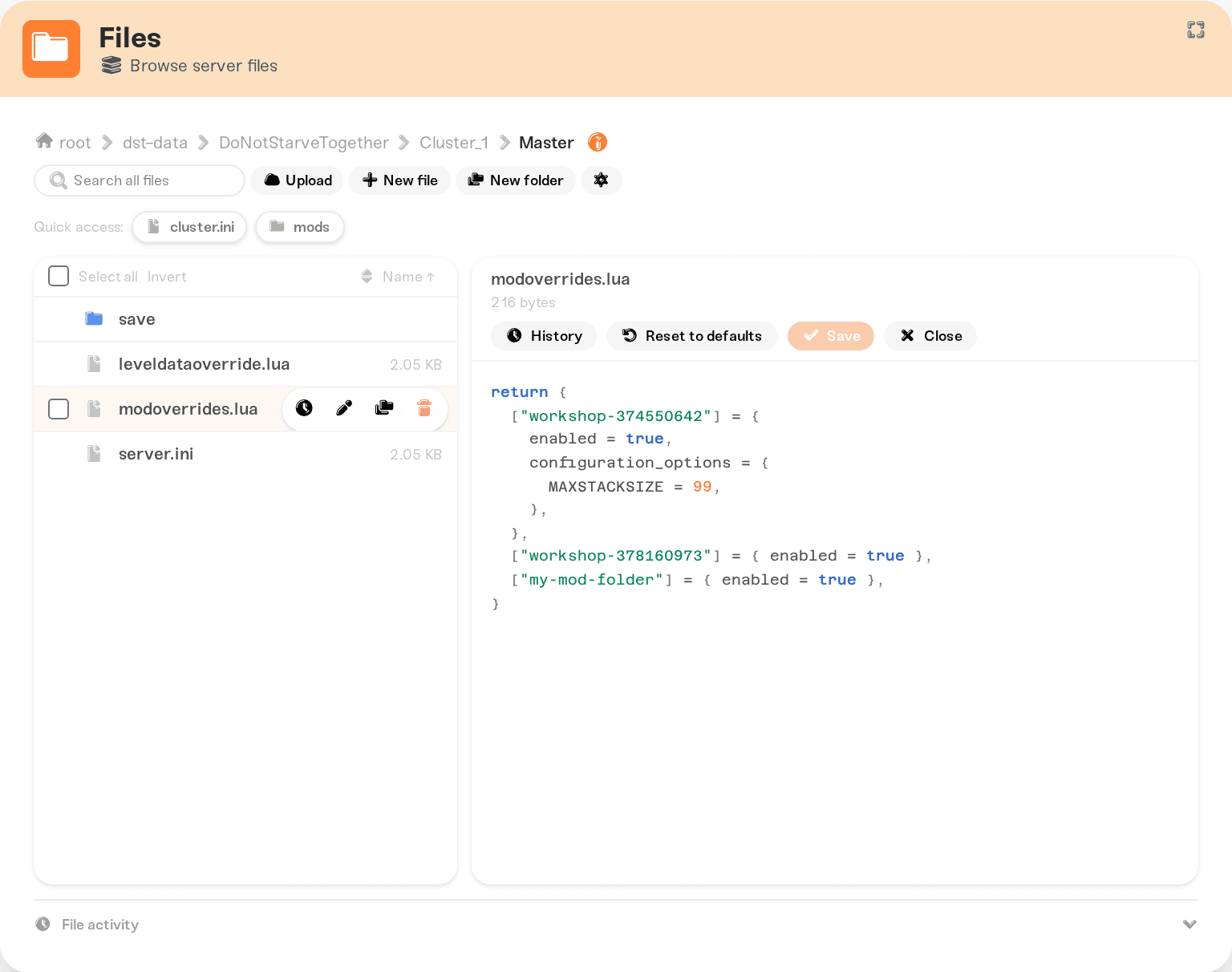
Option names come from the mod (its modinfo.lua, often listed on the Workshop page). Your values are kept: for mods on the Mods card we only set enabled = true, and enabled = false once when you remove one, keeping its settings.
A mistake in the file (a missing bracket or comma) means the game loads no mods, and the Mods card says so. Fix it, or restore it from the file history, and restart.
Add any Workshop mod by hand
To run a Workshop mod straight from the file, add it to modoverrides.lua (both shards with caves). The number is the end of its Workshop link:
["workshop-1234567890"] = { enabled = true },Your server downloads and loads it at the next start. We have not tested these, so if one stops your server from starting, set it to enabled = false.
Upload your own mod
Upload the mod's folder (with
modinfo.luaandmodmain.luainside) intoinstall/dont-starve-together/mods/, with the Files card or SFTP.Turn it on by folder name in
modoverrides.lua(andCaves/modoverrides.lua):["my-mod-folder"] = { enabled = true },Restart.
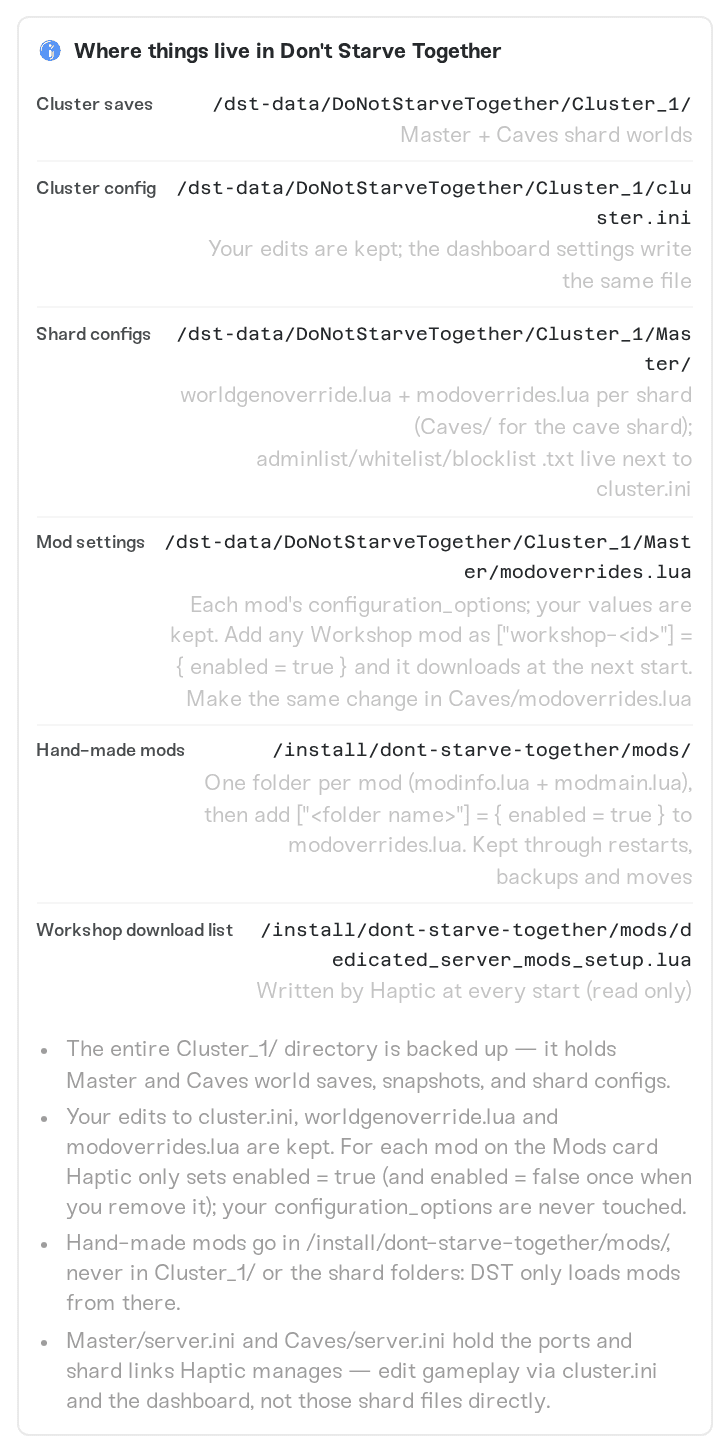
The folder is kept through restarts, backups and moves. Do not name it workshop- plus a number: those are the game's own Workshop downloads, replaced at every start. Mods anywhere else, such as Cluster_1, are not loaded.
When a mod author ships an update
Players' games update the moment the author ships, and a server still on the old version turns them away ("Server Running mods with old version") until it restarts. Haptic checks the Workshop every few minutes and marks updated mods Pending restart. To restart automatically, use Restart on mod updates in the expanded Overview card: When the server is empty, or After a 5-minute warning to players.

If your server stops starting after you add a mod
The startup message names the mod that failed to load. Remove it on the Mods card, or set it to enabled = false in modoverrides.lua, and start the server again.
Need help?
Message us in Discord or at support@haptic.gg. Include your server name and the name or Workshop link of the mod.


