Core Keeper: Move Your World to Your Server
 Core KeeperGuide
Your Core Keeper world can move to your server. Power the server down, open the Backups card, click Upload World and drop in the folder named with your…
Your Core Keeper world can move to your server. Power the server down, open the Backups card, click Upload World and drop in the folder named with your Steam account number (or one world file, like 0.world.gzip). The world on your server is saved as a backup first, then replaced by yours. Characters stay on each player's PC, so everyone keeps their own.
Where your world lives on your PC
Press Win+R, paste
%USERPROFILE%\AppData\LocalLow\Pugstorm\Core Keeper\Steam, and press Enter.Open the folder named with your Steam account number (a number of usually 8 to 10 digits). Inside,
worldsholds one file per world:0.world.gzip,1.world.gzipand so on. The one you played last has the newest date.Next to it,
worldinfosholds each world's name and mode. That is why the whole numbered folder is the best thing to upload.
On Linux or a Steam Deck the same folders are in ~/.config/unity3d/Pugstorm/Core Keeper/Steam.
Moving from another server? Download its whole DedicatedServer folder: on Windows it is %USERPROFILE%\AppData\LocalLow\Pugstorm\Core Keeper\DedicatedServer, and on Linux hosts .config/unity3d/Pugstorm/Core Keeper/DedicatedServer in the server's home folder (other hosts show it in their file manager or FTP). The world and its cartography table map come across, and the note on your server card names the World Mode your old server used. Admins, bans and the password stay as you set them here. Played in a friend's world? It is saved only on the host's PC, so ask the host to upload it.
Upload it from the dashboard
Power down your server. Upload World is disabled while the server is running.
Open the Backups card and click Upload World, next to New Backup.
Drop in your world. Any of these works:

the folder named with your Steam account number, dragged in whole;
a dedicated server's whole folder, or a Haptic backup you downloaded;
one world file (
.world.gzip), or a world file and its.worldinfopicked together;a ZIP, RAR, 7Z, or TAR.GZ of any of the above.
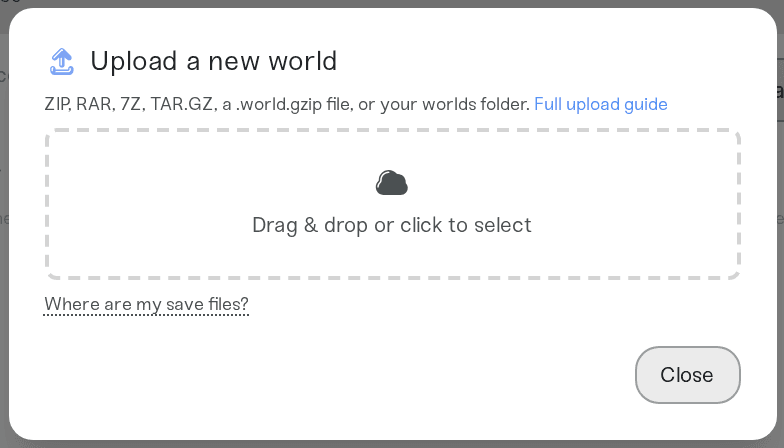
Click Upload and replace world (on a brand-new server with no backups yet, the button reads Upload world) and wait for the import to finish.
Power up and join as usual. Your world loads now and at every later start.
Setting up a brand-new server? Switch on Upload Existing World during setup and drop the same files there.
What the upload changes
Your world replaces the server's world. The world that was on the server is kept first as Backup before world upload in the Backups list. Restore it any time to go back.
The cartography table map comes along. When your upload has the world's map (the
servermapsfolder, which the Steam account folder, a server's folder and a Haptic backup all hold), the server's cartography table shows it. Without one the table starts empty: the old world's map is set aside (renamed, never deleted) and is also in Backup before world upload. Admins, bans, the password, the Game ID and your other settings stay as they are (World Mode aside, below).Characters stay on each player's PC. Core Keeper keeps characters apart from worlds, and every player brings their own to any server. The upload leaves character files out.
Several worlds in one upload: the one you saved most recently is used, and the dashboard names it. To use another, upload just that world's file.
Mode: the server runs the world in your World Mode setting, on the Overview card's Details tab. When your upload includes the world's
worldinfosfile (it is in your Steam account folder), we set World Mode to the mode the world was made in. For a world from another server, we read the mode that server used from itsServerConfig.json(or, for a Haptic backup, its settings file), and when it differs from yours, the note on your server card names it so you can set World Mode to match. Core Keeper can't move a world into or out of Creative, so a Haptic backup sets Creative on or off for you when the world needs it; aServerConfig.jsonnever does, and the note then says what to do.No world in the upload: the upload is refused and nothing on your server changes. If it holds only characters (the
savesfolder) and maps, you probably played in a friend's world, which is saved only on the host's PC.
"The world is in the wrong mode"
Your upload did not include the world's worldinfos file, so the server kept its own World Mode. Upload the world again together with its worldinfos file, or upload the whole numbered folder. That sets World Mode to the world's own mode and changes nothing else. For a world from another server, set World Mode on the Overview card's Details tab to the mode the note on your server card names. If that means switching Creative on or off, the dashboard starts a fresh world, so upload the world again after you save.
Things that will NOT fix it
Renaming your world file to
0.world.gzipfirst. The upload puts any world in the slot the server loads.Uploading your
savesfolder. It holds characters, not worlds.Uploading a file from the game's
backupsfolder when a newer copy is inworlds. That is an older copy of the same world.Uploading a world from a friend's game you joined. Your
savesfolder holds only your characters; the world is on the host's PC.
Need help?
Reach us on Discord or at support@haptic.gg with your server name and the exact message under the upload box.


