HumanitZ: Become an Admin
 HumanitZGuide
Open the Admins tab on your server's Overview card and add your Steam ID as Admin; it applies at the next start. Use Whitelist and Ban for other players…
Open the Admins tab on your server's Overview card and add your Steam ID as Admin; it applies at the next start. Use Whitelist and Ban for other players the same way. You can also type /AdminAccess followed by the Admin Password from your server settings into the game chat.
Find a player's Steam ID
The Admins tab takes Steam IDs, which are 17 digits long and start with 7656119. Ask the player for their Steam profile link and paste it into any Steam ID finder site to get the number.
Give a player a role
Open the Admins tab on your server's Overview card, enter the Steam ID and choose a role:
Admin: the player is an admin in the game every time they join.
Whitelist: a reserved slot. With Whitelist Only on, only these players can join.
Ban: the game refuses them.
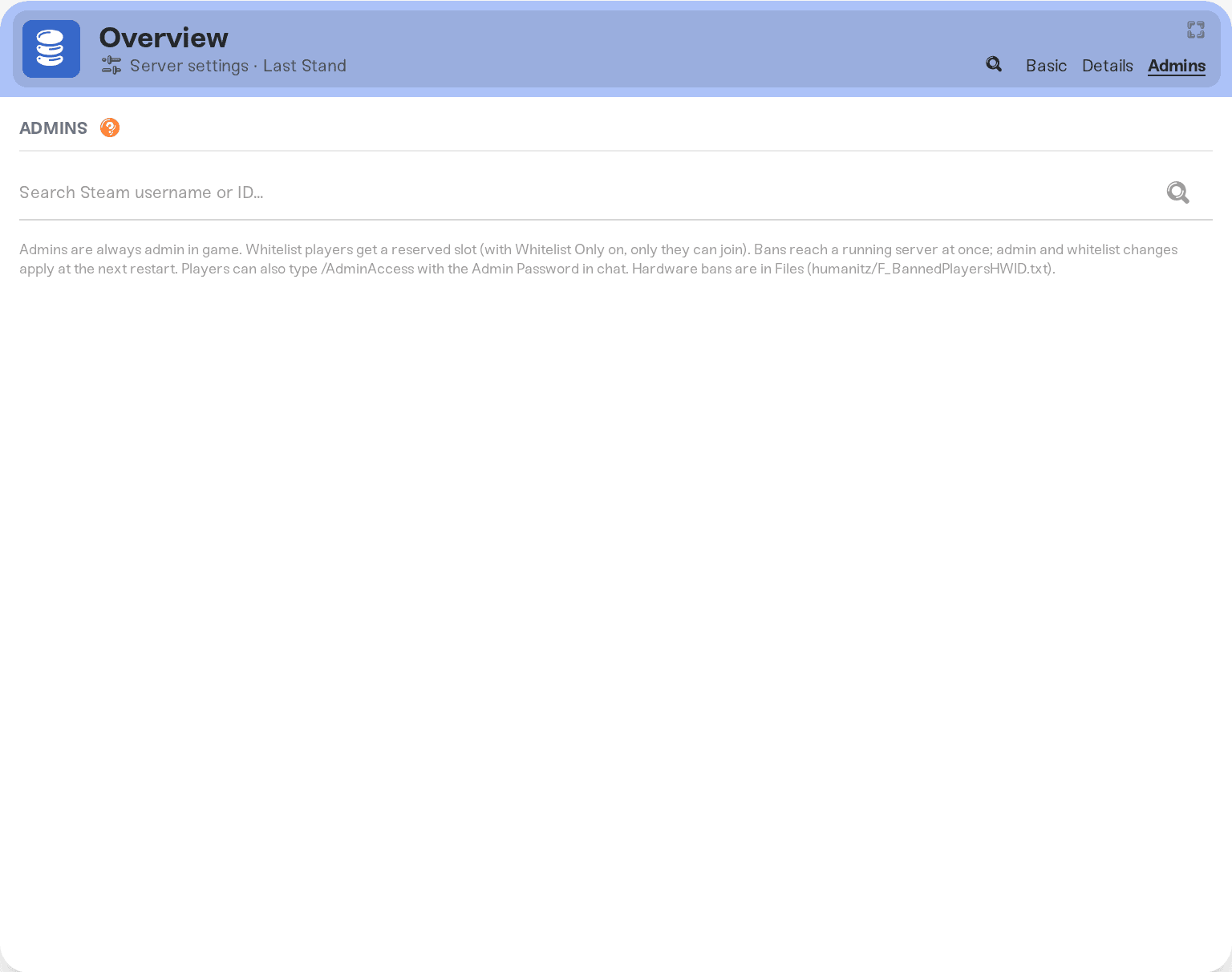
A ban reaches a running server at once. Admin and Whitelist changes apply at the next start. Roles changed in the game, or in the three files in Files, show up on the tab after the next start.
Admin access with a password
Every HumanitZ server has an Admin Password in its settings. A player who types /AdminAccess followed by that password into the game chat becomes an admin for that session. Change the password if you shared it with someone who should no longer have it.
Keep the server to your group
Turn on Whitelist Only in the server settings. Then only the players on your whitelist can join, and everyone else is refused. Add your players on the Admins tab first, so nobody is locked out.
Need help?
Ask in Discord or email support@haptic.gg with a screenshot of your Admins tab.


